
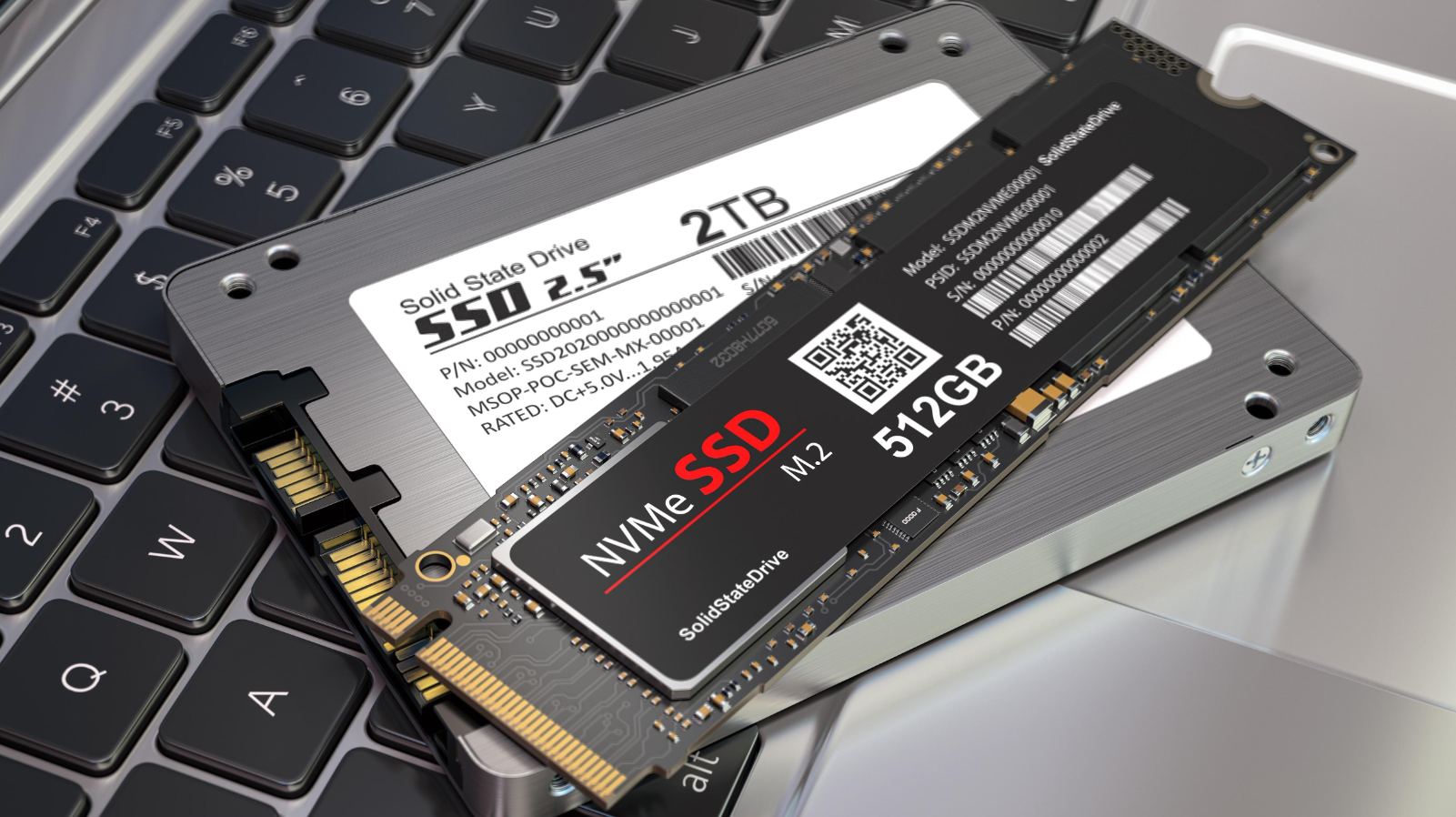
NVMe vs SATA SSD for Laptops: Which Is Faster?
Upgrading a laptop’s storage can improve responsiveness, reduce loading times, and make everyday computing feel smoother. But when comparing NVMe vs SATA SSD for laptops, which technology actually delivers better performance, and is the difference noticeable in everyday use?
Both NVMe and SATA SSDs use flash memory rather than the moving mechanical parts found in traditional hard drives. However, they use different communication protocols and interfaces, which affects their potential speeds, compatibility, and performance in demanding workloads.
NVMe drives typically offer substantially higher sequential read and write speeds, especially when using PCIe Gen 4 connections. SATA SSDs remain useful for older laptops, affordable upgrades, and systems that cannot support NVMe storage.
This guide compares real SSD models, explains practical performance differences, examines compatibility and pricing, and helps students, professionals, gamers, and everyday users choose the right drive. If you are still deciding which computer to buy, our 2026 laptop buying guide provides additional advice on selecting the right hardware.
1. Five SSD Models Worth Considering for a Laptop Upgrade
The following five drives illustrate the main choices available to laptop owners: high-performance NVMe storage, value-oriented NVMe storage, and traditional 2.5-inch SATA upgrades.
Prices can change substantially by capacity, retailer, availability, and date. The prices below use manufacturer-published launch pricing where available or clearly identified historical pricing rather than presenting unverified live checkout prices as current offers. Confirm the price and exact model before purchasing.
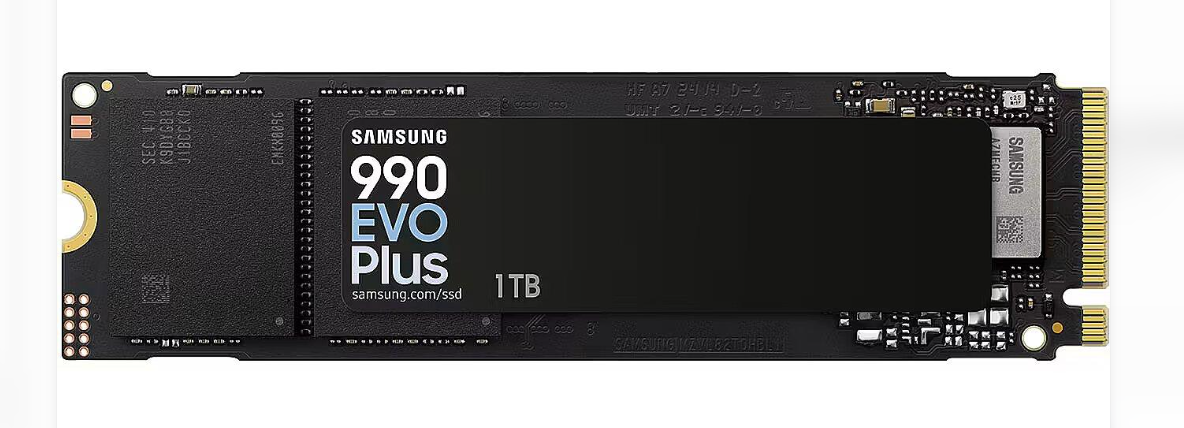
First choice: Samsung 990 EVO Plus — Best for a Fast Everyday Laptop
Price reference (as of October 2026):
Samsung announced a launch MSRP of $109.99 for 1TB, $184.99 for 2TB, and $344.99 for 4TB. Actual retail prices and availability may differ.
Key specifications
-
Capacity options: 1TB, 2TB, and 4TB.
-
Form factor: M.2 2280.
-
Interface: PCIe 4.0 x4 / PCIe 5.0 x2, NVMe 2.0.
-
Advertised sequential read speed: up to 7,150 MB/s for 1TB and 7,250 MB/s for higher capacities.
-
Advertised sequential write speed: up to 6,300 MB/s.
-
Warranty: five-year limited warranty, subject to terms.
Who should buy this?
Students, remote workers, office professionals, and laptop owners who want fast storage for Windows, applications, large projects, and multitasking.
Why consider it?
The 990 EVO Plus provides a substantial theoretical bandwidth advantage over SATA SSDs. It is a strong candidate for a compatible laptop that supports PCIe NVMe storage and can take advantage of its performance.
Pros
-
High sequential read and write performance.
-
Multiple capacity options.
-
Supports newer PCIe platforms as specified by Samsung.
-
Suitable for demanding everyday workloads and large file transfers.
Cons
-
Cannot be installed in a laptop that supports only 2.5-inch SATA storage.
-
Its maximum rated speed may exceed what many everyday tasks can use.
-
Actual performance depends on laptop compatibility, workload, and thermal conditions.
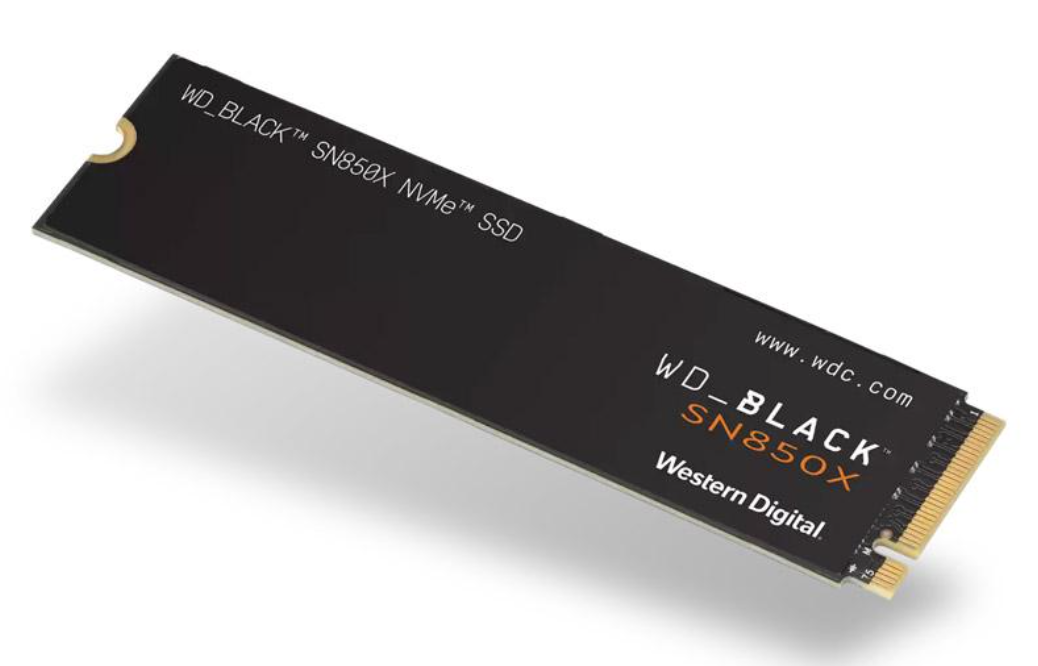
Second choice: WD_BLACK SN850X — Best for Gaming and Demanding Workloads
Price reference (as of October 2026):
Pricing varies by capacity, heatsink configuration, and retailer. Check the manufacturer’s page and current retailer listings for a confirmed price before publishing a purchase offer.
Key specifications
-
Capacity options vary by product configuration.
-
M.2 NVMe form factor.
-
PCIe Gen 4 x4 interface.
-
Sequential read speeds of up to 7,300 MB/s on applicable models.
-
Designed for gaming and performance-oriented systems.
Who should buy this?
Laptop gamers, content creators, and users who regularly move large files or run storage-intensive applications—provided their laptop supports the drive’s physical dimensions and thermal requirements.
Why consider it?
The SN850X is a performance-focused Gen 4 NVMe SSD. It can be a good fit when sustained storage performance and fast game loading matter, although the exact benefit depends on the laptop and workload.
Pros
-
High advertised sequential read performance.
-
PCIe Gen 4 bandwidth.
-
Suitable for large game libraries and demanding file workflows.
-
Available in different capacities and configurations.
Cons
-
High-end storage performance can be unnecessary for basic office work.
-
Heatsink-equipped versions may not fit inside thin laptops.
-
Heavy sustained workloads can be limited by laptop cooling.
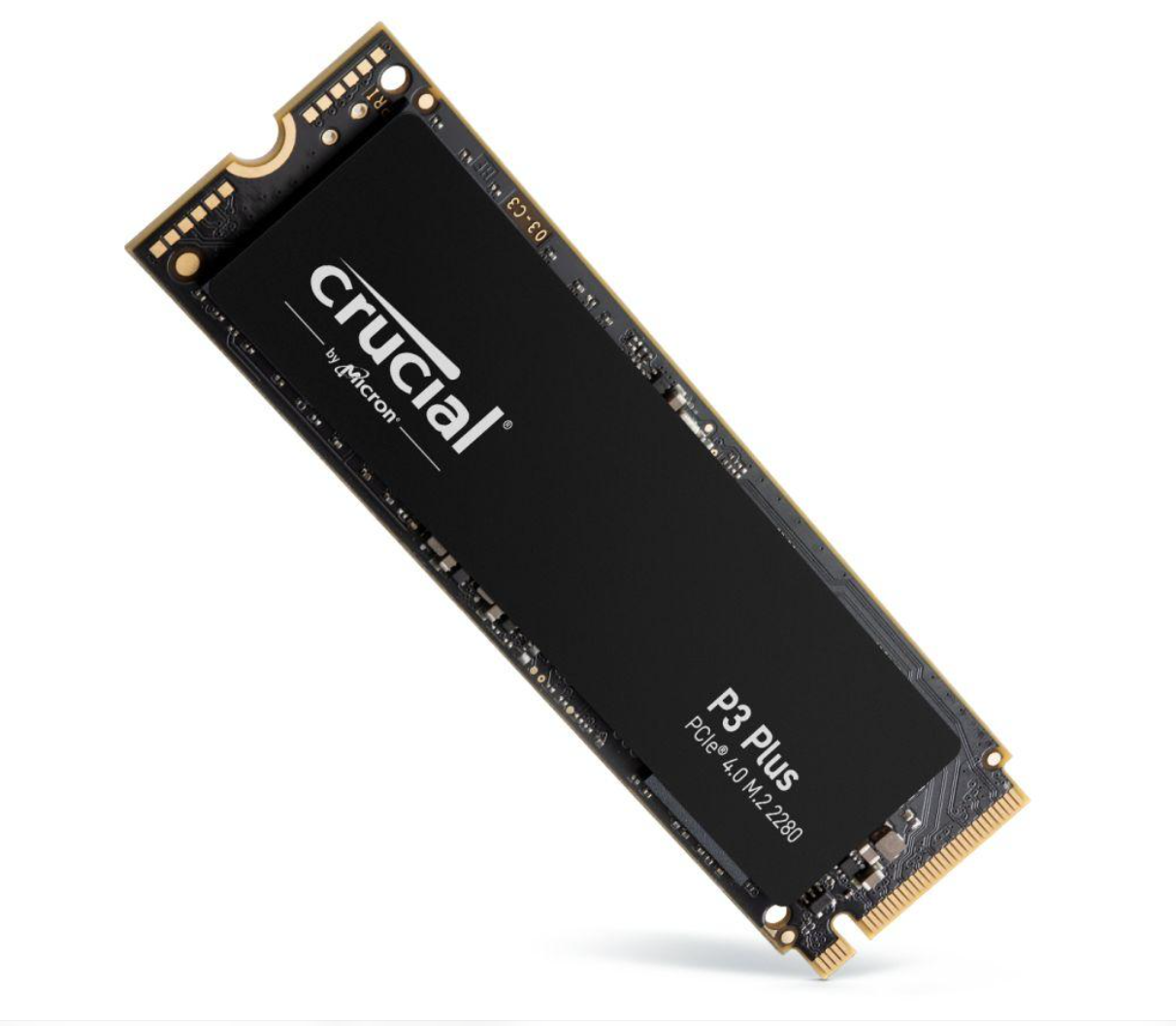
Third choice: Crucial P3 Plus — Best for General-Purpose NVMe Storage
Price reference (as of October 2026):
Retail pricing varies by capacity and availability; verify the current listing before purchasing.
Key specifications
-
M.2 2280 form factor.
-
PCIe Gen 4 x4 NVMe interface.
-
Advertised sequential read speeds up to 5,000 MB/s.
-
Advertised sequential write speeds up to 4,200 MB/s on applicable models.
Who should buy this?
Students, home users, and professionals who want an NVMe upgrade without necessarily paying for a flagship performance drive.
Why consider it?
The P3 Plus offers significantly more theoretical sequential bandwidth than SATA III. For common workloads, its real-world performance will also depend on file sizes, caching, available free space, and system configuration.
Pros
-
PCIe Gen 4 performance.
-
Available in higher capacities.
-
Appropriate for everyday computing and many game libraries.
-
Faster sequential transfer potential than SATA SSDs.
Cons
-
Not every laptop supports M.2 NVMe storage.
-
Large sustained writes can behave differently from short benchmark runs.
-
A laptop with an older or slower interface may not realize its full rated speed.
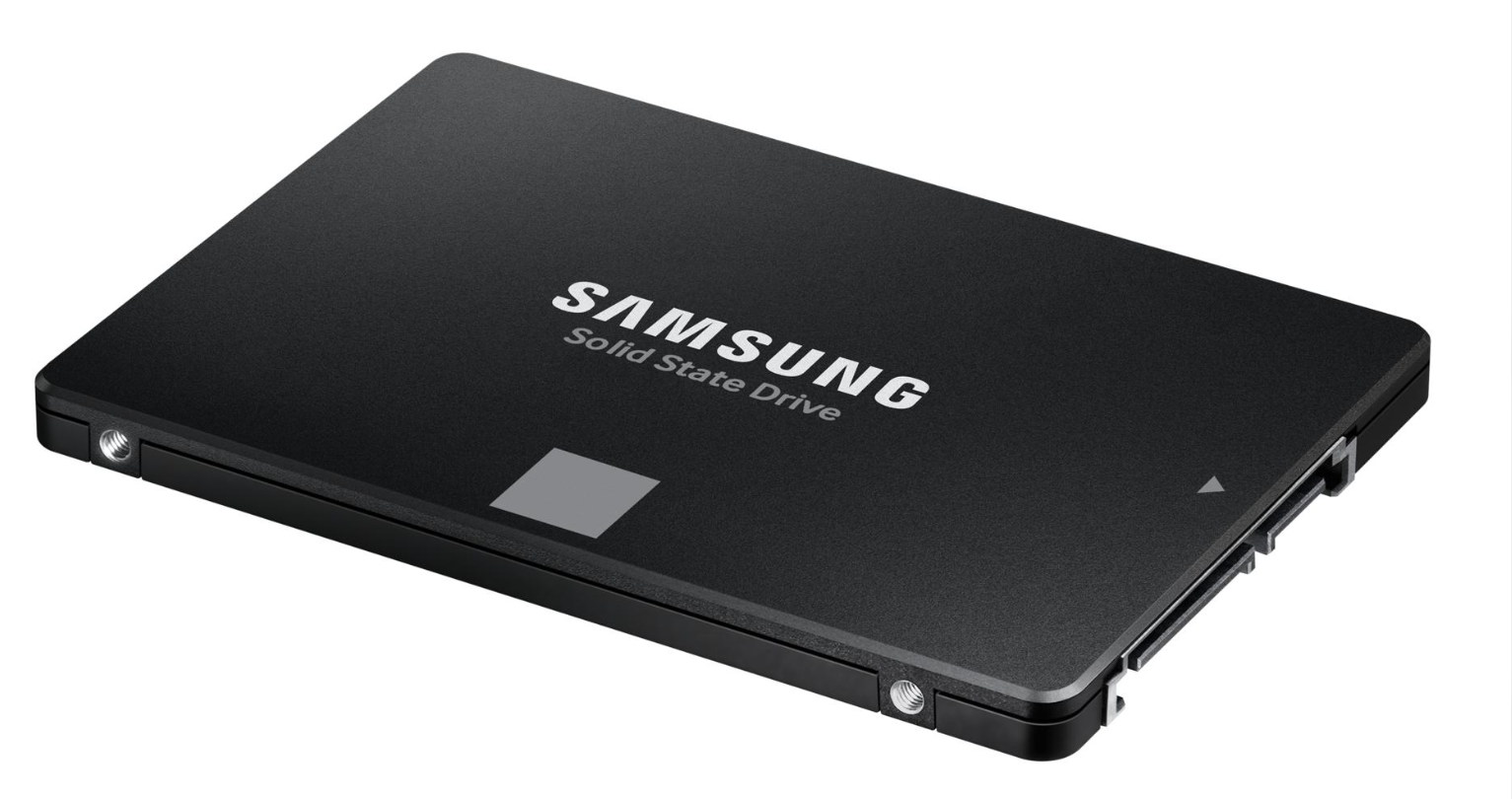
Fourth choice: Samsung 870 EVO — Best for Compatible Older Laptops
Price reference (as of October 2026):
Samsung’s original U.S. launch MSRP for the 1TB model was $129.99. That is a historical launch price, not a guaranteed current retail price.
Key specifications
-
Capacities originally offered from 250GB to 4TB.
-
2.5-inch SATA form factor.
-
SATA 6Gb/s interface.
-
Sequential read speeds up to 560 MB/s.
-
Sequential write speeds up to 530 MB/s.
-
Five-year limited warranty, subject to model and warranty terms.
Who should buy this?
Owners of older laptops with a compatible 2.5-inch SATA drive bay who need more storage or want to replace a mechanical hard drive.
Why consider it?
SATA III has a lower speed ceiling than modern NVMe, but a quality SATA SSD can still make an older laptop much more responsive than a mechanical hard drive. It is a practical option when NVMe is unavailable.
Pros
-
Broad compatibility with supported 2.5-inch SATA systems.
-
Useful for replacing traditional hard drives.
-
Advertised performance near the practical SATA interface ceiling.
-
Multiple capacity options.
Cons
-
Much lower sequential bandwidth than a modern PCIe NVMe SSD.
-
Does not fit an M.2-only laptop without an appropriate supported connection.
-
High retail prices can make it poor value compared with newer alternatives.
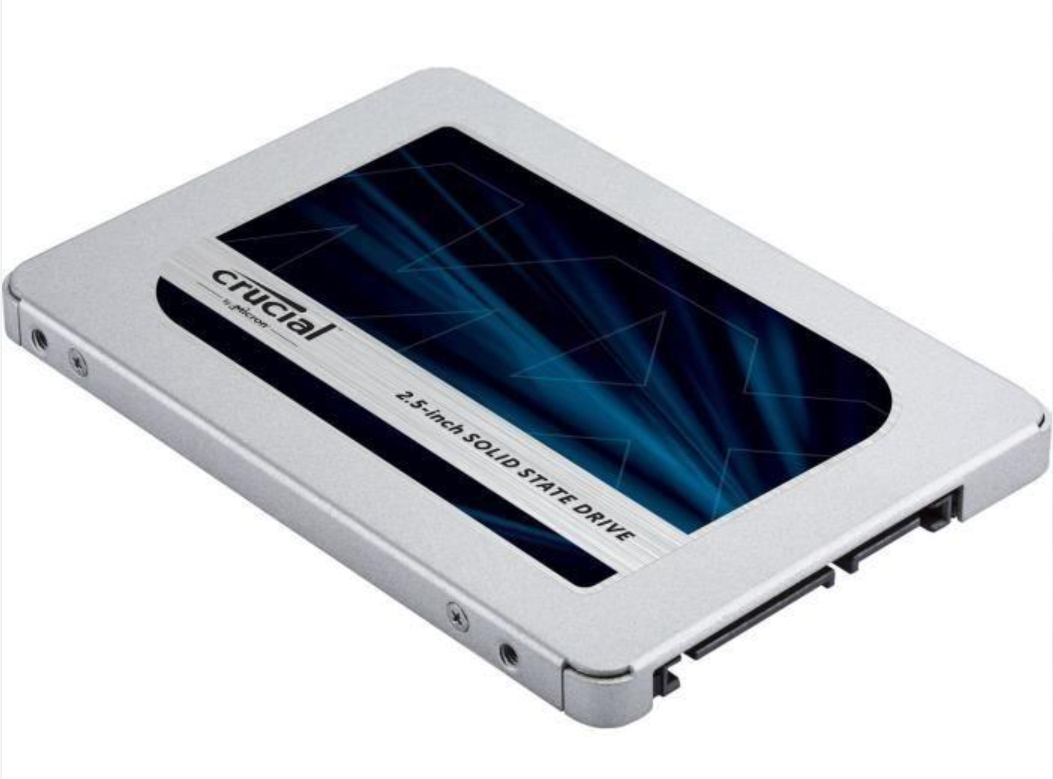
Fifth choice: Crucial MX500 — Best Alternative for a SATA Upgrade
Price reference (as of October 2026):
Current prices depend on capacity and retailer stock. Check the linked listing for a live price.
Key specifications
-
2.5-inch SATA form factor.
-
SATA III interface.
-
Sequential read speeds up to 560 MB/s.
-
Sequential write speeds up to 510 MB/s, depending on capacity and specification.
Who should buy this?
Everyday users, students, and owners of compatible older laptops who want a straightforward SATA storage replacement.
Why consider it?
The MX500 is another established SATA SSD option. Its performance is appropriate for general computing, document work, web browsing, and application storage when the laptop is limited to SATA.
Pros
-
Good sequential performance for a SATA SSD.
-
Practical option for replacing a compatible laptop hard drive.
-
Suitable for ordinary productivity workloads.
-
Familiar 2.5-inch installation format.
Cons
-
SATA limits maximum transfer bandwidth.
-
Does not offer the performance ceiling of PCIe NVMe.
-
Availability and pricing should be checked carefully before purchase.
2. What Is the Difference Between NVMe and SATA SSDs?
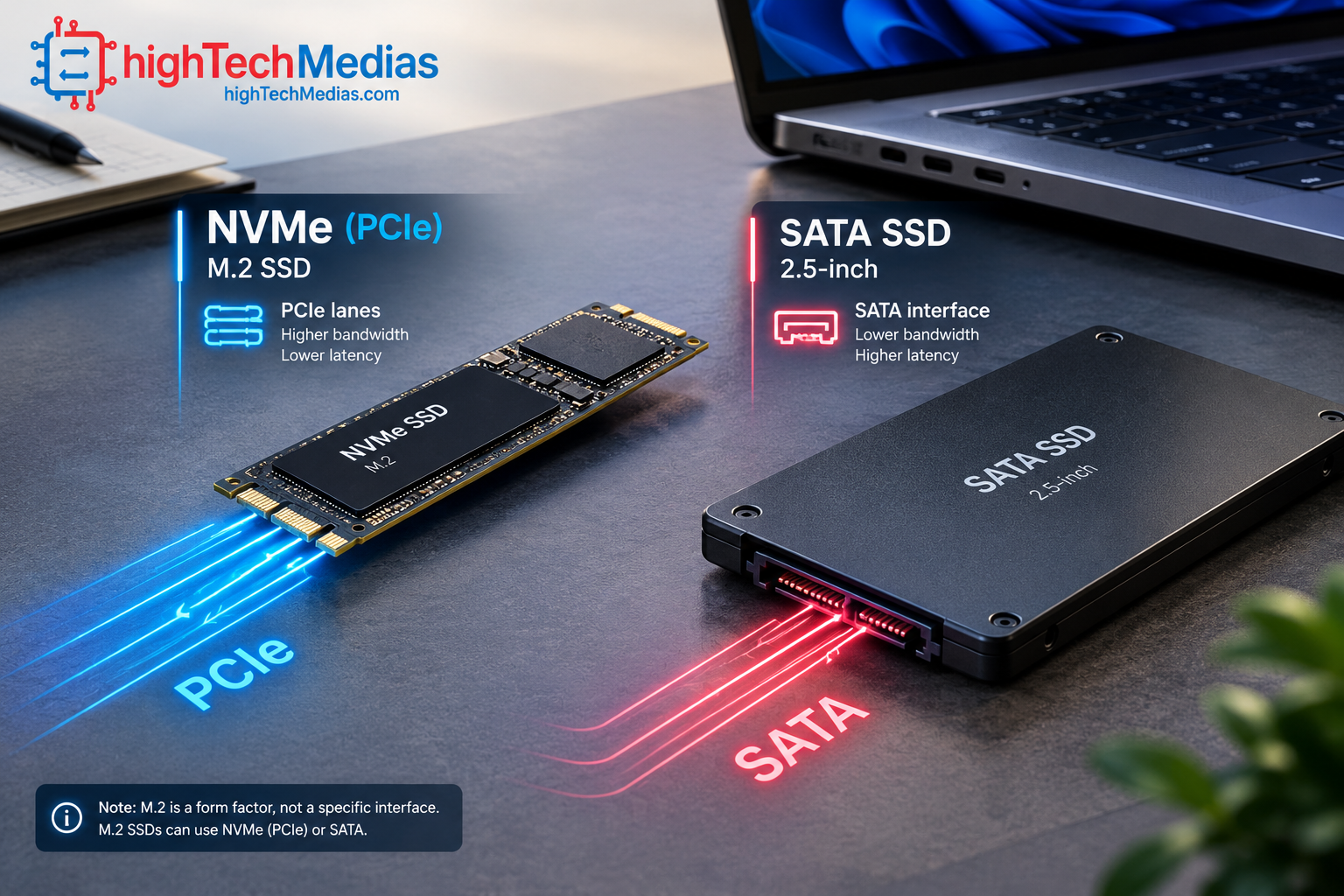
NVMe and SATA are not simply two different names for the same technology.
SATA
or Serial ATA, is an interface used to connect storage devices to a computer. Consumer SATA SSDs commonly use a 2.5-inch enclosure, although SATA M.2 drives also exist.
NVMe
or Non-Volatile Memory Express, is a storage communication protocol designed for flash memory. It commonly operates over PCIe, which offers substantially more bandwidth than SATA.
The distinction matters because the physical shape of an SSD does not always reveal its interface. An M.2 drive can use SATA or NVMe, and not every M.2 slot supports both.
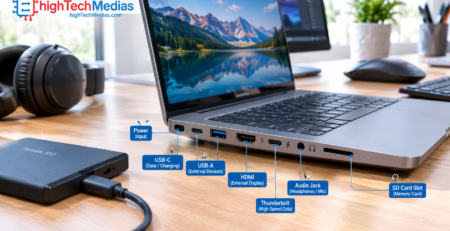
If you are unfamiliar with the connections on modern computers, our laptop ports explained guide provides useful background on interfaces and connectivity.
3. NVMe vs SATA SSD Speed: Which Is Faster?
For maximum sequential transfer speed, NVMe generally wins by a substantial margin.
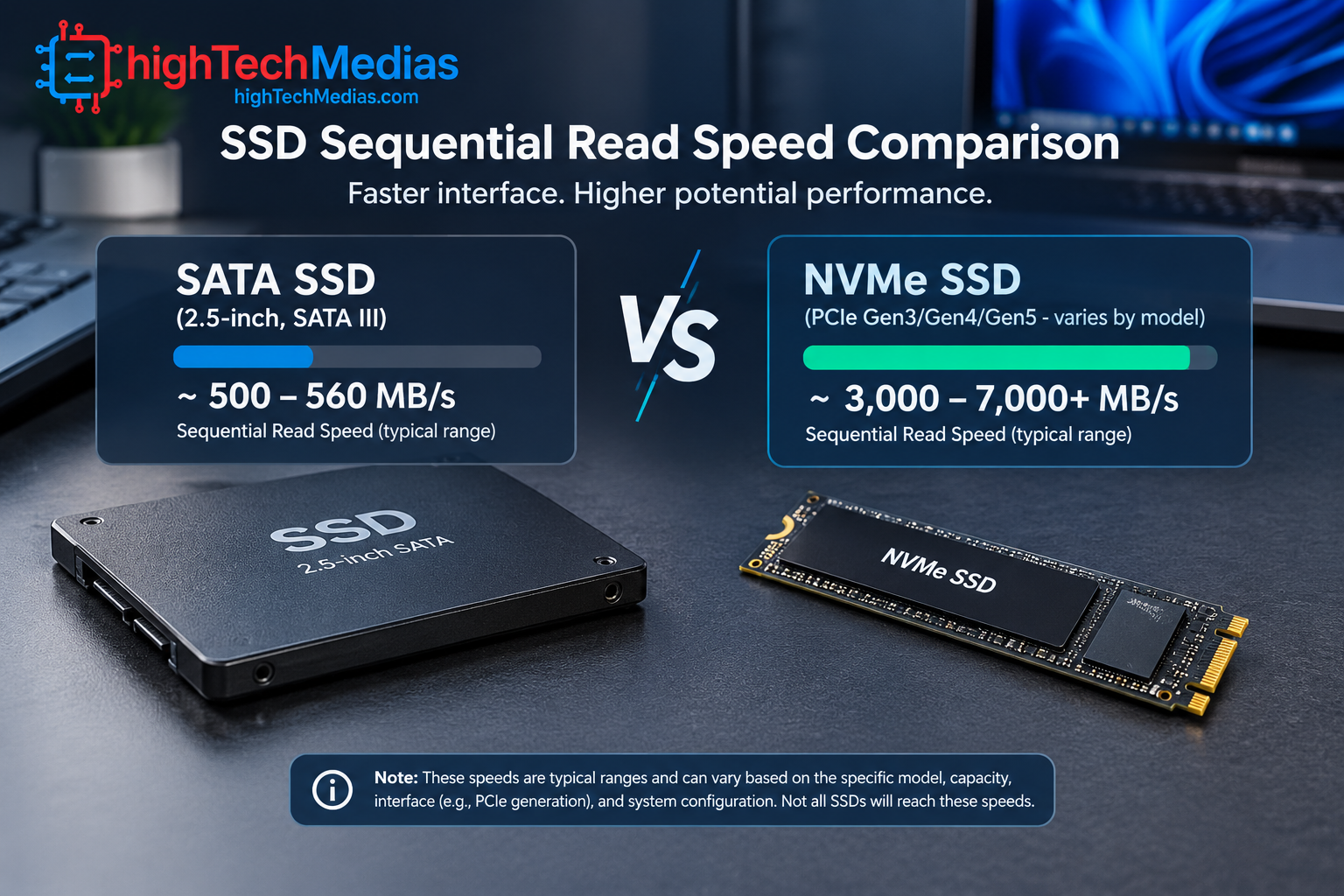
A SATA III SSD is commonly rated for sequential reads of around 500–560 MB/s, with writes depending on the model. PCIe NVMe drives can deliver several thousand megabytes per second.
For example, Samsung rates the 990 EVO Plus at up to 7,150 MB/s sequential reads in its 1TB configuration. Samsung’s 870 EVO is rated for up to 560 MB/s sequential reads. These are manufacturer-rated maximums, not guaranteed results for every laptop.
Performance characteristic |
SATA SSD |
PCIe NVMe SSD |
|---|---|---|
| Common sequential read range | Around 500–560 MB/s | Several thousand MB/s, depending on PCIe generation and model |
| Interface | SATA 6Gb/s | PCIe |
| Protocol | Typically AHCI | NVMe |
| Common physical format | 2.5-inch; SATA M.2 also exists | M.2 2280 is common |
| Best use | Compatible older laptops and general storage | Newer laptops and demanding storage workloads |
| Maximum performance | Limited by SATA interface | Depends on PCIe generation, lane count, drive and system |
The theoretical bandwidth difference is important, but it does not mean every task will finish seven or ten times faster. Booting an operating system, opening a browser, and launching office applications also depend on the processor, memory, operating system, and software.
For more context about other hardware limitations, see our laptop processor guide.
4. Real-World Performance: What Will You Notice?
Synthetic benchmarks measure specific operations under controlled conditions. Everyday performance depends on the work being done.
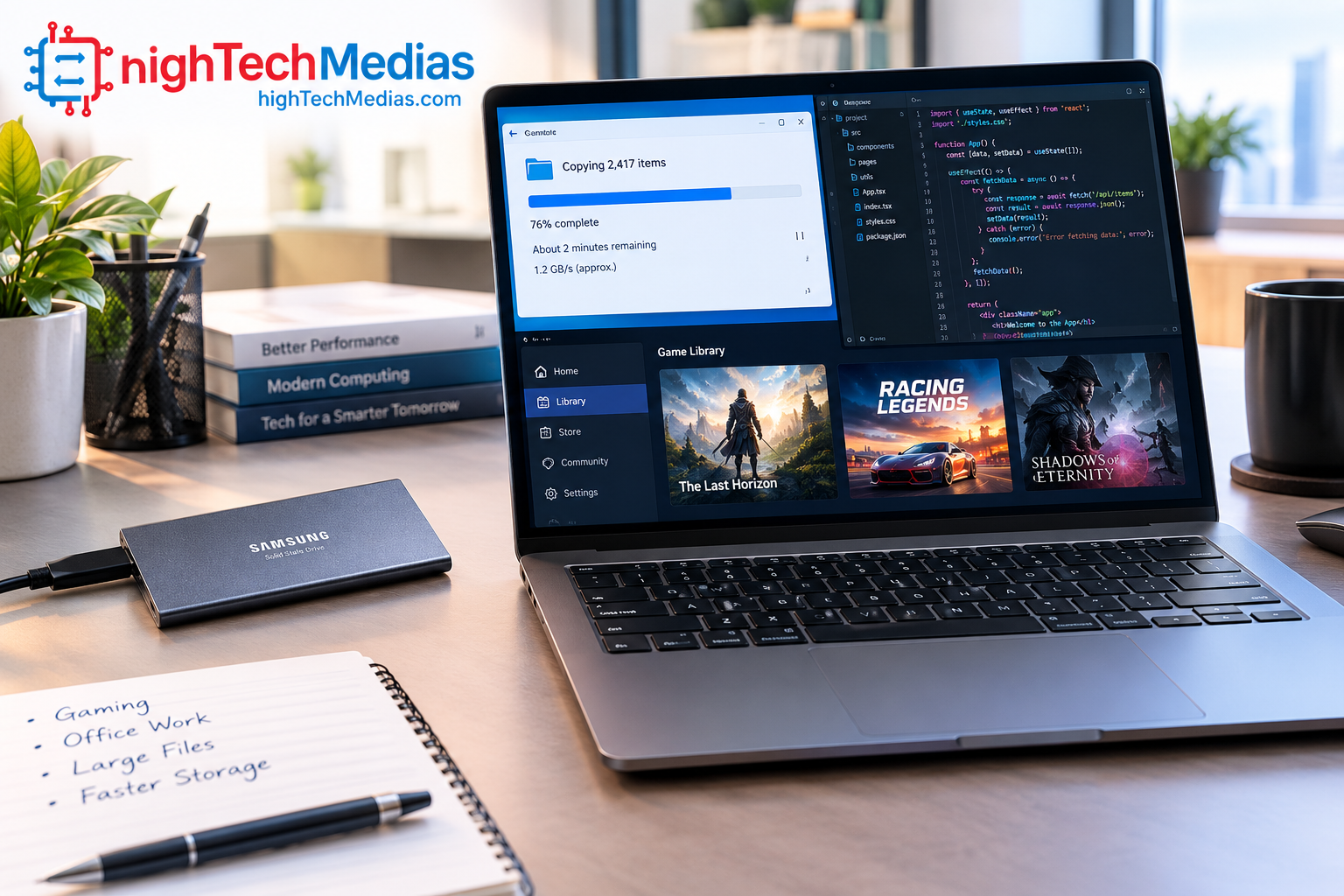
Booting Windows and opening applications
Both SATA and NVMe SSDs can provide fast boot times compared with a mechanical hard drive. Moving from a hard drive to an SSD is often a more noticeable upgrade than moving from a healthy SATA SSD to an NVMe drive for ordinary office tasks.
Copying large files
NVMe has a clearer advantage when copying large files, moving video projects, working with large datasets, or transferring substantial amounts of data—provided the source drive, destination drive, and system interface are not bottlenecks.
Gaming
NVMe can improve loading performance in some games, but results vary. Frame rates are primarily affected by the CPU, GPU, memory, and game engine. Replacing a SATA SSD with NVMe does not automatically increase average FPS.
Programming and content creation
Developers working with large code repositories, virtual machines, databases, and multiple projects may benefit from fast NVMe storage. Video editors and creators handling large media files can also benefit, particularly when their workflow regularly moves large files.
For more hardware guidance, read our best laptops for programming in 2026 and best laptops for remote work in 2026.
5. M.2 NVMe vs 2.5-Inch SATA: Compatibility Comes First
Before buying an SSD, confirm what your laptop actually supports. This is the most important practical step in the entire comparison.
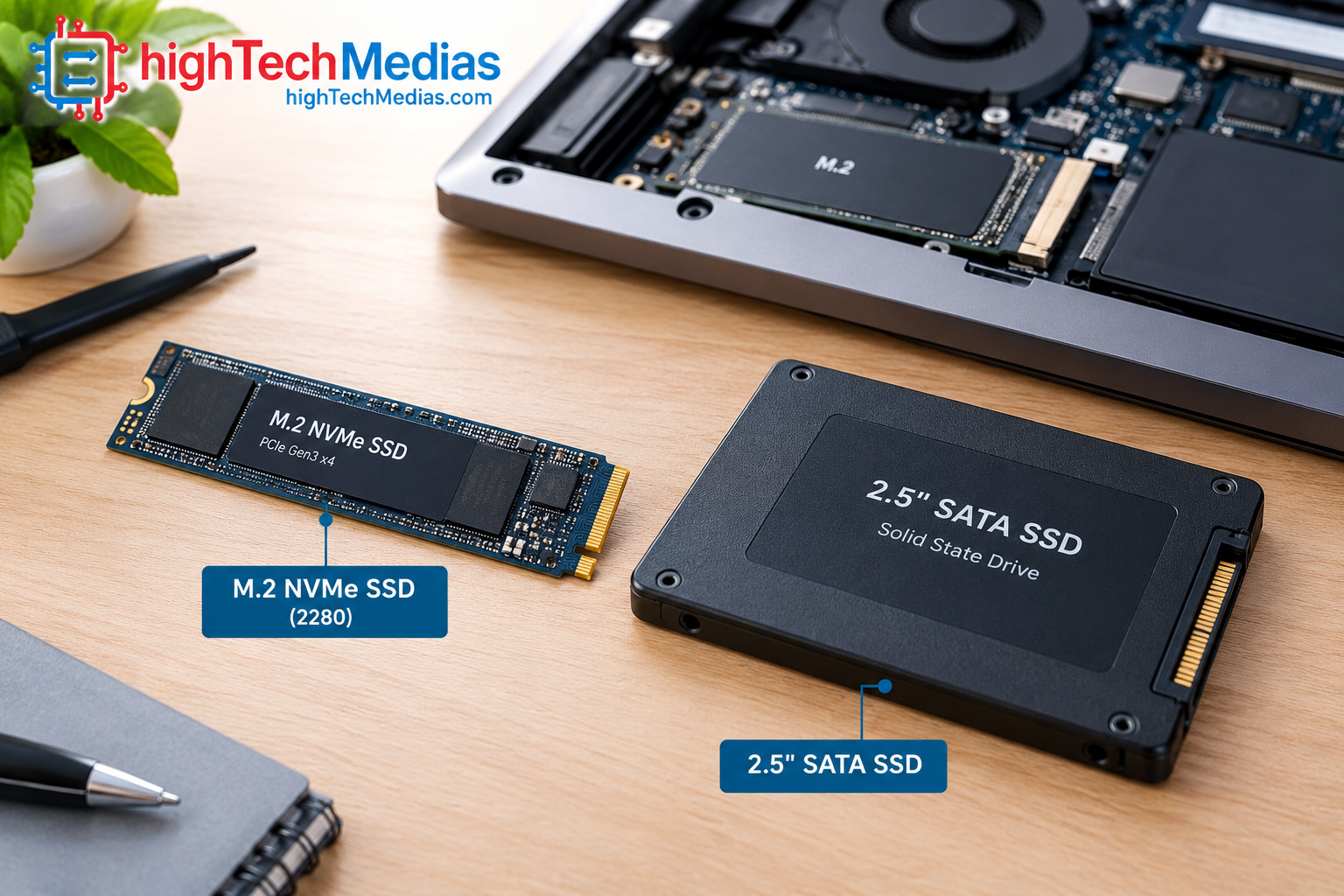
A 2.5-inch SATA SSD uses a different physical connection from an M.2 drive. M.2 drives are small circuit boards, but the connector and supported protocol matter: an M.2 SATA drive and an M.2 NVMe drive are not automatically interchangeable.
Check these details in your laptop’s official specifications or service manual:
-
Storage connector: Does the laptop have a 2.5-inch SATA bay, an M.2 slot, or both?
-
Supported protocol: Does the M.2 slot support PCIe NVMe, SATA, or both?
-
Physical dimensions: Is the drive length supported? M.2 2280 is common, but not universal.
-
PCIe generation: A compatible newer drive may operate at a lower supported interface speed.
-
Physical clearance: Some high-performance SSDs have heatsinks that will not fit inside thin laptops.
-
Upgrade restrictions: Some laptops have soldered storage or manufacturer-specific limitations.
Do not assume that a laptop supports NVMe simply because it has an M.2 slot. Confirm the exact model and configuration before ordering.
If you are choosing a new computer rather than upgrading an existing one, our best laptops under $1,000 guide can help you compare complete systems.
6. Power Consumption, Heat, and Battery Life
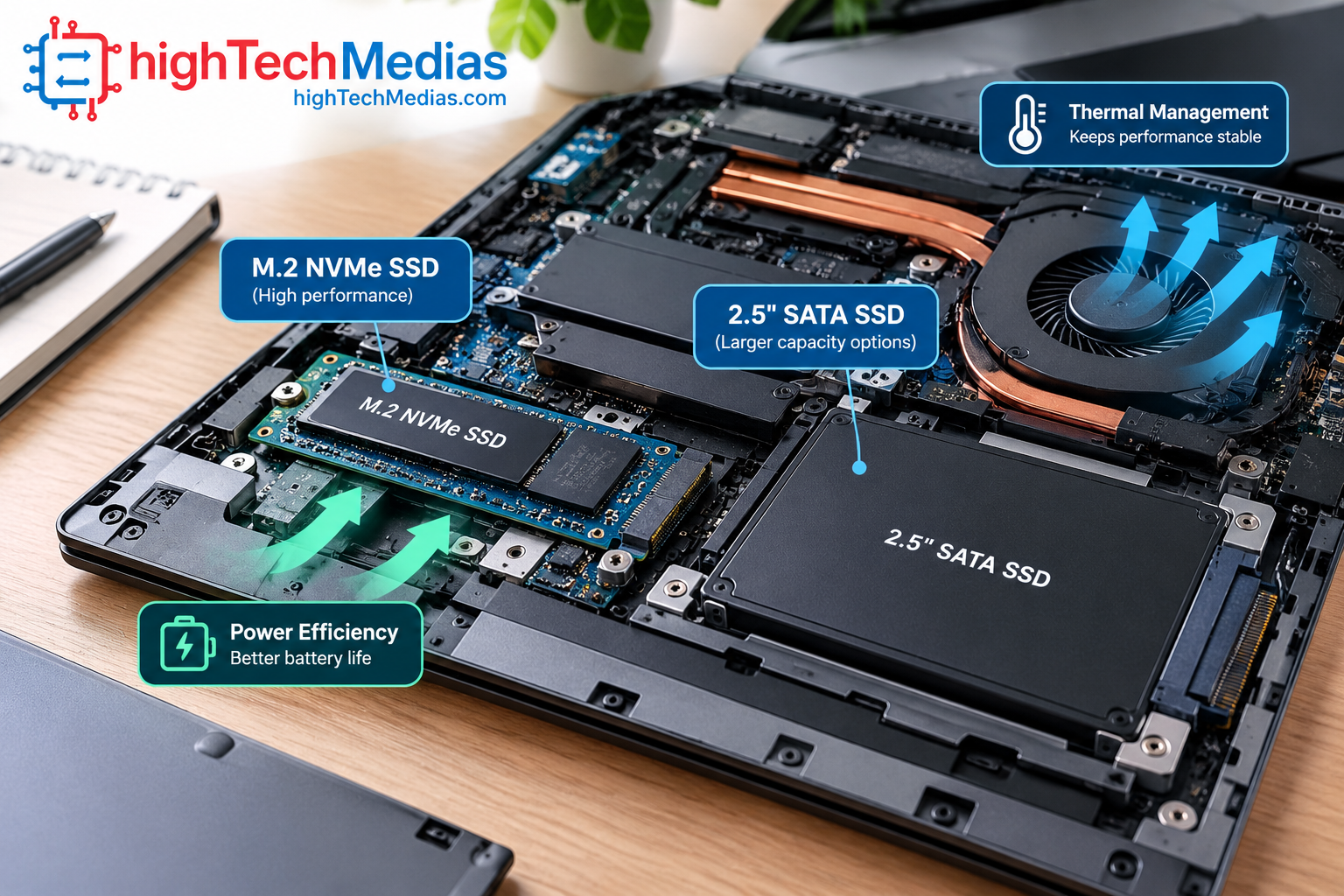
An SSD’s power requirements and temperature can matter in a portable computer. However, neither NVMe nor SATA is automatically the better choice for battery life in every laptop.
NVMe drives can draw more power during demanding transfers, particularly high-performance models operating at full speed. Some modern NVMe drives also have efficient low-power states. SATA drives vary by controller, firmware, and workload.
The result depends on the specific drive and how the laptop manages power. An NVMe upgrade does not guarantee longer battery life, and a SATA SSD does not guarantee lower overall system power consumption.
Heat is another consideration. During sustained transfers, a drive may reach temperatures that trigger thermal throttling, reducing performance to control heat. Laptop cooling design and available airflow influence how well a drive maintains its speed.
When evaluating an SSD, consider:
-
Power consumption during active transfers.
-
Idle and sleep power behavior.
-
Thermal management and laptop ventilation.
-
Manufacturer-supported firmware and power settings.
-
The balance between performance and the laptop’s intended use.
For a broader look at heat management, see our laptop cooling explained guide.
7. SSD Endurance, Reliability, and Data Protection
Speed is only one part of choosing storage. SSD endurance, warranty coverage, firmware support, and data protection also deserve attention.
Manufacturers may specify endurance in terabytes written (TBW), which estimates the total amount of data that can be written under the manufacturer’s defined conditions during the drive’s rated life. TBW is not a prediction of the exact date a drive will fail.
Warranty terms vary by model and may be limited by time, total writes, or other conditions. Check the product documentation rather than assuming all SSDs have identical coverage.
NVMe does not inherently mean that a drive is more reliable than SATA. Reliability depends on the individual product, NAND, controller, firmware, operating conditions, and manufacturing quality.
To protect your files:
-
Maintain regular backups on a separate device or trusted cloud service.
-
Keep essential documents in more than one location.
-
Check manufacturer firmware updates and diagnostic utilities.
-
Monitor drive health using compatible tools.
-
Avoid treating a drive’s warranty as a substitute for backups.
An SSD can fail without warning, even if it has previously reported healthy status. Backups remain essential for students, business users, and anyone storing irreplaceable files.
8. Price and Value: Is NVMe Worth the Extra Cost?
NVMe and SATA SSD prices vary by capacity, performance tier, warranty, and retailer. There is no universal rule that every NVMe drive costs more than every SATA SSD.
A budget NVMe drive can sometimes offer better value than an older SATA model, while premium NVMe products can cost more because of their performance or specialized features. Older SATA drives may also carry inflated prices when stock becomes limited.
For a fair comparison, compare drives at the same capacity and verify current prices before purchasing.
Factor |
SATA SSD |
NVMe SSD |
|---|---|---|
| Budget upgrade | Often practical for older systems | Attractive when compatible options are competitively priced |
| 1TB capacity | Compare current listings | Compare current listings |
| Large file transfers | Lower interface ceiling | Higher potential throughput |
| Older laptop compatibility | Often suitable for SATA-equipped laptops | Requires compatible NVMe support |
| Everyday productivity | Usually sufficient | Also excellent, but maximum speeds may not be fully used |
| High-performance workloads | More limited | Generally the stronger choice |
Capacity matters as well. A 1TB drive can be more useful than a faster 500GB drive if you regularly store games, videos, virtual machines, or large work files. For a more detailed storage-capacity comparison, read 256GB vs 512GB vs 1TB SSD laptop storage.
9. How to Upgrade a Laptop SSD Safely
If your laptop supports an SSD upgrade, the process usually involves checking compatibility, backing up files, installing the drive, and either cloning the existing installation or reinstalling the operating system.
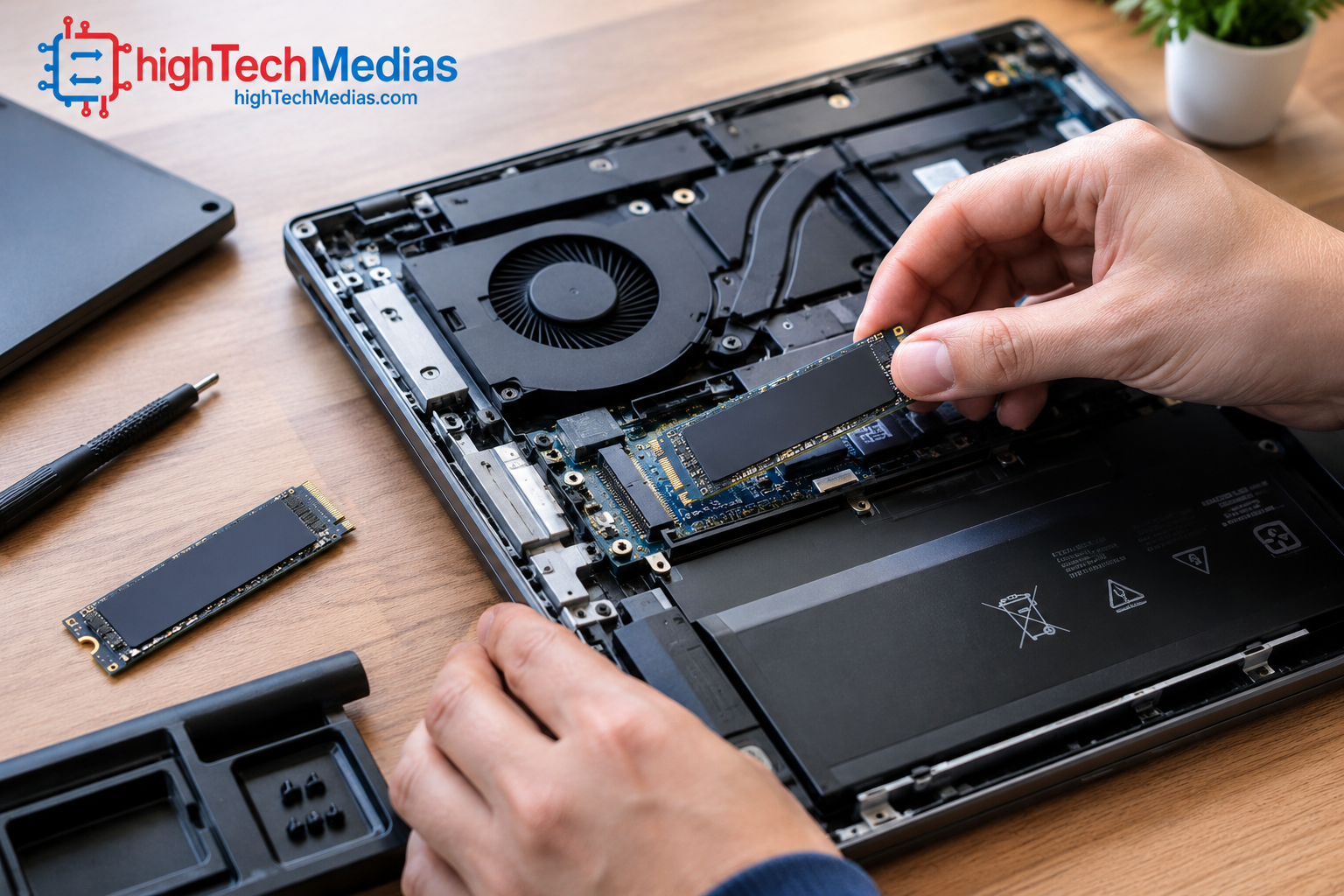
The exact procedure depends on the laptop model.
Step 1: Confirm compatibility
Check the manufacturer’s service manual for the correct form factor, interface, supported capacity, and installation procedure.
Step 2: Back up important files
Create a verified backup before opening the computer or changing partitions. Make sure you can access your files independently of the original drive.
Step 3: Decide between cloning and a clean installation
Cloning transfers your existing operating system, applications, and files to the new drive. A clean installation starts with a fresh operating system setup. Either approach requires careful preparation, and encryption or recovery settings may affect the process.
Step 4: Install the drive
Follow the laptop manufacturer’s instructions. Shut the system down completely, disconnect power, and follow the specified battery-disconnection and electrostatic-discharge precautions. If the laptop has a non-removable battery or complicated internal construction, consider a qualified technician.
Step 5: Verify the installation
Confirm that the drive is detected in BIOS/UEFI and the operating system. Check its health and interface information using appropriate diagnostic tools.
Step 6: Test performance realistically
Use a trusted benchmark if needed, but do not expect the maximum manufacturer-rated sequential speed on every laptop. The system’s PCIe generation, lane configuration, temperature, and workload affect results.
For a broader upgrade strategy, consult our laptop buying guide.
10. Which SSD Should You Choose for Your Needs?
The right SSD depends on the laptop you own and the work you do.
User type |
Recommended direction |
Why |
|---|---|---|
| Student | Compatible NVMe or SATA SSD | Prioritize capacity, reliability, and affordability |
| Office worker | NVMe for a supported newer laptop; SATA for compatible older systems | Both can provide responsive productivity |
| Gamer | NVMe, particularly for a new compatible system | Greater transfer bandwidth and potential loading benefits |
| Video editor | Performance-oriented NVMe | Helpful for large media files and sustained storage work |
| Developer | NVMe for demanding projects | Useful for large repositories, virtual machines, and datasets |
| Older laptop owner | Compatible 2.5-inch SATA or supported M.2 drive | Interface compatibility determines the upgrade |
| Budget-conscious buyer | Compare total cost at the same capacity | Avoid paying for performance your system cannot use |
If you need a computer for work rather than storage alone, compare our best laptops for business in 2026. If desk space is more important than portability, our guide to mini PCs vs laptops can help you assess the alternatives.
11. Frequently Asked Questions
11.1 Is NVMe always faster than SATA?
For maximum sequential storage throughput, PCIe NVMe is generally much faster than SATA III. Actual results depend on the specific drive, interface generation, laptop configuration, and workload.
11.2 Can I replace a SATA SSD with an NVMe SSD?
Only if the laptop supports NVMe storage and has a compatible connector and physical layout. A 2.5-inch SATA drive cannot simply be replaced by an M.2 NVMe module in the same bay.
11.3 Is an M.2 SSD always NVMe?
No. M.2 describes a physical form factor. M.2 drives can use SATA or PCIe/NVMe, so check the exact drive and laptop specifications.
11.4 Will NVMe make my laptop faster for everyday work?
It can improve some operations, especially large file transfers and storage-intensive workloads. However, a SATA SSD is already fast for many routine tasks, so the difference may be less noticeable in web browsing, email, and basic office applications.
11.5 Is NVMe better for gaming?
NVMe offers more bandwidth and can reduce loading times in some situations. It does not guarantee higher frame rates, and the difference between NVMe and SATA depends on the game and system.
11.6 Does an NVMe SSD improve battery life?
Not necessarily. Power consumption varies by drive, workload, and power-management behavior. Check specific model information instead of assuming that one interface always saves more battery.
11.7 Can a PCIe Gen 4 SSD work in a PCIe Gen 3 laptop?
A compatible PCIe device can generally negotiate a lower supported generation, but the exact system and drive specifications must be checked. Performance will be limited by the supported connection.
11.8 Is 1TB enough for a laptop?
For many students and office users, 1TB is a practical capacity. Gamers, video editors, and users with large datasets may need more. Your storage requirements matter more than interface speed alone.
11.9 How long does an SSD last?
There is no universal lifespan. Drive endurance, usage, environmental conditions, and product quality all matter. Monitor drive health and keep backups regardless of whether you choose SATA or NVMe.
11.10 Should I upgrade my SSD or buy a new laptop?
If your laptop is otherwise reliable and supports a suitable SSD upgrade, storage replacement can be a cost-effective improvement. If the processor, memory, battery, or other components are also limiting performance, replacing the computer may provide greater overall value.
12. Final Verdict: NVMe vs SATA SSD for Laptops
For most new laptops that support it, NVMe is the better choice for maximum storage performance. Its PCIe interface provides far greater potential bandwidth than SATA III, making it particularly useful for large file transfers, demanding applications, gaming libraries, and professional workloads.
However, faster specifications do not automatically translate into a dramatic improvement in every task. A quality SATA SSD remains a sensible option for compatible older laptops and everyday computing, especially when it replaces a mechanical hard drive.
Choose NVMe if your laptop supports it, you need high storage throughput, and the price fits your budget. Choose SATA when compatibility requires it or when it offers the most practical upgrade for an existing system.
Before purchasing, confirm the interface, form factor, capacity, thermal clearance, warranty, and actual retail price. The best SSD is not necessarily the fastest drive on paper; it is the compatible drive that meets your needs without unnecessary expense.
Ready to compare your next computer? Explore our 2026 laptop buying guide and our recommendations for best budget mini PCs in 2026 for more practical hardware advice.









Leave a Reply