
2.2K vs 2.5K vs 3K Laptop Displays: Does Higher Resolution Matter?
A laptop’s display affects almost everything you do on the computer, from reading documents and browsing websites to editing photographs and watching movies. But when shopping for a new laptop, buyers often face a confusing choice between 2.2K, 2.5K, and 3K screens. Is the sharpest option always the best?
The answer depends on screen size, pixel density, panel quality, battery life, and how you use your computer. The 2.2K vs 2.5K vs 3K laptop displays comparison is not simply a contest to see which screen has the most pixels. A well-designed 2.2K display can be excellent for everyday work, while a 3K OLED screen may provide a more detailed viewing experience for creative tasks.
This guide explains the differences in practical terms, compares real laptop display examples, and helps you decide whether paying extra for higher resolution makes sense. For a broader overview of laptop purchasing decisions, see the HighTechMedias.com laptop buying guide for 2026.
1. The Best Real Laptop Displays to Compare in 2026
Resolution labels are not standardized product categories. Manufacturers may use “2.2K,” “2.5K,” and “3K” differently, so the actual pixel dimensions on the product specification page matter more than the marketing label.
The following examples use documented display specifications. They are representative options, not a claim that these are the only laptops available at each resolution.
First choice: Lenovo Yoga 7 2-in-1 with a 2.2K display
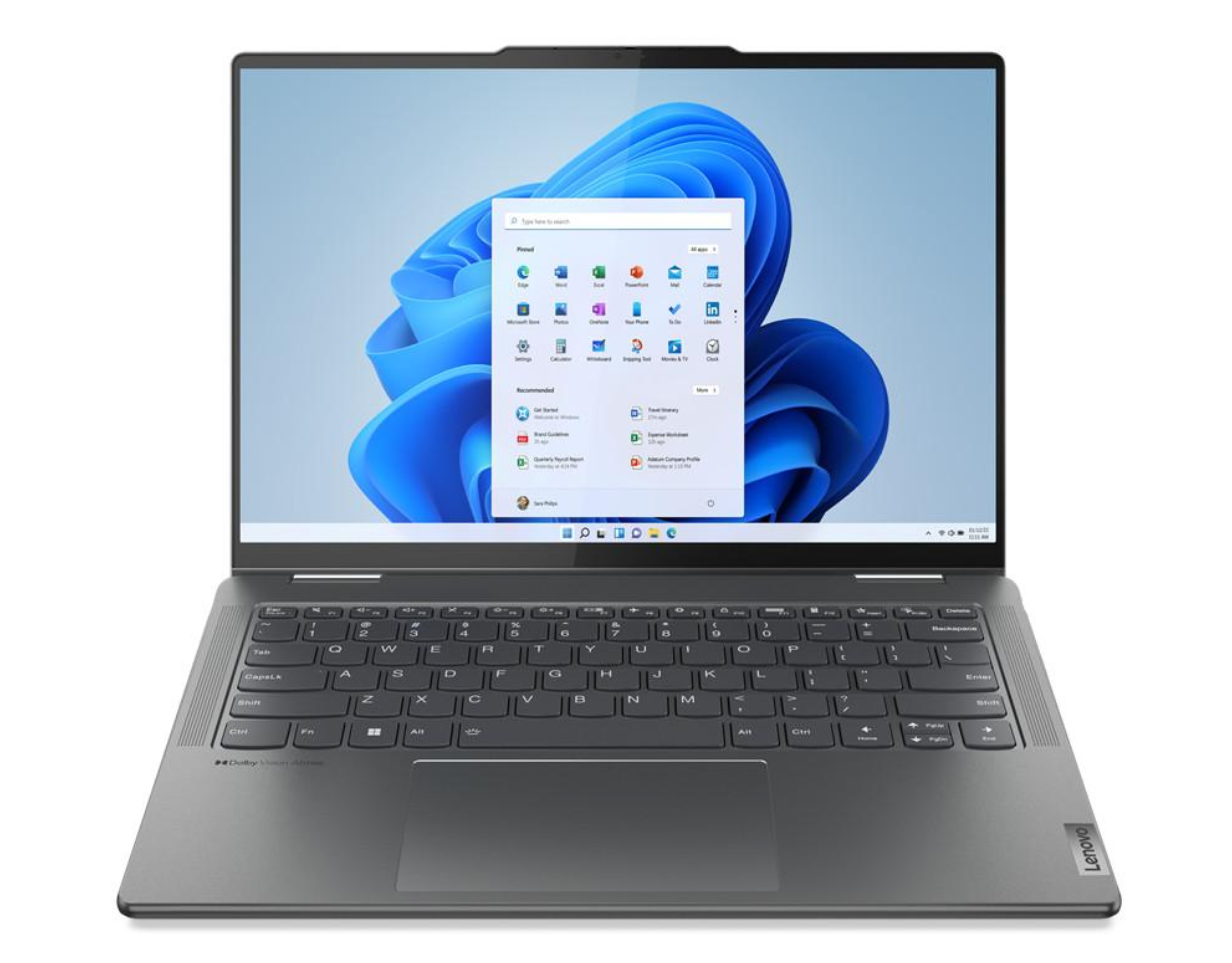
Lenovo Yoga 7 family — 2.2K option
Best for everyday productivity and reading
Resolution: 2240 × 1400 pixels on the documented 14-inch 2.2K configuration.
Official specifications: Lenovo PSREF
Who should consider it? Students, office workers, and everyday users who want a sharper-than-Full-HD display without necessarily paying for a higher-resolution panel.
Key display specifications
-
14-inch screen on the documented configuration.
-
2240 × 1400 native resolution.
-
16:10 aspect ratio.
-
IPS display technology on the cited 2.2K configuration.
-
The exact brightness, refresh rate, and color coverage depend on the model.
Why consider it? A 16:10 display offers more vertical workspace than a 16:9 screen of comparable width. That can make documents, spreadsheets, and web pages easier to work with. The resolution also provides a useful balance between text clarity and graphics workload.
Pros
-
Good pixel density for a compact productivity laptop.
-
Useful 16:10 workspace.
-
IPS technology can offer practical viewing angles and consistent everyday performance.
Cons
-
IPS contrast and black levels generally differ from those of OLED.
-
Display specifications vary across Yoga 7 generations.
-
A 2.2K label alone does not guarantee high brightness or accurate colors.
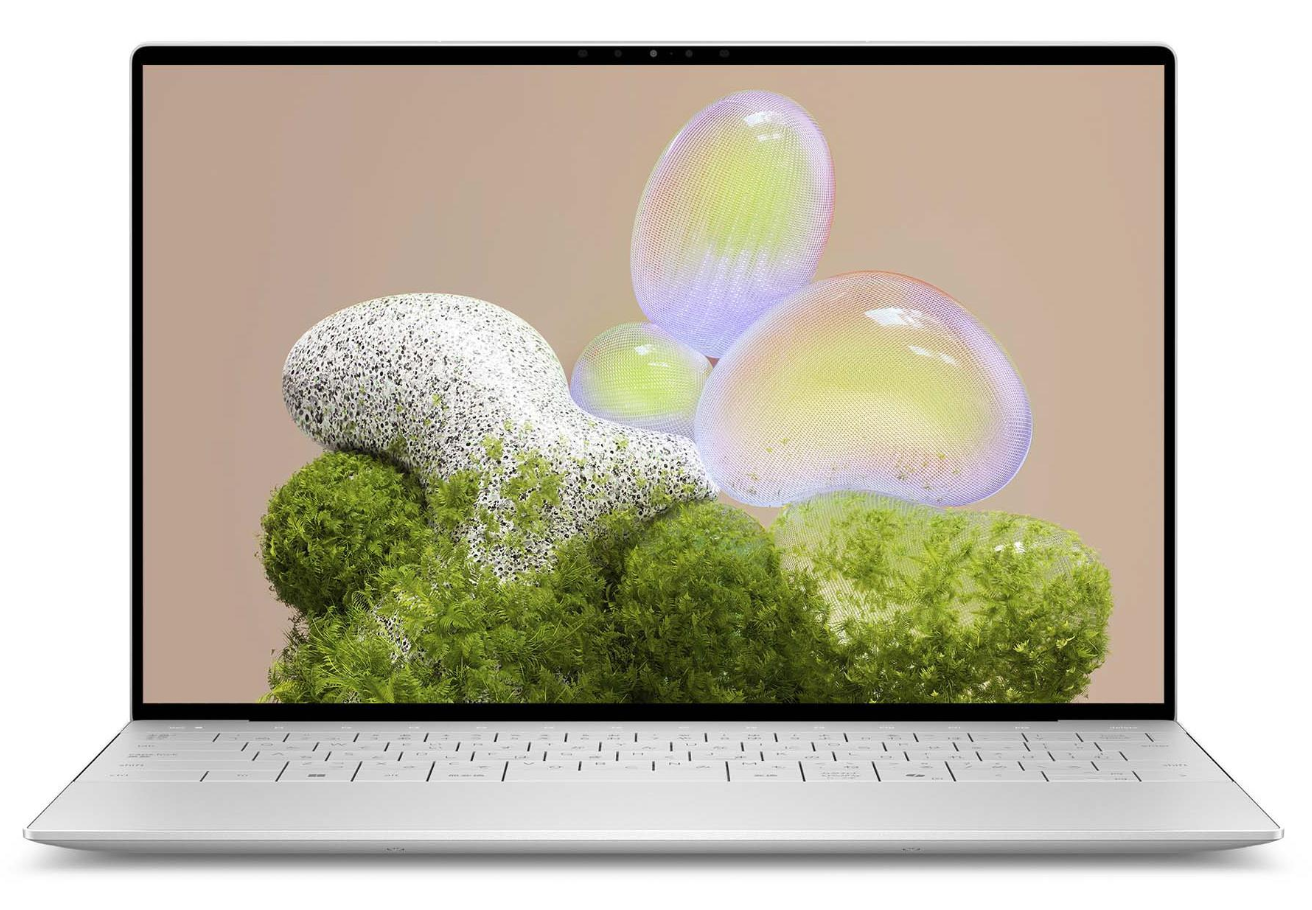
Second choice: Dell XPS 13 with a high-resolution display
Dell XPS 13
Best for compact premium computing
Resolution: Check the exact generation and configuration; XPS 13 displays have varied across model years.
Who should consider it? Professionals and students who value portability and want a high-quality display for productivity.
Key specifications to verify
-
Exact native resolution and screen size.
-
LCD or OLED panel type, if offered.
-
Refresh rate and brightness.
-
Memory and processor configuration, which can influence overall system performance.
Why consider it? The XPS family illustrates why resolution should not be judged independently from the rest of the screen. A high-resolution panel may improve text detail, but brightness, reflections, scaling, and color quality still influence the experience.
Pros
-
Compact laptop design.
-
Display options have varied by generation and configuration.
-
Appropriate for productivity and travel when configured for the workload.
Cons
-
The XPS name alone does not establish a specific resolution.
-
Premium configurations can cost more.
-
Ports and panel characteristics vary by model year.
Third choice: ASUS Zenbook 14 OLED with a 3K display
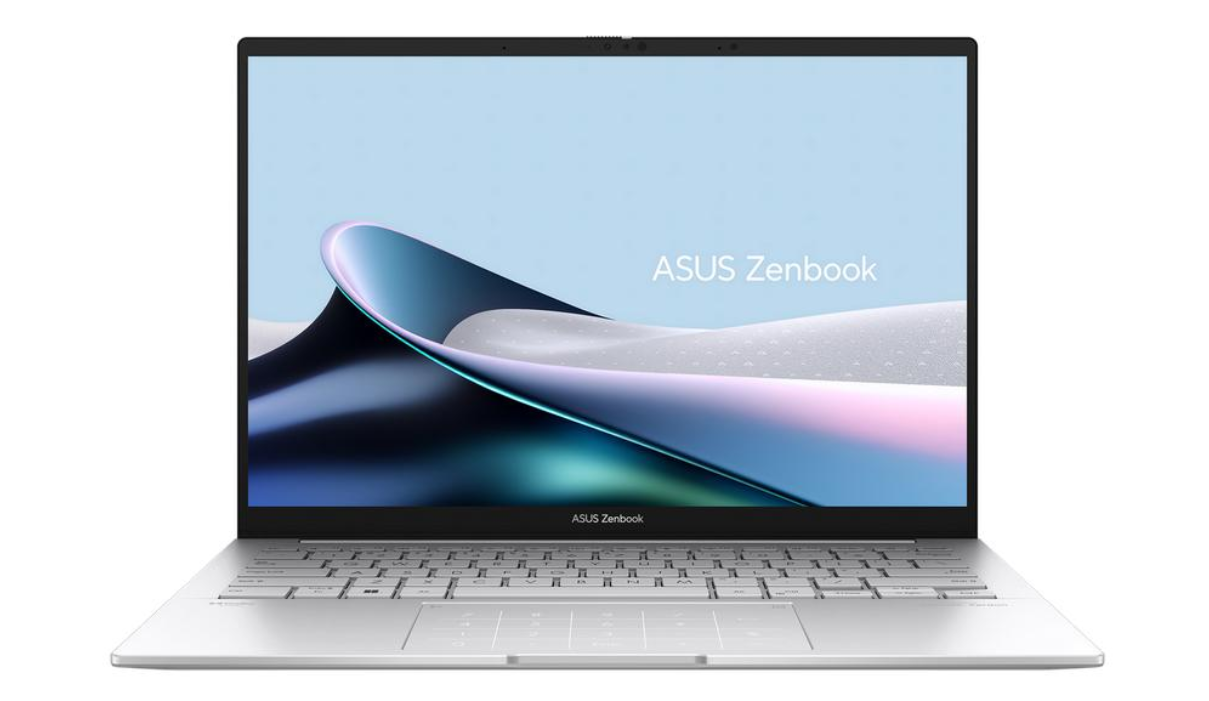
Best for detailed visuals and everyday creative work
Resolution: 2880 × 1800 pixels on documented 3K configurations.
Who should consider it? Users who read and write extensively, view high-resolution photographs, or want a high-detail OLED display for creative and entertainment tasks.
Key display specifications on documented configurations
-
14-inch OLED panel.
-
2880 × 1800 resolution.
-
16:10 aspect ratio.
-
Up to 120Hz refresh rate on specified configurations.
-
Wide color coverage on listed OLED models.
Why consider it? A 3K screen on a 14-inch laptop has a high pixel density. Fine text and detailed images can look particularly sharp, and OLED technology can provide deep blacks and strong contrast. Those qualities can benefit photography, media consumption, and visually rich applications.
Pros
-
High pixel density.
-
Strong contrast from the OLED panel.
-
Smooth motion on configurations with a 120Hz refresh rate.
-
Detailed workspace for compatible creative applications.
Cons
-
OLED does not automatically guarantee better color accuracy on every unit.
-
Higher native resolution can increase graphics workload.
-
Glossy screens can reflect light.
-
Display features vary by configuration.
Fourth choice: Lenovo Yoga 7 2-in-1 with a 2.8K OLED display
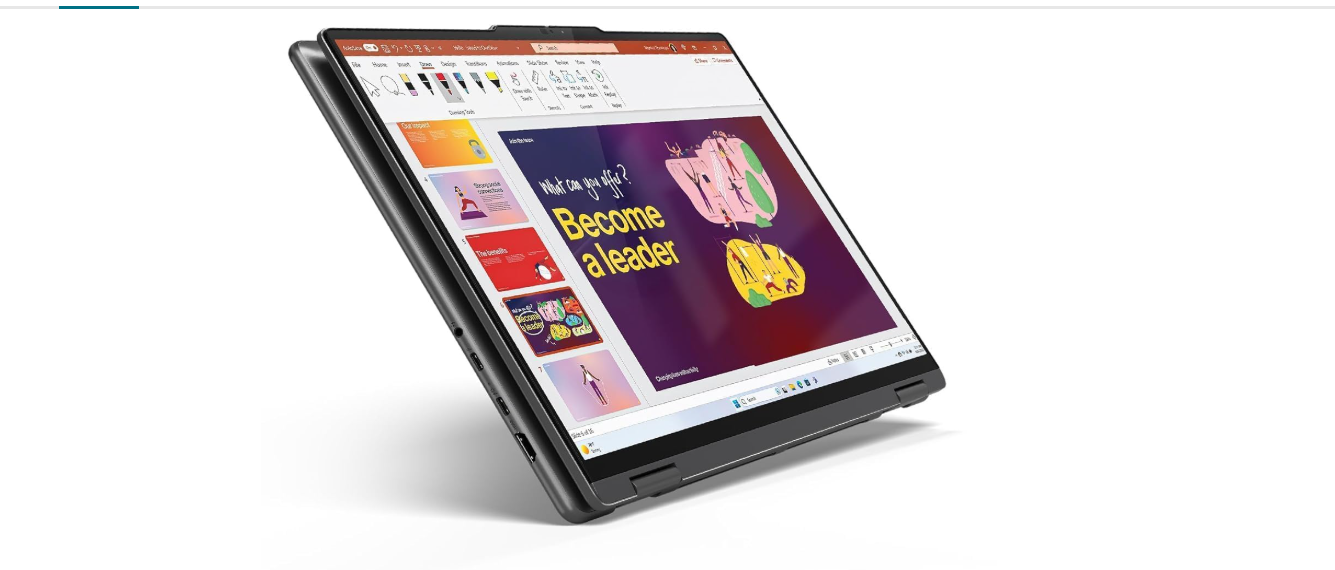
Best for touchscreen and pen-based work
Resolution: 2880 × 1800 pixels on documented 2.8K configurations.
Who should consider it? Students and professionals who want a convertible laptop for handwritten notes, diagrams, presentations, and general productivity.
Key display specifications on documented configurations
-
14-inch OLED touchscreen.
-
2880 × 1800 resolution.
-
16:10 aspect ratio.
-
Up to 120Hz refresh rate on the specified panel.
-
Pen support on compatible configurations.
Why consider it? A 2-in-1 laptop combines a conventional computer with tablet-style interaction. The high-resolution touchscreen can be useful for reading, annotating documents, and viewing detailed diagrams.
Pros
-
High pixel density.
-
Flexible laptop, tent, stand, and tablet modes.
-
OLED contrast and wide color coverage on the listed configuration.
Cons
-
Touchscreens and glossy surfaces can increase reflections.
-
Pen features and included accessories vary by model.
-
Higher-resolution panels may use more power in some workloads.
Fifth choice: Apple MacBook Pro 14-inch with a high-density display
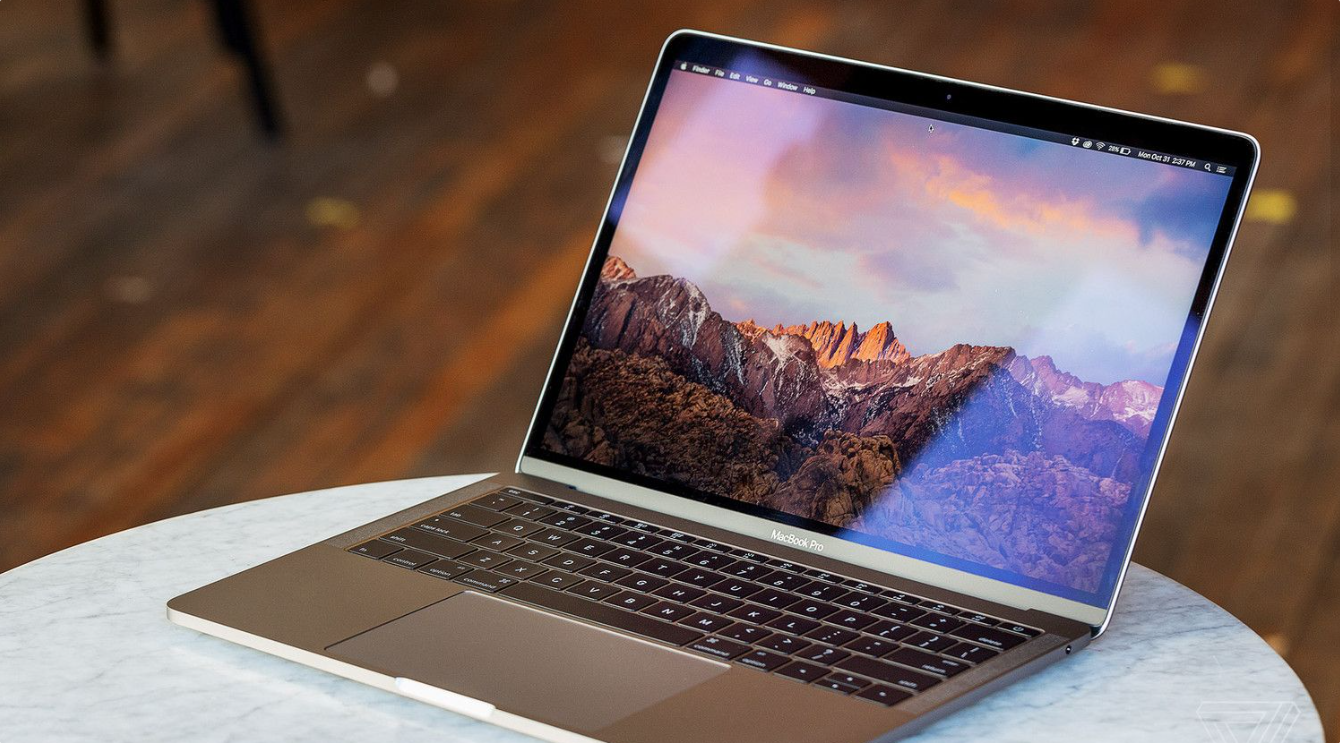
Who should consider it? Video editors, photographers, designers, and professionals who need a high-quality display alongside substantial computing capabilities.
Key display specifications on the documented model
-
14.2-inch Liquid Retina XDR display.
-
3024 × 1964 native resolution.
-
Approximately 254 pixels per inch.
-
ProMotion refresh rate up to 120Hz on supported models.
-
Wide P3 color support and HDR capabilities.
Why consider it? This display shows that resolution labels do not tell the whole story. Apple specifies the actual pixel dimensions, brightness characteristics, refresh rate, and color features. Those details help buyers understand what the screen offers more clearly than a generic “3K” label.
Pros
-
High pixel density.
-
Strong HDR capabilities on supported content.
-
High refresh rate.
-
Suitable for demanding creative workflows when paired with appropriate system specifications.
Cons
-
Premium pricing.
-
More computing and display capability than many everyday users need.
-
macOS may not support every Windows-specific application.
2. What Do 2.2K, 2.5K, and 3K Laptop Resolutions Mean?
Laptop resolution refers to the number of pixels displayed horizontally and vertically. A higher pixel count can produce finer detail, but the visible difference depends on the screen’s physical size and viewing conditions.
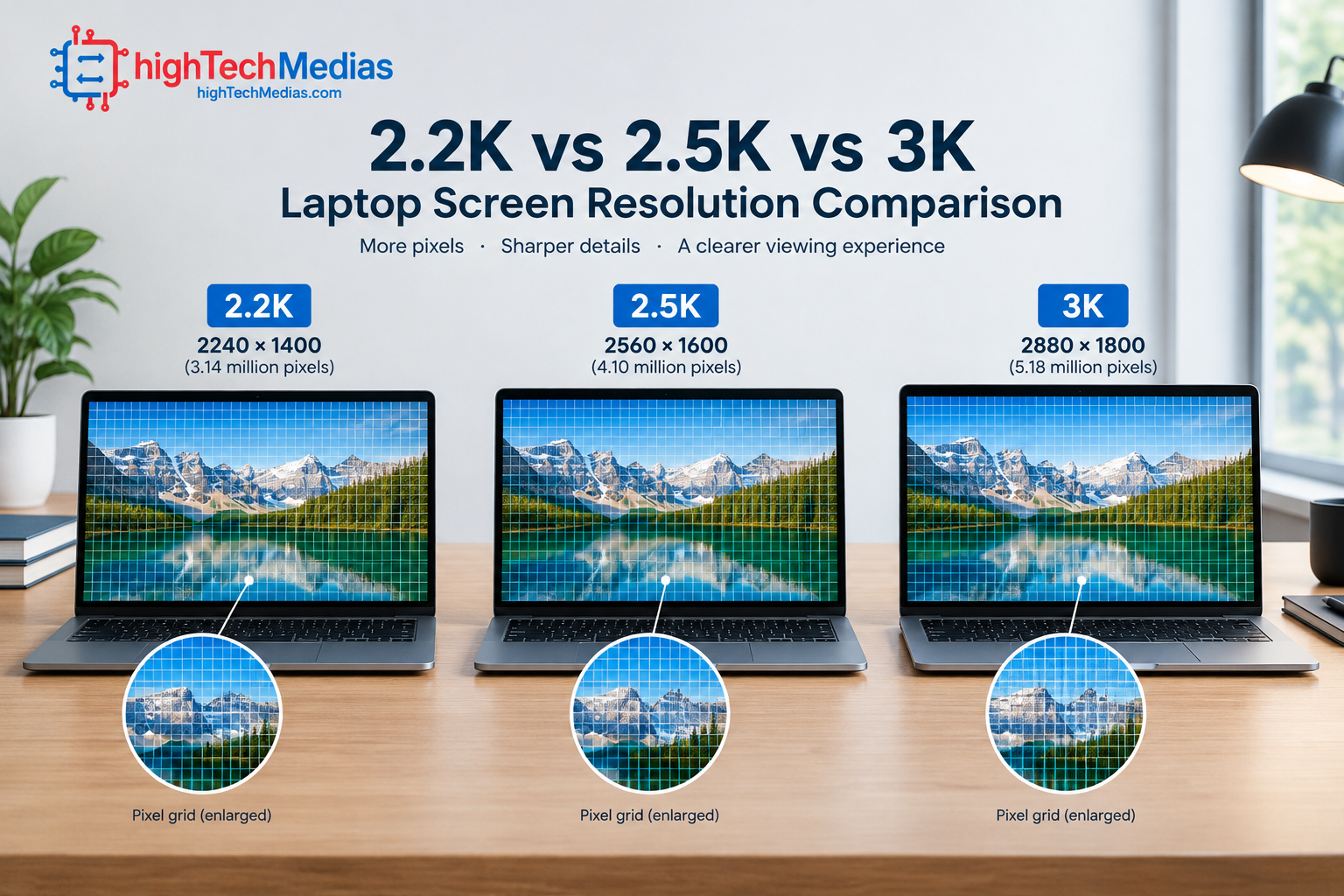
The labels “2.2K,” “2.5K,” and “3K” are informal marketing terms rather than universally standardized laptop display classes. The most reliable way to compare screens is to read the exact native resolution.
Common label |
Representative resolution |
Total pixels |
Practical interpretation |
|---|---|---|---|
| 2.2K | 2240 × 1400 | 3.14 million | Detailed productivity display |
| 2.5K | 2560 × 1600 | 4.10 million | Higher pixel count for fine detail |
| 3K | 2880 × 1800 | 5.18 million | More pixels for high-detail content |
These are representative examples, not fixed definitions. Some manufacturers call a 2560 × 1440 display 2.5K, while others use the label differently. Some screens marketed as 3K have different dimensions, aspect ratios, or panel technologies.
2.1 What is a 2.2K laptop display?
A 2240 × 1400 display contains approximately 3.14 million pixels. On a 14-inch screen, this provides a detailed image suitable for everyday productivity.
It can be a good fit for students, office workers, and users who spend most of their time writing, browsing, reading, and working with spreadsheets. It offers more pixels than a 1920 × 1080 Full HD screen without necessarily demanding the graphics resources of a higher-resolution panel.
2.2 What is a 2.5K laptop display?
A representative 2560 × 1600 screen contains approximately 4.10 million pixels. That is about 31% more pixels than a 2240 × 1400 display.
The extra pixels can help render small text, detailed images, and fine interface elements. However, the benefit is not always dramatic. If the screen is physically small, the operating system uses scaling, or the source material is low resolution, the difference may be less obvious.
2.3 What is a 3K laptop display?
A representative 2880 × 1800 screen contains approximately 5.18 million pixels. That is about 65% more pixels than 2240 × 1400 and roughly 26% more than 2560 × 1600.
A 3K panel can be useful for photography, detailed design work, and high-resolution media. Nevertheless, more pixels do not automatically produce better colors, stronger contrast, or greater brightness. Those depend on the panel and its implementation.
3. Does Higher Laptop Resolution Actually Look Sharper?
The key factor is not resolution alone. It is pixel density, usually measured in pixels per inch (PPI).
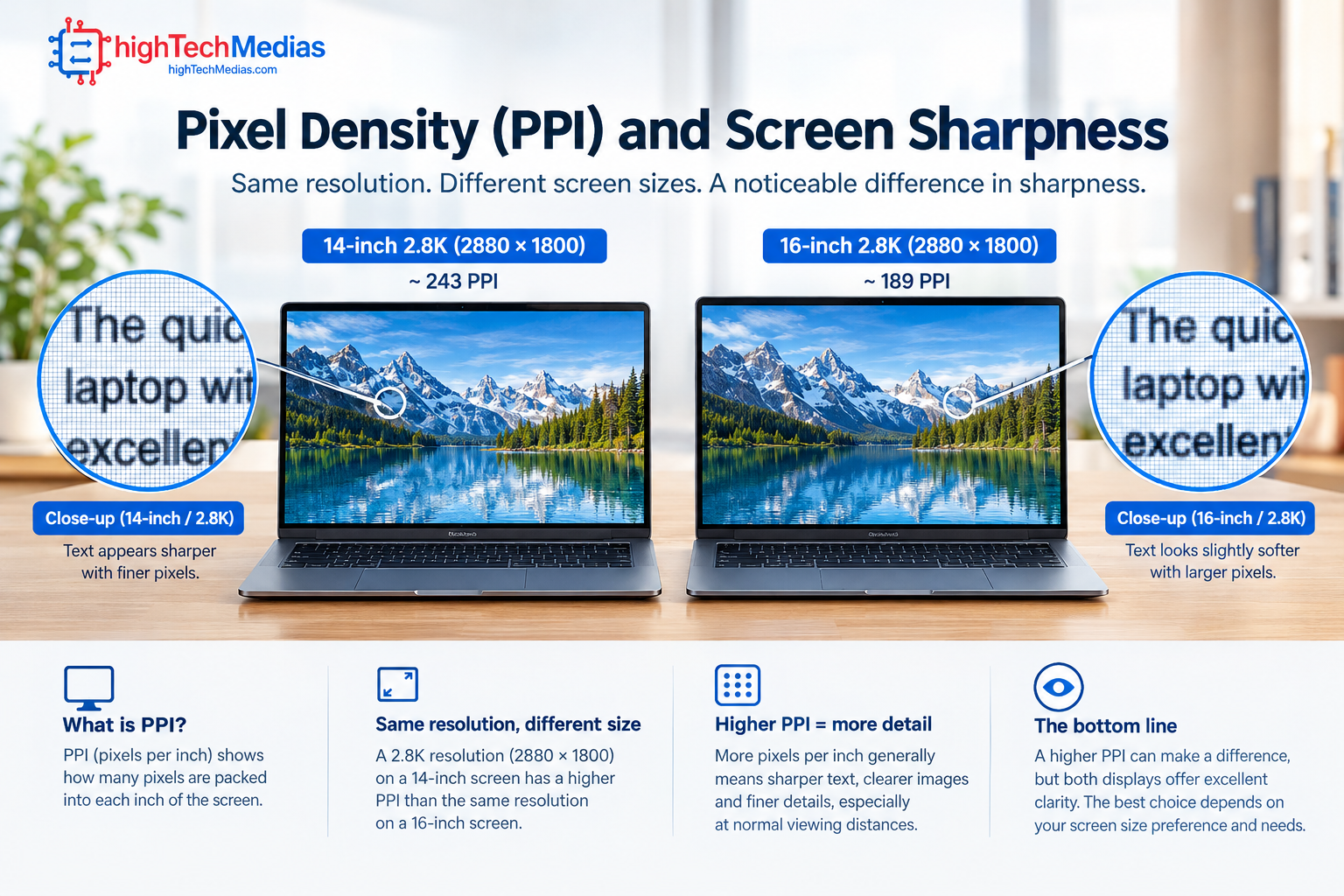
PPI describes how many pixels fit into one inch of the display. When two screens have the same physical size, the one with more pixels generally has higher pixel density. When screen sizes differ, the comparison changes.
For example, a 2880 × 1800 screen on a 14-inch laptop has a pixel density of approximately 243 PPI. A 2240 × 1400 screen on a 14-inch laptop is approximately 189 PPI.
The 3K screen can render finer detail, but the difference may be more noticeable when reading small text, viewing high-resolution photographs, or working close to the display than when watching ordinary video from a normal distance.
3.1 Why screen size changes the experience
A resolution that looks exceptionally sharp on a 14-inch laptop may provide a less dramatic improvement on a larger screen. The same number of pixels spread over a larger physical area produces lower pixel density.
This is why buyers should compare screen size and native resolution together. Our laptop size and weight guide explains how physical dimensions influence everyday use.
3.2 Why operating-system scaling matters
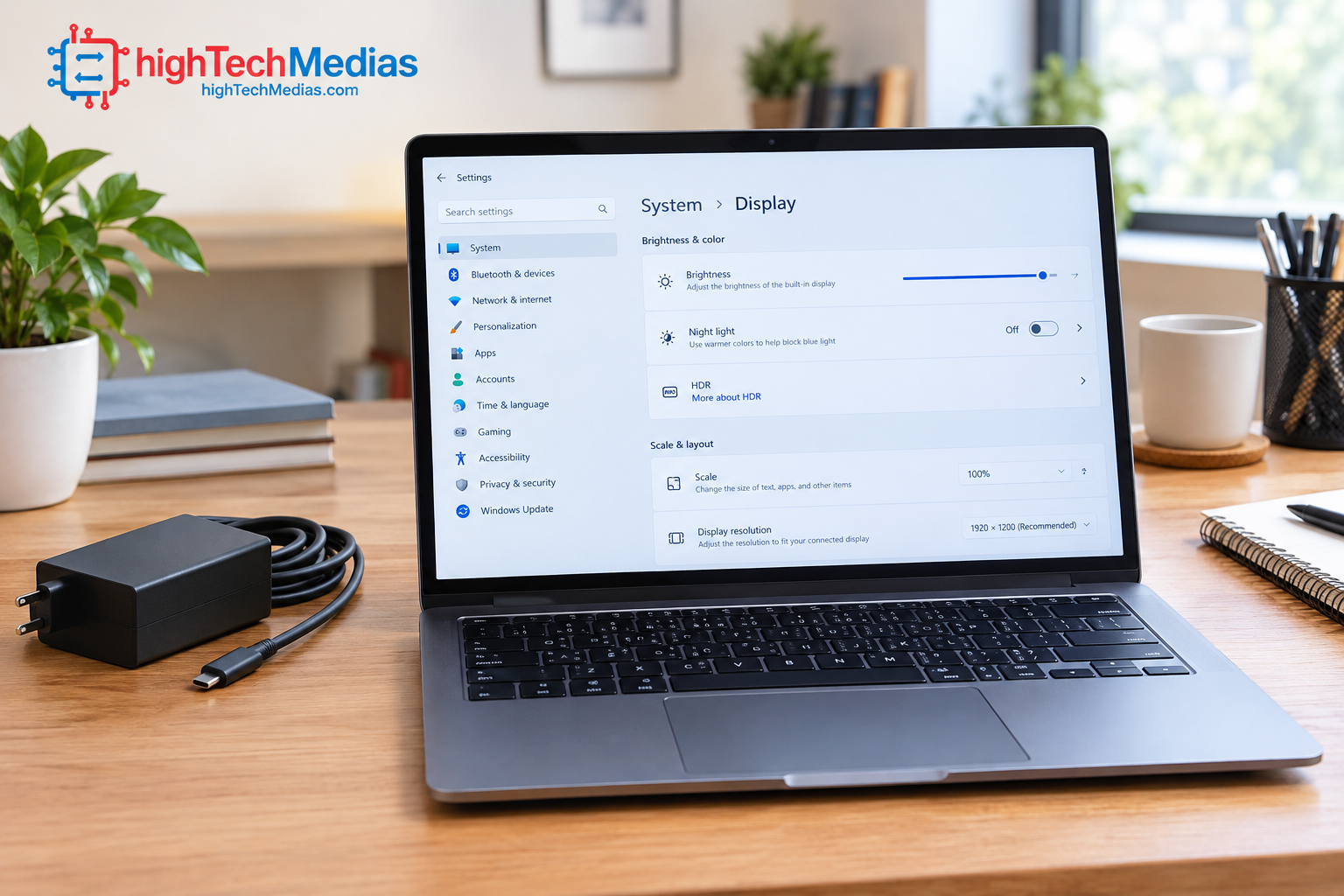
A high-resolution screen can display more pixels than the interface uses at its default logical size. Windows and macOS can scale interface elements so that text and controls remain readable.
Scaling is not the same as lowering the screen’s native resolution. The panel can continue to operate at its native resolution while the operating system adjusts the apparent size of interface elements.
Good scaling can provide sharp text and a comfortable workspace. Poorly optimized applications, however, may show tiny text, blurry interface elements, or inconsistent sizing.
4. 2.2K vs. 2.5K vs. 3K: Which Is Better for Productivity?
For most productivity tasks, all three resolutions can be excellent. The best choice depends on whether the user prioritizes affordability, workspace, or maximum detail.
4.1 Writing, reading, and web browsing
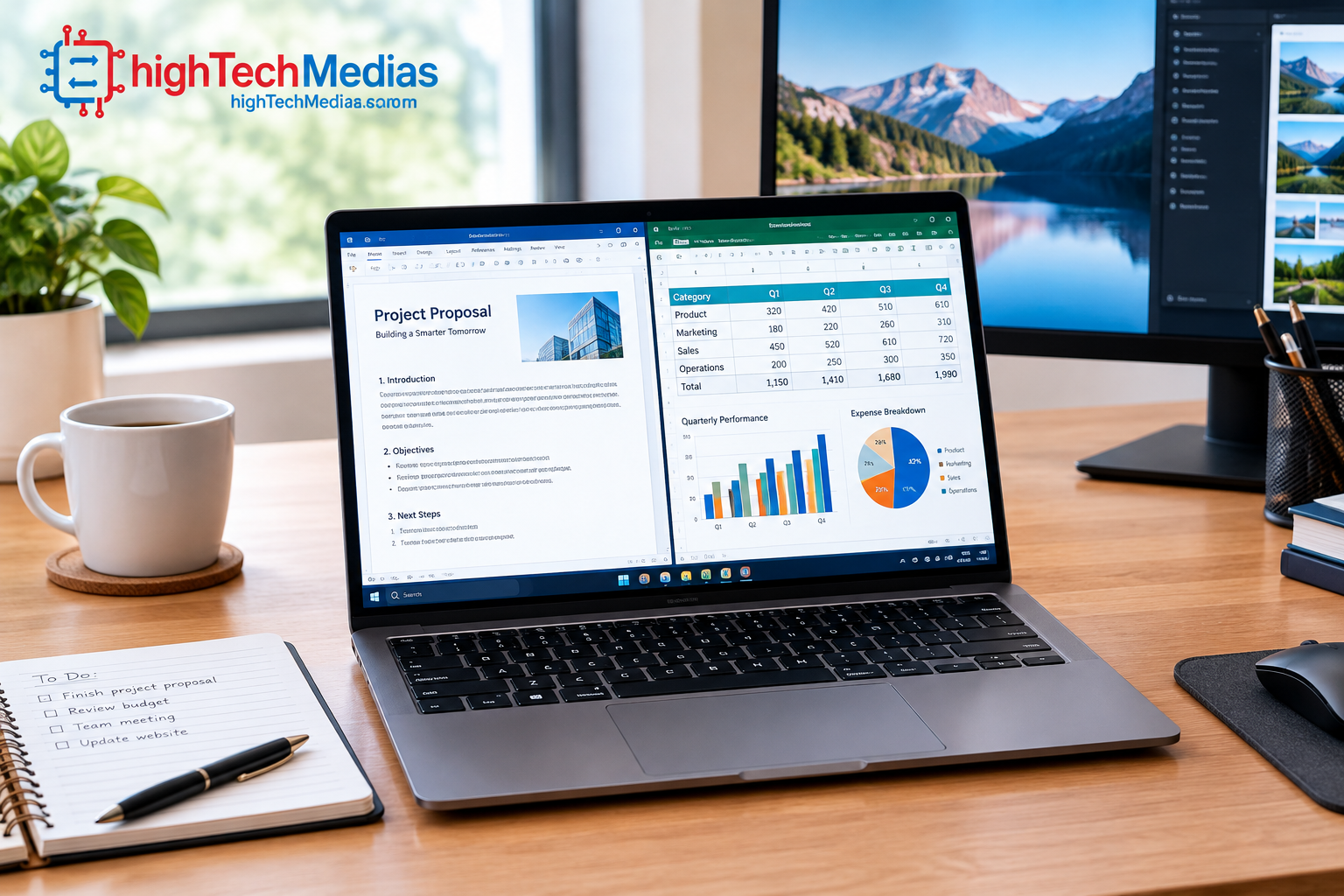
A 2.2K screen can provide crisp text and enough vertical workspace for documents, browser tabs, and online research. Moving to 2.5K or 3K may improve fine detail, but it does not automatically make typing or writing more comfortable.
Text size, font rendering, screen glare, brightness, and scaling often matter as much as resolution. A lower-resolution screen with good contrast and appropriate scaling may be more comfortable than a poorly configured high-resolution panel.
4.2 Spreadsheets and multitasking
Higher resolution can provide additional desktop space when scaling settings allow more content to fit on screen. That can help with wide spreadsheets, complex timelines, and side-by-side documents.
However, physical screen size matters. A 16-inch display can provide more usable space than a 14-inch model, even if both have similar pixel density.
4.3 Video meetings and presentations
For video meetings, the webcam, microphone, network connection, and software usually have a greater effect on call quality than whether the laptop screen is 2.2K or 3K.
Higher resolution is useful for viewing detailed presentation slides and graphics, but it is rarely the deciding factor for ordinary conferencing.
For users who work away from the office, our best laptops for remote work in 2026 guide covers other practical priorities.
5. Which Resolution Is Best for Gaming?
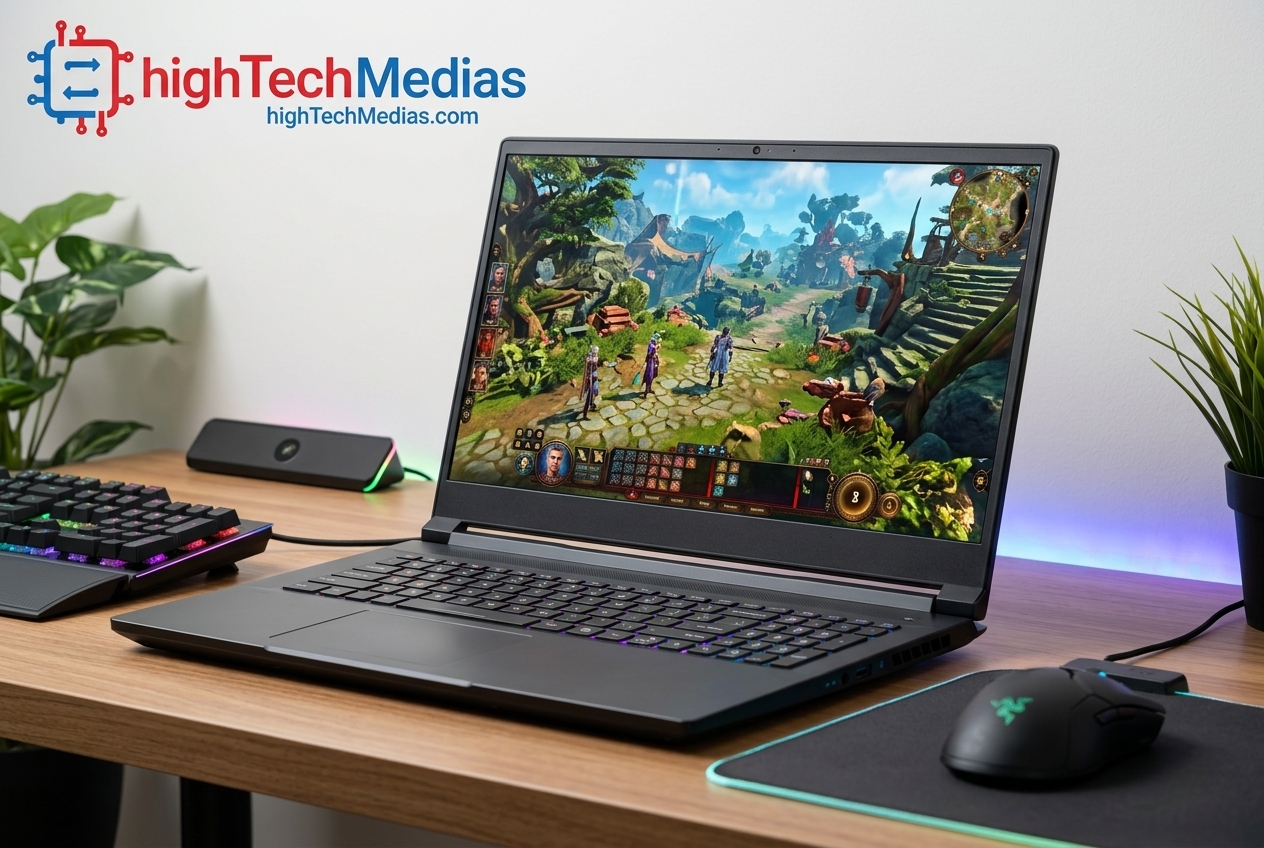
Higher resolution can improve visual detail in games, but it also increases the number of pixels the graphics processor must render.
Using the representative resolutions in this article, 3K has about 65% more pixels than 2.2K. Rendering a game at the higher resolution can therefore place a greater workload on the GPU, although the actual performance difference depends on the game engine, graphics settings, hardware, and upscaling technology.
A powerful GPU may handle 3K gaming well. An entry-level integrated GPU may deliver a smoother experience at a lower resolution or with reduced graphics settings.
5.1 Resolution is not the same as refresh rate
Refresh rate, measured in hertz (Hz), describes how often the display can refresh its image. A 120Hz panel can refresh up to twice as often as a 60Hz panel, but the computer must also render enough frames to take advantage of that capability.
Resolution affects image detail; refresh rate affects motion presentation. Neither specification should be considered in isolation.
5.2 When 2.2K or 2.5K makes more sense
A lower-resolution panel may be a practical choice for gamers who prioritize frame rates, battery runtime, or affordability. For competitive games, consistent performance and low latency may be more important than maximizing pixel count.
For gaming setup advice, see our ultimate gaming setup guide.
6. Does a 3K Laptop Display Reduce Battery Life?
Higher resolution can increase power consumption, but it does not automatically mean a laptop will have poor battery life. The result depends on the display technology, panel brightness, refresh rate, power management, graphics workload, and battery capacity.
Rendering more pixels can increase graphics workload, especially in games and demanding visual applications. Yet a modern laptop may handle ordinary desktop tasks efficiently even when its display has a high native resolution.
6.1 OLED vs. IPS: Panel technology matters
OLED panels can switch individual pixels off to produce deep blacks. In dark scenes or interfaces, this can reduce the power needed by the display compared with some LCD workloads. Bright, predominantly white content can change the balance.
IPS LCD panels use a backlight, which consumes power independently of the image content. Actual efficiency varies by panel design and brightness, so OLED is not automatically more efficient in every situation.
Compare the technologies in our OLED vs. IPS laptop display guide.
6.2 Refresh rate and brightness
Running a display at a higher refresh rate can increase power consumption, although the effect varies. Brightness can also have a significant impact on runtime.
If battery life is a priority, compare independent tests performed at similar brightness levels and workloads. Our laptop battery life guide explains why manufacturer estimates and real-world results can differ.
7. Is a 3K Display Worth It for Photo and Video Editing?
For creative professionals, a 3K display can provide useful detail and more pixels for viewing images, timelines, and design elements. However, resolution is only one part of a suitable creative display.
Color accuracy, color gamut, brightness, contrast, and calibration can matter more than the marketing label. A well-calibrated 2.5K display can be more useful for color-critical work than a higher-resolution panel with poor color accuracy.
7.1 Photo editing
Photographers can benefit from high pixel density when inspecting fine detail and reviewing high-resolution images. A broad color gamut and reliable color reproduction are also important, particularly for print or professional delivery.
7.2 Video editing
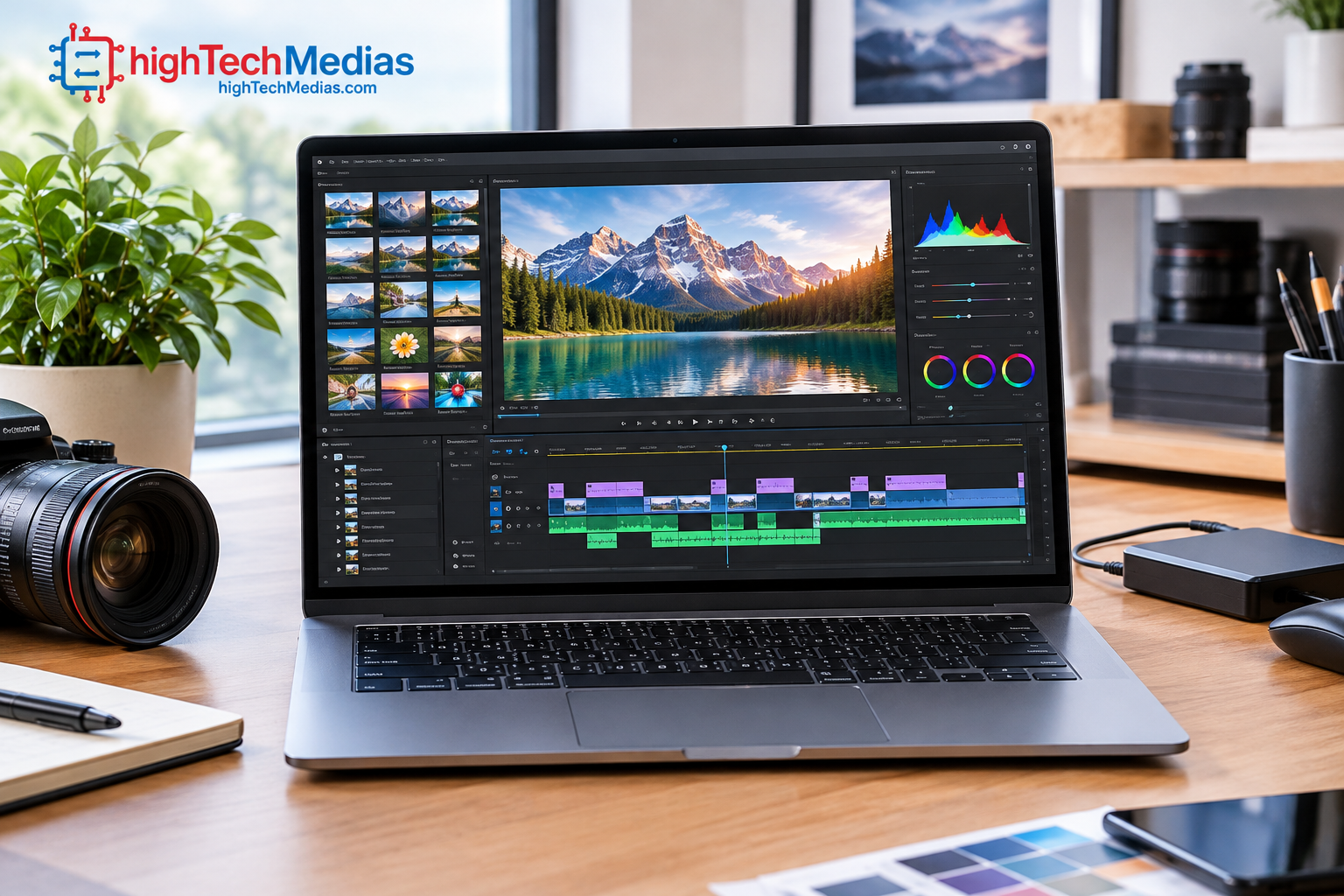
Video editors may appreciate additional screen space for timelines, preview windows, and editing tools. However, the workload also depends on the source footage, codec, editing software, effects, and GPU acceleration.
A 3K panel does not guarantee that a laptop can edit demanding footage smoothly. Processor performance, memory, graphics capabilities, and thermal management remain important.
See our best laptops for programming in 2026 for a related look at choosing hardware for demanding applications.
8. How to Choose the Right Laptop Resolution for Your Budget
A higher-resolution display may increase a laptop’s purchase price, but the difference depends on the model and configuration. Buyers should compare complete systems rather than assuming that every 3K laptop costs more than every 2.2K laptop.
User type |
Resolution to consider |
Why |
|---|---|---|
| Students and general users | 2.2K or 2.5K | Good detail without automatically prioritizing maximum pixel count |
| Office professionals | 2.2K or 2.5K | Text clarity and comfortable scaling are usually more important than the label |
| Photographers and designers | 2.5K or 3K | Higher pixel density can help, but color accuracy is essential |
| Video editors | 2.5K or 3K | Additional workspace can help, subject to GPU and software needs |
| Competitive gamers | 2.2K or 2.5K | A lower rendering workload may help maintain frame rates |
| Premium media users | 3K | Attractive for high-detail content when panel quality is strong |
These are practical starting points, not strict rules.
8.1 Do not overlook the rest of the laptop
A high-resolution screen cannot compensate for insufficient memory, a slow processor, limited storage, or poor cooling. A laptop that meets your workload requirements may provide a better overall experience than a model selected solely for its screen.
For buyers with a fixed budget, compare our best laptops under $1,000 in 2026 and best laptops under $700.
8.2 Consider external monitors for desk-based work
If you primarily work at home or in an office, an external monitor may offer a larger workspace than paying for a high-resolution laptop panel. The laptop’s own screen still matters when traveling, but a desktop monitor can be a cost-effective way to add working space.
For users who rarely move their computer, a desktop setup or mini PC may also be worth considering. Explore our mini PCs vs. laptops comparison.
9. Common Myths About High-Resolution Laptop Displays

Myth 1: A 3K display always looks better than a 2.2K display
Not necessarily. Resolution affects detail, but panel quality, brightness, contrast, color reproduction, scaling, and viewing distance influence the overall experience.
Myth 2: Higher resolution always drains the battery faster
Higher resolution can increase graphics workload, but battery life also depends on panel efficiency, brightness, refresh rate, battery size, and system power management.
Myth 3: A 3K label guarantees a premium OLED screen
Resolution and panel technology are separate specifications. A 3K display may use one panel technology, while another display with similar resolution may use a different one.
Myth 4: Everyone needs the highest possible resolution
Many users spend most of their time working with documents, browser tabs, and video meetings. A well-designed 2.2K or 2.5K screen can already provide excellent clarity for these tasks.
Myth 5: Resolution alone determines gaming performance
Gaming performance depends on the GPU, processor, cooling, game engine, graphics settings, and upscaling. A higher-resolution screen can increase the rendering workload, but it does not tell you how fast a particular laptop will run a game.
10. Frequently Asked Questions
10.1 Is 2.5K better than 2.2K for a laptop?
A representative 2560 × 1600 display has more pixels than a 2240 × 1400 display. On the same screen size, it generally offers higher pixel density. Whether the difference is worthwhile depends on the user’s workload, scaling, and budget.
10.2 Is a 3K laptop display worth the extra money?
It can be worthwhile for people who value fine detail, high-resolution photographs, creative work, or additional screen workspace. For basic productivity, a well-designed 2.2K or 2.5K display may be sufficient.
10.3 Does a 3K display use more battery?
It can, particularly during graphics-intensive work, but resolution alone does not determine battery life. Brightness, panel technology, refresh rate, battery capacity, and system power management all matter.
10.4 Is 2.2K enough for a 14-inch laptop?
For many users, yes. A 2240 × 1400 resolution on a 14-inch display provides approximately 189 PPI, which can deliver clear text and detailed images when scaling is configured appropriately.
10.5 Is 3K better than OLED?
These terms describe different things. “3K” refers to an approximate resolution category, while OLED describes a display technology. A display can be both 3K and OLED.
10.6 Which laptop resolution is best for programming?
Many developers can work comfortably with 2.2K or 2.5K. Higher resolution may help fit more code and panels on screen, but screen size, scaling, memory, and external-monitor support are also important.
10.7 Is a 3K screen good for gaming?
It can provide more detailed visuals, provided the GPU can render games at the desired resolution and frame rate. Gamers should compare GPU performance, refresh rate, response time, and supported upscaling features alongside native resolution.
10.8 How do I verify a laptop’s actual resolution?
Read the manufacturer’s specification page for the exact model number and configuration. Look for the native horizontal and vertical pixel dimensions, rather than relying exclusively on a marketing label such as 2.2K or 3K.
11. Final Verdict: 2.2K vs. 2.5K vs. 3K Laptop Displays
The 2.2K vs 2.5K vs 3K laptop displays decision ultimately comes down to how much additional detail you need and whether the complete laptop justifies its price.
A 2.2K display is a sensible choice for general productivity, study, and everyday computing. A 2.5K display offers more pixels and can be an attractive middle ground for users who want extra detail. A 3K display is appealing for creative applications, high-resolution media, and premium laptops where the panel’s color, contrast, and brightness also meet expectations.
For most buyers, the best screen is not automatically the one with the highest resolution. Consider pixel density, screen size, display scaling, panel technology, refresh rate, and battery life before deciding.
To continue comparing laptop features, explore our laptop buying guide, read about OLED vs. IPS laptop displays, or compare laptop processor platforms. These factors, combined with resolution, will help you choose a laptop that fits your needs rather than paying for a specification you may rarely notice.




Leave a Reply