
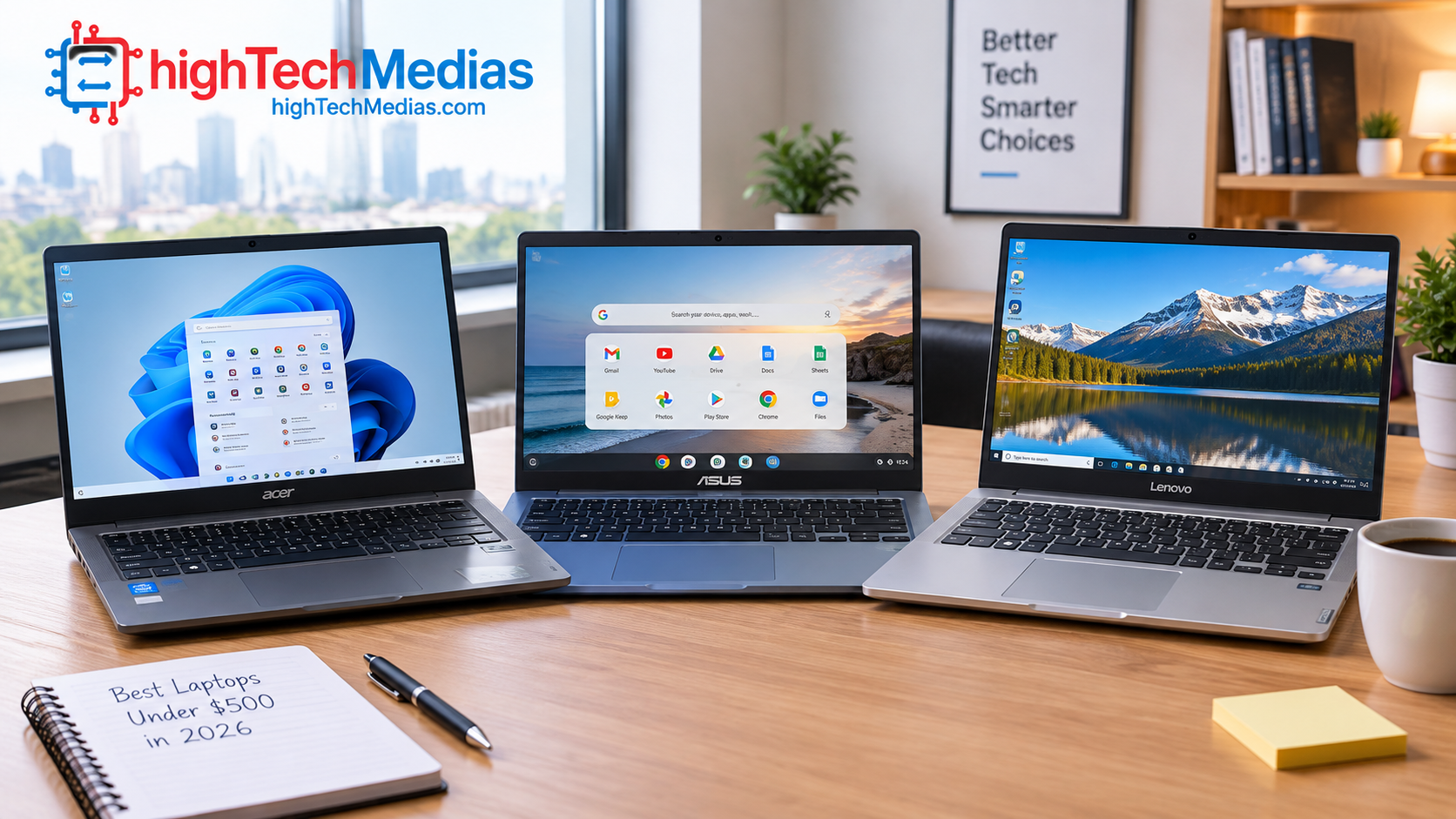
Best Laptops Under $500 in 2026: What to Buy and What to Avoid?
Finding a good laptop on a limited budget is not as simple as choosing the cheapest model on the shelf. The best laptops under $500 can handle schoolwork, web browsing, video calls, streaming, office applications, and everyday productivity, but not every inexpensive laptop offers the same experience.
At this price, manufacturers often make compromises. One laptop may offer more storage but a weaker processor. Another may have a better screen but less memory. A Chromebook can be excellent for web-based work, while a Windows machine may be a better choice if you need traditional desktop software.
The key is knowing which specifications actually matter for your needs.
In this guide, we explain what to look for when shopping for a laptop below $500, which specifications deserve your attention, which compromises are acceptable, and which ones can make a laptop frustrating to use.
If you are looking for specific models rather than general buying advice, the five laptops below are worth considering. We selected them to cover different needs, including everyday use, schoolwork, productivity, and ChromeOS-based computing.
1.Our Top 5 Laptops Under $500 in 2026
1.Lenovo IdeaPad Slim 3x — Best for Students and Long Battery Life
Price:Around $449 (as of September 2026; subject to change)
For the 15.3-inch configuration with Snapdragon X, 16GB RAM and 512GB SSD. A Walmart U.S. listing currently shows $449, while Tom’s Guide also reports $449 at Walmart. Walmart.com
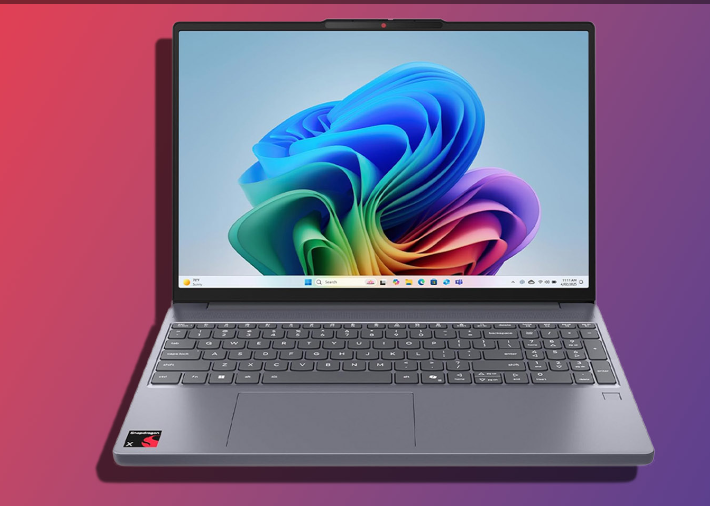
Main specifications:
- Processor: Qualcomm Snapdragon X X1-26-100
- CPU: 8 cores
- RAM: 16GB LPDDR5X
- Storage: 512GB PCIe SSD
- Display: 15.3-inch 1920 × 1200 IPS
- OS: Windows 11 Home
- GPU: Qualcomm Adreno integrated graphics
- NPU: 45 TOPS
- Wireless: Wi-Fi 7
- Weight: about 3.3 lb
- Camera: 720p with privacy shutter
- Fingerprint reader: Yes
Lenovo’s specifications confirm the Snapdragon X, 16GB memory, 512GB SSD, 15.3-inch WUXGA display and Wi-Fi 7 configuration. Lenovo
Who Should Buy This?
Best for students, remote workers and buyers who prioritize battery life and multitasking.
Why consider it?
The biggest attraction is the combination of 16GB RAM + 512GB SSD at roughly $449. That is a strong configuration for a budget Windows laptop.
The Lenovo IdeaPad Slim 3x stands out with a Snapdragon X processor at a price that falls well below $500. That makes it particularly interesting for students and remote workers who need comfortable multitasking and long battery life without moving into a higher price category.
Tom’s Guide reports more than 16 hours of battery life in its testing and highlights the keyboard and general performance, while also noting limitations with the display and gaming.
If you prefer a more conventional Intel-based Windows laptop, the Acer Aspire Go 15 offers a different balance of performance, screen size, storage and price
Pros
- 16GB RAM at this price
- 512GB SSD
- Excellent battery endurance
- Comfortable keyboard
- Large 15.3-inch display
- Wi-Fi 7
- Windows 11
- Copilot+ PC capabilities
Cons
- Display brightness is only moderate
- Integrated graphics are not designed for serious gaming
- ARM-based Windows can have application-compatibility limitations
- RAM is soldered and cannot be upgraded
2. Acer Aspire Go 15 — Best for Everyday Work and School
Price: Use about $420–$500 (as of September 2026; subject to change).
One current/recent Best Buy listing for the 15.3-inch WUXGA, Intel Core i5-1334U, 8GB RAM and 256GB SSD configuration shows $419.99, although that specific listing is currently unavailable.
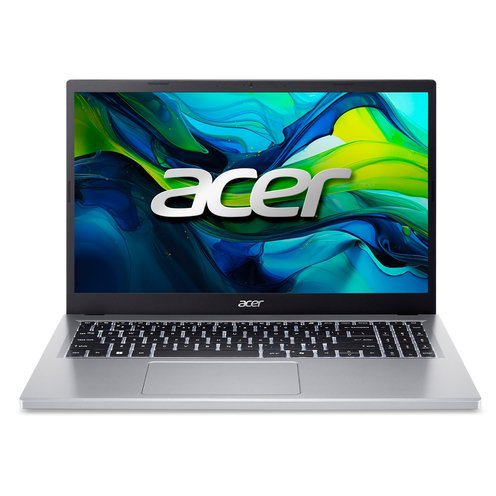
Main specifications:
- CPU: Intel Core i5-1334U
- RAM: 8GB DDR4
- Storage: 256GB PCIe Gen4 SSD
- Display: 15.3-inch WUXGA 1920 × 1200 IPS
- Graphics: Intel UHD Graphics
- OS: Windows 11
- Weight: approximately 3.7 lb
- Ports: USB-A, USB-C, HDMI and audio
- Keyboard: includes numeric keypad on some configurations
Who Should Buy This?
Best for students, office workers and general everyday computing.
Pros
- Intel Core i5 processor
- Large 15.3-inch WUXGA display
- SSD storage
- Useful port selection
- Numeric keypad on this configuration
- Suitable for school and office productivity
- RAM may be upgradeable on some configurations
Cons
- Only 8GB RAM
- Not intended for demanding gaming
- Display quality is adequate rather than premium
- Battery life varies considerably with workload
- Price varies significantly between configurations
Best Buy customer feedback for this particular configuration mentions its processor performance, portability, ports and numeric keypad, while also noting the 8GB memory limitation.
For buyers who want more storage while staying with a familiar AMD-based Windows platform, the ASUS Vivobook Go 15 is another configuration worth considering.
3. ASUS Vivobook Go 15 — Best for Everyday Windows Use
Price: $499.99 (as of September 2026; subject to change)
For the configuration with Ryzen 5 7520U, 8GB RAM and 512GB SSD at Best Buy.
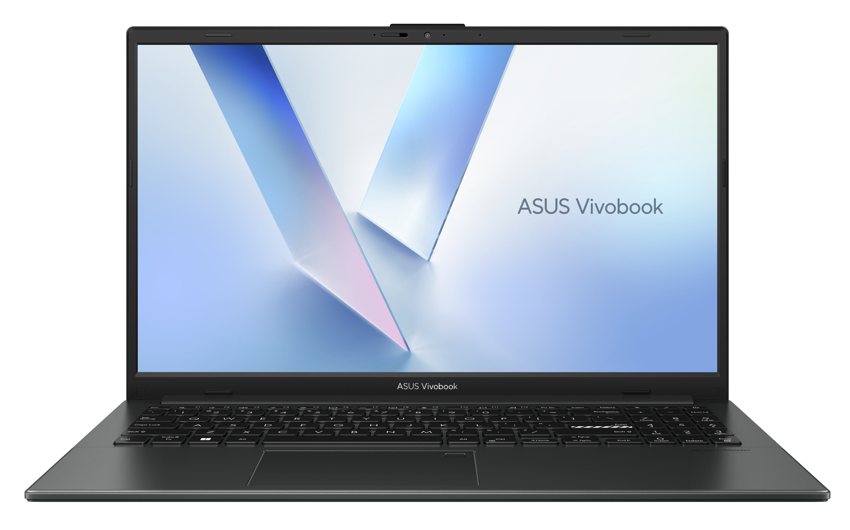
Main specifications
- Processor: AMD Ryzen 5 7520U
- RAM: 8GB
- Storage: 512GB SSD
- Display: 15.6-inch Full HD 1920 × 1080
- GPU: AMD Radeon integrated graphics
- OS: Windows 11 Home
- Color: Mixed Black
Best Buy lists the exact configuration around $499.99 with 8GB RAM and 512GB storage.
Who Should Buy This?
Best for everyday users, home users and buyers who want 512GB of storage.
Why consider it?
The biggest reason is simple: 512GB SSD storage at the $500 ceiling.
Pros
- Ryzen 5 processor
- 512GB SSD
- Full HD display
- Windows 11
- Good choice for everyday productivity
- Suitable for browsing, documents, streaming and video calls
Cons
- Only 8GB RAM
- Integrated graphics are not suitable for serious gaming
- Display is basic rather than premium
- At $499.99, it uses virtually the entire budget
Windows is not the only option at this price, however. Buyers who mainly use Google Workspace, web applications and cloud services may find a Chromebook more convenient and affordable.
4. Acer Chromebook Plus 515 — Best for Chromebook Users
Price: Around $399.99–$450 (as of September 2026; subject to change), depending on the configuration.
Acer’s U.S. store currently lists a Chromebook Plus 515 configuration at $399.99, although that particular listing is out of stock. Another U.S. Walmart listing shows a Chromebook Plus 515 configuration at $449.99.
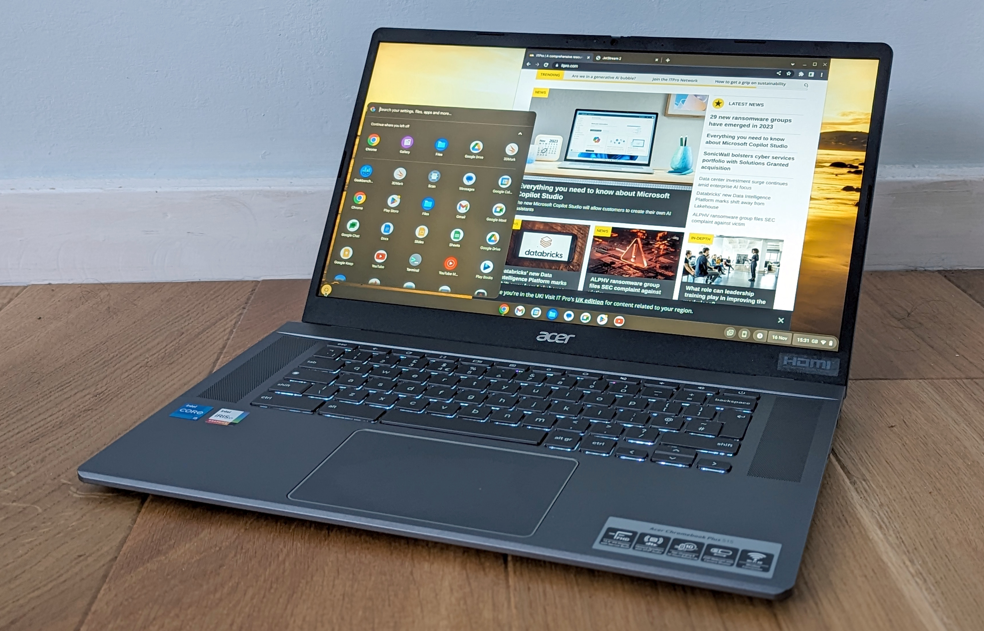
Main specifications
For the 12th-gen configuration:
- Processor: Intel Core i3-1215U
- RAM: 8GB LPDDR5X
- Storage: 128GB
- Display: 15.6-inch Full HD IPS
- Resolution: 1920 × 1080
- OS: ChromeOS
- Wi-Fi: Wi-Fi 6E
- Webcam: 1080p
- Ports: USB-C, USB-A and HDMI
- Battery claim: up to 10 hours
Acer confirms the specifications above for the CB515-2H-31NY configuration. But there is also a 256GB configuration with the Core i3-1215U and 8GB RAM as well.
Who Should Buy This?
Best for Chromebook users, students and people who mainly work online.
Pros
- ChromeOS is simple to use
- 8GB RAM
- Full HD IPS display
- 1080p webcam
- Wi-Fi 6E
- HDMI connectivity
- Good choice for Google Workspace and browser-based work
- Usually below $500
Cons
- ChromeOS limits compatibility with some Windows applications
- 128GB versions provide less local storage
- Not designed for demanding Windows software
- Not a serious gaming laptop
For buyers who want ChromeOS but prefer a smaller, more portable design for school or everyday mobility, the Lenovo IdeaPad Slim 3 Chromebook is another option to consider.
5. Lenovo IdeaPad Slim 3 Chromebook 14 — Best for Students on a Tight Budget.
Current price:
A current Best Buy listing shows the 14-inch 2K touchscreen, MediaTek Kompanio 540, 8GB RAM and 128GB storage version at approximately $299 (as of September 2026; subject to change).
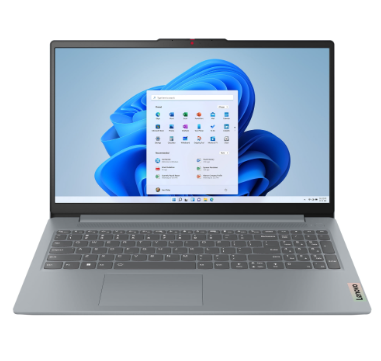
Main specifications
- Processor: MediaTek Kompanio 540
- RAM: 8GB
- Storage: 128GB
- Display: 14-inch 2K touchscreen
- OS: ChromeOS
- Graphics: Integrated
- Wi-Fi: modern Wi-Fi connectivity
- Best feature: portable 14-inch design
Best Buy currently lists the 8GB/128GB version at $299, with other configurations also available.
Who Should Buy This?
Best for students, web browsing, online classes and basic everyday ChromeOS use.
Why consider it?
Pros
- Around $300
- 8GB RAM configuration
- 14-inch 2K touchscreen
- ChromeOS
- Lightweight and portable
- Good for Google Workspace
- Good option for online classes
- Lower price than most Windows alternatives
Cons
- 128GB storage
- ChromeOS limits traditional Windows software
- Not designed for demanding workloads
- MediaTek platform is aimed at everyday use rather than heavy computing
These five models illustrate why there is no single specification that makes a laptop under $500 the right choice for everyone. The best option depends on whether you prioritize battery life, Windows software compatibility, storage, portability, schoolwork, or a simple ChromeOS experience.
| Laptop | Approx. price (as of September 2026; subject to change) | Best for | Key configuration |
| Lenovo IdeaPad Slim 3x | $449 | Students, remote work, everyday productivity | Snapdragon X, 16GB RAM, 512GB SSD |
| Acer Aspire Go 15 | about $420–$500 | Everyday work and students | Intel Core i5-1334U, 8GB, 256GB SSD |
| ASUS Vivobook Go 15 | $499.99 | Everyday Windows use | Ryzen 5 7520U, 8GB, 512GB SSD |
| Acer Chromebook Plus 515 | $399.99–$450 | Chromebook users, students | Core i3, 8GB, 128/256GB |
| Lenovo IdeaPad Slim 3 Chromebook 14 | around $299 | Students and basic ChromeOS use | MediaTek Kompanio 540, 8GB, 128GB |
2.What Should You Expect From a Laptop Under $500?
A sub-$500 laptop should not be expected to deliver the same performance as a premium machine costing $1,000 or more. However, that does not mean you have to settle for a poor computer.
Modern entry-level processors and more efficient laptop platforms have made inexpensive computers considerably more capable for everyday tasks.
A good machine in this category should be able to handle activities such as:
- Web browsing with multiple tabs
- Microsoft Office and Google Workspace
- Video conferencing
- Online classes
- Streaming movies and music
- Basic photo editing
- Document creation
- Light multitasking
- Social media
- General home use
The important distinction is between everyday computing and demanding workloads.
If your main activities involve browsing, documents, spreadsheets, Zoom calls, YouTube, Netflix, and similar tasks, a well-selected inexpensive laptop can be perfectly adequate.
If you want a broader framework for evaluating laptops beyond the $500 price range, our 2026 laptop buying guide covers the major specifications and purchasing considerations in greater detail.
On the other hand, serious gaming, professional video editing, 3D rendering, advanced software development, and other demanding workloads require more powerful hardware.
What specifications should you target?
For most buyers, a sensible starting point is:
Specification |
Recommended target |
| RAM | 8GB or more |
| Storage | 256GB SSD or more |
| Display | Full HD / 1080p |
| Processor | Recent Intel or AMD entry-level/midrange chip |
| Operating system | Windows 11 or ChromeOS |
| Battery | Ideally an all-day-oriented design |
| Connectivity | USB-C plus USB-A preferred |
| Wi-Fi | Modern Wi-Fi standard |
| Display size | Around 14–15.6 inches |
These are not absolute requirements. A Chromebook, for example, can sometimes provide an excellent experience with hardware specifications that look modest compared with a Windows machine because ChromeOS is designed around web-based computing.
3. The Most Important Specification: The Processor
When comparing inexpensive computers, the processor deserves serious attention.
The CPU affects how quickly a computer responds when launching applications, switching between tasks, processing information, and performing other operations. However, the fastest processor on paper is not automatically the best choice for every buyer.
At this price point, you will commonly encounter entry-level and midrange Intel processor options as well as AMD chips.
Intel and AMD both offer processors suitable for affordable laptops. What matters is the specific processor generation, core configuration, power characteristics, and the overall laptop design.
Intel vs. AMD at the $500 price point
An Intel-based machine may be a strong choice for general productivity, web browsing, office applications, and schoolwork.
An AMD Ryzen processor can also provide strong everyday performance and may be particularly attractive when a laptop offers a higher-tier Ryzen chip at a competitive price.
Instead of buying based only on the brand name, look at the complete processor model.
For example, two laptops can both be advertised as having an Intel processor while delivering very different performance because they use different generations and classes of chips.
The same principle applies to AMD.
If you want to understand how Intel, AMD, and Apple processors differ across laptop categories, our laptop processor guide provides a deeper explanation of processor generations, architectures, and performance considerations.
Avoid judging performance by clock speed alone
A higher advertised GHz number does not automatically mean a faster laptop.
Modern processors use different architectures, core counts, cache configurations, power limits, and boost behavior.
Laptop cooling also influences how long a processor can maintain higher performance.
Because cooling affects sustained performance and temperatures, our guide to laptop cooling, heat pipes, fans, and thermal throttling explains what happens when a laptop cannot move heat away efficiently.
For everyday users, a balanced processor combined with enough RAM and an SSD can feel much faster than a machine with a technically impressive processor paired with inadequate memory or slow storage.
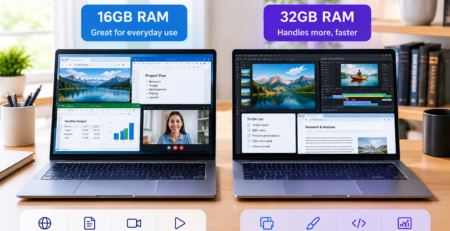
4. Is 8GB RAM Enough for a Budget Laptop?
For most buyers, 8GB RAM should be considered a practical minimum target.
RAM is the computer’s short-term working memory. It allows the operating system and applications to keep active information readily available.
If you regularly keep a browser open with many tabs while using a word processor, messaging application, music streaming service, and video call, memory becomes increasingly important.
With 8GB, typical activities such as browsing, office work, streaming, and schoolwork can be handled reasonably well when the rest of the hardware is balanced.
When should you consider more than 8GB?
If you regularly perform heavier multitasking, edit photos, work with large spreadsheets, use development tools, or run several demanding applications simultaneously, more memory can be beneficial.
However, budget buyers should also check whether the RAM is upgradeable.
Some thin laptops use memory that is permanently attached to the motherboard. If the laptop cannot be upgraded later, choosing enough RAM at purchase becomes even more important.
Don’t sacrifice the entire system for RAM
A laptop with 16GB RAM is not automatically better than one with 8GB.
If the 16GB machine has an extremely weak processor, poor display, slow storage, and bad battery performance, the extra memory may not compensate for those weaknesses.
For many buyers, a balanced system with 8GB RAM, a modern processor, and SSD storage is a better starting point.
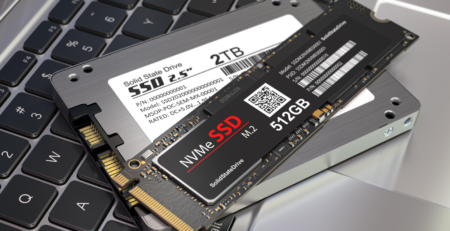
5. SSD Storage Matters More Than Many Buyers Realize
Storage capacity determines how much data you can keep on your computer, but the type of storage also affects everyday responsiveness.
For a modern laptop, an SSD is strongly preferable to an older mechanical hard drive.
A 256GB SSD is a reasonable starting point for many users. It can provide enough space for documents, applications, photos, and other everyday files if you also use cloud storage.
However, the actual available capacity will be lower than the advertised number because the operating system and preinstalled software occupy some of the drive.
Is 256GB enough?
It depends on your usage.
A student primarily storing documents and using cloud services may find 256GB perfectly adequate.
Someone who keeps a large photo collection, downloads many games, stores video files locally, or works with large media projects can quickly exceed that capacity.
If the laptop has expandable storage, that can make the smaller initial drive less concerning.
If storage cannot be upgraded, think about your expected usage over the next few years rather than only your needs today.
SSD speed isn’t everything
Not all SSDs have identical performance, but almost any modern SSD-based laptop will generally provide a much more responsive experience than an old system using a mechanical hard drive.
Boot times, application launches, file transfers, and general system responsiveness can all benefit from solid-state storage.
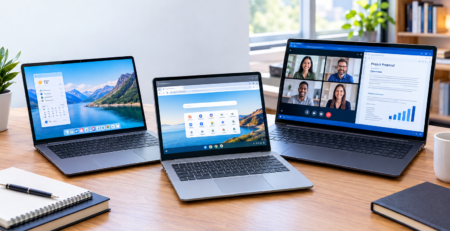
6. Choose the Right Operating System
Operating system choice can be more important than a small difference in processor performance.
At this price level, you will primarily encounter Windows laptops and Chromebooks.
Windows Laptop: Better Software Flexibility
A Windows laptop is generally the safer choice if you need compatibility with traditional desktop applications.
Windows supports a huge range of software, including productivity applications, specialized business tools, utilities, creative programs, and many PC games.
This flexibility makes Windows particularly useful for people whose school or workplace requires specific applications.
If you are also considering Apple’s macOS ecosystem instead of Windows, our MacBook Air vs. Windows laptop comparison explains the main differences in software, hardware, portability, and everyday use.
Microsoft Office applications are also widely used in Windows environments.
However, Windows can require more hardware resources than ChromeOS for some tasks, so the quality of the underlying hardware still matters.
Chromebook: Excellent for Web-Based Computing
A Chromebook runs ChromeOS and is designed around cloud-connected computing.
For users who spend most of their time in a browser, Google Workspace, web applications, email, streaming services, and online learning platforms, ChromeOS can be a very practical solution.
Chromebooks can also offer strong battery performance and simple day-to-day operation.
The biggest question is software compatibility.
Before buying one, confirm that the applications you need are available on ChromeOS.
If your school or employer requires a specific Windows-only program, a Chromebook may not be the right choice.
For a deeper comparison, readers can also see our guide to Chromebook vs. Windows laptop in 2026.
7. Don’t Ignore the Display
The screen is one of the components you interact with constantly, yet inexpensive laptops sometimes cut costs here.
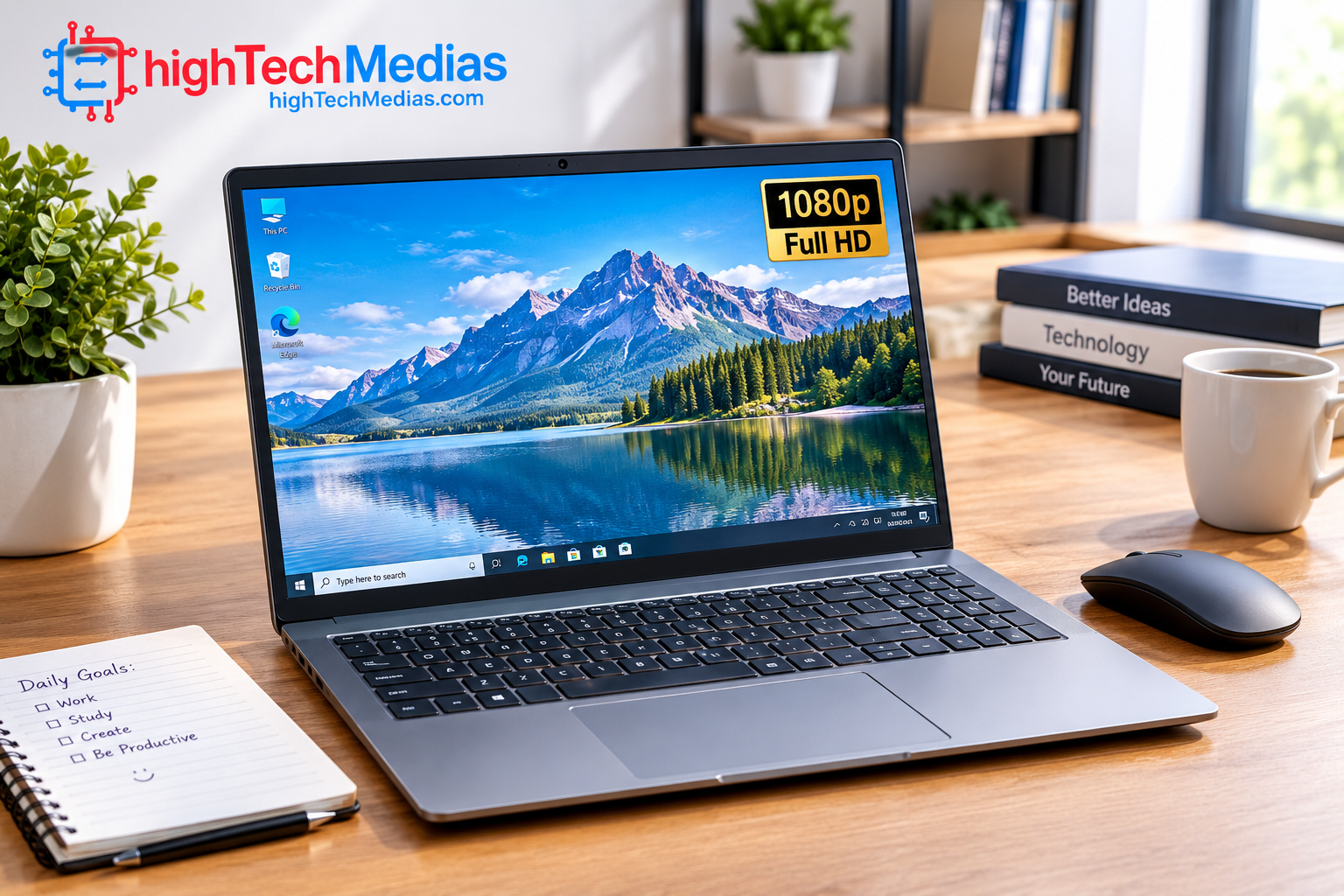
For most buyers, a 1080p display should be the minimum target whenever possible.
If you are comparing different panel technologies, our OLED vs. IPS laptop display guide explains the differences in image quality, contrast, viewing experience, and practical use.
A Full HD resolution provides considerably more usable workspace and sharper text than lower-resolution panels.
Screen size
Common options include:
- 13–14 inches
- 15–15.6 inches
- Occasionally larger displays
A 14-inch machine is often a good compromise between portability and screen space.
A 15.6-inch laptop can be more comfortable for spreadsheets, documents, and entertainment, although it is usually less portable.
Your choice should depend on where you plan to use the computer.
If you regularly carry it between home, school, work, and coffee shops, size and weight become more important.
If it will remain primarily on a desk, a larger display may be more comfortable.
Panel quality matters
Resolution is only one part of display quality.
You should also consider:
- Brightness
- Viewing angles
- Color reproduction
- Contrast
- Refresh rate
- Surface finish
An inexpensive 1080p screen can still vary significantly in quality.
8.Battery Life Can Make or Break an Affordable Laptop
Processor performance is important, but battery life determines how practical a laptop becomes when you are away from an outlet.
Manufacturers’ battery claims should be treated as estimates rather than guaranteed real-world results.
Actual battery endurance depends on factors such as:
- Screen brightness
- Display technology
- Processor efficiency
- Number of applications running
- Browser activity
- Video playback
- Wi-Fi usage
- Background processes
- Battery capacity
Because these factors can affect real-world endurance significantly, our laptop battery life guide explains what actually determines how long a laptop can run away from an outlet.
A laptop designed for efficient everyday computing may last significantly longer than a more powerful machine with similar battery capacity.
For students and mobile professionals, this can matter more than a small difference in benchmark performance.
If portability and endurance are your priorities, pay attention to both the laptop’s weight and battery specifications.
A computer that performs well but requires frequent charging may not be the most convenient option.
9. Build Quality and Portability
One of the compromises you may encounter in this price range is construction quality.
A budget machine does not necessarily have to feel cheap, but you should pay attention to the hinge, keyboard deck, screen flex, chassis rigidity, and overall design.
If you plan to carry the computer every day, weight becomes particularly important.
A larger 15.6-inch laptop may provide more screen space, but a compact 14-inch model can be considerably easier to carry.
For readers particularly interested in flexible 2-in-1 designs, our Ninkear S13 2-in-1 tablet laptop review looks at how this type of design can combine laptop productivity with greater mobility.
Students should think about how often the computer will travel between classrooms, libraries, home, and other locations.
Similarly, someone working remotely may want a lighter machine that can easily move from a home office to another room.
For additional guidance, see our laptop size and weight guide.
Keyboard and trackpad
The keyboard is another area where specifications tell only part of the story.
Look for:
- Comfortable key travel
- Good key spacing
- Reliable typing feel
- Adequate palm rest
- Responsive trackpad
If you spend several hours writing documents or responding to emails, keyboard comfort can have a greater impact on your experience than a modest difference in processor speed.
10. Connectivity: Check the Ports Before Buying
Affordable laptops can vary significantly in their port selection.
Before purchasing, check whether the laptop includes the connections you actually use.
Useful ports can include:
- USB-C
- USB-A
- HDMI
- Headphone/microphone jack
- microSD or SD card reader
USB-C is increasingly important because it can support charging, data transfer, displays, and accessories depending on the specific implementation.
However, not every USB-C port supports the same features.
If you plan to connect an external monitor, docking station, or other accessories, check the laptop’s detailed specifications rather than assuming USB-C automatically supports everything.
The cheapest laptop is not necessarily the most economical purchase if it cannot run the applications required for a degree program.
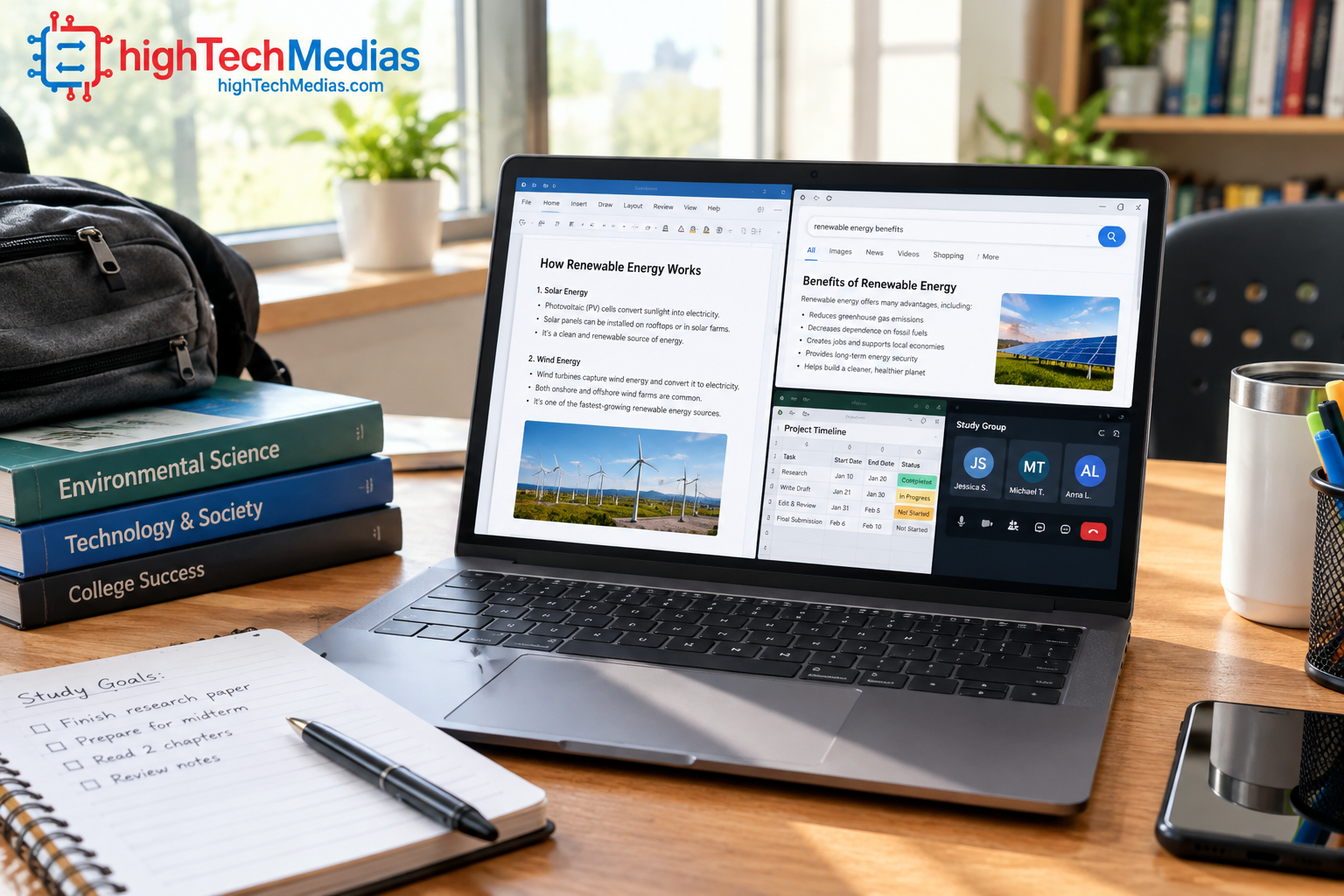
11.What Is the Best Type of Laptop for Students?
For a laptop for students, affordability, portability, battery performance, and reliability are usually more important than maximum processing power.
A student may spend most of the day using:
- Web browsers
- Word processors
- Presentation software
- Online learning platforms
- Video conferencing
- Research tools
- Streaming services
A lightweight 14-inch model with 8GB RAM and SSD storage can therefore be a strong choice.
A Chromebook can also make sense if the student’s school environment relies heavily on browser-based applications.
However, students studying engineering, computer science, architecture, video production, or other specialized subjects should check software requirements before choosing the operating system.
12. What Is the Best Laptop for Work Under $500?
A laptop for work needs to be evaluated according to the type of work you perform.
For email, documents, spreadsheets, browser-based applications, video conferencing, and general administrative tasks, a good affordable laptop can be sufficient.
Business users should pay particular attention to:
- Keyboard quality
- Webcam quality
- Microphone performance
- Wi-Fi reliability
- Battery endurance
- Display quality
- RAM
- Storage
- Operating system compatibility
If your workplace uses specialized Windows software, choose Windows rather than assuming a Chromebook will work.
For people who spend most of their workday in web applications, ChromeOS may be completely adequate.
If portability is not important because your computer will remain on a desk, a mini PC for home-office use can provide another practical option, especially when you already own a monitor and peripherals.
The right decision is therefore based on workflow rather than simply price.
13. Can You Game on a Laptop Under $500?
Gaming is where expectations need to be realistic.
Most inexpensive laptops are not designed to compete with dedicated gaming machines.
Integrated graphics can handle some casual and less demanding games, but modern AAA titles can require substantially more graphics performance.
A gaming-oriented laptop typically needs a stronger CPU, dedicated GPU, adequate cooling, faster memory, and a suitable display.
Those components are difficult to combine in a new machine while staying below $500.
If gaming is one of your primary requirements, consider increasing your budget or looking at carefully selected refurbished or previous-generation models.
For everyday users who only play lightweight games occasionally, however, an inexpensive laptop may be sufficient.
14. What Should You Avoid When Shopping?
Knowing what not to buy can be just as useful as knowing what to look for.
Avoid extremely low RAM
A laptop with very limited memory can become frustrating when multiple applications are open.
Avoid old processors without checking their generation
A processor name alone does not tell the complete story. Always investigate the exact model.
Avoid low-resolution displays when possible
A lower-resolution panel may save money, but text and interfaces can feel less comfortable for everyday work.
Avoid mechanical hard drives
For a modern laptop, SSD storage is strongly preferable.
Avoid buying based solely on storage capacity
A large drive does not compensate for weak processing performance, poor battery life, or an uncomfortable display.
Avoid assuming every Chromebook can replace Windows
ChromeOS is excellent for certain workflows but may not support every desktop application.
Avoid ignoring upgradeability
If memory or storage cannot be upgraded, make sure the initial configuration will meet your needs for several years.
15. New vs. Refurbished: Which Makes More Sense?
When your budget is fixed at $500, you have two broad strategies.
The first is buying a new entry-level laptop.
The second is considering a refurbished or older higher-tier machine.
A new computer provides advantages such as a new battery, current warranty coverage, and potentially newer connectivity.
A refurbished business-class laptop, meanwhile, may offer better construction quality, a superior keyboard, more ports, and stronger hardware for the same money.
However, condition can vary considerably between refurbished products.
Check:
- Warranty
- Battery condition
- Return policy
- Cosmetic condition
- Storage health
- RAM configuration
- Charger inclusion
- Seller reputation
For buyers who want the least risk, a new laptop from a reputable manufacturer can be easier.
For buyers comfortable evaluating condition and warranty terms, refurbished hardware can provide additional value.
16. How Much RAM and Storage Do You Really Need?
A simple way to approach a budget purchase is to start with your workload.
| User type | RAM target | Storage target | Operating system |
| Basic browsing | 8GB | 128–256GB | Windows/ChromeOS |
| Student | 8GB | 256GB | Windows/ChromeOS |
| Office work | 8GB | 256GB | Windows/ChromeOS |
| Heavy multitasking | 8–16GB | 256GB+ | Windows |
| Media-heavy user | 16GB preferred | 512GB+ | Windows |
| Cloud-focused user | 8GB | 128–256GB | ChromeOS |
These are practical guidelines rather than strict requirements.
A cloud-focused user may need very little local storage.
A photographer or video editor may require considerably more.
This is why there is no single configuration that is perfect for every buyer.
17. How to Choose the Right Laptop for Your Needs
Rather than asking which model has the biggest specification list, start by identifying your priorities.
If you’re a student
Prioritize portability, battery endurance, keyboard comfort, 8GB RAM, SSD storage, and compatibility with your school’s software.
If you work from home
Focus on display quality, webcam performance, connectivity, keyboard comfort, and multitasking capability.
If you mainly browse the web
A Chromebook may provide excellent value, particularly if your workflow is cloud-based.
If you use Microsoft applications heavily
Windows is generally the safer platform because of its broad desktop software compatibility.
If you want entertainment
Look for a good Full HD display, strong speakers, comfortable viewing angles, and reasonable battery performance.
If you want gaming
Consider increasing your budget rather than forcing an inexpensive general-purpose laptop to perform like a gaming system.
If you do not need a laptop’s built-in screen and battery
A budget mini PC can be another option for buyers who already have a monitor, keyboard, and mouse. Our best budget mini PCs guide explores affordable desktop alternatives for everyday computing.
18. Is $500 Enough for a Good Laptop in 2026?
Yes—but expectations matter.
If you do not need a built-in display and primarily use your computer at a desk, a silent mini PC can also be an alternative worth considering, particularly for home-office and everyday productivity.
If your requirements go beyond what a $500 budget can realistically provide, you can also explore our guide to the best laptops under $1,000 in 2026 for a wider range of hardware and performance options.
The best laptops under $500 are not designed to replace premium workstations or high-end gaming systems. Their strength is delivering a practical computing experience without requiring a large investment.
For everyday users, the most important goal is balance.
A well-balanced machine with:
- 8GB RAM
- SSD storage
- A modern processor
- 1080p display
- Good battery performance
- Comfortable keyboard
- Useful ports
can be far more satisfying than a laptop with one impressive specification surrounded by compromises.
Before buying, compare the complete configuration rather than focusing on one number.
19. Frequently Asked Questions
What is the best laptop under $500?
The best laptop under $500 depends on your operating system and workload. For general productivity, prioritize a modern processor, 8GB RAM, SSD storage, a 1080p display, and good battery performance. Students should also verify software compatibility before buying.
Are laptops under $500 good enough for college?
Yes. Many inexpensive laptops are capable of handling research, documents, presentations, video calls, web browsing, and online classes. A laptop for students should ideally combine portability, 8GB RAM, SSD storage, and strong battery endurance.
Is 8GB RAM enough in 2026?
For basic productivity, schoolwork, web browsing, streaming, and everyday computing, 8GB can still be a practical configuration. Heavy multitasking and demanding professional workloads benefit from more memory.
Should I buy a Chromebook or Windows laptop?
Choose a Chromebook if most of your work happens online and through web applications. Choose Windows if you need traditional desktop applications, specialized software, or broader compatibility.
Are cheap laptops under $500 worth buying?
They can be. The key is avoiding severely outdated hardware and focusing on the components that affect everyday use. A balanced system is usually a better purchase than one with a large storage number but weak overall hardware.
Can a budget laptop run Microsoft Office?
Many Windows laptops can run Microsoft Office applications. However, buyers should check the exact software requirements and licensing options for the configuration they intend to purchase.
How much storage should a $500 laptop have?
For most users, 256GB is a sensible starting point. If you store large files locally, consider 512GB or more, or plan to use external and cloud storage.
20. Final Verdict: What Should You Buy Under $500?
The right budget laptop is not necessarily the one with the highest specification on the product page.
For most people, the best choice is a balanced machine with a modern processor, at least 8GB RAM, SSD storage, a 1080p display, useful connectivity, and respectable battery performance.
Students should prioritize portability, battery life, and software compatibility. Office workers should focus on keyboard comfort, multitasking, connectivity, and webcam quality. People who primarily use web applications should seriously consider ChromeOS, while users who depend on traditional desktop software will generally be better served by Windows.
If gaming or demanding creative work is your priority, $500 may be too restrictive for a new laptop and increasing the budget could deliver a substantially better experience.
Ultimately, the best laptops under $500 are the ones that match your actual workload instead of simply offering the most impressive specification sheet.
Final recommendation: For a general-purpose buyer, look for 8GB RAM, at least a 256GB SSD, a 1080p display, a recent Intel or AMD processor, good battery performance, and the operating system that supports the software you actually use. That combination gives you the best chance of getting a reliable, useful laptop without wasting your $500 budget.




Leave a Reply