
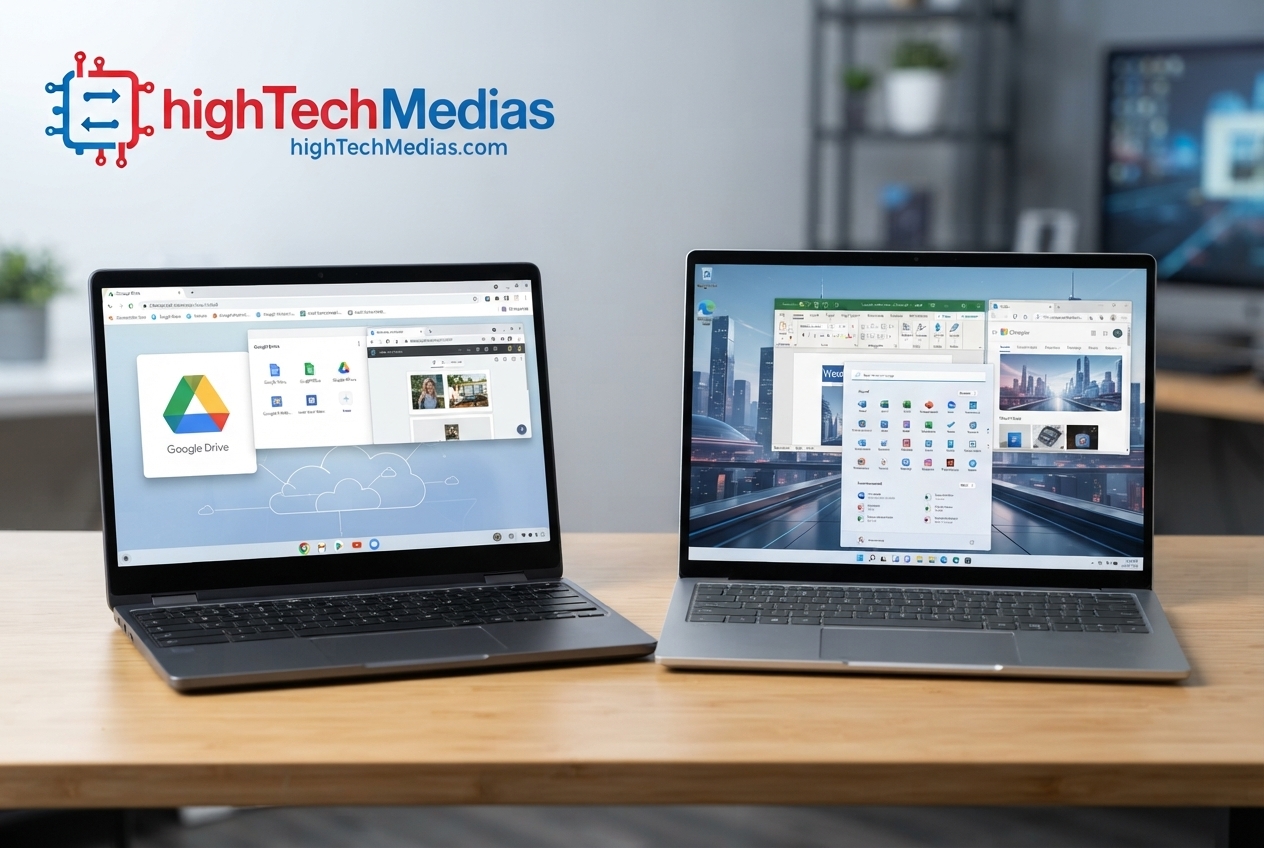
Chromebook vs Windows Laptop in 2026: Which One Is Better?
Choosing a new computer is no longer simply a matter of comparing processor speed, RAM, and storage. The operating system can have just as much impact on your daily experience. That is why the Chromebook vs Windows laptop decision deserves more attention than a simple price comparison.
Chromebooks run ChromeOS and are designed around web applications, cloud services, Google Workspace, and straightforward everyday computing. Windows laptops, meanwhile, offer a much broader software ecosystem, more hardware configurations, and compatibility with demanding professional applications, games, and creative tools.
For students, casual users, families, and people who primarily work online, a Chromebook can be surprisingly capable. For professionals, gamers, engineers, creators, and anyone who depends on specialized desktop software, a Windows laptop is usually the safer choice.
The real question is not which platform is universally better. It is which one better matches the way you actually use your computer.
Quick answer:
Choose a Chromebook if you mainly browse the web, use Google Workspace, stream media, attend online classes, and want a simple, affordable computer. Choose a Windows laptop if you need broad software compatibility, professional applications, gaming, advanced multitasking, or greater hardware flexibility.
Chromebook vs Windows Laptop: The Quick Comparison
Before going into the details, here is the simplest way to understand the two platforms.
| Category | Chromebook | Windows Laptop |
| Operating system | ChromeOS | Windows 11 |
| Best for | Web-based computing, students, basic productivity | Professional work, gaming, creative software |
| Typical experience | Simple and streamlined | Flexible and highly configurable |
| Web browsing | Excellent | Excellent |
| Google Workspace | Excellent | Excellent |
| Microsoft Office | Web-based/compatible options | Full desktop ecosystem |
| Professional software | Limited depending on application | Excellent compatibility |
| Gaming | Limited compared with Windows PCs | Much broader support |
| Hardware choices | More limited | Very broad |
| Battery life | Often excellent | Highly variable |
| Portability | Usually very good | Depends heavily on model |
| Security | Strong built-in protections | Strong, but more configuration may be required |
| Offline use | Supported, but app-dependent | Generally extensive |
| Price range | Often inexpensive | From budget to premium |
| Best choice for students | Often yes | Depends on software needs |
| Best choice for professionals | Depends on workflow | Usually yes |
The biggest difference is therefore not simply speed. It is what the operating system allows you to do.
What Is a Chromebook?
A Chromebook is a computer built around Google’s ChromeOS operating system.
Unlike a traditional Windows PC, ChromeOS was designed from the beginning with web-based computing in mind. Much of the everyday experience revolves around Chrome, Google services, cloud storage, and web applications.
Google describes Chromebooks as systems that can use web apps for common tasks, while supported models can also run Android apps.
That design has several advantages.
A Chromebook can be easy to set up, relatively simple to maintain, and comfortable for users who spend most of their time online. You can use Gmail, Google Docs, Google Sheets, Google Drive, YouTube, Microsoft 365 web applications, video conferencing services, and many other browser-based tools without needing a traditional desktop installation.
How ChromeOS Changes the Computing Experience
The biggest advantage of ChromeOS is simplicity.
If your daily activities consist primarily of browsing, email, documents, spreadsheets, video calls, streaming, social media, and cloud storage, you may not need a traditional desktop operating system.
ChromeOS also handles updates automatically. Google currently says supported Chromebooks receive automatic updates for up to 10 years, although the exact support period depends on the specific device.
This makes a Chromebook laptop particularly attractive for people who do not want to spend much time managing system maintenance.
There is another important point: Chromebooks are not completely dependent on an internet connection.
Google provides offline functionality for tasks such as editing certain Google Docs, Sheets, and Slides files, taking notes, reading previously prepared content, and using supported offline applications.
However, the offline experience is not identical to that of a Windows PC.
That distinction matters.
What Is a Windows Laptop?
A Windows laptop is a portable PC running Microsoft’s Windows operating system, with Windows 11 being the current mainstream version for new PCs.
Windows is designed to support a huge variety of hardware and software. That includes traditional desktop applications, professional tools, games, engineering programs, creative applications, development environments, business software, peripherals, and specialized utilities.
Microsoft’s current Windows 11 requirements include a compatible 1 GHz or faster processor with at least two cores, 4 GB of RAM, and 64 GB or more of storage, although practical requirements for demanding workloads are considerably higher.
This broad compatibility is one of the primary reasons a Windows laptop remains the default choice for many professionals.
You can buy a lightweight Windows machine for everyday work, a powerful workstation for engineering and content creation, or a gaming laptop equipped with a dedicated GPU.
That flexibility is difficult for ChromeOS to match.
Chromebook vs Windows: Which Operating System Is Better?
There is no universal winner.
ChromeOS is better when simplicity, low maintenance, web-based productivity, and affordability are the priorities.
Windows is better when software flexibility, hardware choice, professional applications, and high-performance workloads matter.
Think of the difference this way:
ChromeOS asks:
“Can you do most of your work in the browser or supported apps?”
Windows asks:
“What software and hardware do you need?”
If your answer to the first question is yes, ChromeOS may be all you need.
If your answer to the second question includes specialized desktop programs, advanced graphics software, engineering tools, professional development environments, or demanding games, Windows is usually the better fit.
Chromebook vs Windows Laptop for Students
For many students, this is where Chromebooks make the most sense.
-
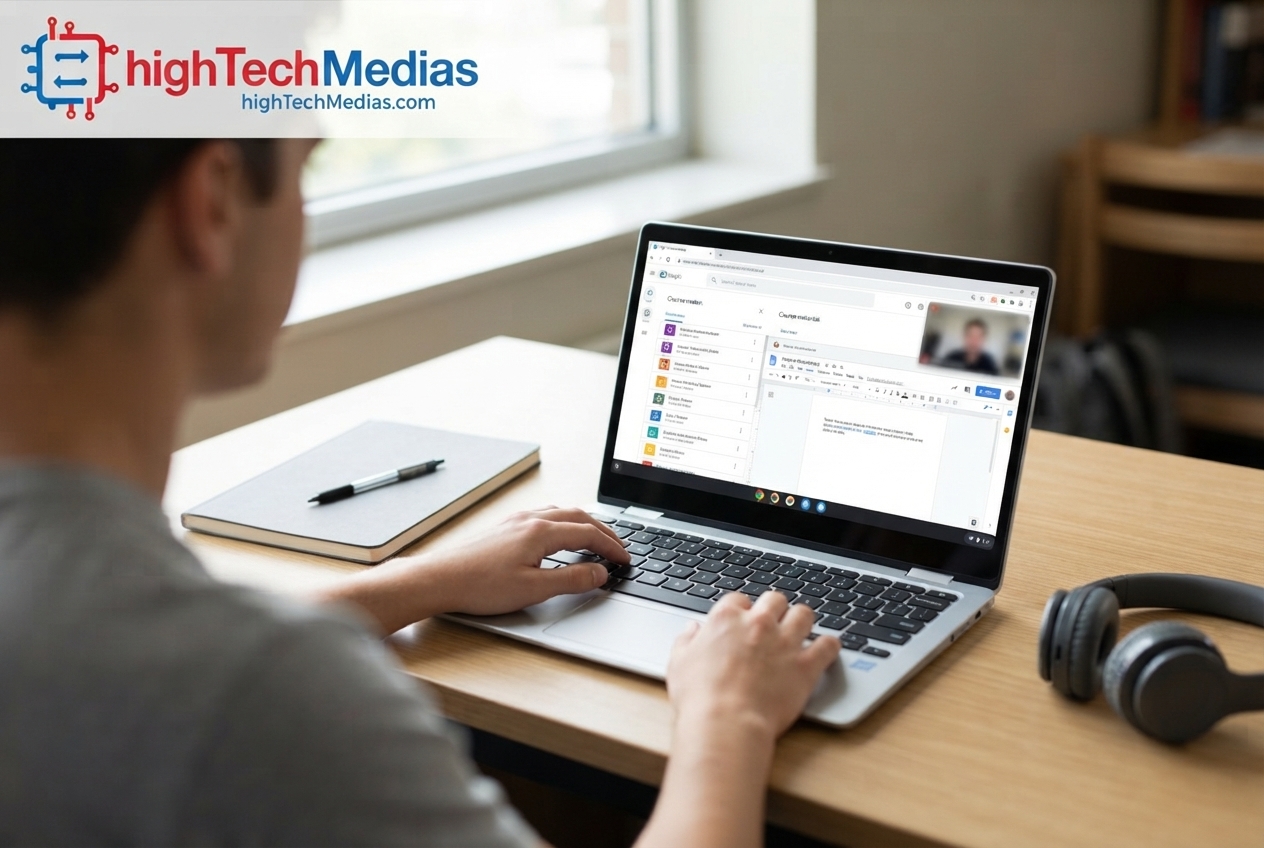
A Chromebook for students can be an excellent option when schoolwork revolves around browser-based research, Google Docs, Google Classroom, email, presentations, video calls, and cloud storage.
-
ChromeOS also tends to be easy to understand. A student who already uses Google’s ecosystem may need very little time to learn the basics.
-
Chromebooks can also be attractive for remote learning because they typically provide a lightweight way to access browser-based educational platforms.
Chromebook advantages for students
-
Usually simple to operate
-
Strong browser experience
-
Good integration with Google Workspace
-
Often lightweight
-
Usually strong battery life
-
Automatic software updates
-
Generally affordable
-
Easy access to web-based educational tools
Google also documents support for Android apps on compatible Chromebooks, although availability varies by device and some apps may not work on every model.
But there is an important limitation
Students in engineering, architecture, computer science, film production, music production, or other specialized programs may need software that ChromeOS cannot replace easily.
For example, if your school requires a Windows-only engineering application, purchasing the cheapest Chromebook could become an expensive mistake.
Before buying, check your school’s software requirements.
Chromebook for Work: Who Is It Actually Good For?
The phrase Chromebook for work can be misleading because “work” covers very different activities.
For someone who works primarily with email, documents, spreadsheets, CRM platforms, project-management software, browser-based dashboards, communication tools, and cloud services, ChromeOS can work extremely well.
A remote employee who spends eight hours a day inside a browser may not benefit much from a powerful Windows workstation.
In that situation, a lightweight Chromebook can be faster to manage and easier to carry.
ChromeOS also supports Microsoft productivity workflows. Google documents several ways to work with Microsoft 365 files, including using Microsoft 365 and Google Docs, Sheets, and Slides on compatible Chromebooks.
However, this is where you need to distinguish between using Microsoft Office through supported online or app-based workflows and having the complete traditional Windows desktop experience.
If your job depends on advanced Excel functions, specialized Office add-ins, complex macros, proprietary Windows applications, or other desktop-only software, Windows remains the safer choice.
Windows Laptop for Professional Productivity
Windows has a major advantage when professional software is involved.
-
A Windows machine can support a broad range of productivity applications, development tools, engineering software, accounting platforms, creative applications, database tools, and business utilities.
-
Microsoft’s ecosystem also provides extensive documentation and support resources for Windows and Microsoft 365 users.
This is particularly important for professionals who cannot easily change their software workflow.
Professionals who should strongly consider Windows
-
Engineers
-
Architects
-
Software developers
-
Video editors
-
3D designers
-
Photographers
-
Gamers
-
Data professionals
-
IT administrators
-
Business users with specialized applications
Windows is particularly valuable when your work depends on software that requires a traditional desktop operating system.
Professionals who want to explore Microsoft’s broader technical ecosystem can also use Microsoft Learn, which provides official technical documentation, tutorials, and learning resources.
For demanding workloads, processor selection becomes much more important. Modern systems can use processors from companies such as Intel and AMD, with performance varying considerably between product families.
For current processor information, specifications, and platform technologies, readers can consult the official [Intel resources] and [AMD resources].
Internal link opportunity: readers comparing portable computing options can also explore our [laptop buying guide].
Software Compatibility: The Biggest Difference
Software compatibility is probably the most important factor in the entire Chromebook vs Windows laptop decision.
Before choosing your operating system, make a list of the programs you use every week.
Ask:
-
Is the application web-based?
-
Is there a ChromeOS version?
-
Is there an Android version?
-
Does the developer support Linux on ChromeOS?
-
Does the application require Windows?
-
Do you need advanced features that are missing from the web version?
If most of your answers point toward browser-based software, a Chromebook may be ideal
If several important applications require Windows, choose Windows
This simple test can prevent one of the most common Chromebook buying mistakes: choosing based entirely on price and discovering later that a critical application is incompatible.
Google Workspace vs Microsoft Office
Google Workspace and Microsoft Office represent two different approaches to productivity.
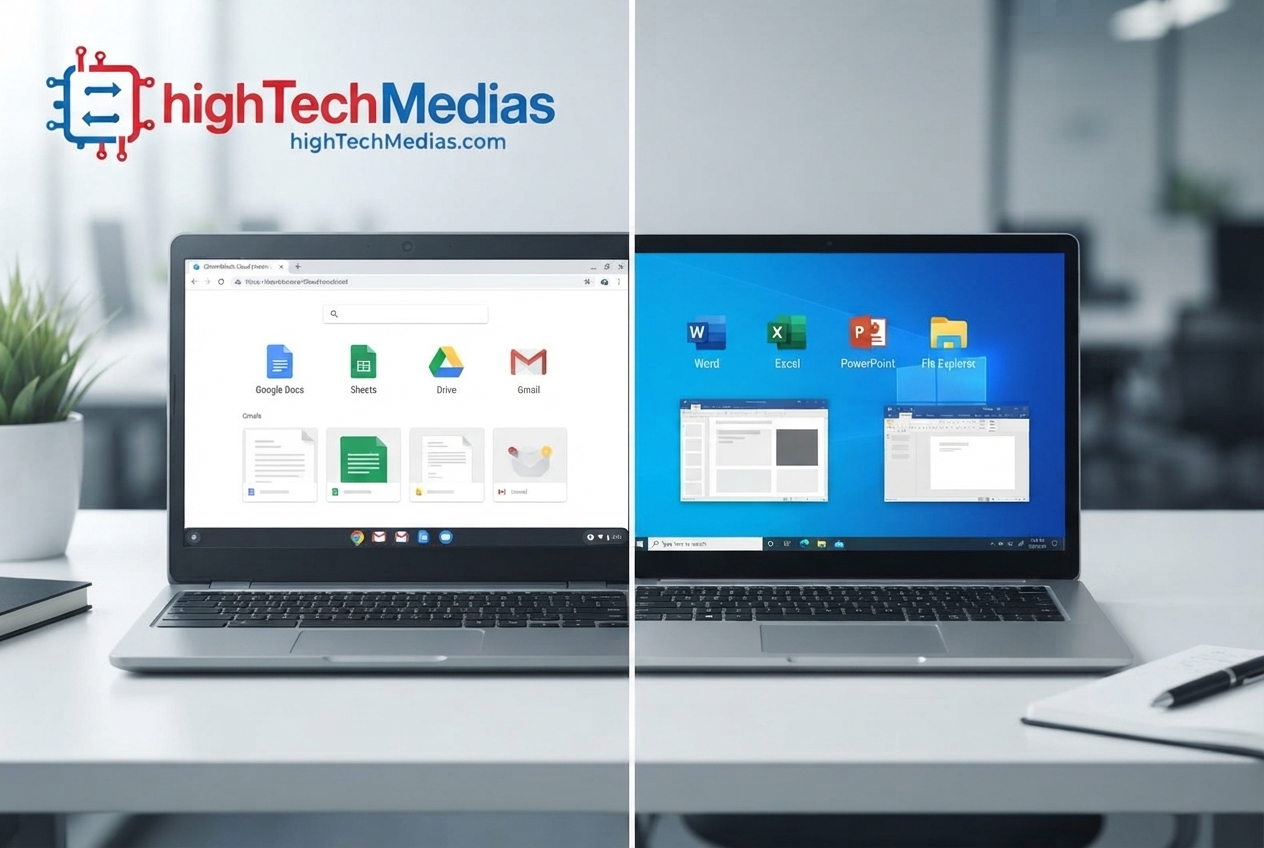
Google Workspace is deeply integrated with cloud computing. Documents, spreadsheets, presentations, email, calendars, and files are designed around online collaboration and synchronization.
Microsoft Office, now part of the broader Microsoft 365 ecosystem, offers powerful productivity tools and remains deeply embedded in business environments.
Chromebooks can work with Microsoft files, and Google provides support for opening and editing Microsoft 365 file formats on compatible devices.
But the experience can differ from using the full Windows desktop applications.
-
For basic documents and spreadsheets, the difference may be almost irrelevant.
-
For advanced business users, however, desktop functionality can matter.
-
For everyday users, the difference between web-based productivity and desktop productivity may be relatively small. For current information about Windows, Microsoft 365, and Office products, readers can also consult Microsoft Support.
Performance: Does a Chromebook Need a Powerful Processor?
Not necessarily.
This is another area where comparing specifications without considering the operating system can be misleading.
ChromeOS is designed around relatively lightweight workloads. A Chromebook with modest hardware can feel responsive when browsing websites, editing documents, watching videos, and handling basic productivity.
Windows offers much greater performance scaling.
A higher-end Windows system can include a powerful multi-core processor, substantial RAM, fast SSD storage, and a dedicated graphics processor. Modern Windows laptops use processors from companies such as Intel, with different processor families designed for different performance and efficiency requirements.
A basic Windows laptop may be inexpensive and perfectly adequate for office work, while a higher-end Windows system can include a powerful multi-core processor, substantial RAM, fast SSD storage, and a dedicated graphics processor.
Before comparing individual processors, however, shoppers should understand that processor speed is only one part of the overall laptop experience.
If you want a more complete checklist covering processor, RAM, storage, display, battery life, and other specifications, see our laptop buying guide: what to check before you buy.
For demanding workloads, that additional performance can make a major difference.
RAM
For a basic Chromebook, moderate RAM can be enough for typical web-based work. However, users who keep many browser tabs and applications open should avoid buying a model with extremely limited memory.
Windows users should also avoid choosing RAM solely according to the minimum operating-system requirement.
The practical memory requirement depends on what you do.
SSD storage
Storage is another major difference.
-
Chromebooks frequently emphasize cloud storage and may therefore ship with less local storage than comparable Windows machines.
That can be perfectly reasonable if most of your files live in Google Drive or another cloud service.
-
Windows users who store large applications, games, videos, photos, or professional project files locally may benefit from a larger SSD.
Battery Life and Portability
Battery life is one of the strongest reasons people consider a Chromebook.
Because many Chromebooks use efficient hardware and ChromeOS is relatively streamlined, lightweight models can offer excellent endurance.
However, do not assume every Chromebook automatically beats every Windows laptop.
Modern Windows laptops can also provide excellent battery life, particularly efficient ultraportable models.
The display, processor, battery capacity, software configuration, brightness, wireless activity, and workload all influence real-world endurance.
Portability is similar.
A 13-inch Chromebook may be extremely easy to carry, while a 16-inch Windows laptop designed for gaming may be significantly heavier.
The best computer is therefore the one that matches your daily mobility requirements.
Security and Automatic Updates
Security is another area where Chromebooks have a strong reputation.
-
ChromeOS includes several built-in security mechanisms and Google automatically manages updates on supported devices.
-
Google says Chromebooks automatically manage updates and that automatic updates include security improvements, bug fixes, and new features.
This is valuable for users who simply want their computer to stay current without thinking about maintenance.
-
Windows 11 also has extensive built-in security features and regular updates. However, the broader Windows ecosystem means users have more software, configuration options, and third-party applications to manage.
Neither platform should be considered immune to security problems.
Good security practices still matter:
-
Use strong passwords.
-
Enable multifactor authentication.
-
Keep applications updated.
-
Avoid suspicious downloads.
-
Back up important files.
-
Use reputable software.
-
Be cautious with email attachments and links.
Gaming: Chromebook or Windows Laptop?
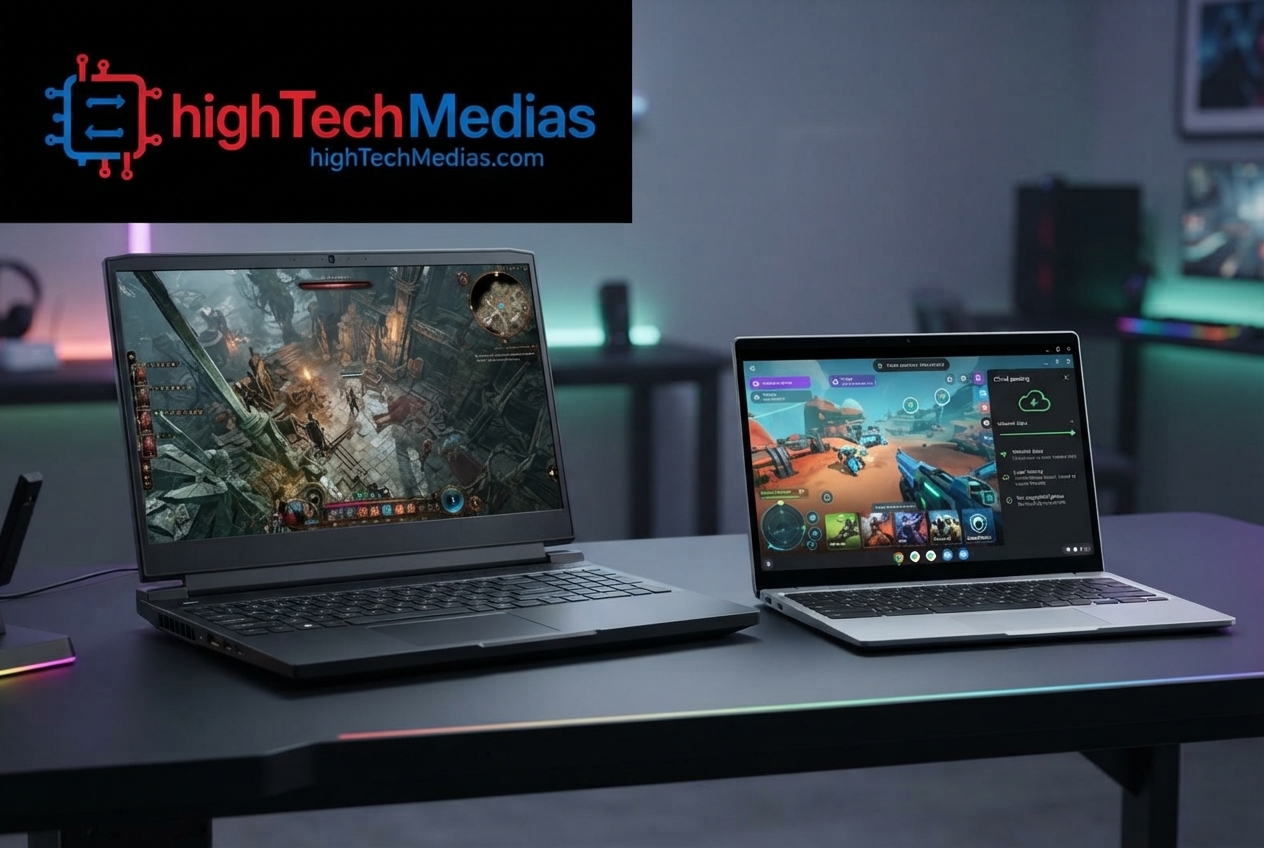
For gaming, Windows wins clearly for most traditional PC gamers.
-
Windows supports a much larger PC gaming ecosystem, a wider range of graphics hardware, gaming peripherals, game launchers, and specialized gaming software.
-
A Windows gaming laptop can also use dedicated GPUs from companies such as NVIDIA and AMD.
-
Windows also supports a broad range of dedicated graphics hardware for gaming and other demanding workloads.
Dedicated graphics solutions from companies such as NVIDIA can provide substantially more graphics performance than the integrated hardware typically found in entry-level computers.
-
Chromebooks can play browser games, Android games on supported models, and certain cloud-based gaming services.
But if your goal is to play demanding native PC games locally, a Windows laptop is the more appropriate choice.
Creative Work and Professional Applications
Creative professionals should usually lean toward Windows unless they have verified that their exact workflow works on ChromeOS.
Photo editing, video production, 3D modeling, CAD, engineering simulation, music production, and advanced development environments can require software that simply does not exist in a comparable ChromeOS version.
-
A Windows laptop also gives buyers much more flexibility when selecting processors, graphics hardware, RAM, SSD capacity, displays, ports, and cooling systems.
For someone doing demanding professional work, that flexibility can be worth paying for.
Price: Is a Chromebook Really Cheaper?
-
Chromebooks are often positioned as an affordable alternative to traditional PCs.
If your priority is finding an affordable laptop for school, browsing, streaming, and basic productivity, Chromebooks deserve serious consideration. However, if you are willing to spend more for greater hardware flexibility, our guide to the best laptops under $1,000 in 2026 is a useful next step.
That can be true, but price should never be the only criterion.
-
A cheap Chromebook can be excellent value if it handles everything you need.
-
A cheap Chromebook can also be poor value if you discover that you need Windows software six months later.
The same principle applies to Windows.
- A low-cost Windows laptop may technically run Windows 11, but that does not automatically mean it provides a good experience for demanding multitasking.
Look beyond the sticker price.
Compare:
-
Processor
-
RAM
-
SSD capacity
-
Display quality
-
Battery capacity
-
Weight
-
Ports
-
Webcam
-
Keyboard
-
Build quality
-
Warranty
-
Software compatibility
If your priority is finding an affordable laptop for school, browsing, streaming, and basic productivity, Chromebooks deserve serious consideration.
If you need a budget laptop for software that requires Windows, spending slightly more on a Windows system may save money in the long term.
For readers shopping in this price range, our guide to [the best laptops under $1,000] is a useful next step.
Hardware Choice: Windows Has the Advantage
The Windows ecosystem includes an enormous range of laptop designs.
You can choose:
-
13-inch ultraportables
-
14-inch business laptops
-
15-inch productivity systems
-
16-inch creative machines
-
17-inch desktop replacements
-
2-in-1 convertibles
-
Gaming laptops
-
Workstations
With so many configurations available, it can be difficult to know which specifications actually matter for your workload.
Our Laptop Buying Guide 2026 provides a practical overview of the specifications and features worth checking before choosing a model. This is particularly useful when comparing different Windows laptops, because two machines with similar prices can provide very different displays, processors, battery life, and storage configurations.
Manufacturers such as Dell, HP, Lenovo, ASUS, and many others produce Windows systems across almost every price category.
Windows laptops are available in many different sizes, configurations, and price categories.
For example, buyers can explore current Dell laptops to see how Windows hardware ranges from everyday productivity systems to higher-performance configurations.
HP laptops provide another example of the wide range of Windows systems available to consumers, from mainstream notebooks to more specialized configurations.
Lenovo laptops are another example of the broad Windows ecosystem, with models covering consumer, business, ultraportable, and performance-oriented categories.
Chromebooks have become more diverse, but Windows still offers the broader hardware ecosystem.
For shoppers who care about specific ports, displays, processors, GPUs, storage configurations, upgradeability, or specialized hardware, Windows is usually easier to customize.
Chromebook vs Windows Laptop: Which One Should You Buy?
At this point, the answer should be clearer.
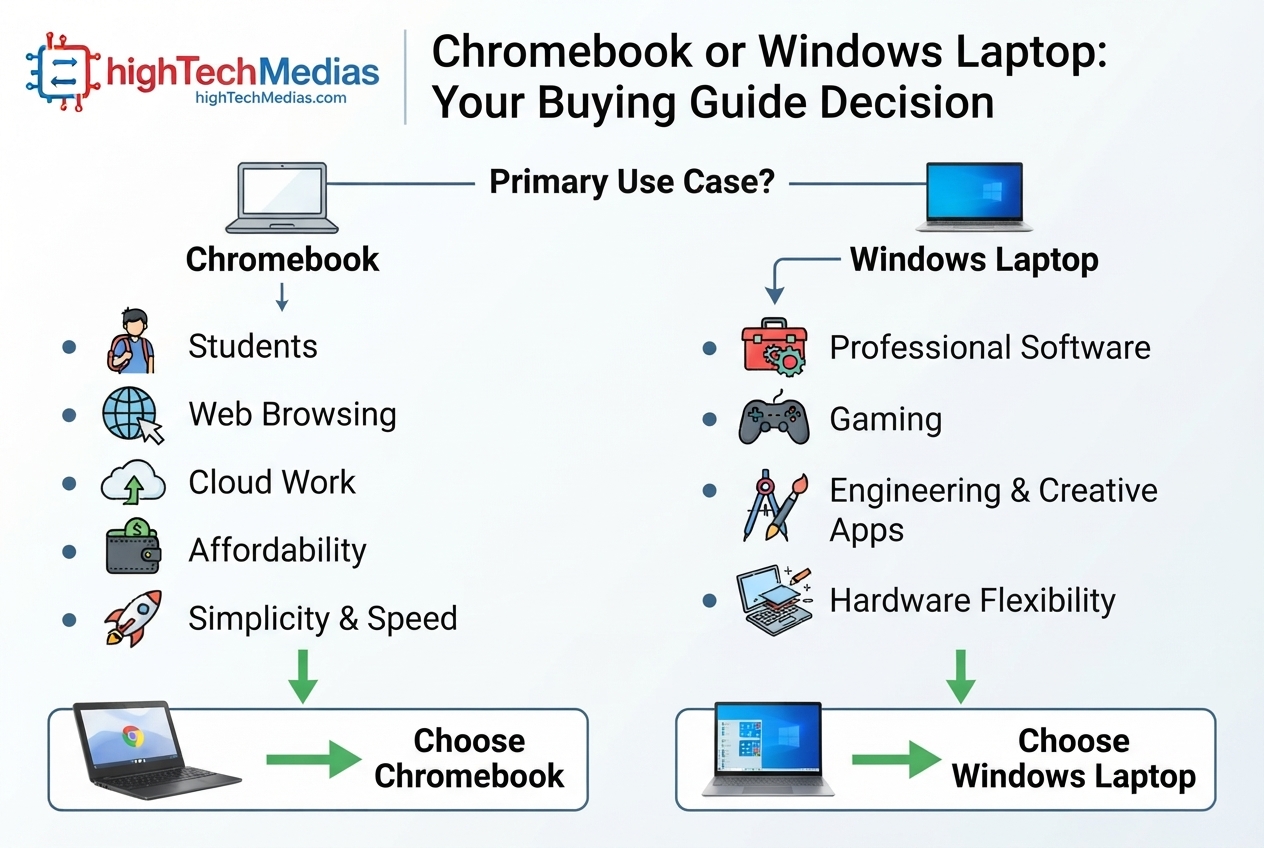
Buy a Chromebook if you:
-
Mainly browse the web
-
Use Google Workspace
-
Work with cloud-based services
-
Need a simple computer
-
Want strong portability
-
Prioritize battery life
-
Are buying for a student
-
Mostly perform basic productivity tasks
-
Want an affordable computer
-
Do not depend on Windows-only software
Buy a Windows laptop if you:
-
Need professional desktop software
-
Play PC games
-
Use engineering applications
-
Edit video professionally
-
Work with advanced creative software
-
Need maximum software compatibility
-
Want a wide range of hardware choices
-
Need substantial local storage
-
Use specialized business applications
-
Want maximum performance flexibility
What About 2-in-1 Laptops?
Some buyers want a tablet-like device that can also function as a laptop.
Both platforms offer convertible designs.
-
Chromebooks can be particularly appealing for students because some models support touchscreens and tablet-style usage.
-
Windows has an even broader range of 2-in-1 devices, including premium systems designed for professional productivity.
-
If portability and touch interaction are priorities, compare the actual hinge design, keyboard quality, display brightness, weight, battery life, and stylus support rather than choosing solely by operating system.
-
If you are specifically interested in a device that combines laptop productivity with tablet-style flexibility, it is useful to look at real examples rather than specifications alone.
You can also explore our coverage of the Ninkear S13 2-in-1 tablet laptop for an example of this hybrid form factor.
What About Mini PCs?
There is another option worth considering if portability is not essential: a mini PC.
A mini PC paired with an external monitor, keyboard, and mouse can provide strong desktop performance while taking up very little space.
For a fixed home-office setup, however, noise can become an important part of the buying decision.
-
If quiet operation is one of your priorities, our guide to the best silent mini PCs in 2026 explores options designed for quieter home-office environments.
This is particularly interesting for home offices and fixed workstations.
-
If you do not need to carry your computer around, compare a laptop with a compact desktop before buying.
Our guide to the best mini PCs for a home office explains why this category can make sense for stationary productivity.
You can also read our comparison of mini PCs vs laptops if you are deciding between portability and desktop flexibility.
Chromebook vs Windows Laptop: The Bottom Line
The Chromebook vs Windows laptop debate is ultimately about matching the computer to your workflow.
Chromebooks are no longer simply inexpensive computers for browsing the web. Modern ChromeOS devices can handle documents, spreadsheets, presentations, communication, streaming, web applications, cloud services, offline tasks, and supported Android apps. Google’s current documentation also confirms that compatible Chromebooks can receive automatic updates for up to 10 years.
-
For students, families, remote workers, and users whose computing life exists primarily in the browser, a Chromebook can be an excellent purchase.
-
Windows, however, remains the stronger choice for users who need maximum flexibility.
Its advantages become especially clear with professional software, gaming, engineering applications, creative workloads, advanced multitasking, and hardware selection.
So don’t ask only:
“Which one is better?”
Ask:
“Which operating system supports everything I need to do?”
-
If the answer is ChromeOS, you may save money and get a simpler computer by choosing a Chromebook.
-
If the answer is Windows, paying more for the right Windows laptop can be far better than saving money on a device that cannot run the software you need.
That is the most important lesson to take away from this comparison.
Frequently Asked Questions
Is a Chromebook better than a Windows laptop?
Neither is universally better. A Chromebook is often better for web-based productivity, students, cloud computing, and simple everyday tasks. Windows is generally better for professional applications, gaming, engineering, creative software, and broad hardware compatibility.
Is a Chromebook good for students?
Yes. A Chromebook for students can be an excellent choice for web research, Google Workspace, online classes, document editing, video calls, and remote learning. However, students should check whether their school requires Windows-only software before buying.
Can I use Microsoft Office on a Chromebook?
Chromebooks can work with Microsoft 365 and Microsoft Office file formats through supported applications and web-based workflows. However, the experience may differ from running the full desktop versions on Windows.
Can Chromebooks work without the internet?
Yes, for supported tasks. Google documents offline functionality for services such as Gmail, Google Keep, and Google Drive files, although some applications and features require an internet connection.
Are Chromebooks secure?
ChromeOS includes built-in security features and automatic updates on supported devices. Google says automatic updates include security updates, bug fixes, and new features.
Can a Chromebook run Android apps?
Some Chromebooks support Android apps through Google Play. However, not every Chromebook supports Android apps and individual applications may have compatibility limitations.
Is Windows better for gaming?
For traditional PC gaming, Windows is generally the better choice because of its much broader support for native PC games, gaming hardware, graphics processors, launchers, and peripherals.
Which is better for work, Chromebook or Windows laptop?
It depends on the work. Browser-based and cloud-focused jobs can work very well on ChromeOS. Jobs requiring specialized desktop applications are generally better suited to Windows.
Which is better for a budget laptop?
A Chromebook can provide excellent value when your requirements are basic and web-focused. A Windows laptop may provide better long-term value if you need software that only runs on Windows.
How long do Chromebooks receive updates?
Google currently states that supported Chromebooks receive automatic updates for up to 10 years, but the exact update period depends on the specific model. Buyers should check the device’s update schedule before purchasing.
Final Recommendation
-
For a student, casual user, family member, or remote worker who primarily lives online, I would strongly consider a Chromebook.
-
For a professional, gamer, engineer, developer, designer, or creator who needs specialized software, I would choose Windows.
The right purchase is not necessarily the most powerful laptop or the cheapest laptop.
It is the laptop that does everything you actually need without forcing you to work around its limitations.






Comment (1)
[…] For a deeper comparison, readers can also see our guide to Chromebook vs. Windows laptop in 2026. […]