
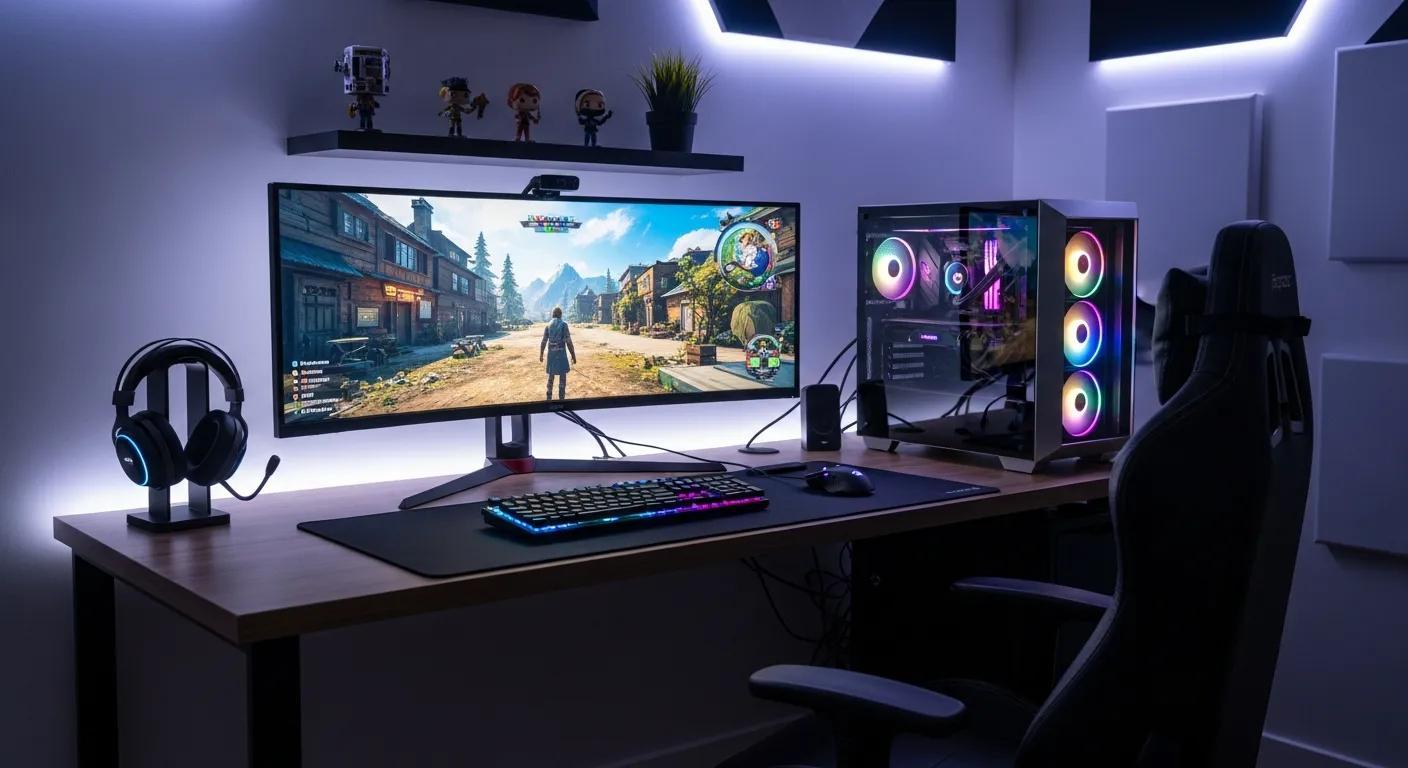
Ultimate Gaming Setup Guide – Build Your Dream Gaming Desk
A great gaming environment is about more than colorful lights and expensive hardware. This ultimate gaming setup guide explains how to build a gaming desk that balances performance, comfort, visual appeal, and budget. Whether you’re a competitive PC gamer, a casual player, a college student, or someone upgrading a home office for gaming after work, the right combination of equipment can make every session more enjoyable.
The smartest approach is to invest in the components that affect your experience most: the gaming system, display, input devices, audio, desk, and chair. Accessories and RGB lighting come afterward. A well-planned setup should fit your room, support your favorite games, and leave enough space for everyday tasks.
If you’re still choosing your main computer, start with our laptop buying guide for 2026 before committing to a full setup.
1. Three Real Products to Consider for Your Gaming Setup
A practical gaming workstation can be built around different priorities. One gamer may want a powerful portable computer, another may prefer a dedicated desktop monitor, and someone who plays for hours may prioritize seating. These three products represent different parts of a complete setup rather than interchangeable alternatives.
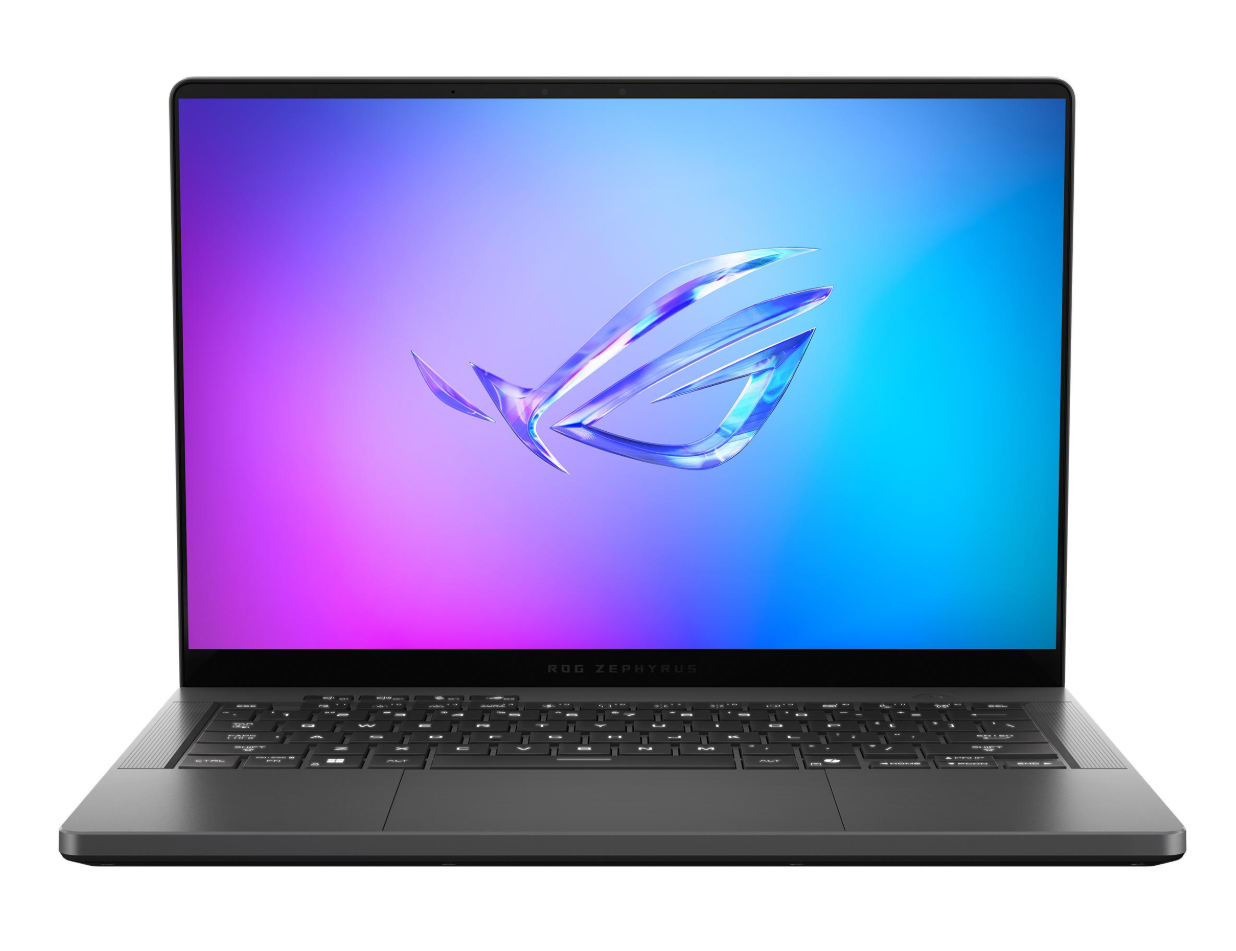
1.1 ASUS ROG Zephyrus G14 (2026)
Key specifications
-
14-inch, 2880 × 1800 OLED display
-
Up to 120Hz refresh rate
-
Intel Core Ultra 9 386H processor in the listed configuration
-
NVIDIA GeForce RTX 5070 Ti Laptop GPU
-
Slim chassis designed for portability
-
Windows 11, depending on configuration
Who should buy this?
Gamers who want a premium portable system that can move between a desk, classroom, office, and travel destination. It can also suit creators who need gaming capability alongside video editing and other demanding applications.
Why consider it?
The compact form factor combines a high-resolution OLED screen with a dedicated graphics processor. It can serve as the centerpiece of a smaller gaming setup without requiring a separate desktop tower.
Pros
-
Portable design with premium display technology
-
Dedicated gaming graphics
-
Useful for gaming and creative workloads
Cons
-
Expensive compared with many desktop alternatives
-
Laptop GPU performance and cooling depend on the specific configuration
-
A small screen may be less comfortable than a large external monitor for extended sessions
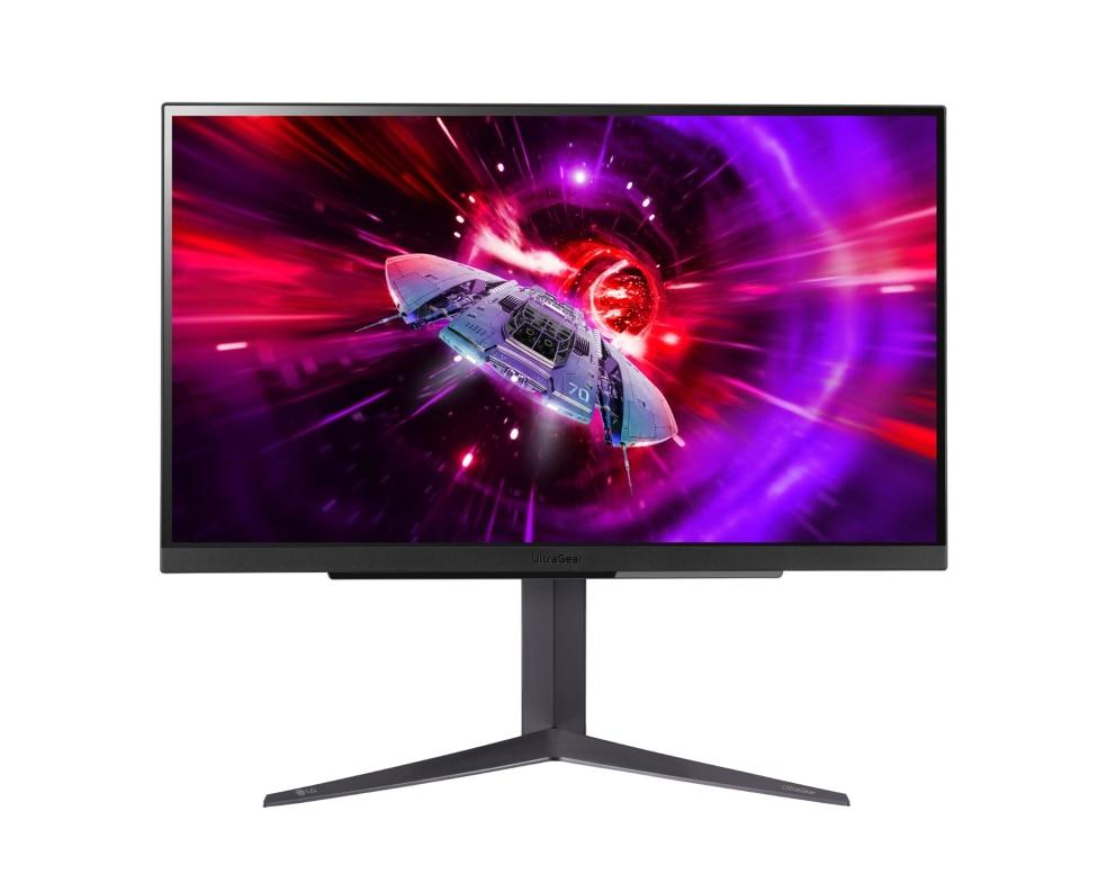
1.2 LG UltraGear 27GR83Q-B
Key specifications
-
27-inch IPS display
-
2560 × 1440 QHD resolution
-
Up to 240Hz refresh rate
-
1ms gray-to-gray response-time specification
-
DisplayHDR 400 certification
-
NVIDIA G-SYNC compatibility and AMD FreeSync Premium support listed for the model
Who should buy this?
PC gamers who want a sharper image than 1080p while maintaining a high refresh rate, particularly players of fast-paced games and people who also use their desk for productivity.
Why consider it?
A 27-inch QHD monitor offers a useful middle ground between image detail and gaming performance. However, your computer must generate enough frames to take full advantage of a high-refresh-rate display.
Pros
-
QHD resolution at 27 inches
-
High refresh rate for responsive gameplay
-
IPS technology offers useful viewing angles
Cons
-
Not an OLED panel
-
Demanding games may require reduced graphics settings to reach high frame rates
-
HDR certification alone does not guarantee premium HDR performance
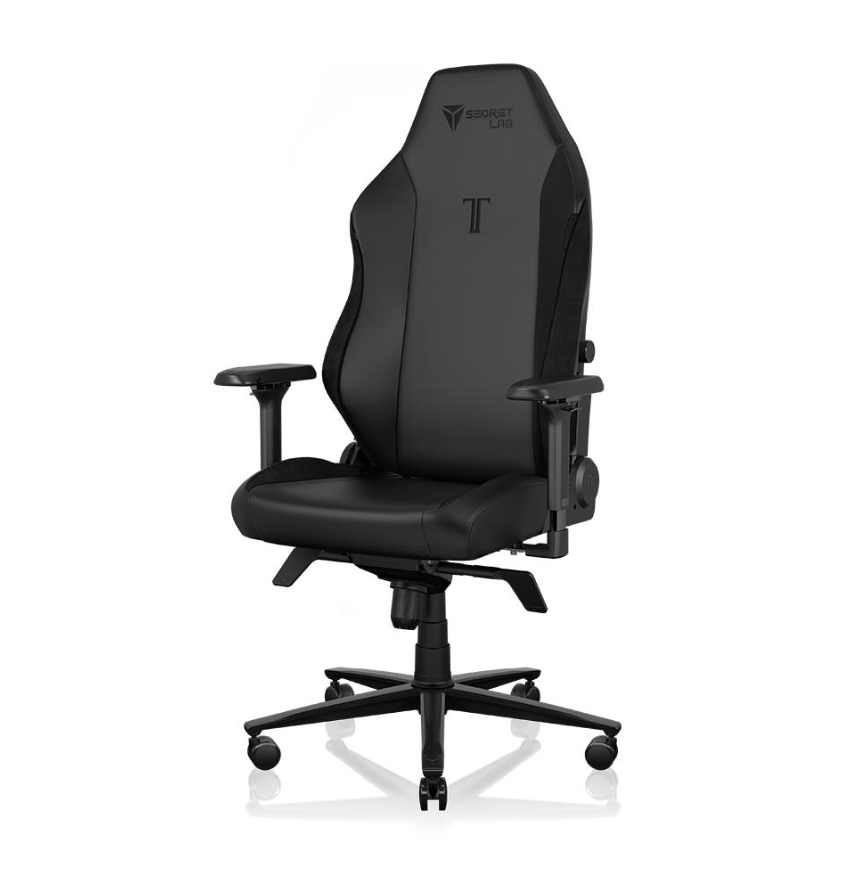
1.3 Secretlab TITAN Evo
Key features
-
Multiple size options
-
Adjustable seat height and armrests
-
Adjustable lumbar support
-
Reclining backrest
-
Choice of upholstery and designs
Who should buy this?
Frequent gamers who spend long periods at a desk and want a chair with extensive adjustment options. It can also suit a combined work-and-gaming room.
Why consider it?
Seating affects how comfortable a workstation feels over time. A chair that fits your body and desk height can help you maintain a more natural seated position. The best choice is the one that fits your dimensions, not simply the most expensive model.
Pros
-
Multiple adjustment options
-
Several sizes and finishes
-
Designed for extended desk use
Cons
-
Premium pricing
-
Fit varies by body size and preferred seating position
-
The right upholstery and accessories may increase the cost
2. Choose the Right Gaming System First
Your gaming system determines which games you can play, what graphics settings you can use, and which display features make sense for your budget. Before buying accessories, decide whether your setup will use a gaming desktop, gaming laptop, console, or compact PC.
2.1 Gaming desktop vs. gaming laptop
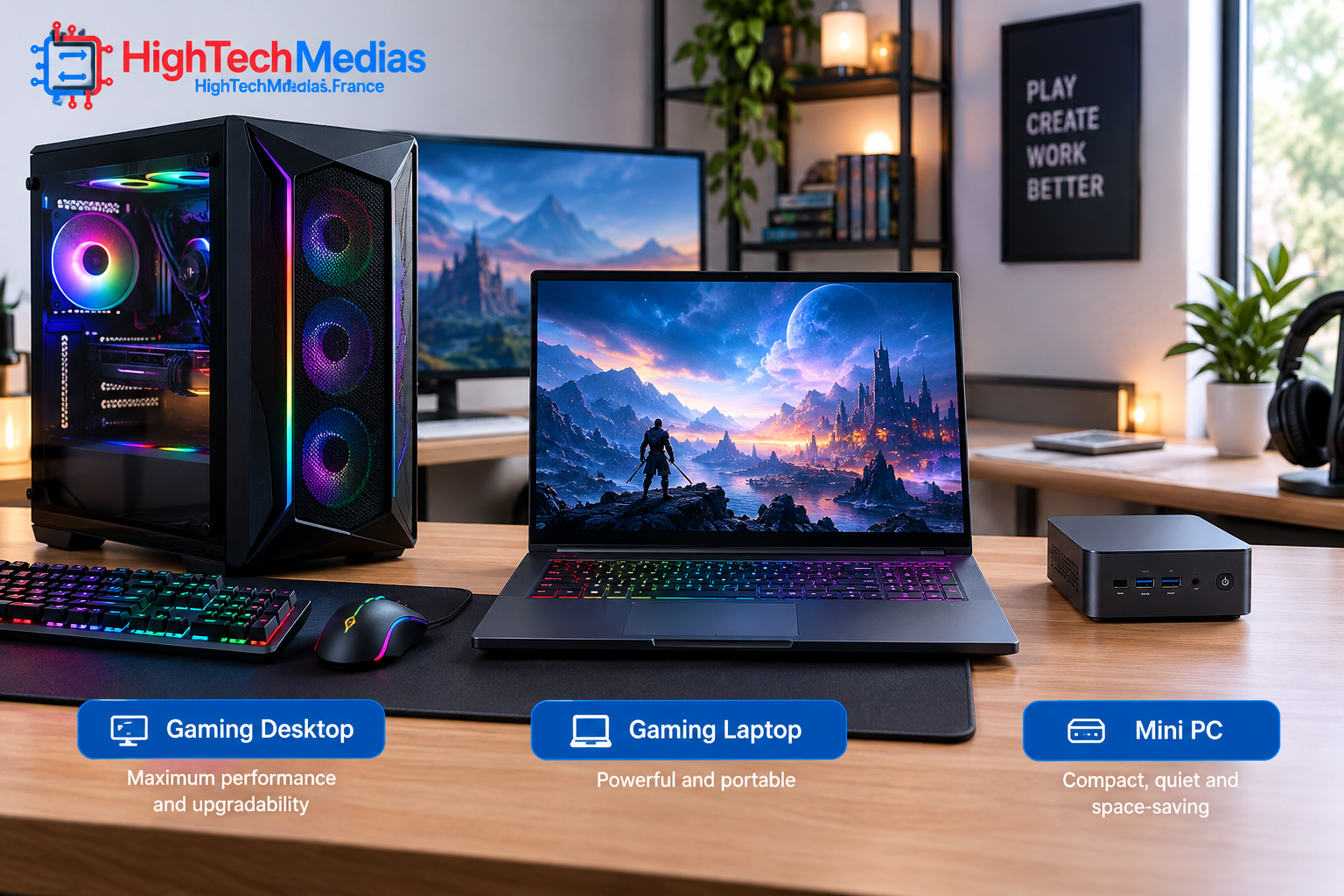
A desktop gaming PC is often the most flexible option for someone building a permanent workstation. Depending on its components, it may offer stronger sustained performance, more cooling capacity, and easier upgrades than a laptop.
A gaming laptop combines the computer, display, keyboard, and trackpad in one device. It is convenient for small rooms, travel, and users who need a computer for school or work as well as gaming. Connecting an external monitor, mouse, and keyboard can turn it into a desk-based workstation.
A mini PC can be useful for lightweight games, emulation, cloud gaming, and less demanding titles, but integrated graphics vary considerably. Do not assume that every compact computer can run modern AAA games smoothly at high settings.
Explore the differences in our mini PCs vs. laptops comparison.
2.2 Match performance to the games you play
Competitive games, strategy titles, simulation games, and visually demanding single-player releases do not place identical demands on hardware. A fast CPU can be particularly useful in CPU-heavy games, while demanding graphics settings often place more pressure on the GPU.
Check the recommended requirements for the games you actually play. Compare independent benchmarks for your intended resolution rather than relying only on a processor name or a graphics card’s advertised features.
For additional background, see our laptop processor guide: Intel vs. AMD vs. Apple silicon.







Comments (2)
[…] you’re building a complete setup, start with our Ultimate Gaming Setup Guide for advice on arranging your desk, display, computer, and […]
[…] pricing information where available. Before making a purchase, compare your options with our Ultimate Gaming Setup Guide and consider how your screen, accessories, and game library affect the total […]