
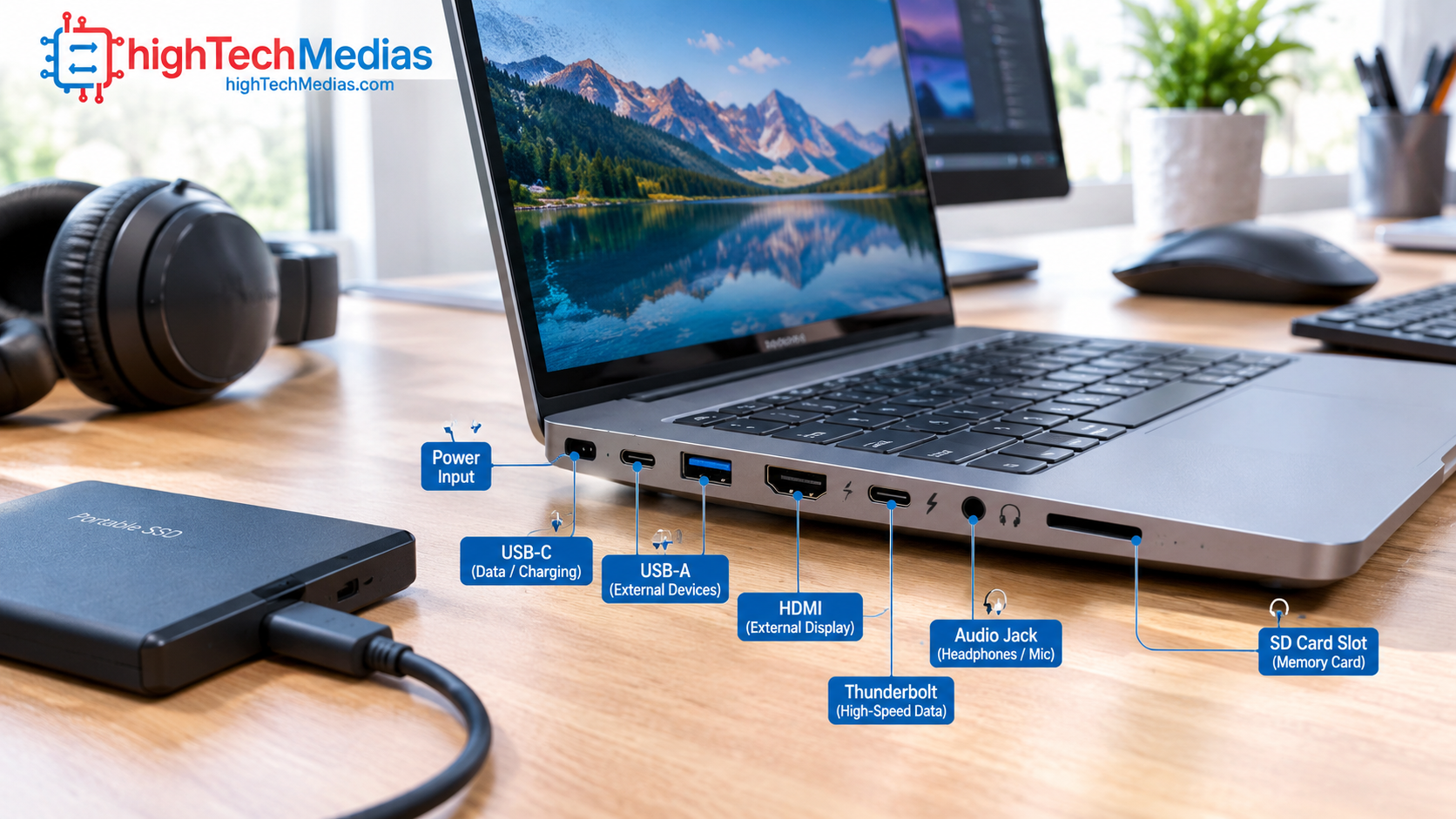
Laptop Ports Explained: USB-C, USB-A, HDMI, Thunderbolt and More
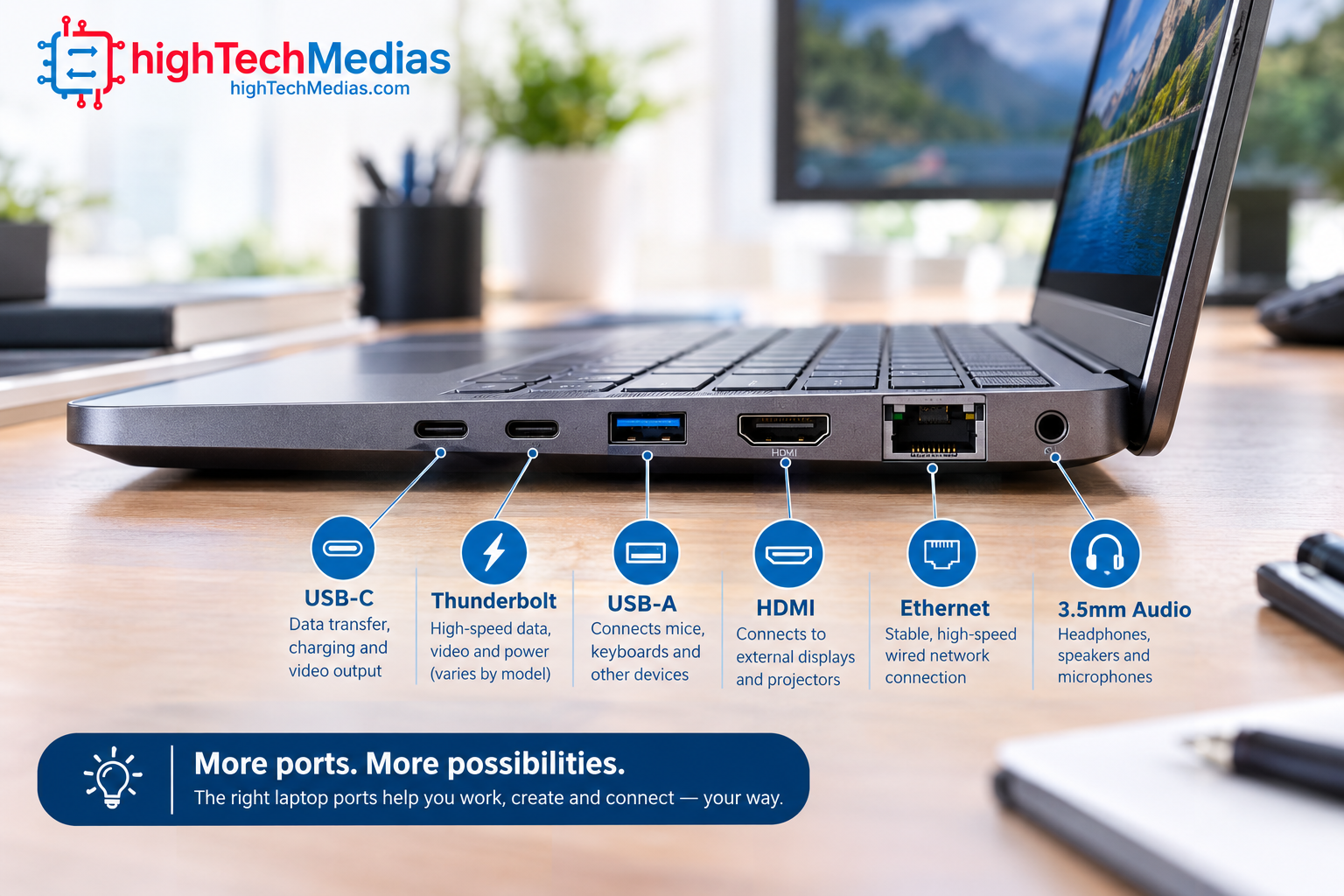
When you’re shopping for a new laptop, it’s easy to focus on the processor, RAM, storage, and display while overlooking one of the most important parts of the machine: laptop ports. The ports determine which monitors, chargers, external drives, keyboards, mice, headphones, memory cards, networking devices, and other accessories you can connect without adapters.
USB-C has become increasingly common, but not every USB-C port offers the same capabilities. USB-A remains useful for older accessories, while HDMI is still convenient for connecting directly to a TV or monitor. Thunderbolt can provide extremely high bandwidth for demanding peripherals and docking stations.
Understanding laptop ports before buying can therefore help you avoid an expensive mistake.
This guide explains the most common laptop ports, what they do, how USB-C differs from USB-A, how Thunderbolt works, and which connections you should look for depending on how you use your computer.
Why Laptop Ports Still Matter in 2026
Modern laptops are becoming thinner and more wireless, but physical connections remain extremely useful.
You can connect a laptop to a monitor wirelessly in some situations, but a physical connection is usually simpler and more reliable for demanding workflows.
The same applies to external storage.
A fast portable SSD connected directly to an appropriate USB-C, USB4, or Thunderbolt port can provide substantially faster and more convenient file transfers than relying on wireless networking.
Ports are also important because adapters and hubs add complexity.
If your laptop already includes HDMI, USB-A, USB-C, Ethernet, and an audio jack, you may not need to carry a separate dongle every day.
For a deeper look at the other specifications that matter when buying a laptop, you can also review our Laptop Buying Guide 2026.
USB-C: The Port You Need to Understand
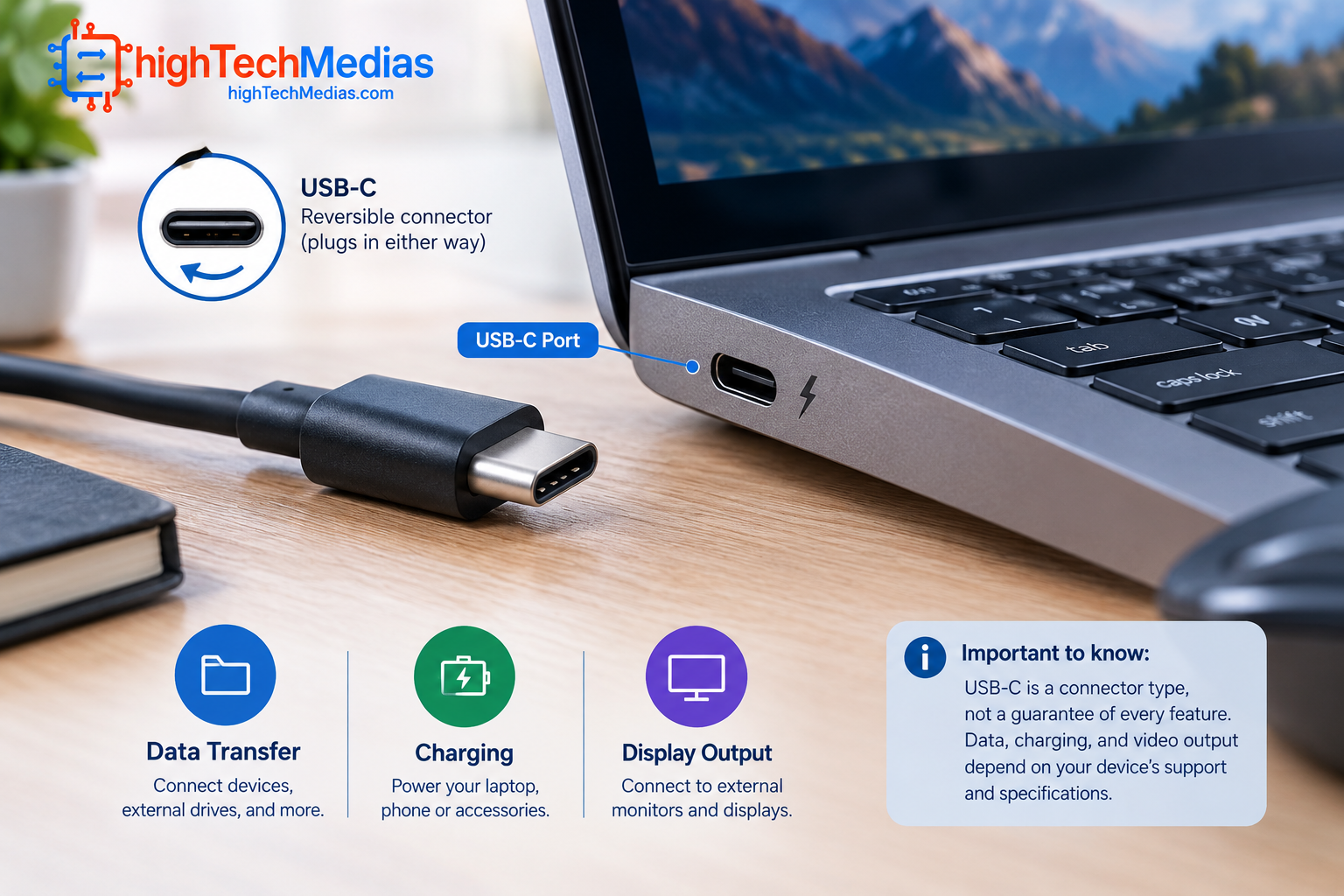
USB-C is probably the most important physical connector to understand when buying a modern laptop.
The connector is small, oval-shaped, and reversible, meaning you don’t have to worry about inserting the plug upside down.
But there’s an important detail that many buyers miss:
USB-C describes the connector shape, not necessarily the complete capabilities of the port.
Two laptops can have USB-C ports that look identical while supporting very different functions.
One USB-C port might support:
- USB data
- Charging
- Display output
- High-speed data transfer
- USB Power Delivery
Another USB-C port might provide only basic USB data and charging.
This is why you should always check the laptop manufacturer’s specifications instead of assuming every USB-C port works the same way.
What Can USB-C Do?
Depending on the implementation, USB-C can potentially handle several jobs through one connector.
Data
You can connect:
- External SSDs
- USB flash drives
- Smartphones
- Cameras
- Card readers
- Printers
- Keyboards
- Mice
Charging
Many modern laptops can charge through USB-C using USB Power Delivery.
However, not every laptop supports USB-C charging, and some performance laptops may still use a dedicated power connector.
Video
USB-C can also carry video through technologies such as DisplayPort Alt Mode.
This can allow a compatible laptop to connect to an external monitor using a USB-C cable.
Docking
A compatible USB-C connection can also work with a docking station that provides several additional connections.
This can turn one laptop port into a desktop-style workstation with:
- Monitor
- Keyboard
- Mouse
- Ethernet
- USB devices
- Audio
- Storage
Important distinction
Never assume that USB-C = Thunderbolt.
Thunderbolt uses the USB-C connector on modern systems but provides additional capabilities and performance requirements.
USB-A: The Older Port You Shouldn’t Ignore
USB-A is the familiar rectangular USB connector found on computers for many years.
Although newer laptops increasingly use USB-C, USB-A remains extremely useful because millions of accessories still use it.
Common USB-A devices include:
- Wireless mouse receivers
- Keyboards
- USB flash drives
- Printers
- Game controllers
- External hard drives
- Webcams
- USB microphones
For many users, having at least one USB-A laptop port can make everyday life easier.
Without it, you may need a USB-C adapter or hub just to connect an older mouse or flash drive.
USB-C vs. USB-A: What’s the Difference?
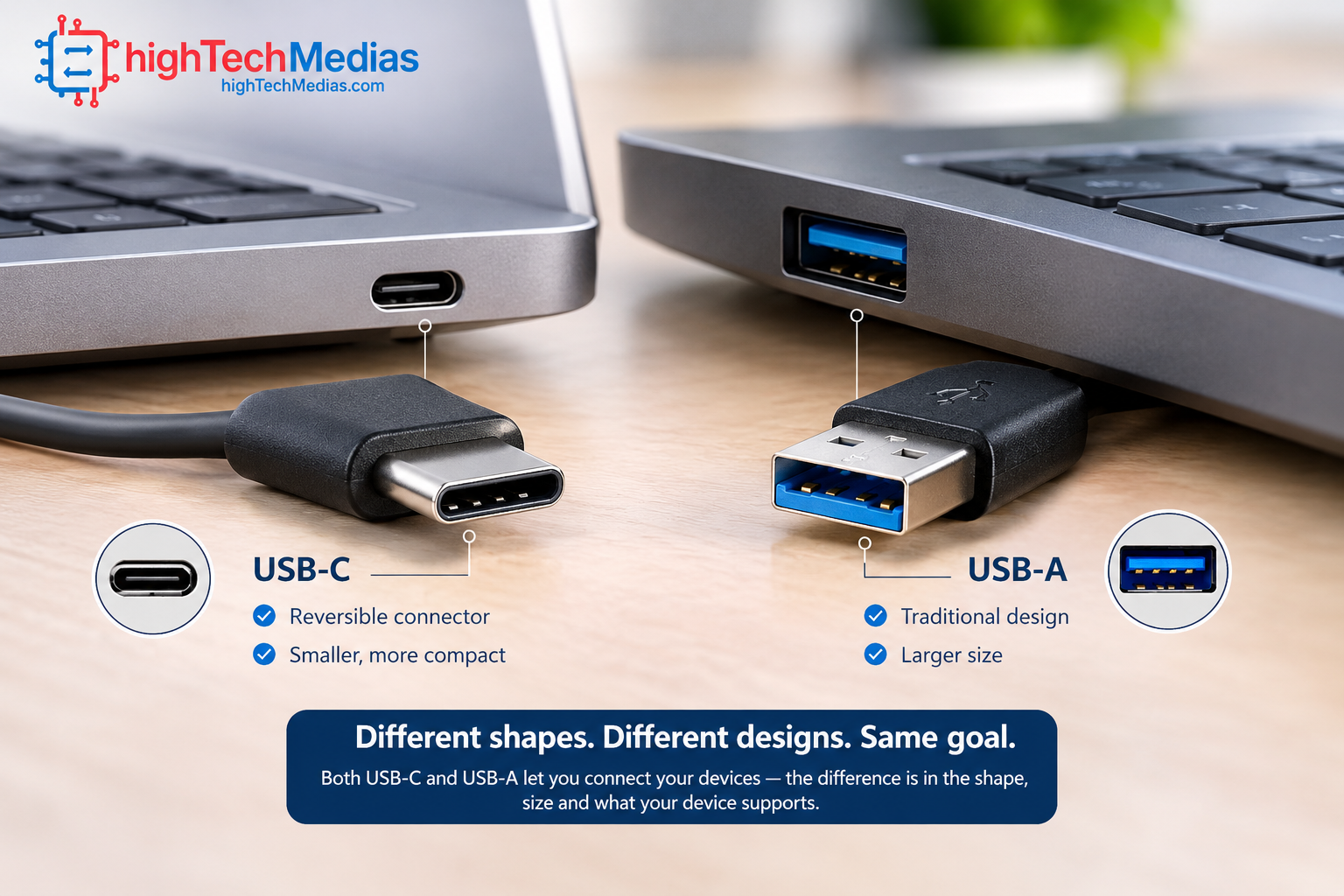
The easiest way to understand the difference is to separate the physical connector from the underlying USB technology.
| Feature | USB-C |
USB-A |
| Connector shape | Small, oval, reversible | Larger rectangular |
| Orientation | Reversible | One-way |
| Common today | Very common | Still widely used |
| Charging capability | Can support laptop charging | Usually accessory charging |
| Video capability | Possible with compatible standards | Generally not native video |
| Modern high-speed standards | Common | Available on some implementations |
| Docking | Excellent with compatible systems | More limited |
| Older accessories | Requires appropriate cable | Direct connection |
The key point is that USB-C vs USB-A isn’t simply a question of which technology is faster.
USB-C is a newer connector design with much greater flexibility, while USB-A remains useful for compatibility with older peripherals.
USB4: What Does It Mean?
USB4 is a USB connectivity standard designed to provide high-speed data transfer and additional capabilities over USB-C connectors.
This is another reason you should not treat the physical USB-C connector as the complete specification.
A USB4 laptop can potentially provide much faster connectivity than a basic USB-C implementation.
USB4 can be particularly useful for:
- Fast external SSDs
- Docking stations
- External displays
- High-speed peripherals
- Professional workflows
However, the exact performance and features depend on the implementation.
When comparing two laptops, look beyond the words “USB-C” and check whether the manufacturer specifies USB4 and the supported data rates and display capabilities.
Thunderbolt Explained
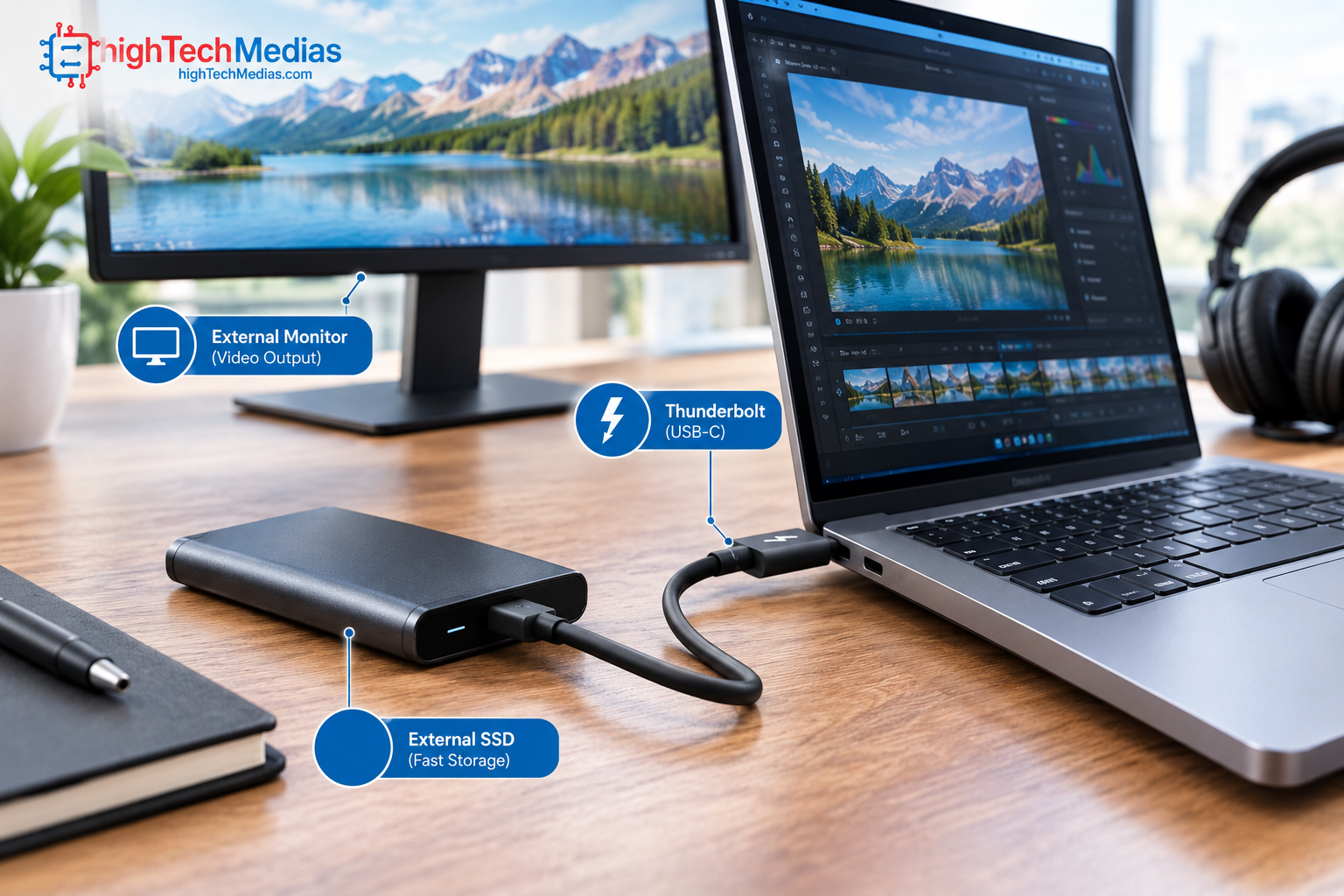
Thunderbolt is a high-performance connectivity technology commonly associated with premium laptops and professional workflows.
Modern Thunderbolt connections use the USB-C connector.
That means a Thunderbolt port can look almost identical to an ordinary USB-C port.
The difference is in the capabilities behind the connector.
Thunderbolt can combine high-speed data, display connectivity, and other functions through a single connection.
This makes it particularly useful for professionals who use:
- High-speed external storage
- Multiple displays
- Docking stations
- Professional peripherals
- External graphics solutions
- High-bandwidth workflows
Intel provides additional information about its connectivity technologies on its official website. Intel official website
Thunderbolt 3 vs Thunderbolt 4 vs Thunderbolt 5
Thunderbolt has evolved through multiple generations.
Thunderbolt 3
Thunderbolt 3 helped popularize the use of USB-C as a high-performance connector.
It supports high-speed data and display connectivity and can be used with compatible docks and peripherals.
Thunderbolt 4
Thunderbolt 4 maintains the same USB-C connector while establishing stronger minimum capability requirements across supported systems.
For consumers, one of its major advantages is consistency.
A Thunderbolt 4 laptop can be an excellent choice if you plan to build a desktop-style workstation around a dock.
Thunderbolt 5
Thunderbolt 5 represents a newer generation designed for even higher bandwidth and demanding workflows.
It is particularly relevant for professionals working with multiple high-resolution displays, fast storage, and other bandwidth-intensive devices.
The important lesson is simple:
Thunderbolt is not just another physical port. It is a connectivity technology that uses a USB-C connector.
HDMI: The Simple Way to Connect an External Display
HDMI remains one of the most useful ports on a laptop.
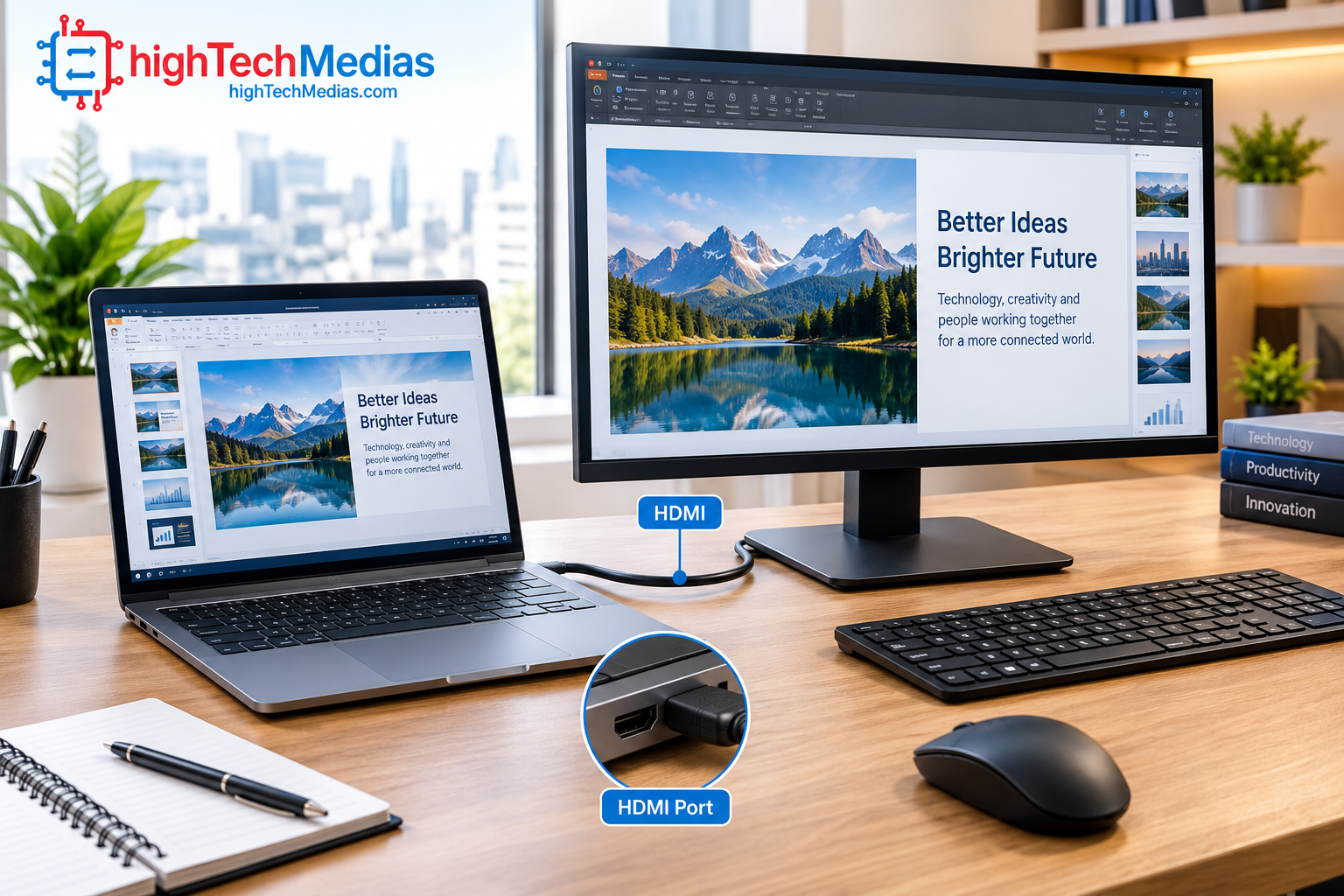
The HDMI port allows a computer to send digital video and audio to compatible displays.
You can use it to connect your laptop to:
- External monitors
- Televisions
- Projectors
- Home-theater equipment
For office workers and students, HDMI can be especially convenient because you can connect directly to a display without requiring a USB-C adapter.
The specific HDMI version supported by a laptop matters because different generations support different capabilities.
Therefore, if you need a particular resolution and refresh rate, check the laptop’s specifications rather than assuming every HDMI port provides identical performance.
HDMI vs USB-C for External Monitors
Both HDMI and USB-C can be used to connect a laptop to an external monitor, but they work differently.
HDMI is primarily designed around audio/video connectivity.
USB-C can carry video when the laptop and cable support an appropriate video technology such as DisplayPort Alt Mode or through compatible Thunderbolt/USB4 implementations.
For a simple home-office monitor connection, HDMI can be very convenient.
For a more complex workstation involving docking, high-speed storage, networking, and multiple peripherals, USB-C/Thunderbolt can offer greater flexibility.
DisplayPort and DisplayPort Alt Mode
DisplayPort is another important display connectivity standard.
You may encounter it as a physical connector on some computers and monitors, but on laptops it can also be delivered through USB-C using DisplayPort Alt Mode.
This means a USB-C port can potentially connect directly to a DisplayPort-compatible monitor using an appropriate cable or adapter.
Again, the critical word is potentially.
Not every USB-C port supports DisplayPort output.
Always check the specifications.
Ethernet: Wired Internet Still Has Advantages
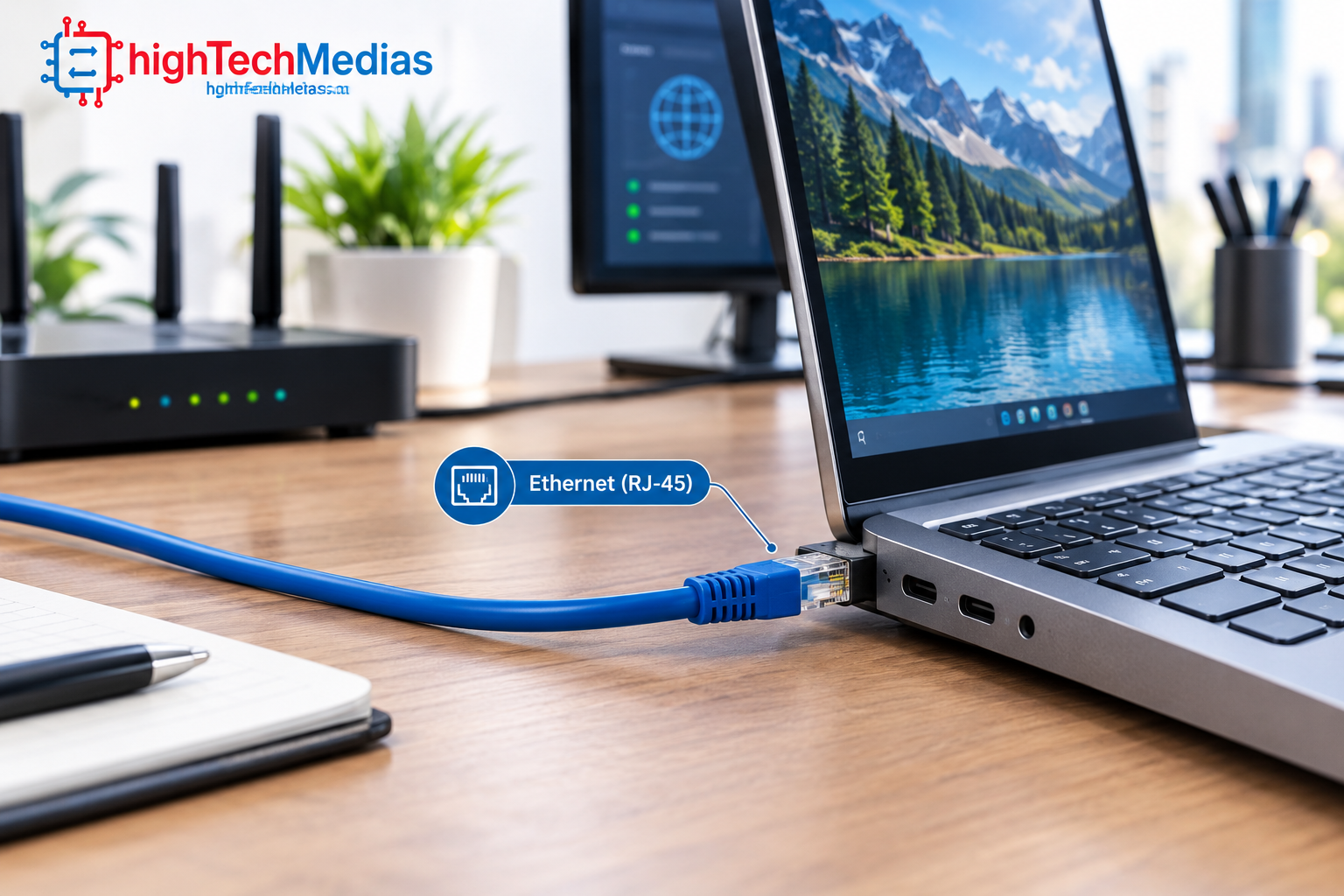
Wi-Fi is convenient, but wired Ethernet can still be valuable.
An Ethernet port, usually using an RJ-45 connector, allows a laptop to connect directly to a network.
This can provide advantages such as:
- Stable connection
- Lower interference
- Consistent performance
- Useful connection for offices
- Convenient large-file transfers on local networks
Gaming laptops and larger business laptops are more likely to include Ethernet than ultra-thin laptops.
If your laptop doesn’t have Ethernet, you can often add it through a USB-C or USB-A adapter or docking station.
Headphone Jack and Audio Ports
The traditional 3.5mm audio jack remains useful.
It allows you to connect:
- Wired headphones
- Earbuds
- Speakers
- Headsets
- External microphones on compatible systems
Some thin laptops have eliminated the headphone jack in favor of Bluetooth or USB-C audio.
But wired audio can still be useful because it doesn’t require battery power and can avoid wireless pairing issues.
If you use a wired headset regularly, check whether the laptop includes a 3.5mm combo audio jack before buying.
SD and microSD Card Readers
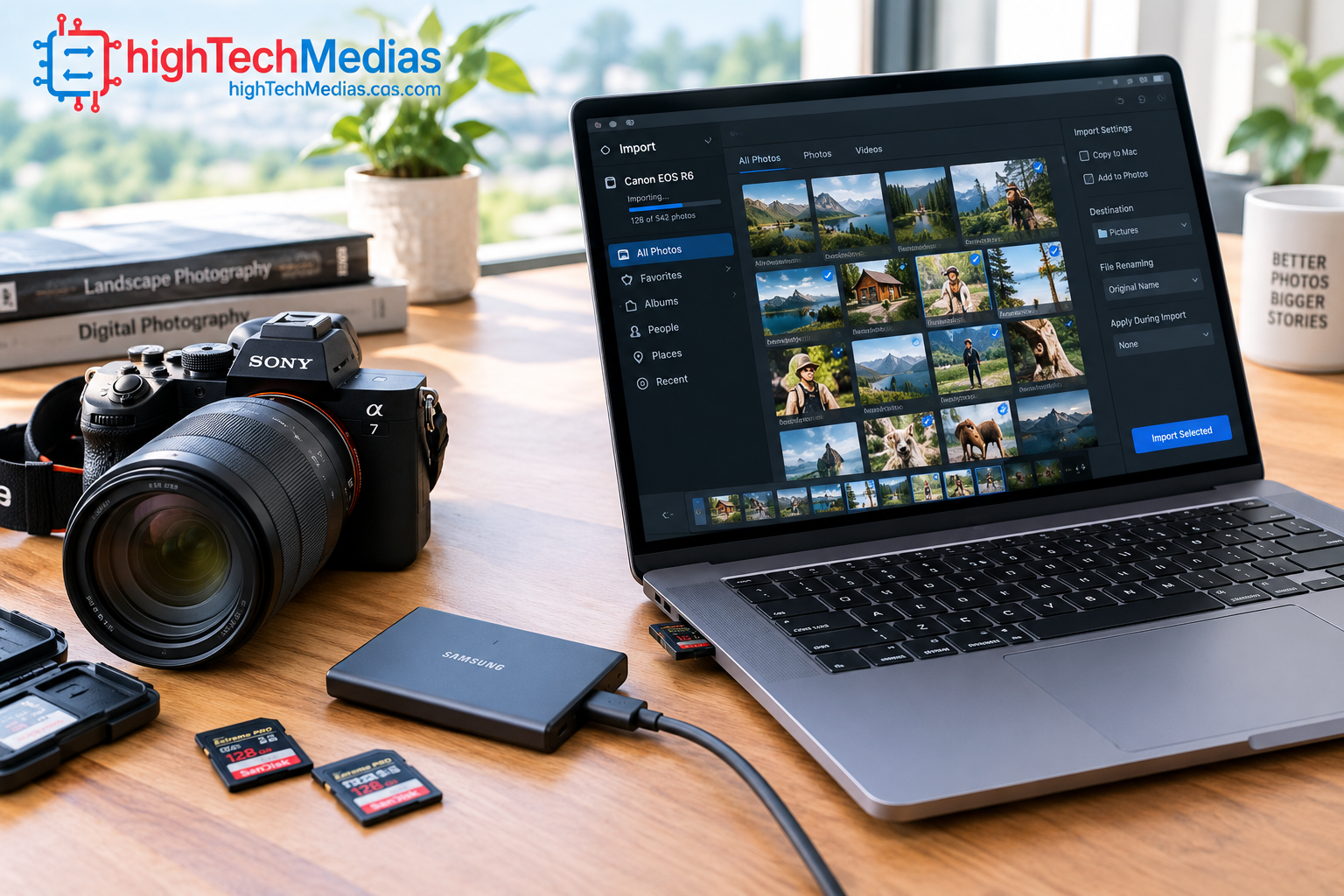
Photographers and video creators should pay special attention to memory-card connectivity.
An SD card reader can make it much easier to transfer photos and video footage from cameras.
A microSD slot can be useful for:
- Action cameras
- Drones
- Smartphones
- Small cameras
- Portable devices
A built-in card reader can save you from carrying an additional USB adapter.
However, the performance of built-in card readers varies, so professional users should check the supported card standard and transfer performance.
USB Hubs and Docking Stations
What happens if your laptop doesn’t have enough ports?
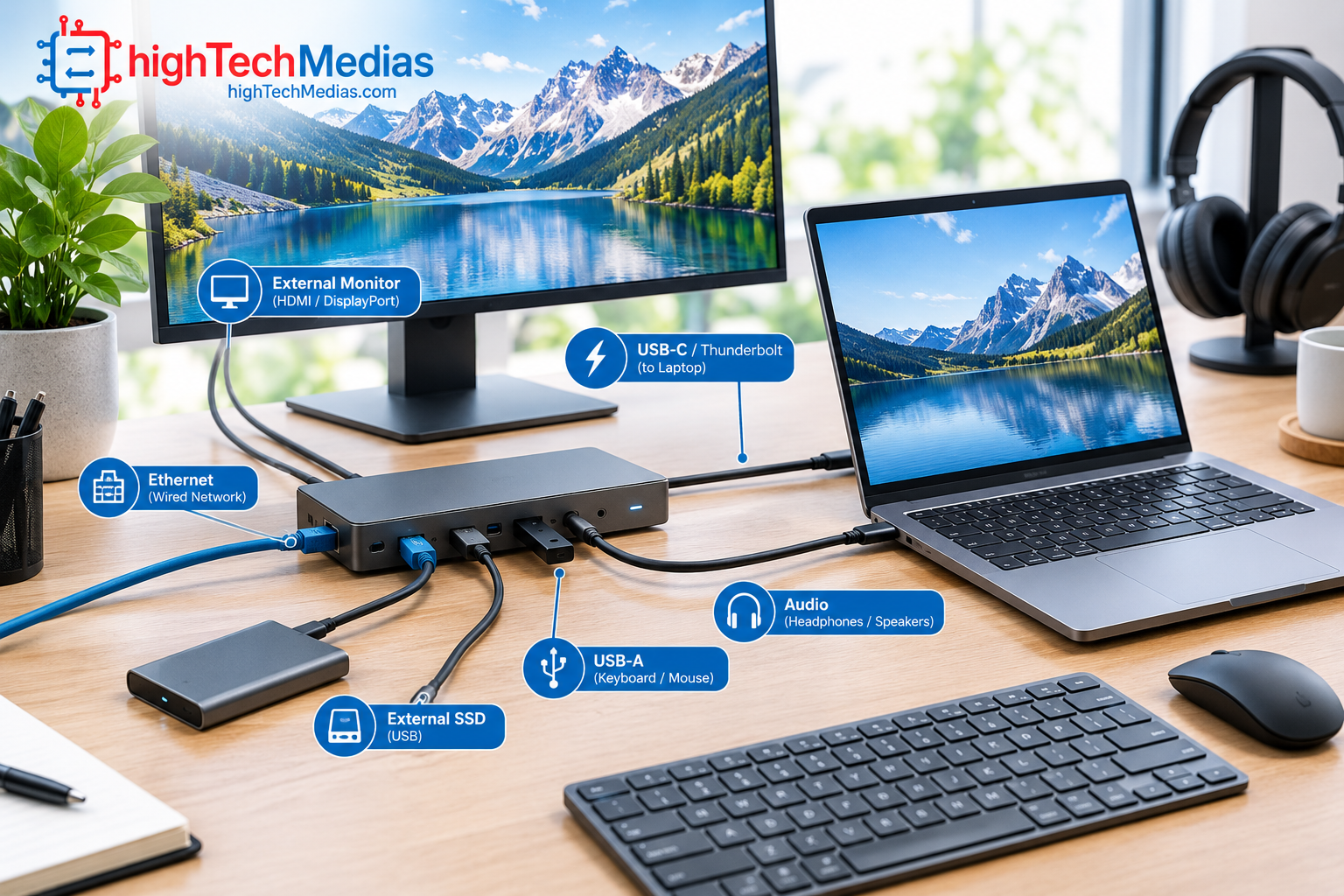
A USB hub or docking station can solve the problem.
A basic hub might add:
- USB-A
- USB-C
- HDMI
- SD card
- Ethernet
A more advanced docking station can provide a complete desktop-style setup.
For example:
One laptop USB-C/Thunderbolt connection → Dock → Monitor + Ethernet + keyboard + mouse + storage + audio
This can be extremely useful for home-office users.
You can leave your peripherals permanently connected to the dock and connect your laptop with one cable when you arrive at your desk.
How Many Ports Does a Laptop Really Need?
There is no universal answer.
The right number depends on what you connect.
Basic user
A basic user might need:
- 2 × USB-C
- 1 × USB-A
- HDMI
- Headphone jack
Business professional
A professional may want:
- 2–3 × USB-C
- USB-A
- HDMI
- Headphone jack
- Optional Ethernet
Content creator
A creator may prioritize:
- High-speed USB-C/Thunderbolt
- SD card reader
- HDMI
- Multiple USB ports
- Fast external storage support
Home-office user
A home-office user may want:
- USB-C
- USB-A
- HDMI
- Ethernet
- Audio
- Docking support
Which Laptop Ports Should You Prioritize?
If you are buying a laptop today, I would prioritize ports in this order:
-
USB-C
A modern laptop should ideally have at least one capable USB-C connection.
-
USB-A
At least one USB-A port remains useful for legacy accessories.
-
HDMI
Especially useful if you regularly connect directly to monitors, TVs, or projectors.
-
High-speed USB4 or Thunderbolt
Important for professionals using fast storage, docks, or advanced external displays.
-
Headphone jack
Worth having if you use wired headphones or headsets.
-
SD card reader
Very valuable for photographers and video creators.
-
Ethernet
Useful for business, gaming, and users who prefer wired networking.
What Port Configuration Is Best for a Home Office?
For a permanent home-office setup, you don’t necessarily need every port built into the laptop.
A powerful USB-C or Thunderbolt connection combined with a good docking station can be more useful than having ten individual ports.
For example:
Laptop → USB-C/Thunderbolt dock
The dock can provide:
- External monitor
- Ethernet
- Keyboard
- Mouse
- External storage
- Speakers
- Webcam
- Additional USB devices
This approach also makes your desk cleaner.
If you are building a complete home-office system, you may also want to compare laptops with compact desktop alternatives in our Mini PCs vs. Laptops guide.
Portability vs. Connectivity
There’s a natural trade-off between thinness and connectivity.
Very thin laptops may have fewer physical ports because manufacturers have limited internal space and want to minimize chassis thickness.
Larger laptops often have room for:
- More USB ports
- HDMI
- Ethernet
- Larger cooling systems
- SD card readers
This is one reason a larger laptop can sometimes be better suited to professionals who need many peripherals.
However, modern USB-C and Thunderbolt technology can reduce the need for numerous individual connectors.
Don’t Forget the Cables
Buying a laptop with excellent ports is only part of the equation.
The cable also matters.
A USB-C cable may support different capabilities depending on its design and certification.
Similarly, not every HDMI cable provides the same capabilities.
When purchasing cables, check:
- Supported data rate
- Power capability
- Video capability
- Connector type
- Cable length
- Certification where applicable
A high-performance laptop connected to a low-capability cable may not deliver the performance you expected.
Backward Compatibility
One advantage of USB technology is that newer ports and devices can often work with older hardware, although the actual performance will depend on the devices and standards involved.
For example, you might connect an older USB accessory to a newer USB-C laptop using an appropriate adapter.
But compatibility does not necessarily mean maximum performance.
A slower device remains limited by its own capabilities.
Therefore, when evaluating connectivity, think about both sides of the connection:
Laptop port + cable + peripheral
The weakest component can become the practical limitation.
Laptop Ports for Gaming
Gamers should consider connectivity carefully.
A gaming laptop may need connections for:
- External monitor
- Gaming mouse
- Mechanical keyboard
- Headset
- Ethernet
- External storage
- Game controller
HDMI can be particularly useful for an external gaming monitor or television.
USB-A remains valuable for gaming peripherals.
USB-C and Thunderbolt can also provide additional flexibility depending on the laptop and accessories.
For users who rely on dedicated graphics, GPU technology also influences external display capabilities. NVIDIA provides additional information about its graphics technologies on its official website. NVIDIA official website
Laptop Ports for Content Creators
Content creators should prioritize high-speed connectivity.
If you frequently transfer large video files, RAW photos, or project files, fast external storage can save considerable time.
Look for:
- USB4
- Thunderbolt
- High-speed USB
- SD card reader
- HDMI
- Multiple USB ports
A built-in SD card reader is particularly convenient for photographers.
A high-speed Thunderbolt or USB4 connection can also be useful for external SSDs and docking stations.
Laptop Ports for Business Professionals
Business users typically need compatibility and reliability more than extreme bandwidth.
A practical business laptop might include:
- USB-C charging
- USB-A
- HDMI
- Headphone jack
- Optional Ethernet
- Docking support
If you frequently connect to conference-room displays or projectors, HDMI can be particularly convenient.
If you work from a desk, a USB-C docking station can simplify your setup.
Laptop Ports for Students
Students usually benefit from a flexible but simple selection of connections.
A good configuration could include:
- 2 USB-C
- 1 USB-A
- HDMI
- Headphone jack
That combination supports most everyday accessories without requiring a large collection of adapters.
Laptop Ports for Travel
Travelers should consider what they actually carry.
You don’t necessarily need every possible port.
A compact laptop with two versatile USB-C connections may be preferable to a heavier machine with numerous legacy ports.
But if you regularly use USB flash drives, wired displays, projectors, or Ethernet, having built-in ports can still be valuable.
A Simple Laptop Port Buying Checklist
Before purchasing your next computer, ask:
USB-C: How many USB-C ports are included?
USB-C capabilities: Do they support charging, video, and high-speed data?
USB-A: Do you still need older accessories?
Thunderbolt/USB4: Do you need high-bandwidth connectivity?
HDMI: Will you connect directly to monitors or TVs?
Ethernet: Do you need wired networking?
Audio: Do you use wired headphones?
SD: Do you transfer photos or video?
Docking: Will the laptop become a desktop workstation?
Cables: Do your existing cables support the capabilities you need?
Frequently Asked Questions
1.What is the most important laptop port?
For most modern laptop buyers, USB-C is one of the most important ports because compatible implementations can support data, charging, displays, and docking.
However, the capabilities vary between laptops, so check the manufacturer’s specifications.
2.Is USB-C the same as Thunderbolt?
No. USB-C describes a connector, while Thunderbolt is a connectivity technology that uses the USB-C connector on modern systems.
3.Is USB-C better than USB-A?
USB-C is generally more versatile and is increasingly common on modern devices, but USB-A remains valuable because many existing accessories use it.
4.Do all USB-C ports support charging?
No. USB-C does not automatically mean that the laptop supports charging through that port. Check the manufacturer’s specifications.
5.Do all USB-C ports support monitors?
No. A USB-C connector can support video on compatible implementations, but not every USB-C port provides video output.
6.Do I need Thunderbolt?
Most casual laptop users don’t need Thunderbolt. It becomes more useful if you use high-speed external storage, advanced docking stations, multiple displays, or demanding professional peripherals.
7.Is HDMI still important on laptops?
Yes. HDMI remains a convenient way to connect directly to compatible monitors, televisions, and projectors.
8.Do laptops still need USB-A?
For many users, yes. USB-A remains useful for older keyboards, mice, flash drives, printers, controllers, and other accessories.
9.Is Ethernet necessary on a laptop?
Not for everyone. Wi-Fi is sufficient for many users, but Ethernet can be useful for gaming, offices, large file transfers, and situations where a stable wired connection is preferred.
10.Should I buy a laptop with an SD card reader?
If you regularly transfer photographs or video from cameras, an integrated SD card reader can be extremely convenient.
Final Verdict: Which Laptop Ports Do You Really Need?
Understanding laptop ports can save you from buying a computer that looks perfect on paper but becomes frustrating once you connect your everyday accessories.
For most buyers, USB-C should be a priority, but don’t assume every USB-C port provides the same capabilities. Check whether it supports charging, video output, USB4, or Thunderbolt.
USB-A remains useful for legacy peripherals, while HDMI provides a simple direct connection to many monitors, TVs, and projectors. Ethernet is valuable for wired networking, an SD card reader can be extremely useful for creators, and a headphone jack remains convenient for wired audio.
The best laptop doesn’t necessarily have the largest number of ports.
Instead, it should have the right laptop ports for your workflow.
If you’re a basic user, a combination of USB-C, USB-A, HDMI, and audio may be enough. Professionals may benefit from Thunderbolt or USB4 and docking support. Creators should pay particular attention to high-speed connectivity and SD cards. Home-office users should think about how the laptop will connect to their external monitor, network, storage, and other peripherals.
Before buying, don’t simply count the ports. Check what each port actually supports.
That small step can make a major difference to the usability and lifespan of your laptop.





Comment (1)
[…] For a deeper explanation of connectors, read our Laptop Ports Explained. […]