
Best Mini PCs for Multiple Monitors (2026)
A good multi-monitor setup can transform the way you work. Instead of constantly switching between applications, you can keep email on one screen, documents on another, a browser on a third, and communication or monitoring tools on a fourth. The challenge is finding a compact computer with enough graphics capability and physical display outputs to run those screens reliably.
The best mini PCs for multiple monitors are not necessarily the fastest mini PCs on the market. For a multi-display workstation, connectivity is just as important as CPU performance. The number and type of video outputs, supported resolutions, USB-C or Thunderbolt capabilities, memory configuration, and graphics architecture can all determine whether a particular mini PC is appropriate for a two-, three-, or four-screen desk.
This guide focuses on real products and verified manufacturer specifications, with particular attention to users in the United States who want a compact desktop for office productivity, business, development, trading, content creation, education, or home-office multitasking.
1. Two Real Mini PCs to Consider First
For this comparison, two very different machines illustrate what shoppers should look for: the ASUS NUC 14 Pro for compact multi-display connectivity and the Lenovo ThinkCentre M75q Gen 5 Tiny for business-oriented productivity.
They are deliberately not identical types of machines. The ASUS emphasizes compact connectivity and extensive display support, while the Lenovo targets business users who want a small managed desktop with support for up to three displays.
1.1 ASUS NUC 14 Pro
Best for: professionals, developers, office workers, small businesses, multi-display productivity, and users who want a very compact workstation.
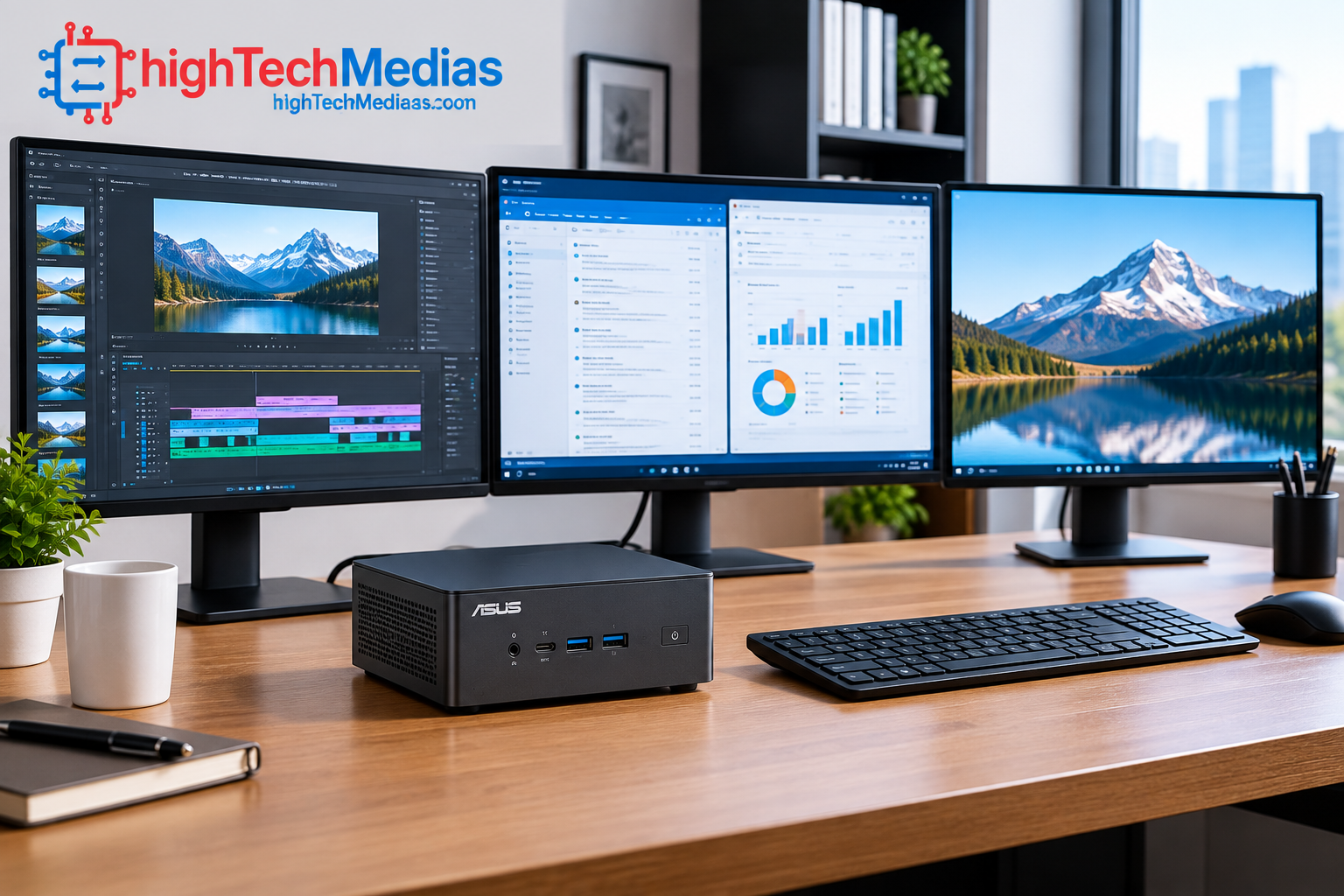
The ASUS NUC 14 Pro is one of the more interesting choices for a multi-monitor desk because ASUS specifically states that the platform supports quad 4K displays and more. Its connectivity includes Thunderbolt 4 and HDMI 2.1, alongside USB ports and 2.5Gb Ethernet.
ASUS lists the NUC 14 Pro at a starting price of $429 on its U.S. store for the configuration shown on its current pricing page. Because the NUC family includes different processor, memory, storage, operating-system, and kit configurations, buyers should verify the exact configuration before ordering.
Key specifications
- Intel Core Ultra 5, Core Ultra 7, or Core 3 processor options, depending on configuration
- Intel Arc graphics on specified Core Ultra configurations
- Up to 96GB DDR5-5600 SODIMM memory
- PCIe 4.0 NVMe storage support
- Thunderbolt 4
- HDMI 2.1
- 2.5Gb Ethernet
- Wi-Fi 6E on listed NUC 14 Pro configurations
- Tool-less chassis access
- Optional VESA mounting
- Support for multiple 4K displays
- Compact sub-liter design
ASUS specifically describes the NUC 14 Pro as supporting quad 4K displays and more, making display connectivity one of its strongest reasons to consider it.
Why consider the ASUS NUC 14 Pro?
The biggest advantage is flexibility. Someone building a workstation around three or four monitors does not want to discover after purchase that the computer only has two practical display outputs.
The NUC 14 Pro’s Thunderbolt 4 ports add another layer of flexibility for compatible docks and display accessories, while HDMI 2.1 provides a dedicated physical display connection.
The platform also offers upgradeable memory and storage configurations. ASUS lists dual-channel DDR5-5600 memory support with a maximum of 96GB on the NUC 14 Pro family.
Who should buy it?
The NUC 14 Pro makes the most sense for:
- Office professionals working across several applications
- Developers using multiple code, browser, and terminal windows
- Financial or data-analysis users who need extensive screen real estate
- Small-business workstations
- Remote workers with permanent desk setups
- Users who want a compact PC that can be mounted behind a monitor
- Buyers who specifically need extensive display connectivity
Pros
- Strong multi-display capability
- Quad 4K display support according to ASUS
- Compact design
- Thunderbolt 4 connectivity
- HDMI 2.1
- 2.5Gb Ethernet
- Upgradeable memory and storage
- VESA mounting support
- Multiple processor configurations
Cons
- Exact specifications vary significantly between configurations
- Some capabilities are SKU-dependent
- A bare kit may require additional memory, storage, and operating-system purchases
- Integrated graphics are not a substitute for a dedicated high-end GPU for demanding 3D workloads
1.2 Lenovo ThinkCentre M75q Gen 5 Tiny
Best for: business users, office professionals, corporate deployments, productivity, and users who need a compact business PC supporting multiple displays.
The Lenovo ThinkCentre M75q Gen 5 Tiny takes a different approach. Lenovo positions it as a business-focused compact desktop and explicitly says that it supports up to three displays.
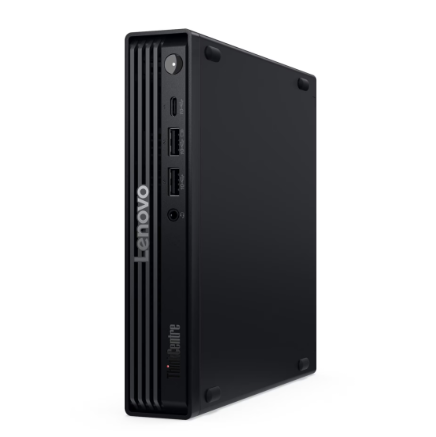
The current Lenovo U.S. product page displays configurations starting at $1,119, although the actual price varies substantially by processor, memory, storage, operating system, and configuration. Lenovo’s current page also indicates that availability can vary, so shoppers should verify the configuration and delivery status before purchasing.
Key specifications
The current AMD-based ThinkCentre M75q Gen 5 family includes:
- AMD Ryzen PRO processor options
- Integrated AMD Radeon graphics
- DDR5 memory
- NVMe SSD configurations
- Windows 11 configurations
- DisplayPort 1.4a
- HDMI
- USB-C
- Multiple USB-A ports
- Gigabit Ethernet
- Optional expansion
- ThinkShield security features
- Support for up to three displays
Lenovo’s product documentation identifies DisplayPort 1.4a and HDMI among the display connections, while the USB-C port listed in the specifications is a data-only port on the referenced configuration. That distinction matters: not every USB-C port on a mini PC should automatically be assumed to support video output.
Why consider the ThinkCentre M75q Gen 5?
For a business environment, hardware management and security can matter as much as raw performance.
Lenovo equips the ThinkCentre M75q Gen 5 Tiny with ThinkShield security features and positions the machine for business deployment. Lenovo also describes the system as suitable for multitasking and supports up to three displays.
Its compact chassis can be positioned horizontally, vertically, or mounted beneath a desk with appropriate accessories. That makes it particularly attractive when desk space is limited.
Who should buy it?
The ThinkCentre M75q Gen 5 Tiny is particularly suited to:
- Business professionals
- Accounting and spreadsheet-heavy work
- Office administrators
- Corporate users
- IT-managed workstations
- Remote workers
- Developers
- Users who need three screens rather than four
Pros
- Supports up to three displays
- Business-focused design
- AMD Ryzen PRO options
- Integrated Radeon graphics
- Compact 1L-class design
- ThinkShield security features
- Flexible mounting
- Upgradeable configurations
Cons
- More expensive configurations can become costly
- Display support depends on the exact configuration
- USB-C should not be assumed to provide video output on every configuration
- Not designed to replace a dedicated-GPU workstation for demanding graphics workloads
2. What Makes a Mini PC Good for Multiple Monitors?
When choosing a best mini PC for multiple monitors, the first specification to examine is not the processor.
It is the display-output architecture.
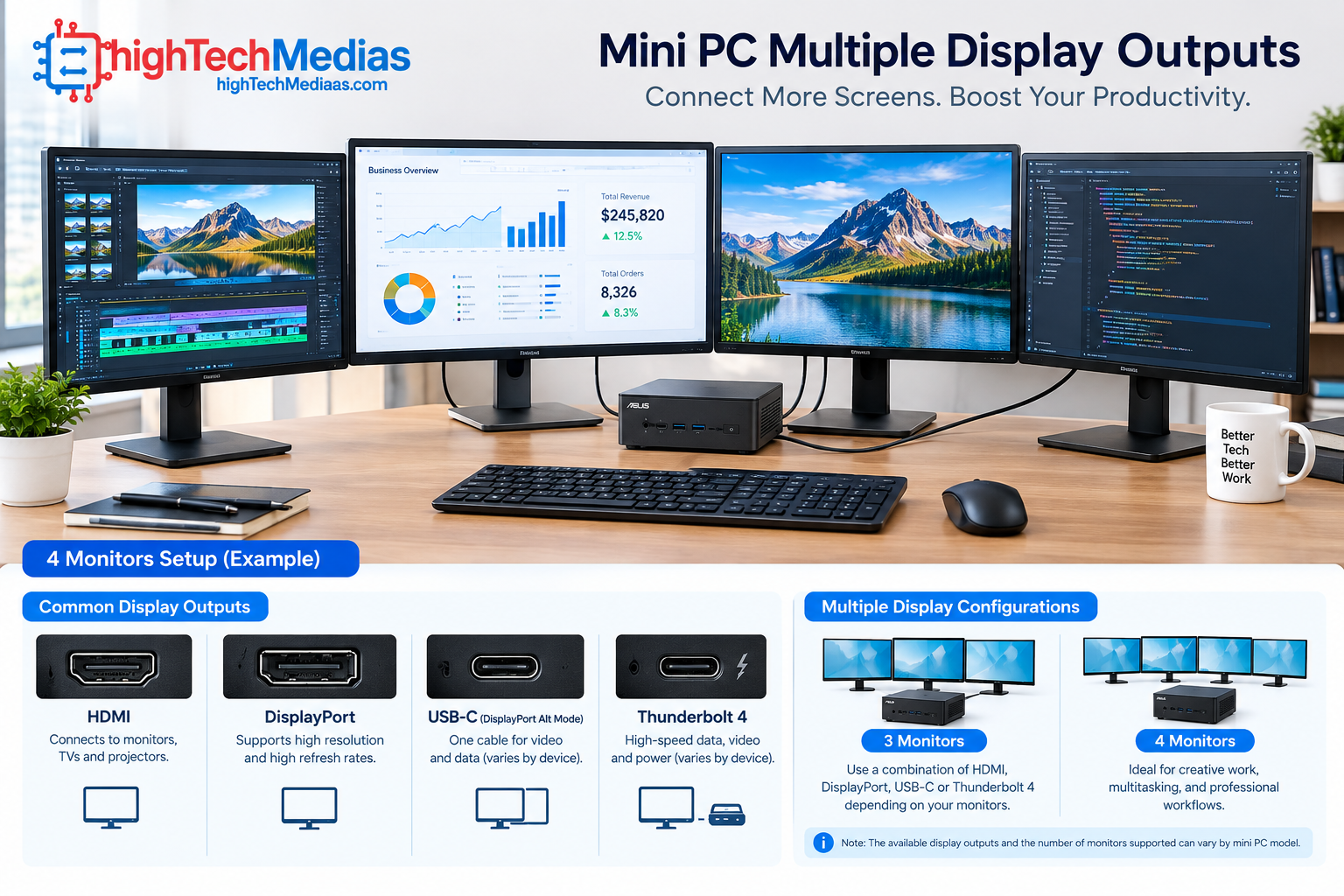
A mini PC might have a powerful CPU but still be a poor choice for a four-screen workstation if it lacks sufficient physical outputs or the graphics architecture cannot drive the desired resolutions.
Look at four things:
- Number of display outputs
- Type of display outputs
- Maximum supported resolution and refresh rate
- Whether USB-C or Thunderbolt can carry video
HDMI and DisplayPort are the most straightforward connections. USB-C can also carry DisplayPort signals on compatible systems, while Thunderbolt can provide additional flexibility.
This is why the mini PC with multiple display outputs should be evaluated based on the exact SKU rather than the product family name alone.
3. How Many Monitors Do You Actually Need?
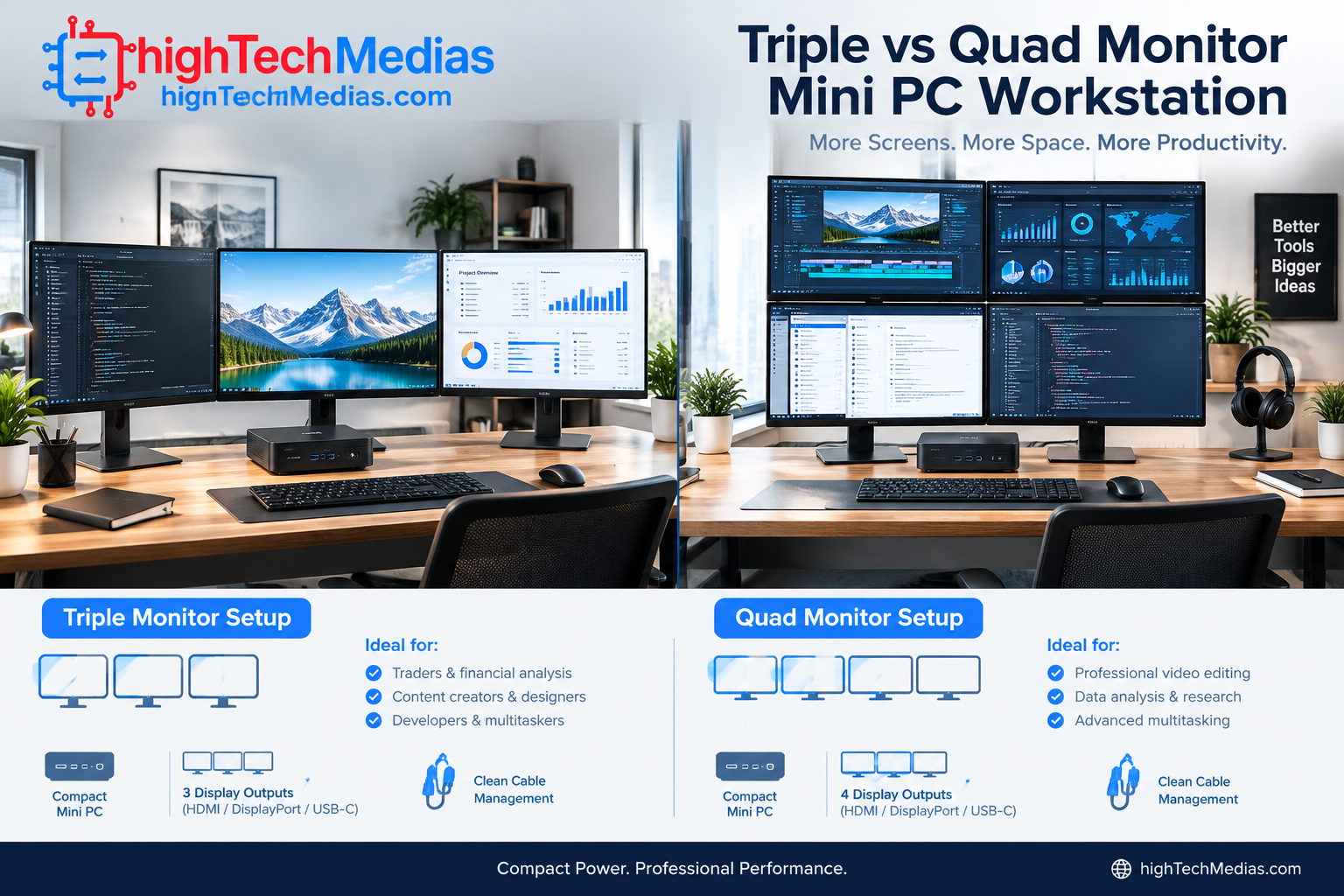
A mini PC for 3 monitors is often enough for most productivity users.
Three screens can provide:
- Main work application
- Browser or research window
- Communication, monitoring, or reference window
For example, a software developer could keep an IDE on the center display, documentation on the left, and testing tools on the right.
A financial professional could use one display for charts, another for spreadsheets, and a third for communication.
A fourth monitor becomes useful for users who constantly work across several independent applications.
However, more monitors do not automatically mean better productivity. Desk size, viewing distance, ergonomics, cable management, and the computer’s actual display capabilities all matter.
ASUS is particularly notable here because its NUC 14 Pro is explicitly specified for quad 4K displays and more.
4. Display Outputs Matter More Than Port Count
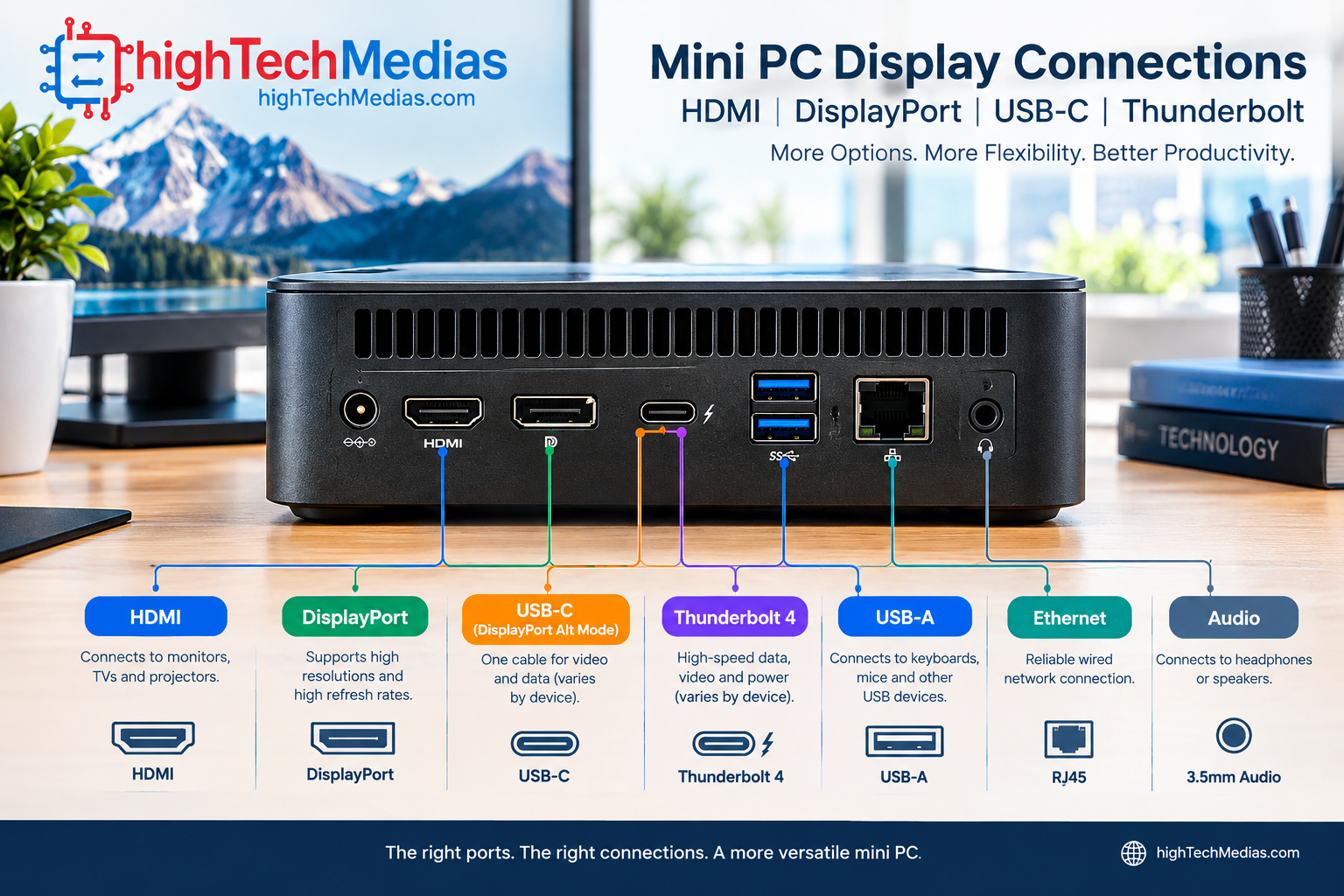
A common mistake is counting every port on the rear of a mini PC and assuming each one can drive another monitor.
That is not necessarily true.
A USB-C connector may provide only data and power, or it may also provide DisplayPort Alt Mode. Thunderbolt ports can support display connectivity, but the exact implementation still matters.
The same principle applies to HDMI. A mini PC may have HDMI output, but the supported resolution and refresh rate depend on the hardware.
For a serious multi-monitor mini PC, shoppers should therefore check the manufacturer’s technical specifications for the exact configuration.
ASUS, for example, lists HDMI 2.1 and Thunderbolt 4 on the NUC 14 Pro, while Lenovo’s ThinkCentre M75q Gen 5 documentation specifies DisplayPort 1.4a and HDMI on the relevant configuration.
5. CPU Performance Still Matters
Display support gets the mini PC onto the monitors, but the processor determines how comfortably the computer handles the workload.
For normal office multitasking, a modern Core Ultra, Core processor, or Ryzen PRO processor can provide plenty of computing power.
The more demanding the workload, the more important CPU performance becomes.
Users working with large spreadsheets, virtual machines, software development environments, browser-heavy workflows, databases, or content-creation applications should consider a higher-performance configuration.
The ASUS NUC 14 Pro offers Core Ultra and Core processor options, while the Lenovo ThinkCentre M75q Gen 5 Tiny AMD family uses Ryzen PRO processors.
However, don’t confuse CPU performance with graphics performance. Integrated graphics can be excellent for office productivity and multiple high-resolution displays, but demanding 3D applications, advanced video effects, and serious GPU computing may require a desktop with a discrete graphics card.
For a broader look at processors, see our laptop processor guide covering Intel, AMD, and Apple silicon.
6. Memory and Storage for Multi-Screen Productivity
Running multiple monitors does not automatically require huge amounts of RAM.
The number of displays and the amount of system memory are different considerations.
RAM becomes important because of what you do on those displays.
A user with three monitors running Microsoft Excel, Chrome, Teams, Photoshop, cloud applications, and multiple background processes will benefit from more memory than someone simply using three screens for email and web browsing.
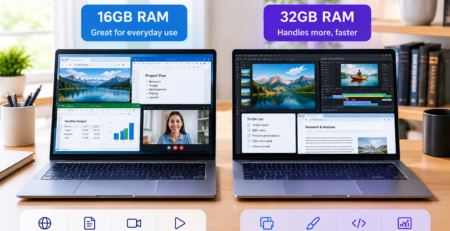
For a serious productivity workstation, 16GB can be a reasonable starting point, while 32GB provides more breathing room for demanding multitasking.
The ASUS NUC 14 Pro supports up to 96GB of DDR5-5600 memory in the configurations listed by ASUS.
NVMe SSD storage is also preferable for a modern productivity workstation because it improves application loading and file access compared with older mechanical storage.
7. Graphics Performance and 4K Displays
A mini PC for 4 monitors needs more than a collection of physical connectors.
The graphics subsystem must actually support the required displays and resolutions.
Integrated graphics have improved substantially, but shoppers should still distinguish between:
- Two 1080p monitors
- Three 1440p monitors
- Four 4K monitors
- High-refresh-rate gaming displays
- Professional color-critical displays
The workload also matters.
Four office monitors showing static applications are very different from four high-refresh displays running demanding 3D content.
For productivity, development, research, spreadsheets, communication, and general office use, integrated graphics can be an excellent fit.
For professional 3D rendering or GPU-intensive creative work, a larger desktop with dedicated graphics may be more appropriate.
8. Best Mini PC for Office Work and Home Offices
For many U.S. professionals, the ideal multi-monitor computer is not a gaming machine.
It is a quiet, compact workstation that can sit behind a monitor or under a desk.
The best mini PC for office work should provide:
- Reliable display connectivity
- Enough RAM
- Fast SSD storage
- Wi-Fi
- Wired Ethernet
- Multiple USB ports
- Easy maintenance
- A compact chassis
- Stable operating-system support
The ASUS NUC 14 Pro fits this profile particularly well because ASUS positions it for business, collaboration, education, content creation, and productivity applications while providing extensive connectivity.
The Lenovo ThinkCentre M75q Gen 5 Tiny is another strong business-oriented option, particularly where enterprise management and security features are important.
For readers comparing compact computers against portable systems, our Mini PCs vs. laptops guide provides a useful next step. Mini PCs vs. Laptops
9. Mini PCs for Developers and Technical Professionals
Developers are among the strongest candidates for a multiple-monitor workstation.
A typical development environment can involve an IDE, terminal, browser, documentation, database tools, containers, testing environments, and communication applications.
Three displays can make that workflow significantly easier.
The mini PC should have sufficient RAM, fast NVMe storage, strong CPU performance, and the appropriate display connections.
Developers should also consider Linux support if Linux is part of their workflow. ASUS lists Windows 11, ChromeOS Flex, Red Hat Enterprise Linux, and Ubuntu 24.04 LTS among supported operating systems for the NUC 14 Pro platform.
10. Mini PCs for Business and Professional Workstations
Businesses have additional requirements beyond consumer specifications.
Security, manageability, warranty support, mounting options, and long-term deployment can matter considerably.
The Lenovo ThinkCentre M75q Gen 5 Tiny is designed around this environment. Lenovo highlights ThinkShield security, AMD Ryzen PRO processors, expansion options, and support for up to three displays.
ASUS also positions the NUC 14 Pro for commercial applications, collaboration, education, digital signage, and small and medium-sized businesses.
For companies deploying multiple systems, a business-class mini PC can therefore be more appropriate than simply choosing the fastest consumer model.
11. Connectivity: Ethernet, Wi-Fi and USB
A multiple-monitor workstation still needs strong networking and peripheral connectivity.
The ASUS NUC 14 Pro provides 2.5Gb Ethernet, while ASUS also lists Wi-Fi 6E on the platform.
The Lenovo ThinkCentre M75q Gen 5 Tiny includes Gigabit Ethernet in the referenced specifications, with additional ports varying by configuration.
For users transferring large files over a local network, 2.5Gb Ethernet can be particularly useful.
For normal cloud applications, video meetings, browsing, and office work, modern Wi-Fi can be sufficient.
12. VESA Mounting Can Make a Huge Difference
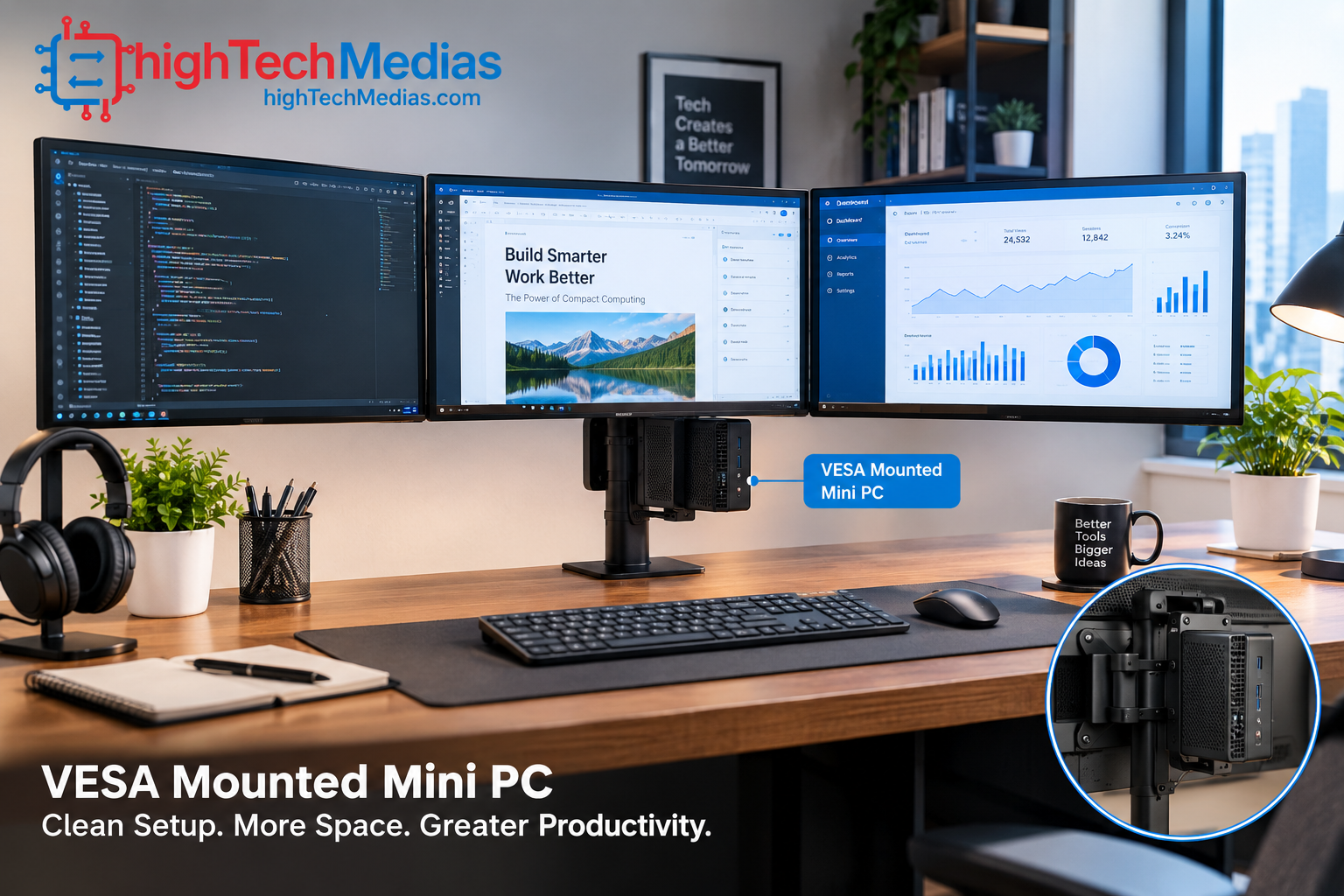
One of the biggest advantages of a mini PC is the ability to remove the computer from the desktop.
ASUS lists a VESA mounting plate with the NUC 14 Pro.
Lenovo also describes mounting the ThinkCentre M75q Gen 5 Tiny beneath a desk or using appropriate mounting accessories.
This can improve cable management and leave more room for a keyboard, notebook, speakers, or other equipment.
For a permanent home-office installation, this is an underrated feature.
13. Which Mini PC Should You Buy?
The right choice depends primarily on the number of displays and the type of work.
User |
Recommended direction |
Why |
| Two-monitor office user | Compact mainstream mini PC | Two screens are relatively easy to support |
| Three-monitor professional | Lenovo ThinkCentre M75q Gen 5 Tiny or similar | Business-focused design and up to three displays |
| Four-monitor productivity user | ASUS NUC 14 Pro | ASUS specifies quad 4K display support |
| Developer | ASUS NUC 14 Pro | Strong connectivity and upgradeability |
| Corporate deployment | Lenovo ThinkCentre M75q Gen 5 Tiny | Business features and Ryzen PRO options |
| Home-office user | ASUS NUC 14 Pro | Compact design and extensive connectivity |
| 3D/GPU-heavy professional | Consider a larger desktop | Dedicated graphics may be more appropriate |
| Digital signage deployment | Business-oriented multi-display mini PC | Compact footprint and multi-display support |
For shoppers interested specifically in affordable models, HighTechMedias also has a Best Mini PCs Under $500 in 2026 guide. Best Mini PCs Under $500 in 2026
14. What About Mini PCs From Other Brands?
The market is broader than ASUS and Lenovo.
Brands including GEEKOM and Beelink offer numerous compact Windows PCs, while AMD and Intel provide the processors and graphics platforms used across many manufacturers.
For buying options, you also compare the actual specifications of each configuration rather than choosing solely by brand.
Intel official website
AMD official website
ASUS Mini PCs official U.S. store
GEEKOM official Mini PC range
Beelink official product range
The most important question is not simply, “Which brand makes the fastest mini PC?”
It is:
Which exact configuration provides the display outputs, graphics capability, memory, storage, and connectivity required for your workstation?
15. Important Mistakes to Avoid
Assuming every USB-C port supports monitors
Always verify whether the USB-C port supports DisplayPort Alt Mode or another display protocol.
Buying based only on CPU
A powerful processor cannot compensate for insufficient display connectivity.
Ignoring resolution
A mini PC supporting three displays does not necessarily mean it supports three 4K displays at the refresh rate you want.
Forgetting memory
Multi-monitor productivity often goes together with heavy multitasking. Insufficient RAM can become a bigger limitation than the number of screens.
Ignoring cables
The mini PC may support a particular display standard while the cable or adapter does not.
Assuming every configuration is identical
Manufacturers often sell several versions of the same mini PC with different processors, RAM, storage, operating systems, and ports.
Always check the exact SKU.
16. Frequently Asked Questions
1.What is the best mini PC for multiple monitors?
The ASUS NUC 14 Pro is one of the strongest options for users who specifically need extensive multi-display connectivity because ASUS states that it supports quad 4K displays and more.
2.Can a mini PC run three monitors?
Yes. Many modern mini PCs can run three monitors, but the exact capability depends on the processor, integrated graphics, ports, and configuration. Lenovo specifically lists support for up to three displays on the ThinkCentre M75q Gen 5 Tiny.
3.Can a mini PC run four monitors?
Some can. The ASUS NUC 14 Pro is explicitly specified by ASUS for quad 4K displays and more.
4.Do I need a dedicated GPU for multiple monitors?
Not necessarily. For office productivity, web browsing, programming, spreadsheets, communication, and similar workloads, integrated graphics can be sufficient. A dedicated GPU becomes more relevant for demanding 3D, professional rendering, advanced GPU computing, and certain high-end creative workloads.
5.Is 32GB RAM better for a multi-monitor workstation?
For demanding multitasking, 32GB can provide more headroom than 16GB. The number of monitors itself does not automatically determine the amount of RAM required.
6.Are mini PCs good for home offices?
Yes. Their compact size, low desk footprint, mounting flexibility, and modern connectivity make them particularly attractive for home-office setups.
7.Should I choose HDMI or DisplayPort?
Neither is universally better. The important factors are the monitor’s inputs, desired resolution and refresh rate, cable requirements, and the specific capabilities of the mini PC.
17. Final Verdict
The best mini PCs for multiple monitors are the ones that match the complete workstation—not simply the ones with the fastest processor.
For users who want extensive display connectivity in a very compact chassis, the ASUS NUC 14 Pro stands out because ASUS explicitly specifies support for quad 4K displays and more, while also offering Thunderbolt 4, HDMI 2.1, 2.5Gb Ethernet, upgradeable memory and storage, and VESA mounting.
For business users who need a compact corporate-oriented system with support for up to three displays, the Lenovo ThinkCentre M75q Gen 5 Tiny is a compelling alternative, particularly because of its Ryzen PRO options, ThinkShield security features, business-focused design, and flexible mounting options.
Ultimately, the right choice comes down to how many monitors you need, what resolution you want, what applications you run, and which ports the exact configuration provides.
If your priority is four-display productivity in a tiny footprint, start with a platform such as the ASUS NUC 14 Pro. If three screens are enough and business deployment matters more, the ThinkCentre M75q Gen 5 Tiny deserves serious consideration.
The key lesson is simple: buy the display architecture first, then the performance level you actually need.





Leave a Reply