
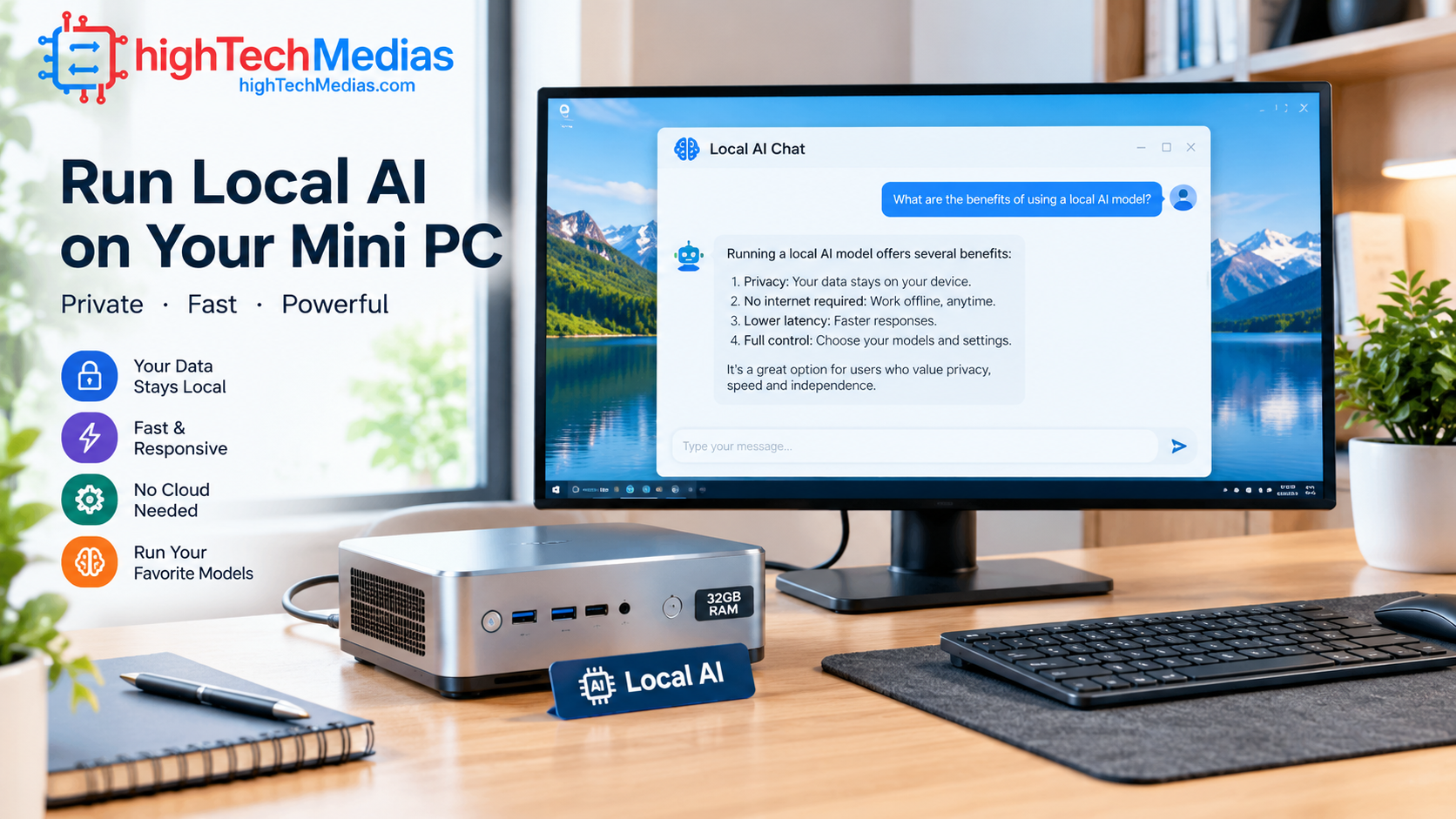
How to Run a Local AI Model on a Mini PC: Step-by-Step Setup.
If you want to run a local AI model on a mini PC, 2026 is a practical year to try it, as long as you buy with memory in mind. A small desktop can now host a private chatbot, a coding assistant, or a document-search tool without sending a single prompt to the cloud. This tutorial covers the hardware, the software, and the exact commands, so you can go from unboxing to your first response in an afternoon.
Quick Answer: To run a local AI model on a mini PC, pick a machine with at least 16GB of RAM (32GB or more is better). Install Ollama, then run ollama run llama3.1:8b to download and chat with an 8-billion-parameter model. Add Open WebUI for a browser-based chat interface. Memory capacity and memory bandwidth decide which models fit and how fast they respond, so choose your mini PC by the model size you want to run.
Want to compare hardware before you read the setup steps? Start with our best mini PCs for running AI locally in 2026 roundup. If this machine will also be your daily desktop, our guide to the best mini PCs for home office in 2026 shows which models handle both jobs.
Pricing note: Prices below are manufacturer list prices or figures from published spring 2026 reporting. DRAM costs have been volatile. Tom’s Hardware reported a 171% year-over-year jump in memory prices, so confirm current pricing before you buy.
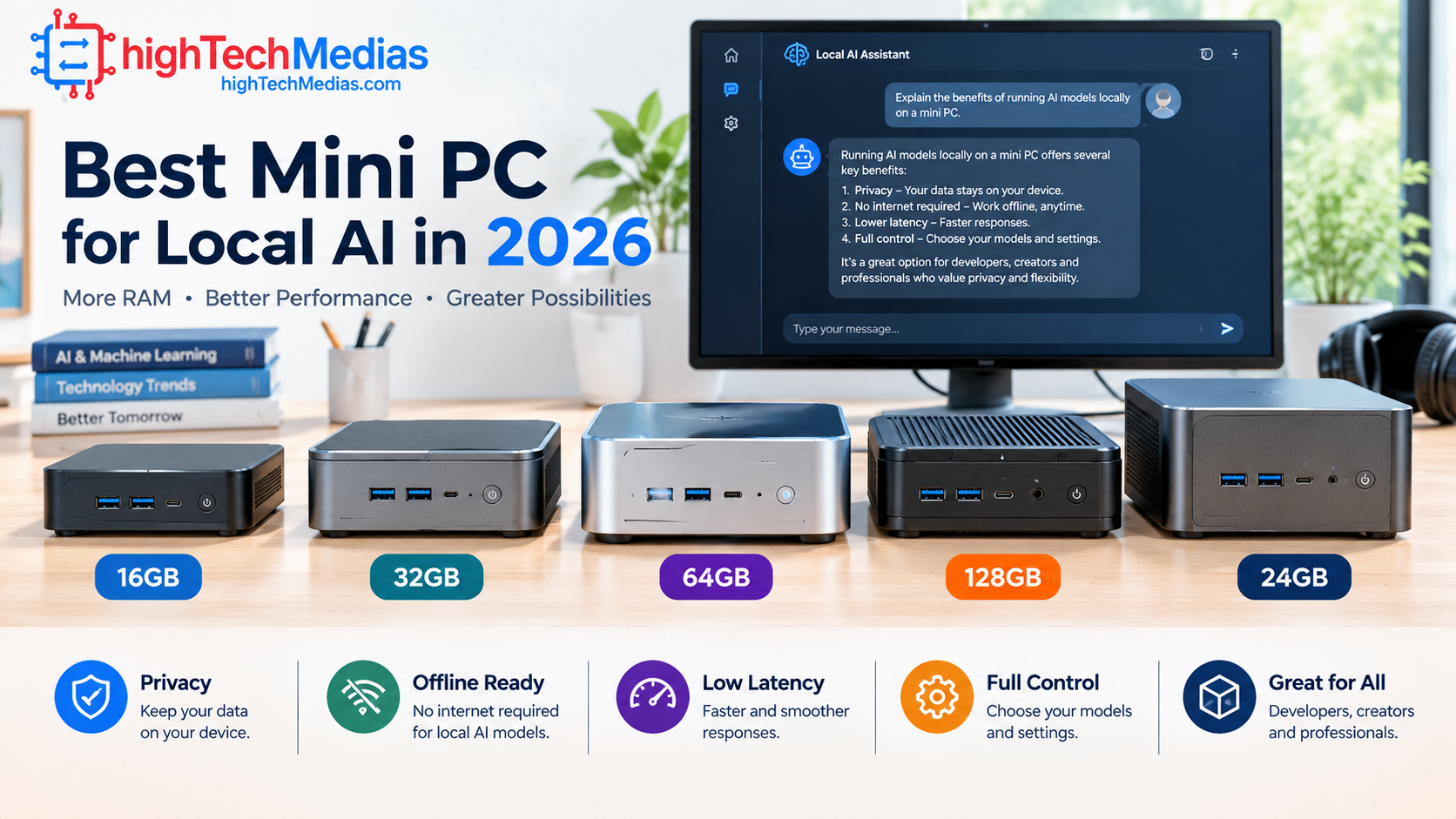
Best Mini PC for Local AI in 2026: Our Top Five Picks
This is the best mini PC for local AI shortlist for 2026. Each pick is a real, currently sold product. We ranked them by how well they serve different budgets and model sizes. Speed figures come from community and third-party testing, and your results will vary with model, quantization, and software.
Choice |
Model |
List price |
Best for |
|---|---|---|---|
| First | Apple Mac mini (M4 Pro, 24GB) | $1,399 | Quiet, polished everyday use |
| Second | MINISFORUM UM880 Plus | $869 (32GB/1TB) | Value, upgradeable RAM |
| Third | GMKtec EVO-X2 (128GB) | about $2,200+ | Large 70B-class models |
| Fourth | MINISFORUM MS-S1 MAX | $2,300+ | Workstation-class local AI |
| Fifth | Beelink Mini S13 | $219 (16GB/512GB) | Learning on a tight budget |
First Choice: Apple Mac mini (M4 Pro): Best Overall for Most People
- Price: $1,399 for the 24GB/512GB configuration. A 48GB version was listed at $1,799 in spring 2026 reporting.
- Who should buy it: Developers, writers, and everyday users who want a quiet, plug-and-play local AI box with strong resale value.
- Key specs: Apple M4 Pro, 24GB unified memory in the base configuration (up to 64GB), roughly 273 GB/s memory bandwidth, Thunderbolt 5, and a 5-inch square footprint.
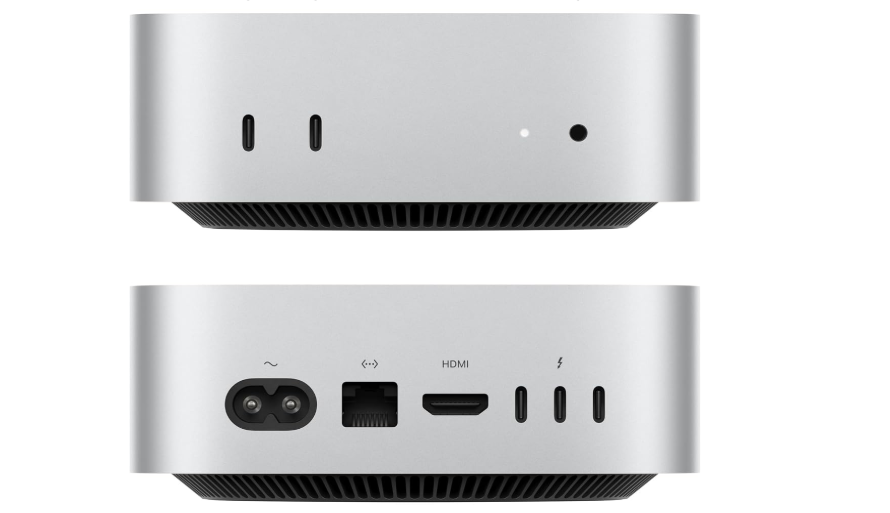
- Why consider it: Apple’s Metal and MLX support is mature, and setup is close to plug-and-play. It was reported to deliver 25 to 35 tokens per second on 7B models and to run nearly silent under sustained load.
- Pros: Very quiet, excellent efficiency, simple software, strong 7B to 13B performance.
- Cons: Memory is fixed at purchase, and the price climbs quickly with RAM. It caps out before 128GB-class machines can for 70B models.
Second Choice: MINISFORUM UM880 Plus: Best Value for Windows and Linux
- Price: $869 list for the 32GB/1TB configuration.
- Who should buy it: Students, hobbyists, and home-lab users who want responsive 7B to 13B models without spending Mac money.
- Key specs: AMD Ryzen 7 8845HS, Radeon 780M graphics, socketed DDR5 SO-DIMM memory, dual M.2 slots, one USB-C port, 5.00 × 5.00 × 2.17 inches.
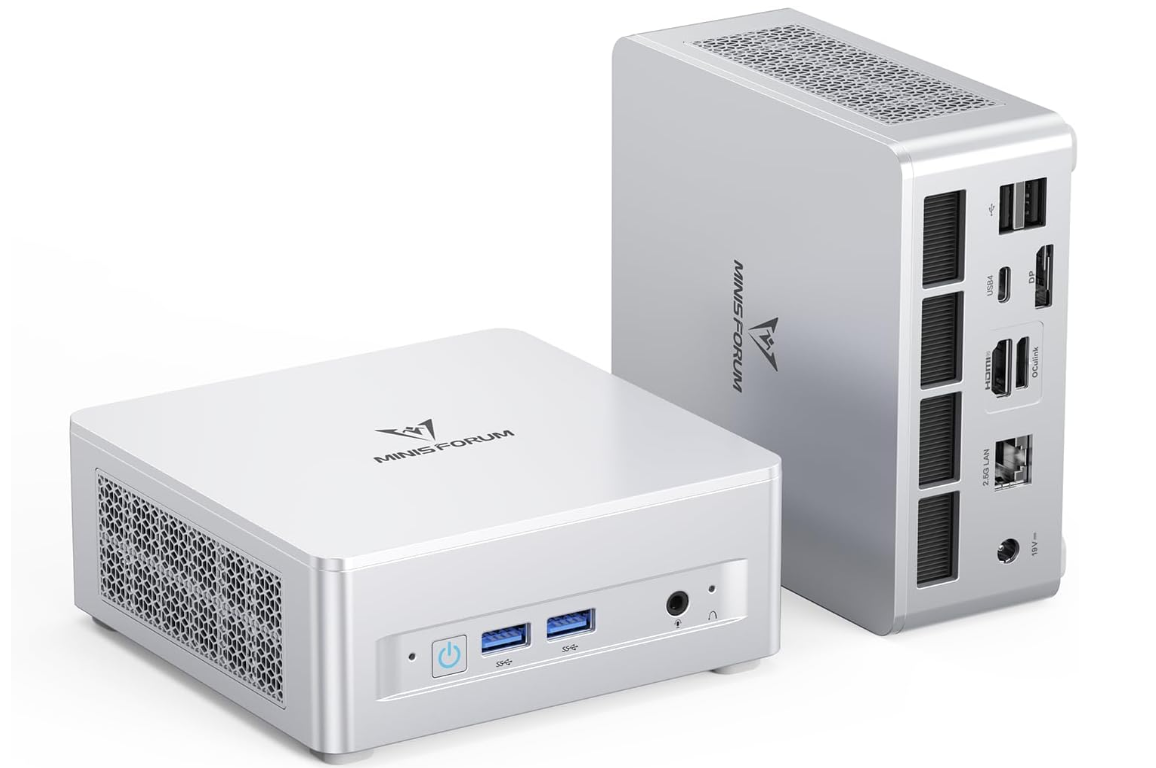
- Why consider it: Socketed RAM lets you start with 16GB and upgrade later. Reported speeds are 18 to 25 tokens per second on 7B and 8B models.
- Pros: Upgradeable memory, solid price-to-performance, good Ollama and llama.cpp compatibility.
- Cons: Fan noise under sustained load, and 32GB configurations are pricier because of DRAM costs.
Students should also see our best mini PCs for students in 2026.
Third Choice: GMKtec EVO-X2: The Strix Halo Mini PC for Large Models
- Price: About $2,200 and up for the 128GB configuration, per April 2026 reporting. GMKtec also sells 64GB and 96GB variants.
- Who should buy it: Developers, researchers, and privacy-focused teams who need 70B-class models or heavy agent workflows.
- Key specs: AMD Ryzen AI Max+ 395 (16 cores, 32 threads, up to 5.1GHz), Radeon 8060S graphics, up to 128GB LPDDR5X-8000, about 215 GB/s measured bandwidth, 2.5GbE, Wi-Fi 7, Bluetooth 5.4, dual PCIe 4.0 M.2 slots.
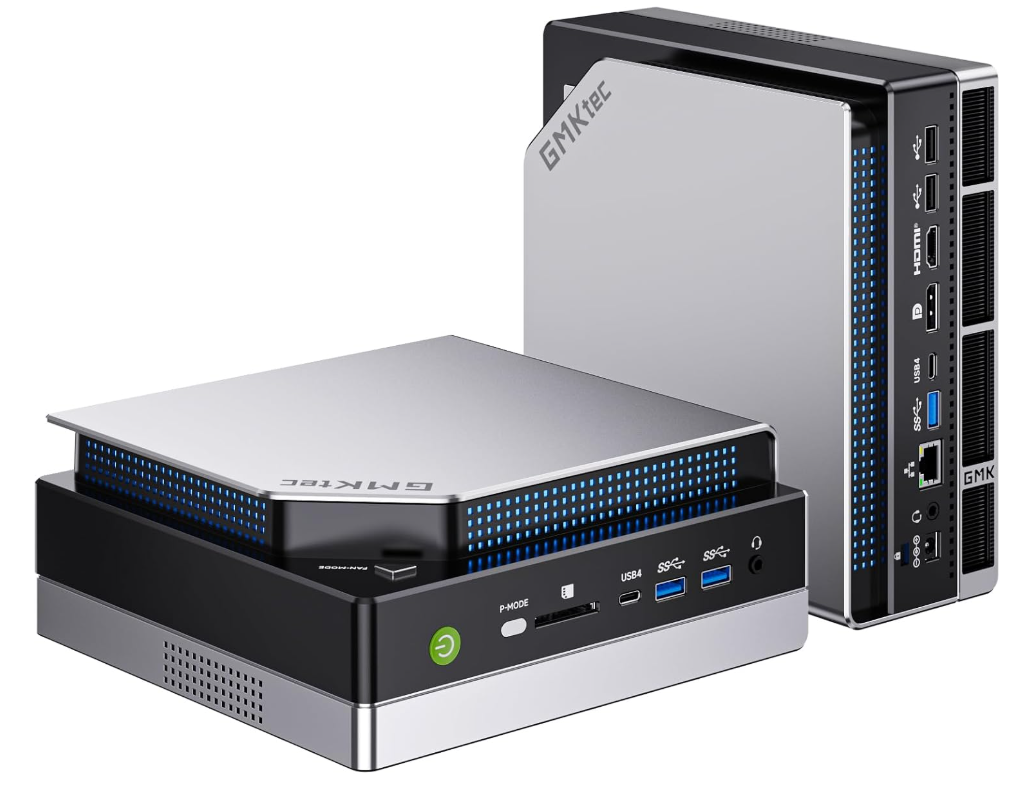
- Why consider it: This kind of Strix Halo mini PC is among the cheapest ways to hold a 70B model in memory. Community testing reported roughly 5 tokens per second on a dense 70B model and 72 to 75 tokens per second on Mixture of Experts models such as Qwen3-30B-A3B.
- Pros: Huge memory pool, strong MoE speed, 2.5GbE for serving other devices.
- Cons: Higher price, fan noise under AI load, and a Vulkan and ROCm learning curve.
Fourth Choice: MINISFORUM MS-S1 MAX: Workstation-Class Local AI
- Price: Launched at $2,300 and up depending on configuration.
- Who should buy it: Professionals who want the same Strix Halo platform as the EVO-X2 from a different brand and want to compare configurations.
- Key specs: AMD Ryzen AI Max+ 395 with up to 128GB LPDDR5X-8000. Confirm ports and expansion details on Minisforum’s page before ordering.
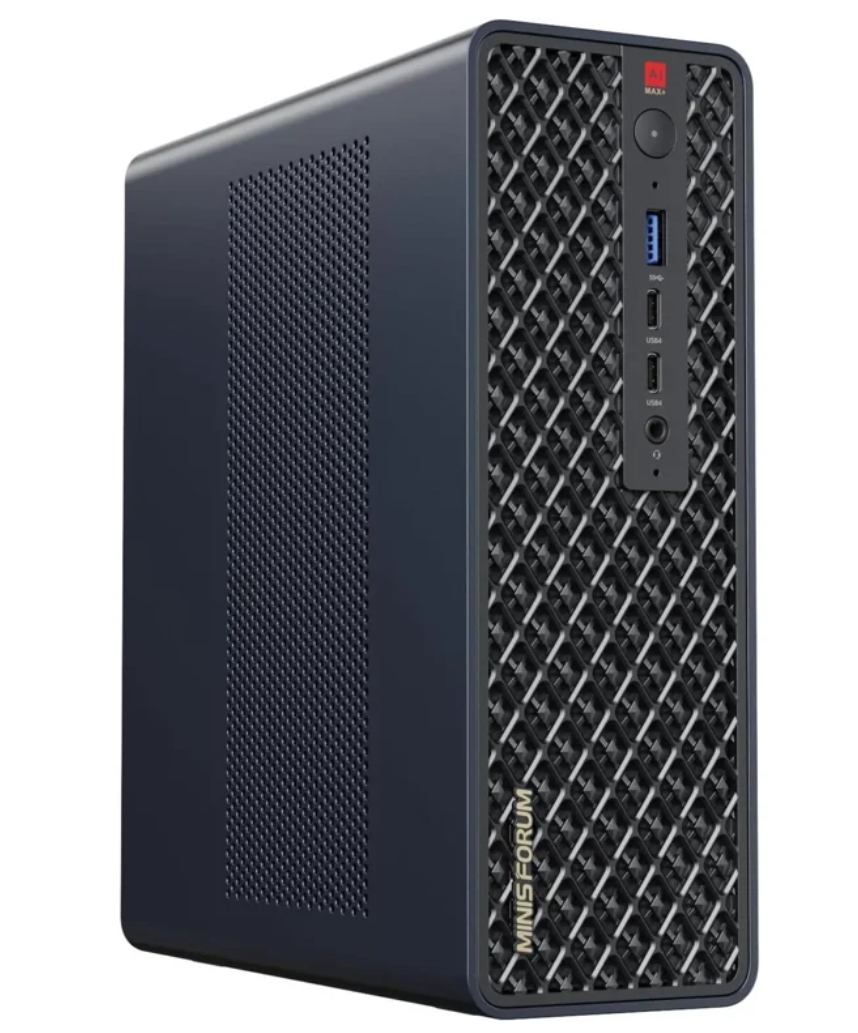
- Why consider it: It shares the platform that makes 70B-class models practical on a desktop. A third-party tracker put Ryzen AI Max+ 395 systems at 60 to 120W under LLM load, so plan for the power draw.
- Pros: Large shared memory pool, strong GPU for its size, Minisforum’s established U.S. availability.
- Cons: Priced above the EVO-X2 at launch, with the same noise and software-setup trade-offs.
Fifth Choice: Beelink Mini S13: Best for Learning on a Budget
- Price: $219 list for 16GB/512GB (a 1TB version listed at $259).
- Who should buy it: Beginners who want to try local AI before committing real money.
- Key specs: Intel N150 (4 cores, up to 3.6GHz), 16GB single-channel DDR4, dual M.2 slots, two HDMI outputs, Gigabit Ethernet, and no USB-C port.
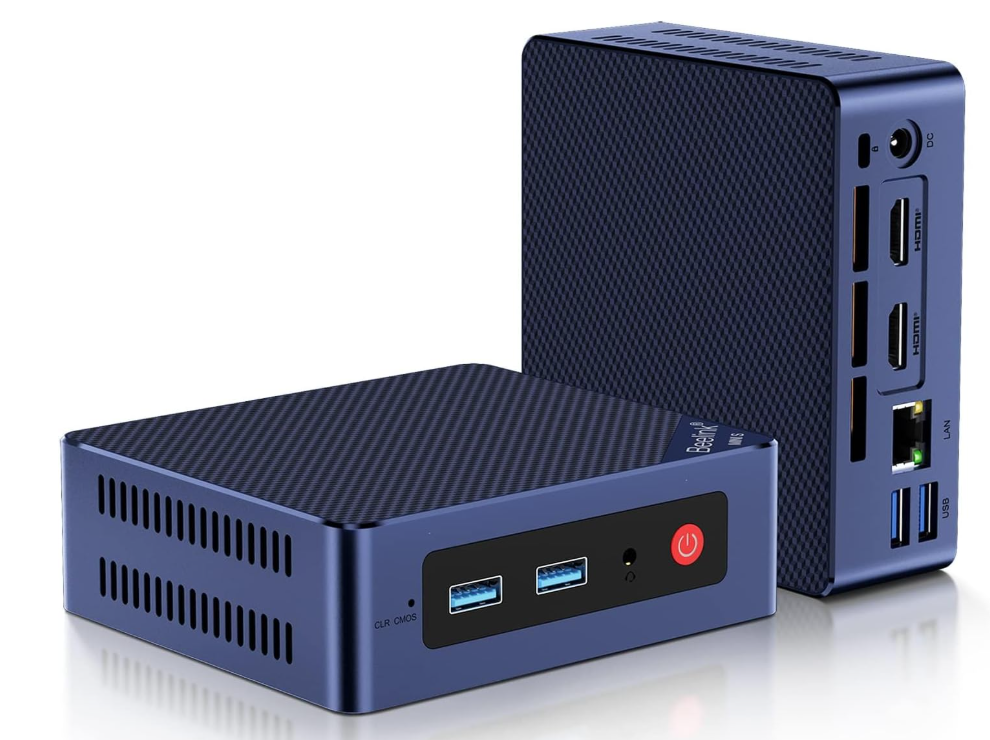
- Why consider it: It runs 8B models at about 6 to 9 tokens per second, which is slow but usable for summaries and a personal coding helper.
- Pros: Very low cost, near-silent in one long stress test, easy to repurpose later.
- Cons: 16GB ceiling, single-channel memory limits bandwidth, not fast enough to feel like a cloud chatbot.
Undecided between a desktop and a notebook? Our mini PCs vs laptops comparison covers the trade-offs, and AMD vs Intel mini PCs explains the platform differences.
Local LLM Hardware Requirements: What Actually Matters
The core local LLM hardware requirements come down to memory. A language model reads its entire weight file from memory for every token it generates. That makes memory capacity the gate (can the model fit at all?) and memory bandwidth the throttle (how fast does it respond?).
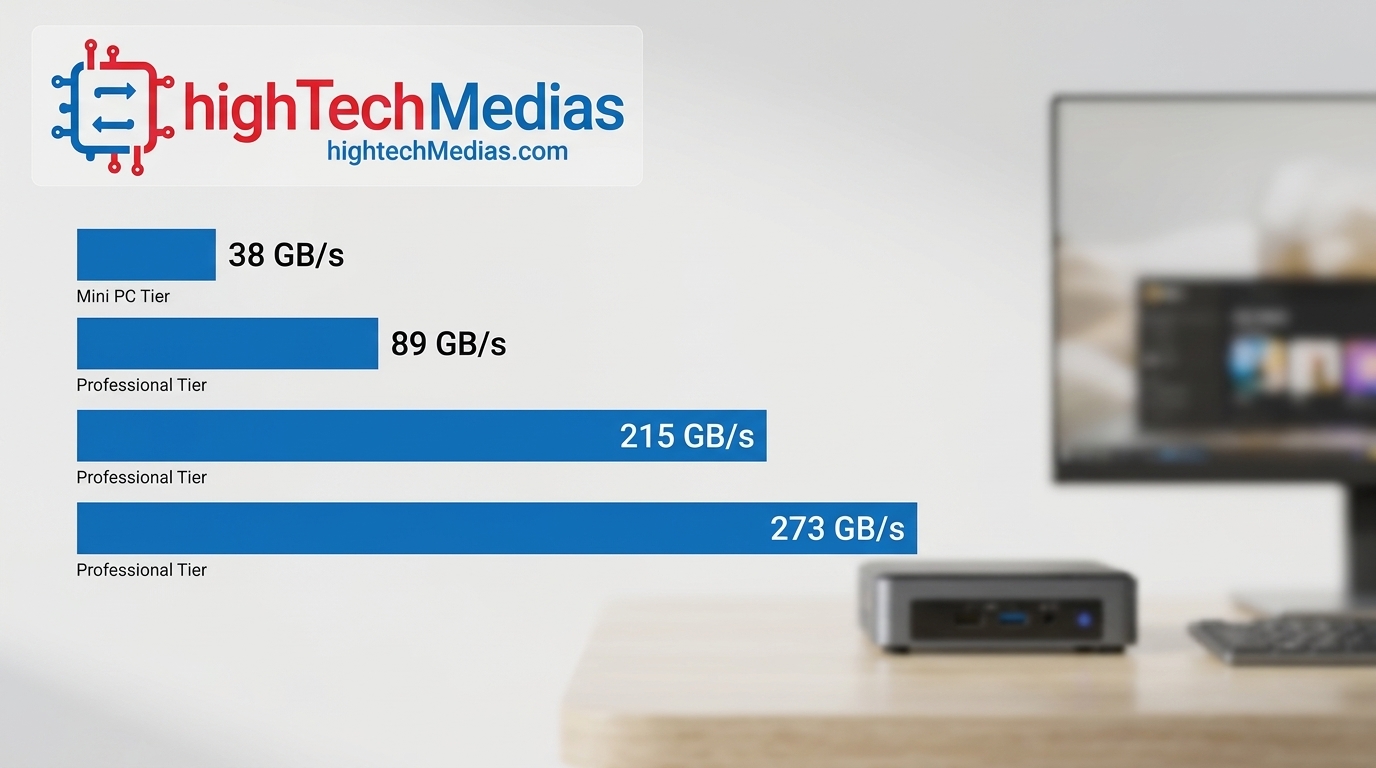
The relationship is close to linear. Roughly double the bandwidth and you roughly double your tokens per second. The table below shows the main hardware tiers using figures reported in spring 2026 testing:
Tier |
Example |
Bandwidth (approx.) |
Reported speed (7B–8B) |
|---|---|---|---|
| Entry | Intel N150, single-channel DDR5 | ~38 GB/s | 6–9 tokens per second |
| Mid-range | Ryzen 7 8845HS, dual-channel DDR5-5600 | ~89 GB/s | 18–25 tokens per second |
| Apple Silicon | Mac mini M4 / M4 Pro | up to ~273 GB/s (M4 Pro) | 25–35 tokens per second |
| Large-memory | Ryzen AI Max+ 395, LPDDR5X-8000 | ~215 GB/s | Fast on MoE; ~5 tokens per second on dense 70B |
Memory type matters too. If you are weighing soldered versus socketed memory, our explainer on LPDDR5 vs DDR5 RAM covers the speed and upgradeability trade-offs. In short, soldered LPDDR5X is faster and more efficient but cannot be upgraded. SO-DIMM sockets let you add capacity later, which is valuable while DRAM prices are high.
Storage also deserves a look. Model files are large, and you will collect several. Fast drives load models quicker, so read our comparison of NVMe vs SATA SSDs. A practical target is at least 1TB, and our 256GB vs 512GB vs 1TB storage guide explains why.
Finally, a note on NPUs. An NPU accelerates lightweight AI tasks, but most popular local LLM tools run on the CPU or GPU, so do not buy a mini PC for its NPU alone.
Choose the Right Model Size, Quantization, and Context Window
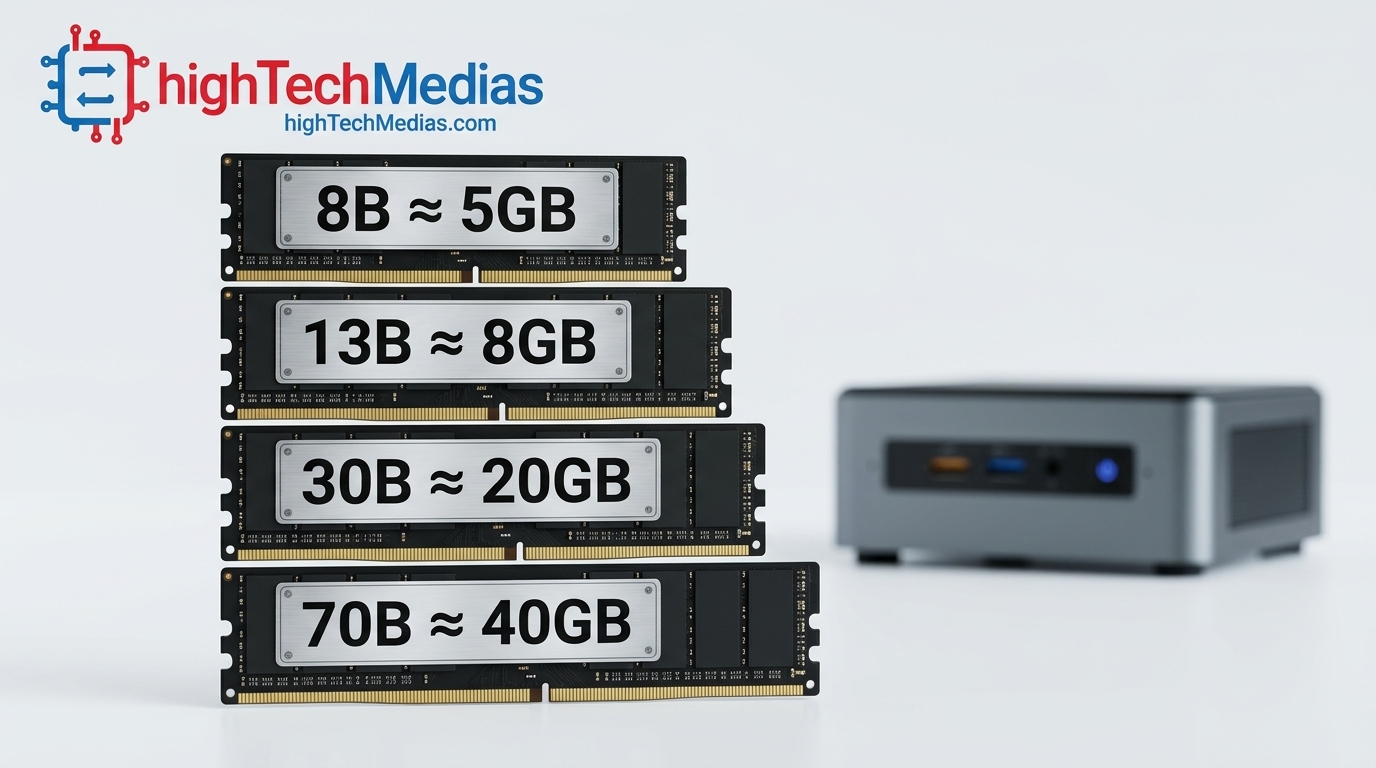
Before you install anything, match a model to your memory. Parameters are the “size” of a model, and quantization shrinks the weights so they fit in less memory.
At Q4 (4-bit) quantization, a 13B model occupies roughly 8GB, and a 70B model needs about 40GB. An 8B model such as Llama 3.1 8B is typically around 5GB. These are weights only. The operating system and your KV cache (the memory used for conversation history) need room too.
Model class |
Approx. size at Q4 |
Practical minimum RAM |
|---|---|---|
| 7B–8B | ~5 GB | 16 GB |
| 13B | ~8 GB | 32 GB |
| ~30B (MoE or dense) | ~18–20 GB | 48–64 GB |
| 70B | ~40 GB | 64 GB+ (128 GB for comfort) |
Three terms will come up constantly:
- Quantization: Lower bit-widths use less memory and run faster, with some quality loss. Q4 is the common balance.
- GGUF: The file format used by llama.cpp and many desktop tools for quantized models.
- Context window: How much text the model can consider at once. Longer context grows the KV cache and uses more RAM.
Mixture of Experts (MoE) models are a useful exception. They activate only a fraction of their parameters per token, so they run far faster than dense models of similar total size. That is why Strix Halo hardware reports such strong MoE speeds.
Prepare Your Mini PC Before Installing Anything
A few minutes of preparation prevents most setup headaches.
- Update the operating system and drivers: On Windows, run Windows Update and install the latest graphics driver from AMD or Intel. On macOS, update to the current release.
- Check your free storage: Keep at least 50GB free for several models, and more if you plan to try 30B or 70B files.
- Review your memory configuration: On Strix Halo systems, GMKtec’s support FAQ covers how to configure the GPU memory allocation in BIOS. Check it if your system reports less memory than you set.
- Set a high-performance power plan: On Windows, choose the performance mode so the chip does not throttle during long generations.
- Plan for multiple displays if needed: If you will keep a chat window, a code editor, and a monitor dashboard open at once, see our best mini PCs for multiple monitors guide.
Step-by-Step: Run a Local AI Model on a Mini PC with Ollama
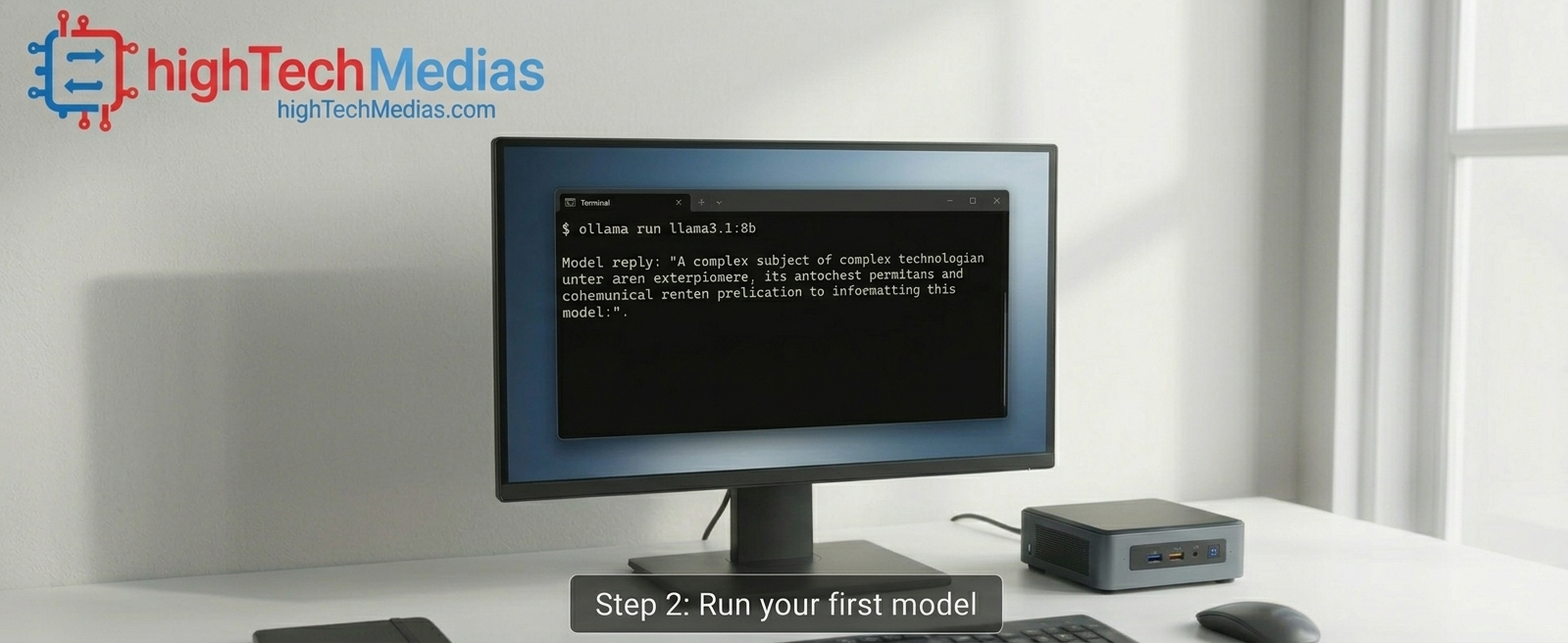
Ollama is the simplest starting point. It handles model downloads, quantization selection, and inference in one command-line tool that works on Linux, macOS, and Windows. Here is how to run a local AI model on a mini PC from a clean install.
Step 1: Install Ollama
Choose your platform:
- Windows and macOS: Download the installer from ollama.com and run it.
- Linux: Open a terminal and run:
curl -fsSL https://ollama.com/install.sh | shConfirm the install worked:
ollama --versionStep 2: Download and run your first model
Start with an 8B model, which fits comfortably on 16GB machines:
ollama run llama3.1:8bOllama downloads the model on the first run and then opens an interactive prompt. Type a question and press Enter. To exit, type /bye.
Step 3: Manage your models
ollama list        # show downloaded models
ollama pull <name> # download without running
ollama ps          # show loaded models and whether they use GPU or CPU
The ollama ps output is the quickest way to check whether your GPU is doing the work or whether the model has fallen back to the CPU.
Step 4: Test the local API endpoint
Ollama serves an API endpoint on port 11434 by default. Test it:
curl http://localhost:11434/api/generate -d '{"model":"llama3.1:8b","prompt":"Explain unified memory in one sentence.","stream":false}'This is the same endpoint that chat interfaces, coding assistants, and scripts connect to.
Add a Chat Interface: Open WebUI and LM Studio
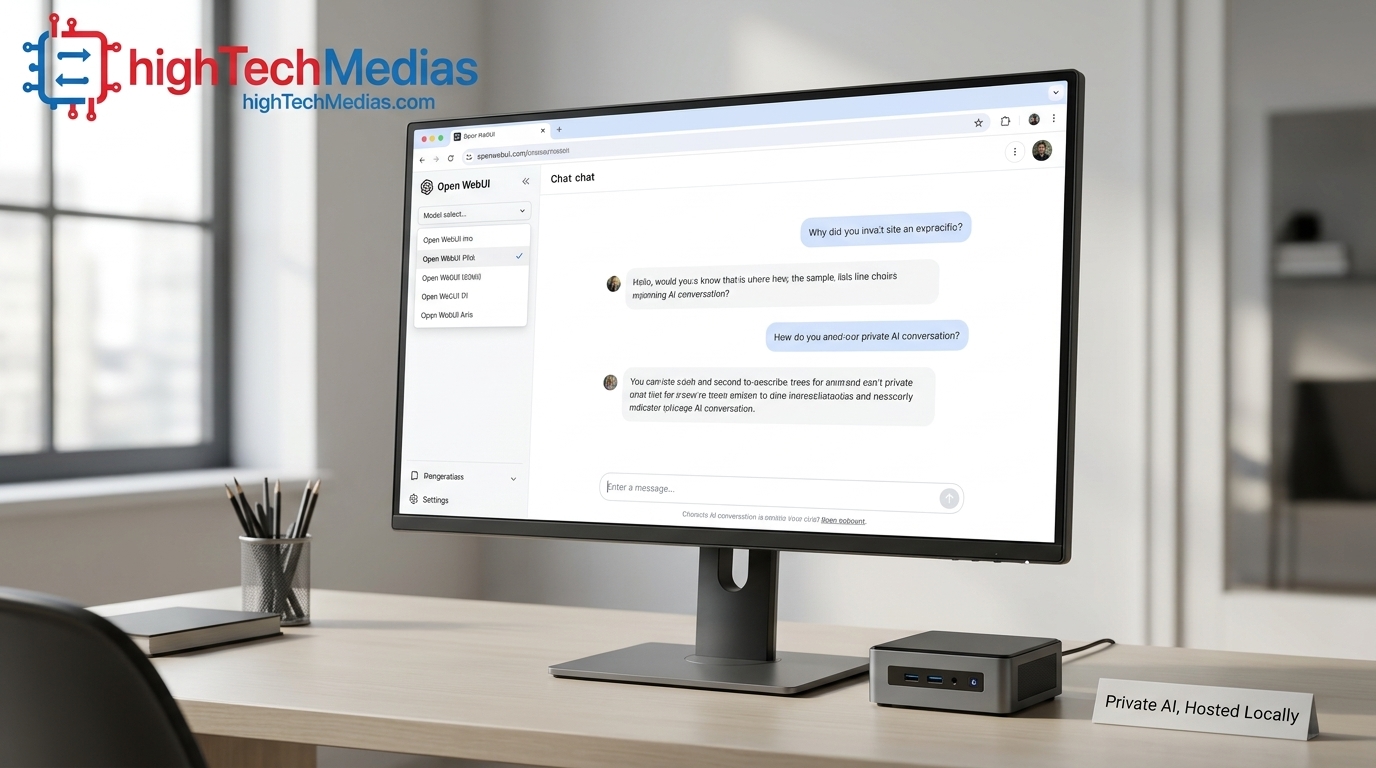
The command line works, but most people prefer a browser. Open WebUI gives you a ChatGPT-style interface that connects to your Ollama server.
If you have Docker installed, the project’s documented command is:
docker run -d -p 3000:8080 --add-host=host.docker.internal:host-gateway -v open-webui:/app/backend/data --name open-webui --restart always ghcr.io/open-webui/open-webui:mainThen open http://localhost:3000 in your browser and create your admin account. Open WebUI should detect your local Ollama server, and you can select any downloaded model from the dropdown.
If you want a desktop app instead, LM Studio offers a graphical interface and a built-in model browser that searches Hugging Face. Power users often pair it with llama.cpp, which offers fine-grained control over backends and settings.
Developers who plan to wire a local model into their editor should also read our guide to the best mini PCs for programming and development.
Turn On GPU Acceleration for Your Platform
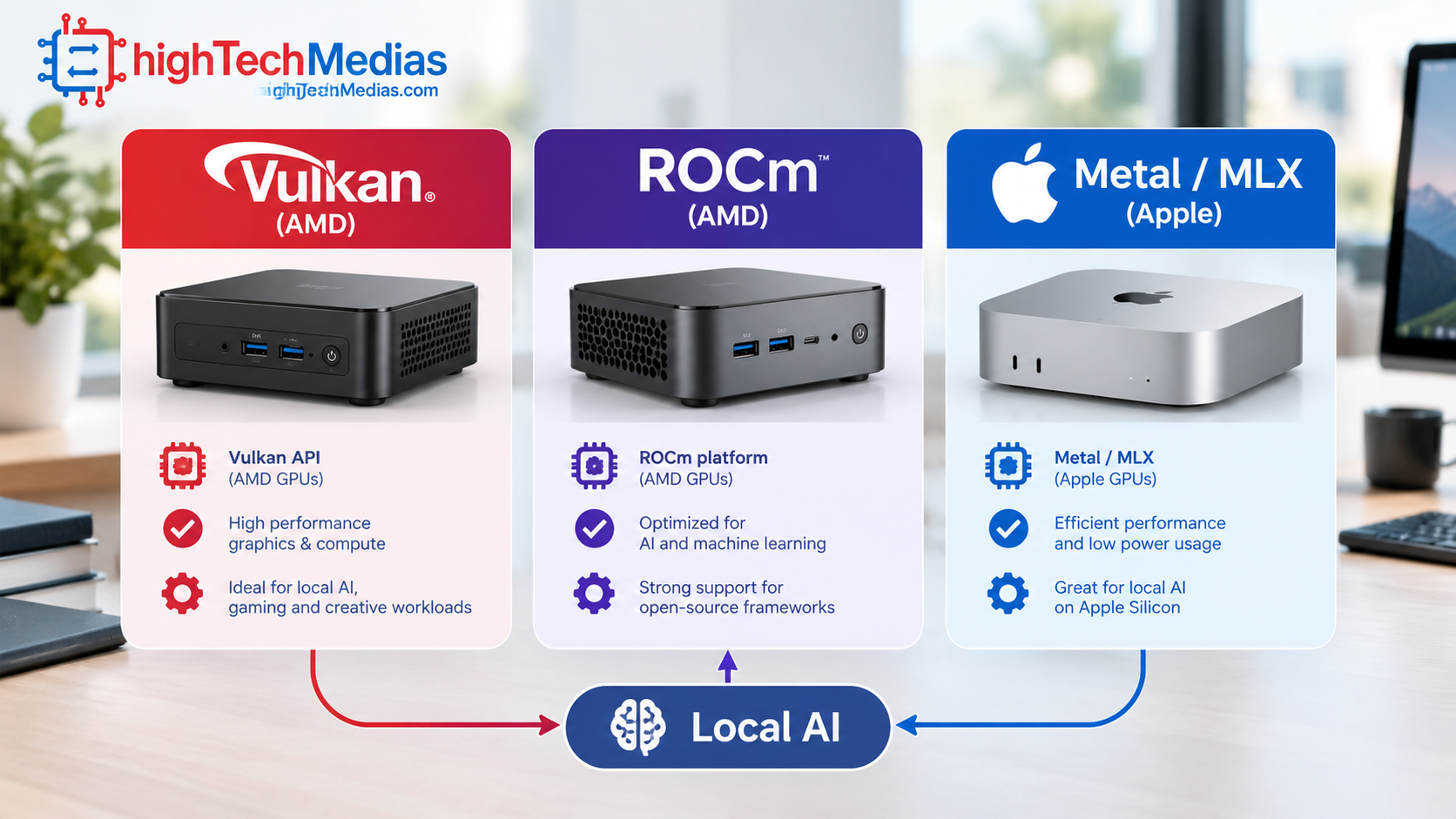
Speed depends on the backend your software uses.
- AMD mini PCs (Windows or Linux): llama.cpp with a Vulkan backend is a common, stable choice across Radeon integrated graphics, from the 780M to the 8060S in Strix Halo systems. ROCm can offer higher theoretical performance for long-context work but needs more setup. Check the release notes for your tool and GPU to confirm current support.
- Apple Silicon: Metal acceleration works out of the box, and MLX is Apple’s native framework for efficient inference. It works with Ollama and LM Studio without driver setup.
- Intel N-series and Core Ultra: Expect CPU-based inference for most tools. Stick with 7B to 8B models and Q4 quantization.
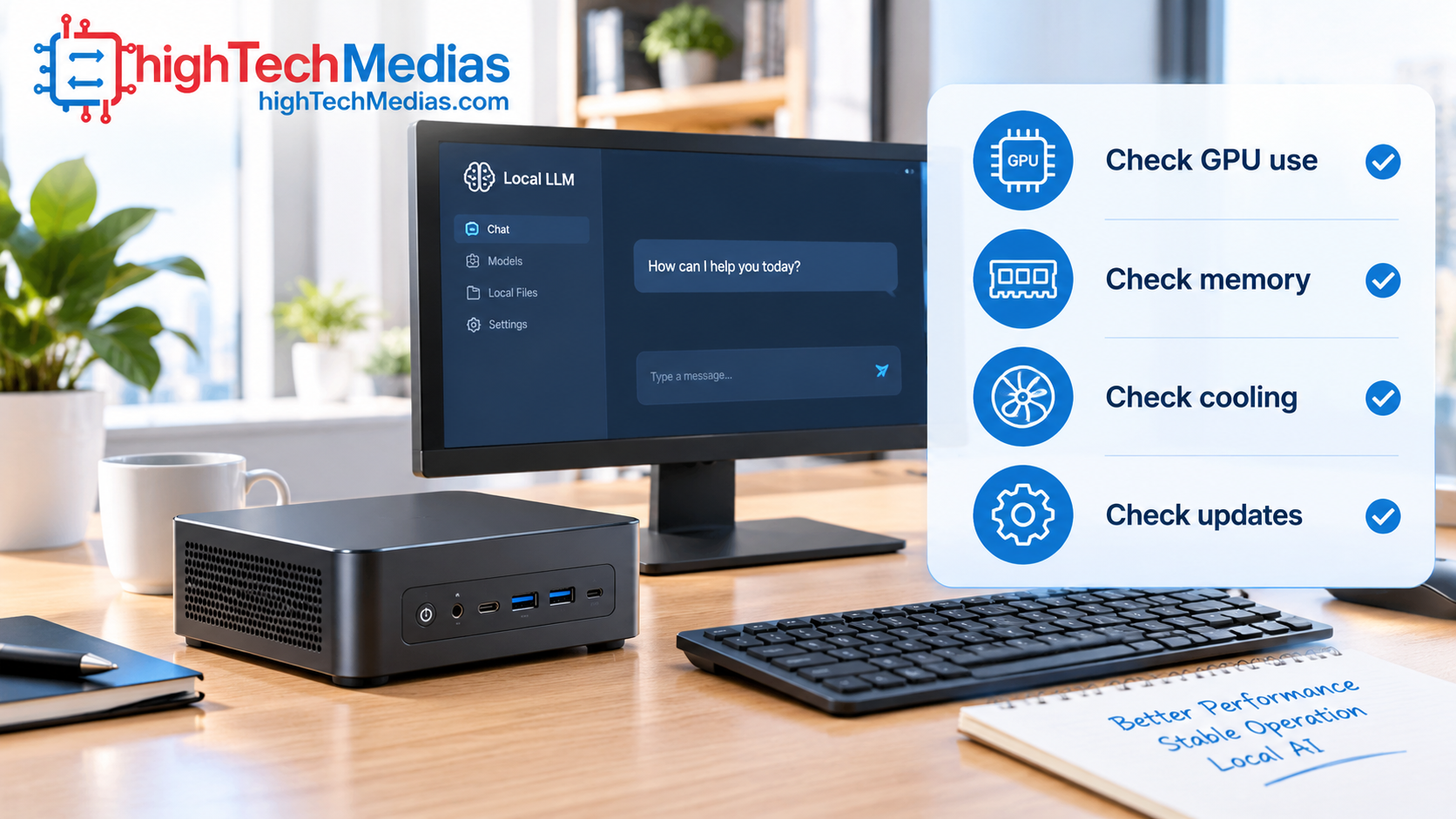
After any change, run ollama ps while a model is loaded and confirm it reports GPU use. If it reports CPU, update your graphics driver and re-test.
Run LLM Offline and Share It Across Your Network
Once a model is downloaded, you can run an LLM offline. Ollama and your chat interface will keep working without an internet connection, which makes a mini PC a strong private AI server for sensitive documents.
To let other devices on your home network reach the server, set the OLLAMA_HOST environment variable to 0.0.0.0 before starting Ollama, then connect from another device using the mini PC’s local IP address and port 11434. A wired connection is better than Wi-Fi for serving multiple clients, and 2.5GbE helps if several people will use it.
One caution: Ollama’s API has no login by default. Keep it on your local network behind your router’s firewall, and do not expose it directly to the internet without authentication in front of it.
Thermals, Noise, and Power Draw
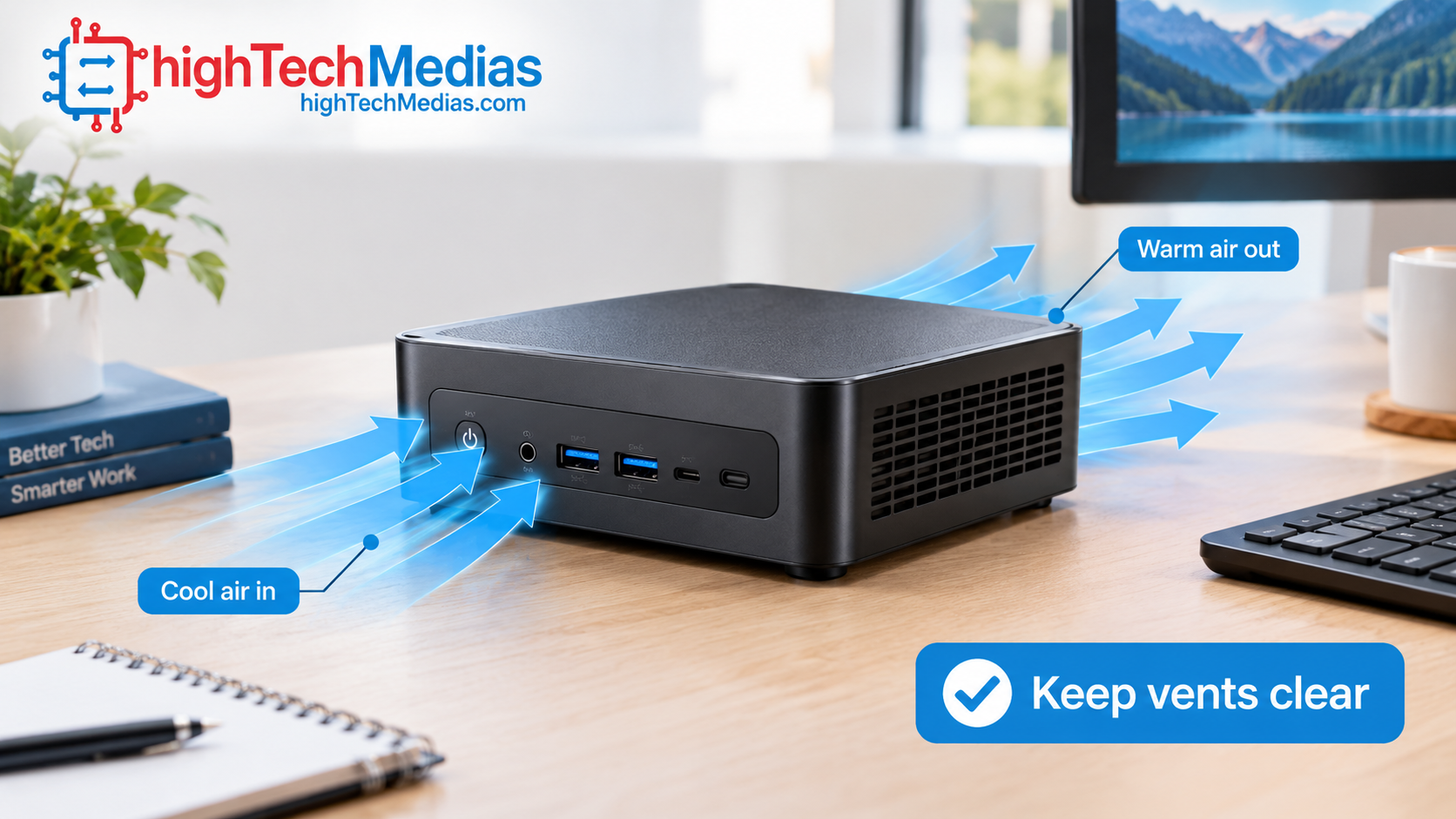
Sustained AI workloads stress a small chassis. Watch for thermal throttling, which lowers clock speeds when the chip gets too hot and makes your tokens per second drop mid-session. Our explainer on laptop cooling, heat pipes, and thermal throttling applies equally to mini PCs.
Practical tips:
- Leave several inches of clearance around vents, and keep the machine off carpet.
- Strix Halo systems can draw 60 to 120W under LLM load, so expect higher electricity use than a typical mini PC.
- The Mac mini M4 Pro stays near-silent under sustained inference. Several Windows mini PCs get loud under load.
- If noise matters in your workspace, browse our best silent mini PCs for home office.
Quick Troubleshooting Table
Problem |
Likely cause |
Fix |
|---|---|---|
| Model is very slow | Running on CPU only | Run ollama ps, update GPU drivers, try a smaller or more quantized model |
| “Out of memory” or crash | Model plus context exceeds RAM | Use a smaller model, a lower quantization, or a shorter context window |
| Strix Halo shows less memory than expected | GPU memory not allocated | Review the manufacturer’s BIOS memory guidance |
| Open WebUI cannot see models | Container cannot reach Ollama | Confirm Ollama is running and the --add-host flag was used |
| Speed drops after a few minutes | Thermal throttling | Improve airflow, apply a performance power plan |
Frequently Asked Questions
What is the best mini PC for local AI?
It depends on your model size. For most people the Mac mini M4 Pro is the polished, quiet choice, while a Ryzen 7 8845HS system such as the MINISFORUM UM880 Plus is the value pick. For 70B-class models, a 128GB Strix Halo machine is the practical option.
How much RAM do I need to run a local AI model?
Start with 16GB for 7B to 8B models and 32GB for 13B models. For 70B models, plan on 64GB at minimum and 128GB for comfort. These local LLM hardware requirements also include room for the OS and context cache.
Can I install Ollama on a Windows mini PC?
Yes. Download the Windows installer from ollama.com, run it, then open a terminal and use ollama run llama3.1:8b. You can install Ollama on macOS and Linux as well.
Can I run an LLM offline?
Yes. After the model is downloaded, you can run an LLM offline with no internet connection, which suits private documents and air-gapped setups.
Is a Strix Halo mini PC worth the money?
If you need 70B-class models or heavy agent workflows, a Strix Halo mini PC is among the most affordable ways to get that much memory in a desktop. For 7B to 13B work, a cheaper Ryzen 7 8845HS system or a Mac mini is usually enough.
Final Verdict
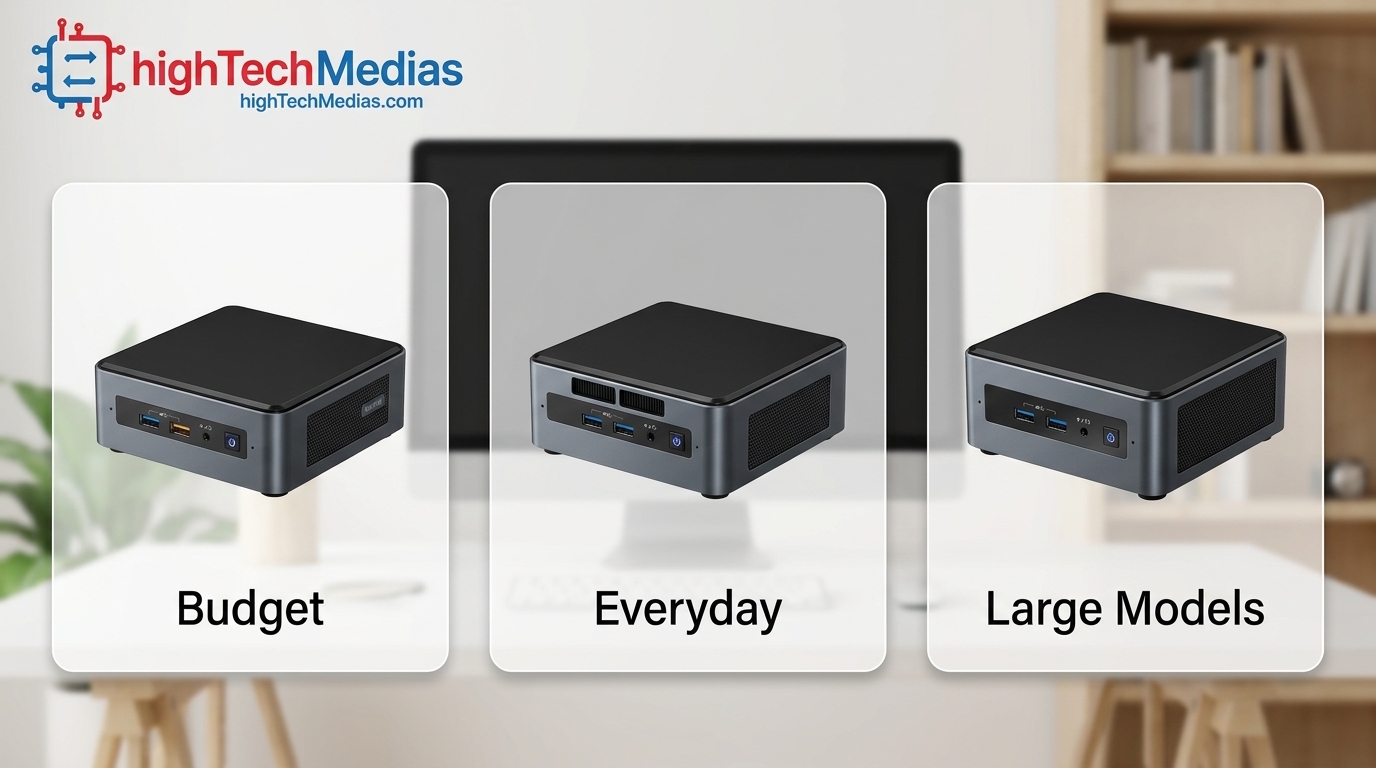
You can run a local AI model on a mini PC today without a server rack or a cloud subscription. The deciding factor is memory. Buy for the largest model you realistically want to run, then follow the steps above: install Ollama, pull an 8B model, add Open WebUI, and confirm GPU use with ollama ps.
- Best overall: Apple Mac mini (M4 Pro) for quiet, polished everyday use.
- Best value: MINISFORUM UM880 Plus for responsive 7B to 13B models with upgradeable RAM.
- Best for large models: GMKtec EVO-X2 (or the MINISFORUM MS-S1 MAX) if 70B-class models matter.
- Best to start cheap: Beelink Mini S13, with realistic expectations on speed.
Ready for your next step? Browse our best AI laptops in 2026 if you need portability, or read our best mini PCs for programming and development to turn your new local AI server into a coding companion.





Leave a Reply