

Best Mini PCs for Video Editing in 2026
The best mini PCs for video editing in 2026 combine powerful processors, capable graphics, fast storage, and efficient cooling in a compact desktop that fits easily into a home office or creative studio. For YouTubers, freelance editors, filmmakers, and content creators, a mini PC can provide a practical alternative to a full-size desktop without sacrificing valuable desk space.
Quick answer: The Apple Mac mini with M4 Pro is a strong option for creators who prefer macOS and compatible professional editing software. The MINISFORUM AtomMan G1 Pro is worth considering for Windows-based editing workflows that benefit from its dedicated NVIDIA GPU. The GMKtec EVO-X2 offers powerful integrated graphics and high-memory configurations, while the ASUS NUC 15 Pro+ is better suited to general productivity and lighter video editing. The MINISFORUM MS-01 is worth considering for editors who prioritize internal storage expansion and high-speed networking, although its integrated graphics make it less suitable for demanding GPU-intensive effects. The best choice depends on your editing software, footage, budget, and performance requirements.
However, not every mini PC is designed for demanding creative work. Editing 1080p footage is very different from working with 4K multicamera timelines, complex color grading, visual effects, or high-resolution RAW footage. Software compatibility, hardware video decoding, GPU acceleration, memory capacity, and sustained performance all influence the experience.
Before choosing a system, consider how your preferred editing application uses the CPU, GPU, and media engines. Our laptop buying guide for 2026 also explains the core hardware decisions that matter when selecting a computer for demanding everyday work.
1. Best Mini PCs for Video Editing in 2026: Top Five Picks
These recommendations cover different creative workflows rather than treating every mini PC as interchangeable. Prices are manufacturer-listed or retailer-listed reference prices observed during research; configurations, promotions, and availability can change. They are not independent benchmark rankings, and real performance depends on software, settings, footage, and cooling.
First choice: Apple Mac mini with M4 Pro — Best for macOS video editing
Key specifications
-
Apple M4 Pro chip, with CPU and GPU configurations depending on the model.
-
Unified memory; the base M4 Pro configuration launched with 24GB.
-
Fast internal SSD storage, with capacity selected at purchase.
-
Thunderbolt 5 connectivity on M4 Pro configurations.
-
macOS support for compatible versions of Final Cut Pro, Adobe Premiere Pro, and DaVinci Resolve.
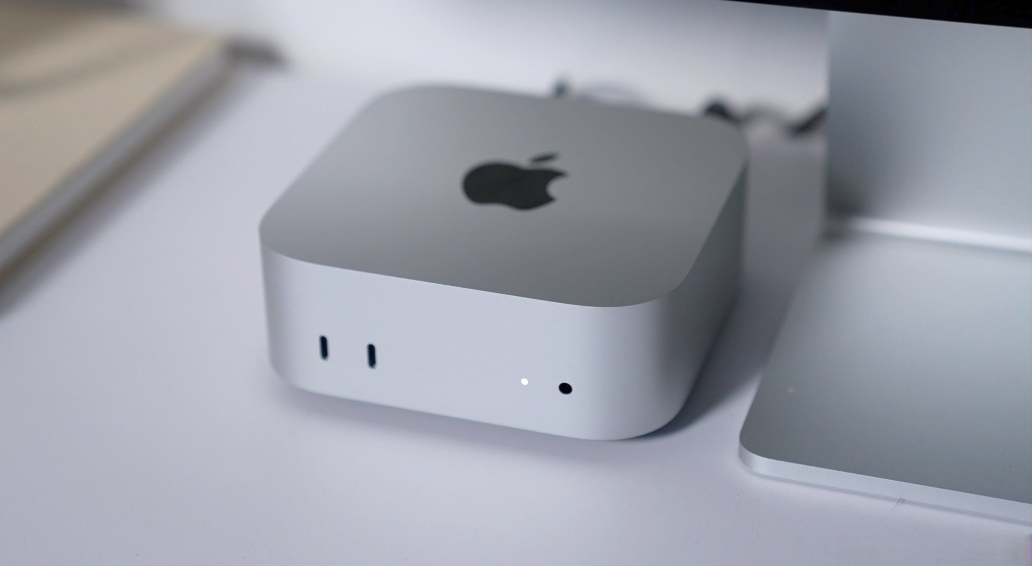
Apple announced the M4 Pro Mac mini starting at $1,399 in the United States.
Why consider it?
The M4 Pro is a compelling choice for editors who want a compact macOS workstation. Apple’s integrated architecture combines CPU, GPU, memory, and dedicated media-processing capabilities in a small system. That can be advantageous for compatible video codecs and creative applications.
It is particularly appealing to Final Cut Pro users and creators who work with supported ProRes workflows. It can also be appropriate for Premiere Pro and DaVinci Resolve users, although performance varies with effects, project complexity, and software version.
Pros
-
Compact enclosure and strong performance potential.
-
Integrated media-processing capabilities.
-
Fast Thunderbolt connectivity for external storage and peripherals.
-
Well suited to creators already using macOS.
Cons
-
Memory and internal storage are not user-upgradeable after purchase.
-
Higher-memory and higher-storage configurations cost more.
-
Not suitable for Windows-only applications or workflows requiring CUDA.
-
A separate monitor, keyboard, mouse, and external media storage may increase the total cost.
Who should buy this? Final Cut Pro editors, YouTubers, freelance creators, and professionals who prefer macOS and want a compact editing workstation.
Second choice: MINISFORUM AtomMan G1 Pro — Best for NVIDIA GPU acceleration
Key specifications
-
AMD Ryzen 9 8945HX, with 16 cores and 32 threads.
-
NVIDIA GeForce RTX 5060 discrete graphics.
-
32GB RAM in the referenced retail configuration, with support for up to 96GB.
-
Two M.2 NVMe SSD slots, with manufacturer-listed expansion support up to 8TB total.
-
Wi-Fi 7 and multiple display outputs.
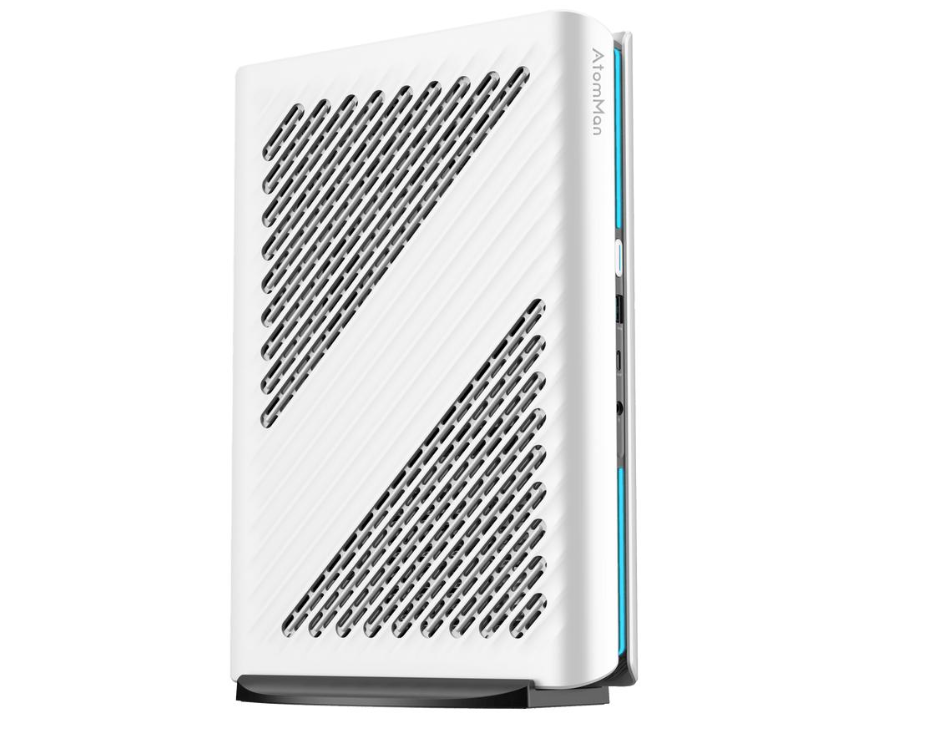
The manufacturer lists a 145W RTX 5060 implementation and a 3.8-liter chassis.
Why consider it?
For Windows editors using applications and effects that benefit from NVIDIA CUDA, a discrete GPU can be more valuable than a compact computer with only integrated graphics. The AtomMan G1 Pro is the more relevant option for GPU-heavy grading, compatible effects, and accelerated creative workloads.
Its upgradeable memory and dual internal SSD slots also provide more flexibility than a system with permanently integrated memory. Nevertheless, a discrete GPU does not guarantee smooth playback for every codec or project.
Pros
-
Dedicated NVIDIA GPU.
-
Expandable system memory.
-
Two internal NVMe SSD slots.
-
Suitable for compatible GPU-accelerated editing workflows.
Cons
-
Larger and heavier than ultra-compact mini PCs.
-
Higher power consumption and cooling demands.
-
Not every creative application or effect benefits equally from CUDA.
-
Fan noise under sustained workloads should be considered.
Who should buy this? Windows-based creators, freelance editors, and small production teams who use GPU-accelerated effects and want more graphics capability than a typical office mini PC offers.
Third choice: GMKtec EVO-X2 — Best for high-memory integrated graphics
Key specifications
-
AMD Ryzen AI Max+ 395 processor.
-
16 CPU cores and 32 threads.
-
Integrated Radeon 8060S graphics.
-
Configurations with 64GB or 128GB onboard LPDDR5X memory.
-
Dual M.2 2280 SSD slots.
-
Memory is onboard and not user-upgradeable.
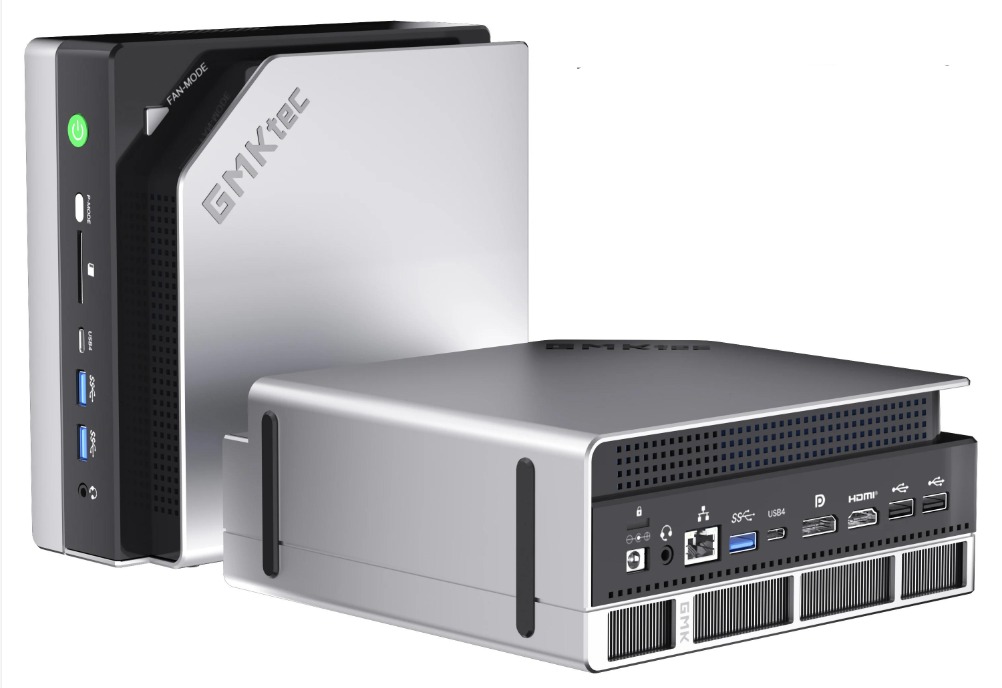
GMKtec lists the EVO-X2 with a 120W sustained processor power specification and configurations reaching 128GB of memory.
Why consider it?
The EVO-X2 is interesting for creators who want substantial memory capacity and powerful integrated graphics without adding a separate discrete graphics card. A large memory pool can help with demanding multitasking and some creative workloads, although it is shared between the CPU and GPU.
It may be useful for editors who also work with large media libraries, creative applications, and local AI tools. Still, shared memory capacity is not equivalent to dedicated graphics memory, and performance should be evaluated against the specific application.
Pros
-
High-memory configurations.
-
Powerful integrated graphics for its class.
-
Two internal SSD slots.
-
Useful for mixed creative and compute workloads.
Cons
-
Expensive compared with mainstream office mini PCs.
-
Onboard memory cannot be upgraded.
-
Integrated graphics are not equivalent to a discrete GPU in every workload.
-
Actual editing performance depends on codec support and application optimization.
Who should buy this? Experienced creators who need substantial memory, strong integrated graphics, and a compact Windows workstation for mixed creative tasks.
Fourth choice: ASUS NUC 15 Pro+ — Best for everyday creative work
Key specifications
-
Intel Core Ultra 5, Ultra 7, or Ultra 9 Series 2 processor options.
-
Integrated Intel Arc graphics.
-
Two memory slots, with manufacturer-listed support up to 96GB in compatible configurations.
-
M.2 NVMe storage expansion.
-
Dual Thunderbolt 4 ports and dual HDMI outputs.
-
Wi-Fi 7, depending on configuration.
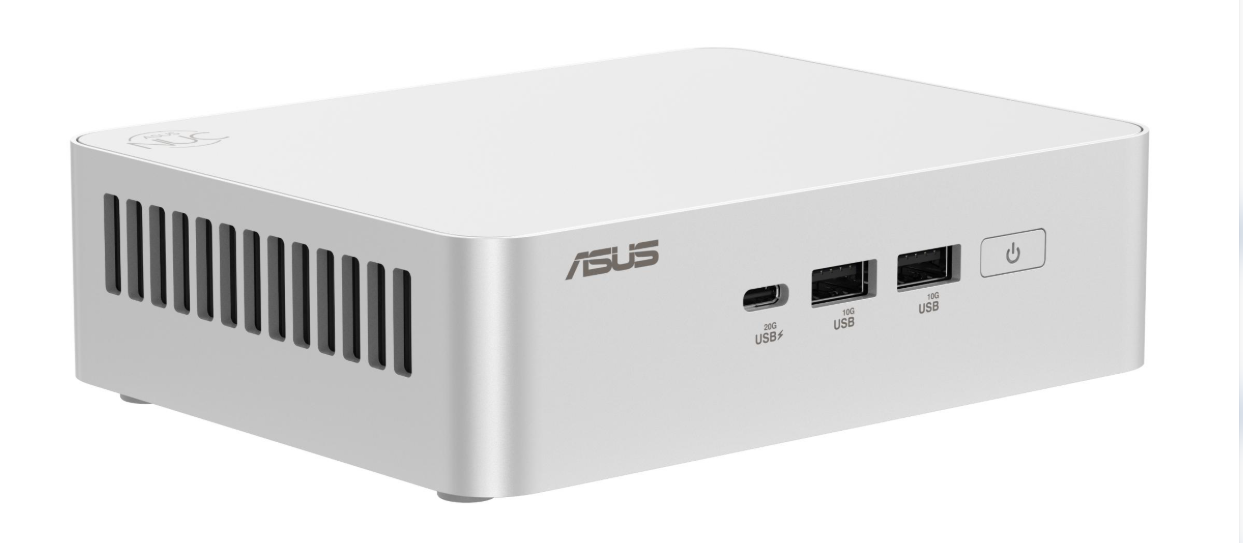
ASUS lists the NUC 15 Pro+ with Core Ultra Series 2 processors, integrated Arc graphics, and support for up to 96GB of memory.
Why consider it?
The NUC 15 Pro+ is a compact general-purpose computer that can also serve as an entry-level creative workstation. With sufficient RAM and a suitable SSD, it can be appropriate for 1080p editing, basic 4K projects, simple transitions, and lighter workloads.
Its integrated graphics make it less attractive than a discrete-GPU workstation for complex visual effects, heavy noise reduction, and GPU-intensive grading. Buyers should also check the exact processor and memory configuration rather than assuming every version performs the same.
Pros
-
Compact design.
-
Expandable memory and storage.
-
Thunderbolt and HDMI connectivity.
-
Suitable for office work and lighter creative tasks.
Cons
-
No discrete GPU in the standard configuration.
-
Performance varies considerably by processor and memory setup.
-
Not the first choice for intensive effects-heavy 4K projects.
-
Configured systems can cost more than the starting price suggests.
Who should buy this? Students, office professionals, and beginner video editors who need one compact PC for everyday computing and occasional editing.
Fifth choice: MINISFORUM MS-01 — Best for storage-heavy workflows
Key specifications
-
Intel Core processor options including Core i9-13900H.
-
Integrated Intel Iris Xe graphics on the listed configurations.
-
Three M.2 SSD positions, subject to the manufacturer’s compatibility and capacity limits.
-
Two USB4 ports.
-
Two 10Gbps SFP+ network ports and two 2.5Gbps Ethernet ports.
-
PCIe expansion capability.
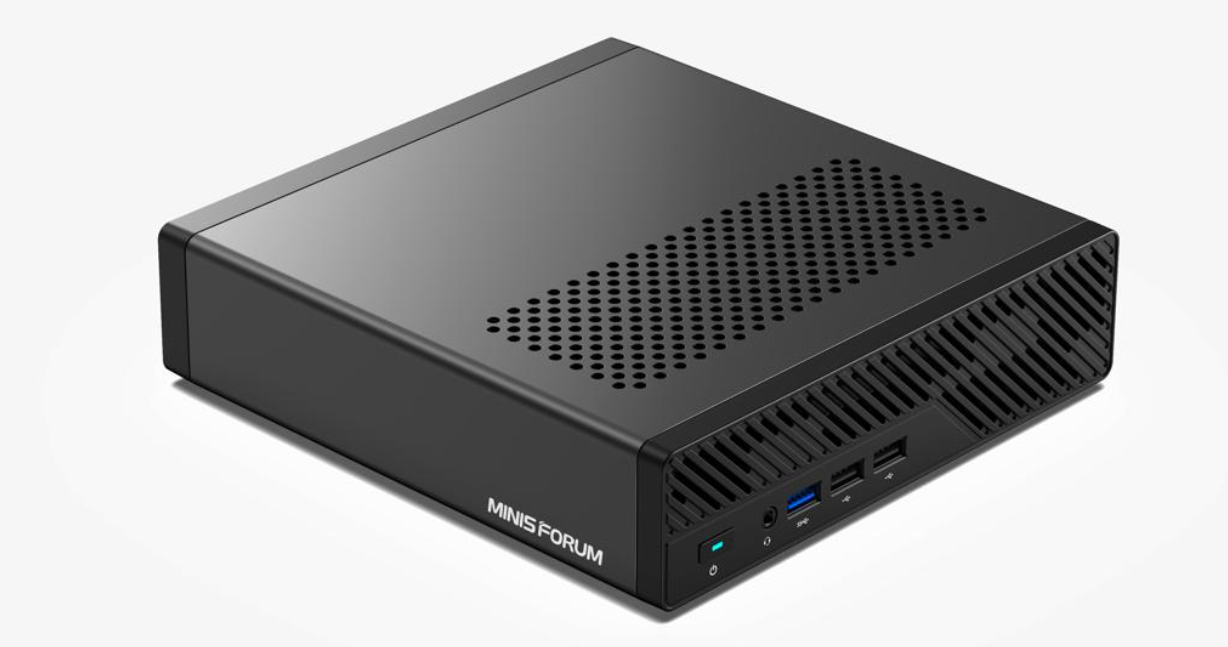
The manufacturer advertises substantial internal storage expansion and high-speed networking.
Why consider it?
The MS-01 is a workstation-oriented mini PC that may appeal to editors managing large projects, network storage, and media shared across a team. Its storage and networking flexibility is a major attraction.
However, the standard integrated graphics are a meaningful limitation for GPU-heavy video editing. Its expansion capability should not be mistaken for the guaranteed compatibility of every graphics card or a simple plug-and-play discrete GPU upgrade.
Pros
-
Extensive internal storage options.
-
Fast networking for compatible NAS workflows.
-
USB4 connectivity.
-
Useful for mixed workstation and media-management tasks.
Cons
-
Integrated graphics are less suitable for demanding GPU effects.
-
Barebone pricing excludes essential components.
-
Expansion compatibility requires careful checking.
-
May be excessive for casual editors who only need a basic workstation.
Who should buy this? Editors who prioritize media storage, network-attached storage, and workstation flexibility over maximum graphics performance.
2. Quick comparison: Which mini PC should you choose?
Model |
Best use |
Graphics |
Memory considerations |
Price reference |
|---|---|---|---|---|
| Apple Mac mini M4 Pro | macOS editing | Integrated Apple GPU | Fixed at purchase | $1,399 starting price at launch |
| MINISFORUM AtomMan G1 Pro | GPU-accelerated Windows editing | NVIDIA RTX 5060 | Up to 96GB | About $1,719 configured |
| GMKtec EVO-X2 | High-memory creative workflows | Radeon 8060S integrated GPU | 64GB or 128GB onboard | About $1,999.99 |
| ASUS NUC 15 Pro+ | General creative work | Intel Arc integrated graphics | Up to 96GB, configuration dependent | About $615 starting reference |
| MINISFORUM MS-01 | Storage and media management | Intel Iris Xe integrated graphics | Depends on selected configuration | About $679 barebone reference |
Prices are historical/listed reference points from manufacturer or retailer pages, not guaranteed October 2026 checkout prices. Barebone systems may require additional purchases. Verify current configurations before buying.
For a deeper look at compact desktop trade-offs, read our guide to mini PCs versus laptops. The right form factor depends on whether portability, internal expansion, or sustained creative performance matters most.
3. What makes a mini PC good for video editing?
The best mini PC for video editing is not necessarily the one with the highest advertised CPU clock speed. Video applications divide work between several components, and the weakest part of the configuration can determine the overall experience.
3.1 CPU performance and rendering
The CPU handles tasks such as application processing, timeline operations, some effects, and portions of rendering and encoding. A modern multi-core processor can be useful when exporting projects, working with multiple applications, or processing CPU-intensive effects.
However, more cores do not automatically mean faster exports. Software optimization, thermal limits, media formats, and hardware acceleration can all change the result.
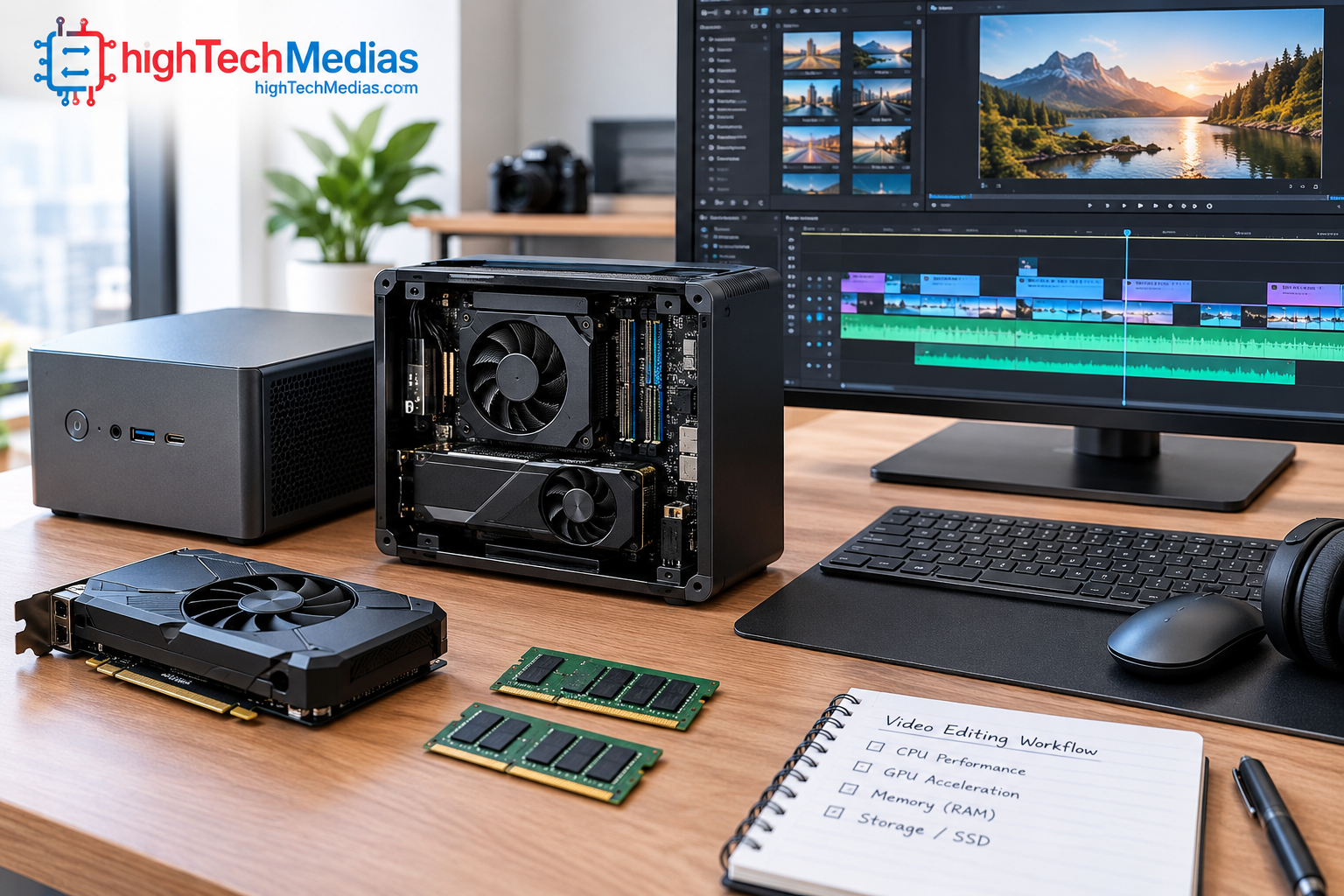
Compare processors in the context of your intended application rather than relying on specifications alone. Our Intel versus AMD versus Apple Silicon processor guide provides useful background on processor-platform differences.
3.2 GPU acceleration and graphics memory
The GPU can accelerate supported effects, color processing, scaling, compositing, and other workloads. Applications differ in how much they depend on graphics performance.
For example, a project involving complex DaVinci Resolve effects may benefit from a stronger GPU than a straightforward timeline containing cuts and basic transitions. Adobe Premiere Pro also uses GPU acceleration for supported features, but not every effect scales equally.
A discrete NVIDIA GPU is worth considering if your workflow benefits from CUDA. Apple silicon and modern integrated AMD graphics can also deliver capable results for supported workloads.
3.3 Hardware video encoding and decoding
Hardware media engines can accelerate compatible codecs and reduce the processing burden on the CPU. This matters when editing footage encoded in formats such as H.264, H.265/HEVC, or AV1.
Codec support differs by processor, GPU, software version, and media profile. Even when a codec is supported, a particular bit depth, chroma subsampling format, or camera-specific recording mode may behave differently.
Before buying, check the requirements for your camera footage and editing application. If your current workflow involves unusual codecs or high-bitrate RAW media, confirm that the proposed system can decode your actual files smoothly.
3.4 Memory capacity
Memory needs depend on project complexity, resolution, software, and simultaneous applications. A practical starting point for many Windows-based editing systems is 32GB for serious 4K work, while complex projects and heavy After Effects use can benefit from 64GB or more.
Editors working mainly with basic 1080p footage may be comfortable with less, depending on the software. Mac memory requirements should also be evaluated in the context of unified memory, which is shared by the CPU and GPU.
Our guide to LPDDR5 versus DDR5 laptop memory explains memory technology and the differences buyers should understand.
4. How much storage does a video editing mini PC need?
Video files consume storage quickly, especially when recording in 4K, working with multiple camera angles, or keeping original footage and exported versions together.
A 1TB SSD can be a reasonable starting point for many creators, but it may not be enough for a large ongoing project library. A 512GB drive can work for lighter editing when external storage is part of the plan, though it leaves less room for applications, cache files, previews, and current projects.
4.1 Internal NVMe SSD versus external storage
An internal NVMe SSD is useful for applications, active projects, and media that benefits from fast access. An external SSD can provide additional working capacity, while a separate HDD or NAS may be more economical for large archives.
External performance depends on the actual drive, enclosure, interface, cable, and controller. A USB-C connector alone does not guarantee a particular transfer speed.
See our guide to NVMe versus SATA SSDs for a breakdown of storage interfaces and practical performance considerations.
4.2 Plan a backup strategy
Keep original footage in at least one additional location. An external drive connected to the editing computer is useful for storage, but it is not a complete backup if the drive and computer can be lost or damaged together.
For professional work, consider a separate backup drive, a NAS with an appropriate backup arrangement, or an off-site copy of important project files. Protect source footage, project files, audio, graphics, and final deliverables.
5. Can a mini PC handle 4K and 8K video editing?
5.1 4K video editing
Many modern performance-oriented mini PCs can handle 4K editing, but the experience depends on the footage and workload. Simple cutting, basic transitions, and standard exports place different demands on a system than multicamera timelines, advanced color grading, noise reduction, or effects-heavy sequences.
A powerful CPU, suitable GPU, sufficient memory, and fast storage are important. The best results come from matching the configuration to the actual project rather than choosing a computer based on the 4K label alone.
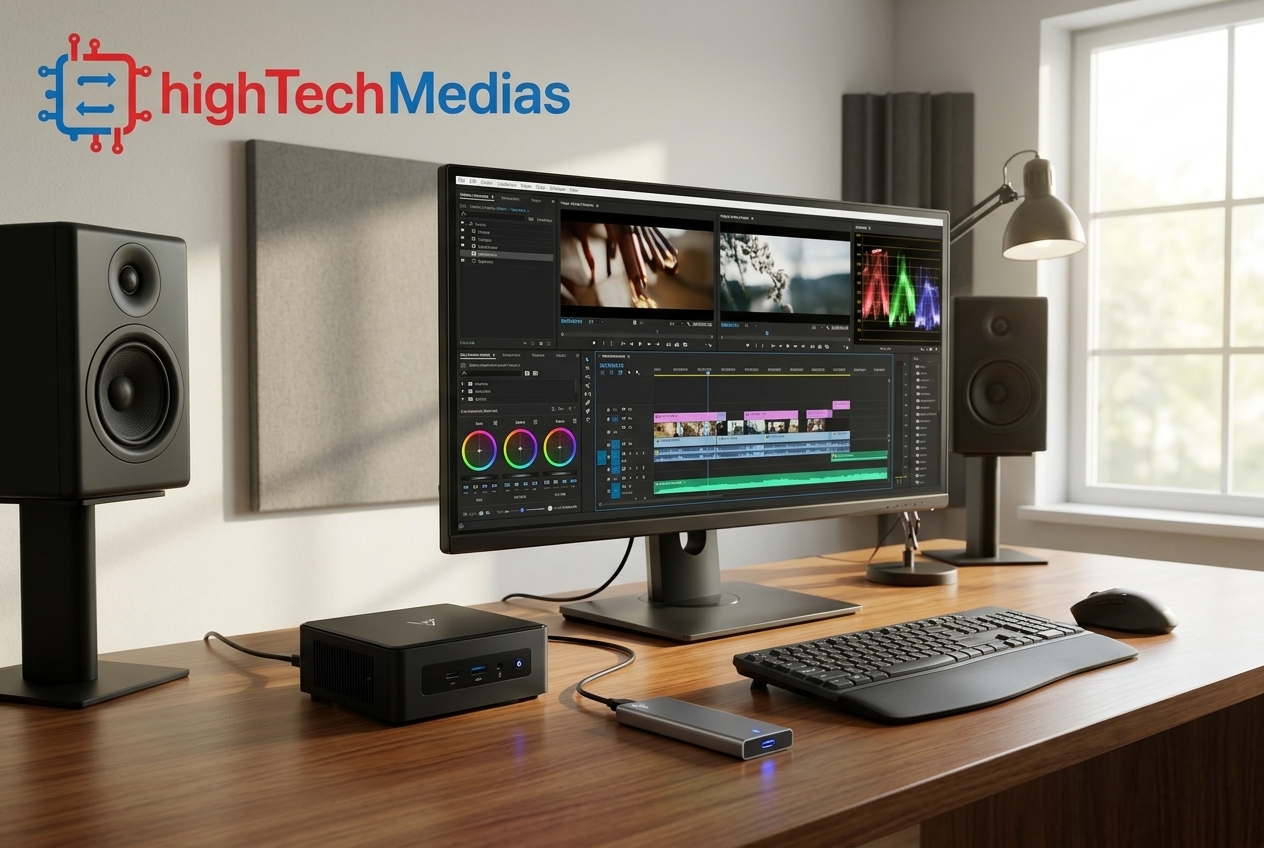
If your work involves professional video production, prioritize systems with a proven graphics or media-processing path for your chosen software.
5.2 8K footage and demanding effects
8K projects require more resources for decoding, caching, processing, and storing media. RAW footage, complex compositing, and temporal noise reduction can raise the workload further.
Some mini PCs can participate in 8K workflows, but that does not mean every timeline will play smoothly at full resolution. A proxy workflow can make editing more manageable by using lower-resolution or easier-to-decode media during editing and relinking to the original footage for final output.
For demanding commercial production, compare the cost of a high-end mini PC against a larger workstation with more powerful graphics, greater cooling capacity, and additional expansion options.
6. Cooling, noise, and sustained performance
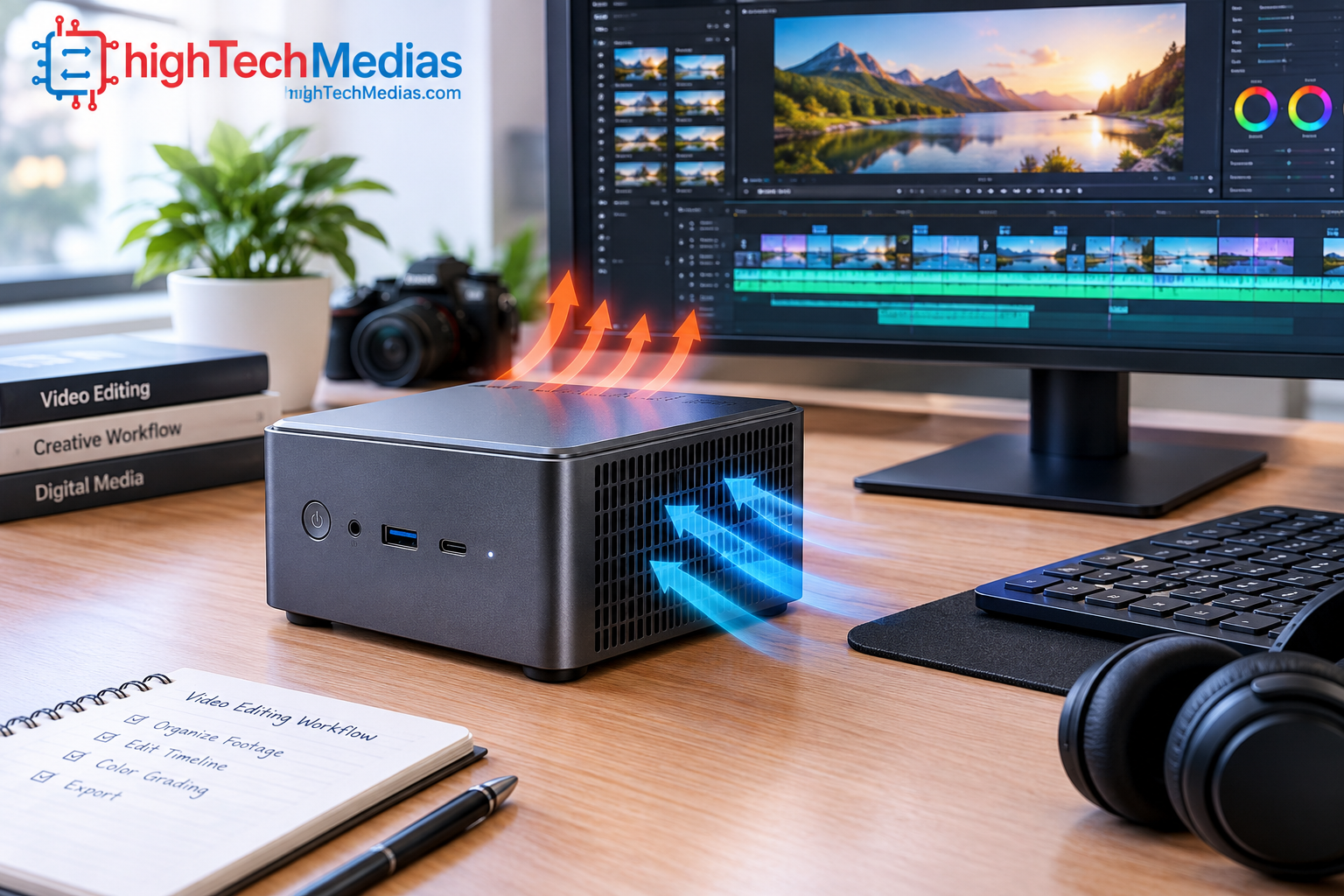
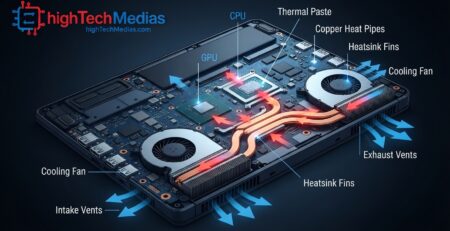
Compact systems have less room for large cooling assemblies than conventional tower PCs. That does not automatically make them unsuitable for editing, but it makes thermal design particularly important.
Video exports and effects processing can keep a CPU or GPU under load for extended periods. If temperatures cause the processor to reduce its operating speed, the computer may finish a long render more slowly than short benchmark results suggest.
Check independent reviews for sustained workloads, temperature behavior, and fan noise. Look for tests that run long enough to reveal whether performance remains consistent after the system heats up.
Our guide to laptop cooling, heat pipes, fans, and thermal throttling explains the underlying concepts, which are also relevant when evaluating compact desktop computers.
7. Ports, monitors, and connectivity
Compact systems have less room for large cooling assemblies than conventional tower PCs. That does not automatically make them unsuitable for editing, but it makes thermal design particularly important.
Video exports and effects processing can keep a CPU or GPU under load for extended periods. If temperatures cause the processor to reduce its operating speed, the computer may finish a long render more slowly than short benchmark results suggest.
Check independent reviews for sustained workloads, temperature behavior, and fan noise. Look for tests that run long enough to reveal whether performance remains consistent after the system heats up.
Our guide to laptop cooling, heat pipes, fans, and thermal throttling explains the underlying concepts, which are also relevant when evaluating compact desktop computers.
7. Ports, monitors, and connectivity
A video editing setup usually needs more than a computer and a monitor. You may need external SSDs, a card reader, an audio interface, a control surface, a webcam, or additional displays.
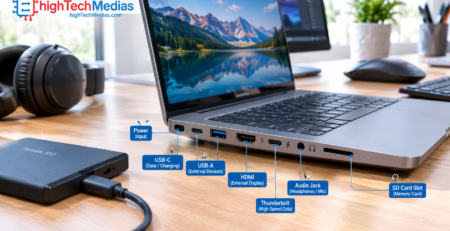
Check the exact port configuration before buying. Thunderbolt and USB4 can be valuable for supported high-speed storage and peripherals, but their implementation varies by device. HDMI and DisplayPort capabilities also depend on the specific output and supported display configuration.
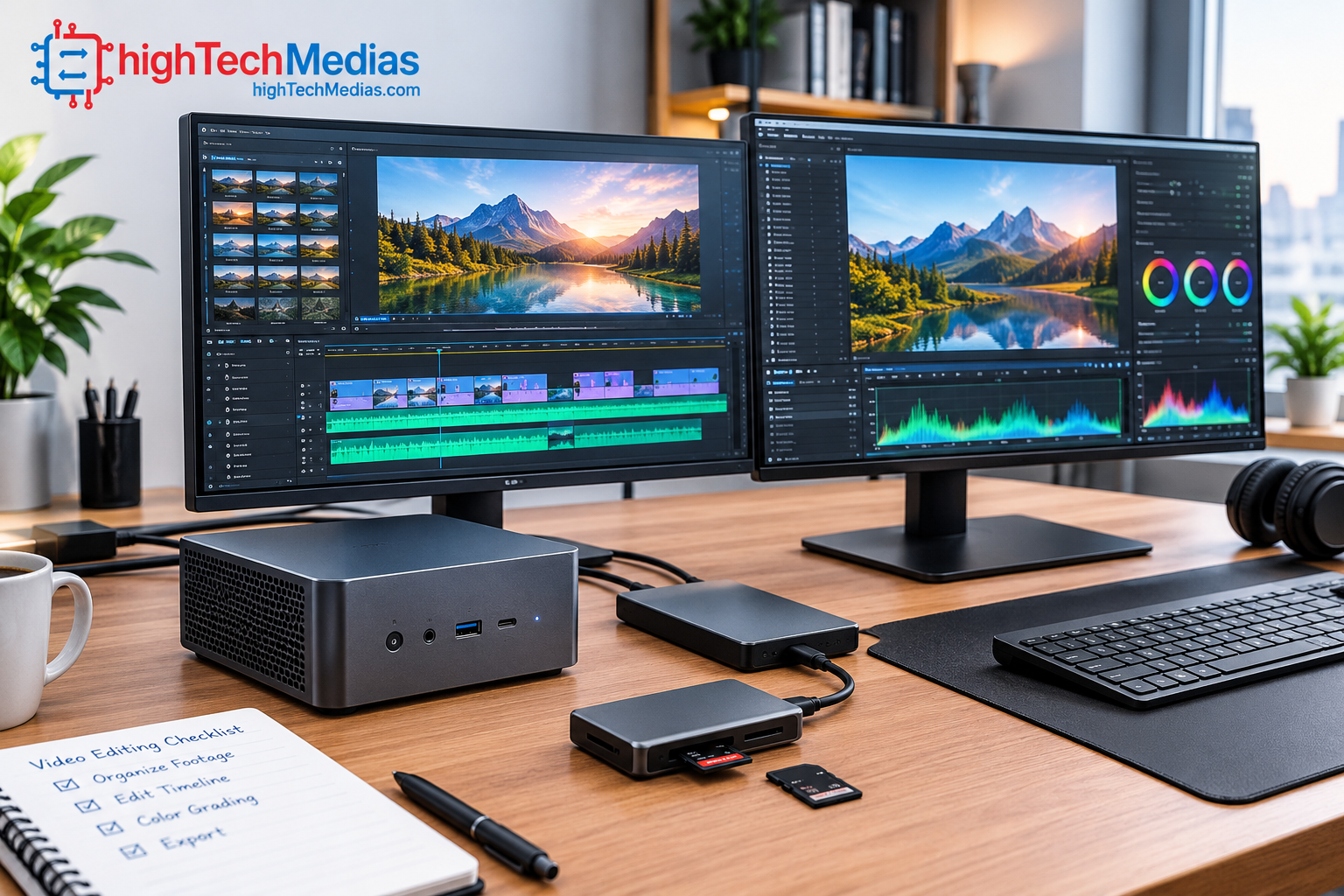
If you work with several displays, verify the maximum number of supported monitors, resolution, refresh rate, and port combinations. Do not assume that a computer supporting multiple displays can drive every screen at its maximum resolution simultaneously.
Our laptop ports explained guide is a useful reference for understanding USB-C, Thunderbolt, HDMI, and related connections.
8. Which mini PC is best for your editing software?
Your editing application should influence your purchase more than a generic performance ranking.
Software or workflow |
What to prioritize |
|---|---|
| Final Cut Pro | Compatible Mac hardware, media engines, memory, and SSD capacity |
| Adobe Premiere Pro | CPU, GPU acceleration, RAM, supported codecs, and storage |
| DaVinci Resolve | GPU performance, memory, effects workload, and media decoding |
| Adobe After Effects | RAM capacity, CPU performance, cache storage, and composition complexity |
| Basic YouTube editing | Balanced CPU, sufficient memory, SSD storage, and compatible codec support |
These are selection guidelines, not a universal performance ranking. Confirm the current software requirements and supported hardware before purchasing, especially if you depend on particular plug-ins or professional codecs.
For example, an editor using Final Cut Pro will generally need a Mac, whereas a Windows-based creator relying on CUDA plug-ins should prioritize compatible NVIDIA graphics. A creator using mostly simple cuts and titles may not need to spend as much on a GPU as someone working with advanced effects.
If your editing work is also part of a broader home-office setup, our guide to the best mini PCs for home office use covers the wider productivity requirements to consider.
9. How to choose the right configuration for your budget
A lower initial price is not always the lowest total cost. Some mini PCs ship without memory, storage, or an operating system, while others include a complete configuration. Add the missing components before comparing prices.
For a practical buying decision, use these guidelines:
-
Entry-level editing: Prioritize a capable modern processor, adequate memory, SSD storage, and compatibility with the footage you use.
-
Regular 4K production: Consider 32GB of RAM as a practical starting point for many Windows systems, with more memory for demanding projects. Choose a GPU suited to the effects in your application.
-
Professional effects and grading: Investigate discrete-GPU systems and configurations with more memory, while checking independent sustained-performance results.
-
Large media libraries: Budget for fast working storage and a separate backup solution.
-
Mixed office and creative work: A balanced mini PC may offer better value than paying for graphics capability that you rarely use.
For more affordable options, explore our best budget mini PCs in 2026 and best mini PCs under $500. These categories may suit light creative tasks, although low-cost systems should not automatically be considered suitable for demanding professional video editing.
10. Frequently asked questions
10.1 What is the best mini PC for 4K video editing in 2026?
The best choice depends on your editing application and footage. The Mac mini M4 Pro is a strong macOS option, while the MINISFORUM AtomMan G1 Pro is worth considering for Windows workflows that benefit from its discrete NVIDIA GPU. Neither is guaranteed to be fastest for every project.
10.2. Is 16GB of RAM enough for video editing?
It can be sufficient for basic editing, short projects, and some 1080p workflows. For regular 4K editing, 32GB is a more practical starting point for many Windows systems. Complex effects, multicamera timelines, and heavy After Effects projects can benefit from 64GB or more.
10.3. Are mini PCs better than desktop towers for video editing?
Not universally. Mini PCs save space and can offer impressive performance, but larger desktops generally provide more room for cooling, graphics cards, internal drives, and future upgrades. Choose according to your workload, desk space, and expansion requirements.
10.4. Can integrated graphics handle video editing?
Yes, for many basic and moderate editing tasks. Integrated graphics can handle supported media playback, basic effects, and some 4K workflows. A discrete GPU becomes more attractive when your software relies heavily on GPU acceleration, complex effects, or demanding grading operations.
10.5. Is 1TB SSD storage enough for a video editor?
It may be sufficient for applications and a limited number of active projects, especially if you use external media storage. Editors working with large 4K libraries, multiple cameras, or RAW footage may need more capacity. Keep a separate backup of important footage and project files.
10.6. Should I buy a Mac mini or a Windows mini PC?
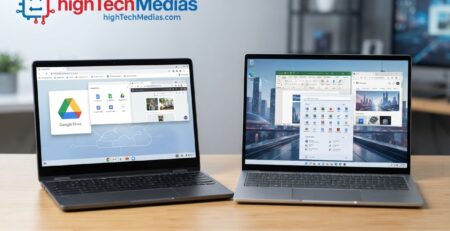
Choose a Mac mini if your preferred applications and workflow are compatible with macOS and you value Apple’s integrated hardware and software environment. Choose a Windows mini PC if you need Windows-specific software, CUDA-based plug-ins, or a particular upgrade path.
10.7. Can a mini PC edit 8K video?
Some high-performance models can support parts of an 8K workflow, but performance depends heavily on the codec, footage, software, effects, and hardware configuration. Proxy editing may help. Demanding 8K RAW and effects-heavy projects may justify a larger workstation.
11. Final verdict: Which is the best mini PC for video editing in 2026?
The best mini PCs for video editing in 2026 are those that match your software, media formats, and production workload rather than simply offering the highest advertised processor specifications.
The Apple Mac mini M4 Pro is a compelling choice for macOS creators who want a compact workstation with integrated media-processing capabilities. The MINISFORUM AtomMan G1 Pro is the more relevant option for Windows editors who need discrete NVIDIA graphics for compatible GPU-accelerated effects. The GMKtec EVO-X2 stands out for its high-memory integrated-graphics configuration, while the ASUS NUC 15 Pro+ is better suited to general productivity and lighter creative work. The MINISFORUM MS-01 deserves consideration when internal storage and high-speed networking are priorities.
Before purchasing, verify current prices, memory and SSD configurations, codec support, display connections, cooling behavior, and compatibility with your preferred editing application. Also account for the cost of monitors, external storage, and backups.
For additional comparisons, visit our guides to the best mini PCs for multiple monitors and the best mini PCs for running AI locally. They can help you evaluate how the same compact workstation might support a broader creative and productivity setup.
Ultimately, the right mini PC is the one that handles your actual footage reliably, supports your essential software, and leaves enough budget for the storage and accessories that make a complete editing workstation practical.



Leave a Reply