
Laptop Cooling Explained: Heat Pipes, Fans, and Thermal Throttling
Modern laptops are more powerful than ever. A thin notebook can now contain a high-performance processor, dedicated graphics card, fast SSD, high-resolution display, and enough memory to handle demanding work that once required a large desktop computer.
But there is one major challenge: heat.
Every time you edit video, compile software, play a demanding game, render a 3D project, or run multiple applications, the components inside your laptop consume electricity and produce heat. If that heat is not removed efficiently, performance can fall, fans can become noisy, and the laptop may become uncomfortable to use.
That is why laptop cooling is one of the most important factors to consider when buying a computer, especially if you need sustained performance rather than just short bursts of speed.
In this guide, we will explain how laptop cooling systems work, what heat pipes and fans actually do, why thermal throttling happens, and how to choose a laptop with a cooling design that matches your workload.
If you’re still deciding which type of computer is right for your needs, our laptop buying guide for 2026 is a useful starting point.
Why Do Laptops Get So Hot?
A laptop does not create heat simply because it is turned on. The amount of heat depends largely on how much electrical power its components are consuming.
The CPU, or central processing unit, is one of the biggest heat sources. Modern processors can temporarily increase their clock speeds when additional performance is needed. This allows a laptop to feel fast during demanding tasks, but higher power consumption also means more processor heat.
The GPU can be another major source of heat. This is particularly important in gaming laptops, workstations, and systems with dedicated graphics from companies such as NVIDIA.
A demanding workload may involve both the CPU and GPU at the same time. For example:
- Gaming
- Video editing
- 3D rendering
- AI workloads
- Engineering software
- Scientific simulations
- Large spreadsheets
- Code compilation
The problem is that a laptop has limited physical space. Unlike a desktop PC, it cannot use a massive heatsink and several large fans.
Instead, manufacturers must design an efficient system capable of moving heat from the processor and graphics hardware to the outside air.
This process is called thermal management.
How Laptop Cooling Works
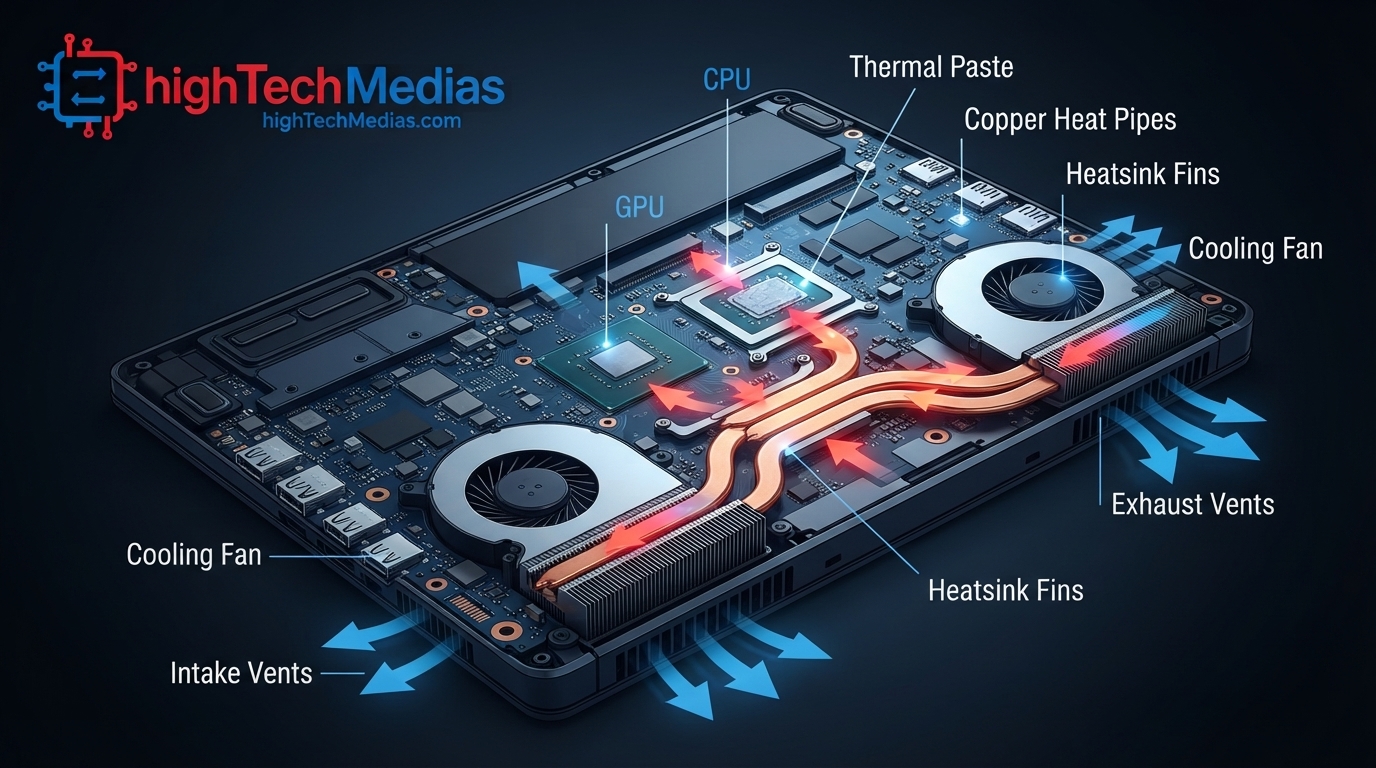
At its most basic level, a modern cooling system follows this path:
Processor or GPU → thermal interface material → heat pipe or vapor chamber → heatsink fins → fan airflow → exhaust vents → outside air
Each stage matters.
When a laptop cannot move heat efficiently away from the CPU, temperatures can rise quickly. The cooling system also needs enough airflow to push heat through the heatsink and out of the chassis. Blocked intake or exhaust vents can restrict airflow and make the entire cooling system less effective. For more information about supported Intel laptop processors and their specifications, visit the official Intel website, you can also visit AMD
A well-designed laptop cooling system must therefore manage both heat transfer and airflow. If quiet operation is also important to you, check out our guide to the best silent mini PCs in 2026 for more options designed for quieter home and office setups.
The basic cooling process
Stage |
What happens |
| 1. Heat generation | CPU and GPU consume power and produce heat |
| 2. Heat transfer | Thermal paste or another thermal interface material transfers heat |
| 3. Heat movement | Heat pipes or vapor chambers carry heat away |
| 4. Heat dissipation | A heatsink spreads the heat across metal fins |
| 5. Air movement | Fans push or pull air through the fins |
| 6. Heat removal | Hot air leaves through the exhaust vents |
This sounds simple, but the engineering involved can be extremely complex.
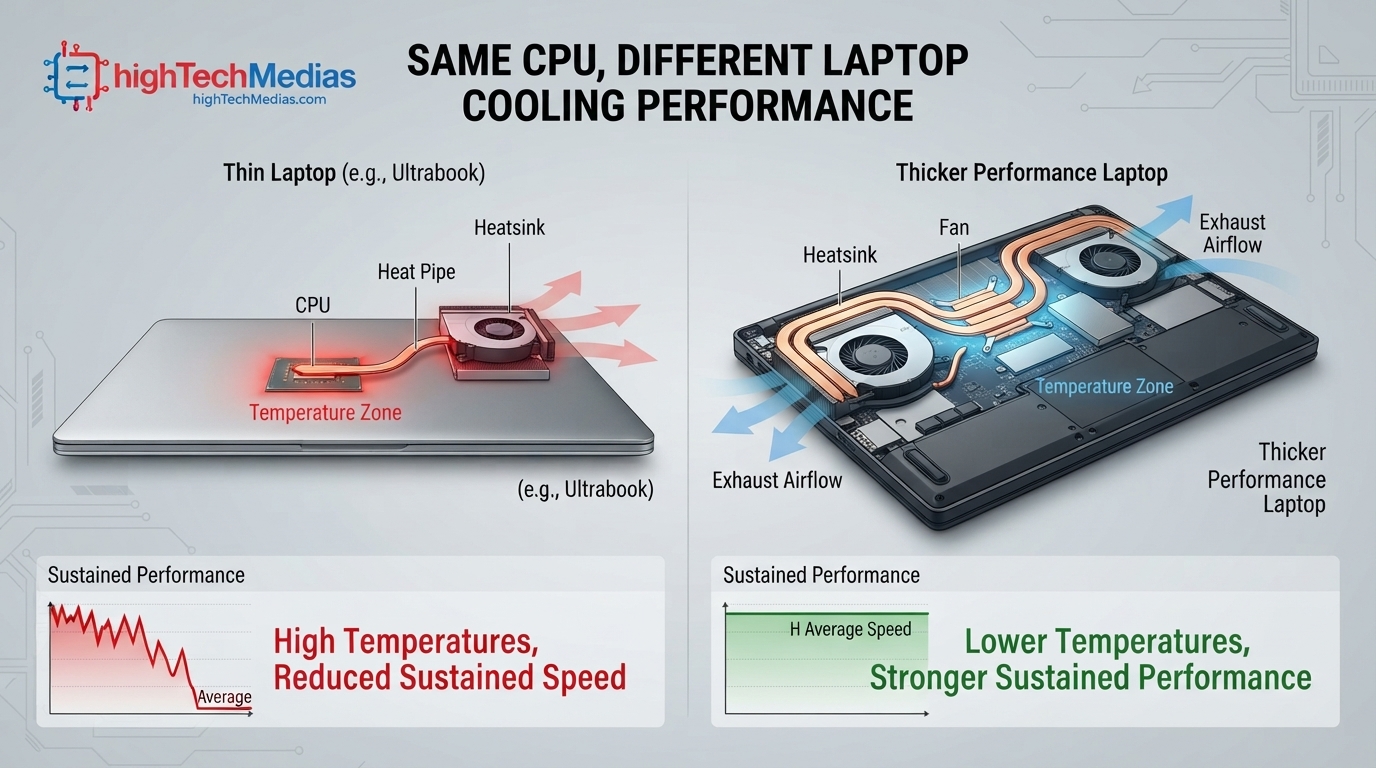
Two laptops with the same processor can deliver very different sustained performance because their cooling capacity is different.
That is one reason you should not choose a laptop based only on the CPU name. An Intel or AMD processor may perform differently depending on the laptop manufacturer’s power limits and thermal design.
What Are Heat Pipes in a Laptop?
Heat pipes are one of the most important parts of a modern laptop cooling system.
A heat pipe is usually a sealed metal tube, often made primarily of copper because copper transfers heat very efficiently.
Inside the pipe is a small amount of working fluid.
When the area near the CPU or GPU becomes hot, the liquid absorbs heat and changes into vapor. The vapor moves through the pipe toward a cooler section near the heatsink. There, it releases heat, condenses back into liquid, and travels back toward the hot area.
This cycle can repeat continuously.
The important advantage is that heat pipes can move heat away from a small, extremely hot processor toward a larger area where the heat can be dissipated.
Laptop Cooling and the Role of Heat Pipes
Without an efficient heat-transfer system, a fan alone would not solve the problem.
The fan needs something to cool.
That is where laptop heat pipes become essential. They connect the hot components to the cooling fins, effectively transporting heat from the CPU and GPU toward the area where airflow can remove it.
A basic laptop may have:
- One heat pipe
- One small fan
- A compact heatsink
A higher-performance laptop may have:
- Multiple copper heat pipes
- Separate cooling paths
- Multiple fans
- Larger heatsinks
- Shared CPU/GPU cooling assemblies
- Additional heat spreaders
More heat pipes do not automatically mean better cooling, but the overall design can significantly affect sustained performance.
Heat Pipes vs. Vapor Chambers
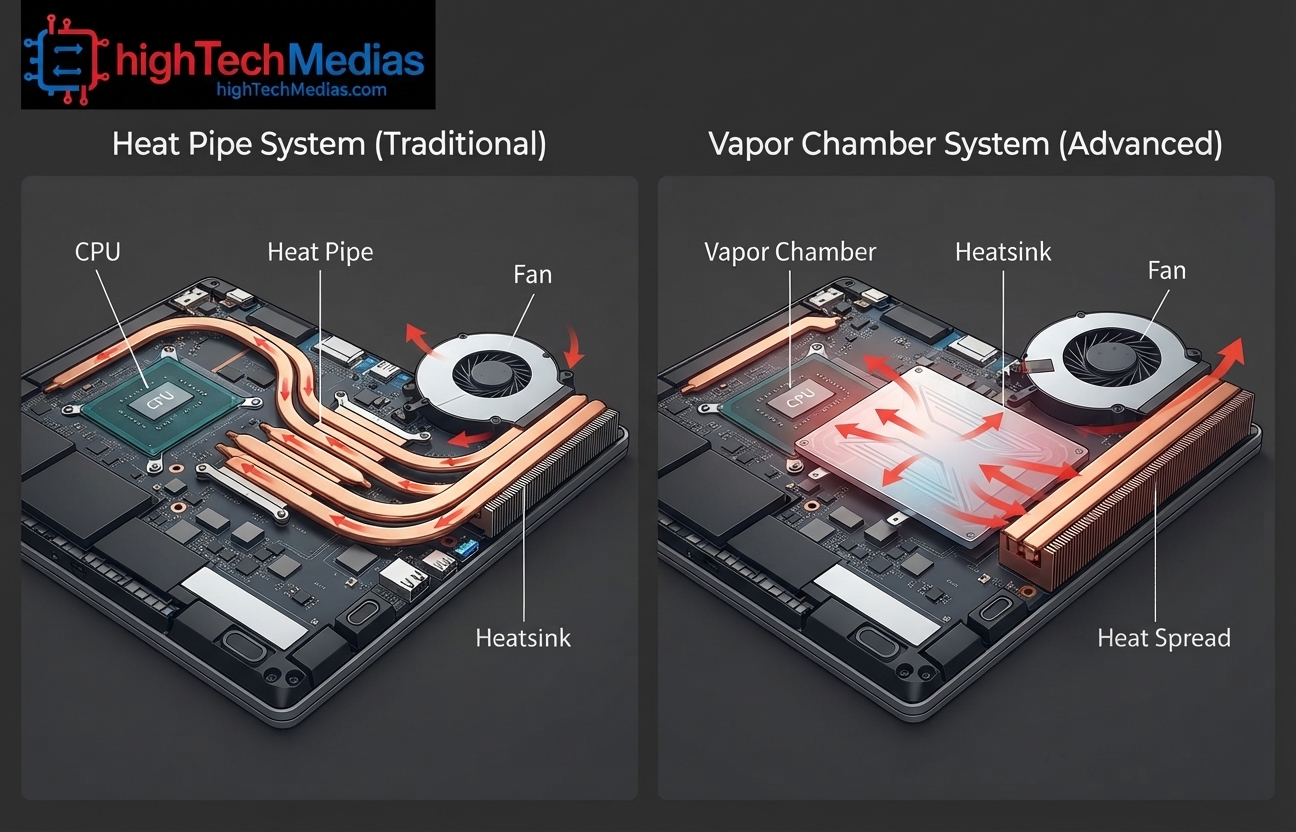
Some premium laptops use vapor chambers instead of, or in addition to, conventional heat pipes.
A vapor chamber works on a similar principle: a working fluid absorbs heat, evaporates, moves to a cooler area, and then condenses.
The difference is primarily in the physical structure.
A vapor chamber is generally flatter and wider than a traditional pipe. This can allow heat to spread across a larger surface area.
| Feature | Heat Pipe | Vapor Chamber |
| Shape | Tube-like | Flat chamber |
| Heat distribution | Along the pipe | Across a larger area |
| Cost | Usually lower | Usually higher |
| Common use | Mainstream laptops | Premium and high-performance systems |
| Design flexibility | Good | Excellent for compact layouts |
Vapor chambers are often associated with powerful thin laptops and gaming systems, where manufacturers need to control substantial heat within a limited laptop chassis.
However, the complete cooling design matters more than any single component.
How Laptop Cooling Fans Work
The next major component is the cooling fan.
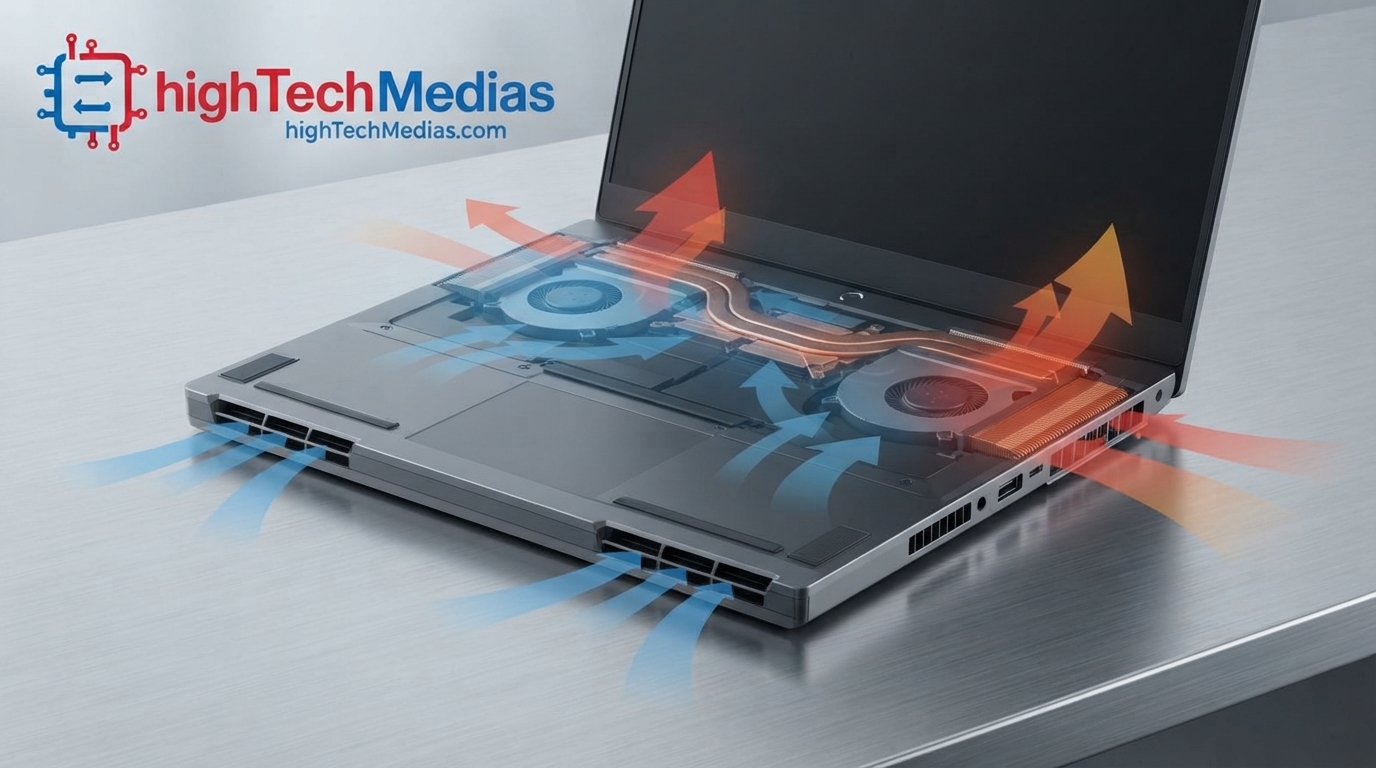
A fan does not directly make the processor cold. Instead, it moves air across the heatsink.
The heatsink contains many thin metal fins. These fins create a large surface area. As air moves through them, heat is transferred from the metal into the air.
The hot air is then pushed out of the laptop.
This is why the location of your laptop’s air intake and exhaust vents matters.
Some laptops pull cool air from the bottom and push hot air out of the back or sides. Others use more complicated airflow designs.
Why Laptop Fans Become Loud?
Many people assume that a loud laptop is poorly designed.
That is not always true.
A powerful laptop running a demanding workload may require significant airflow. The fans must spin faster, increasing RPM and producing more fan noise.
The problem occurs when the system must use extremely high fan speeds to compensate for insufficient cooling capacity.
A good cooling design aims to balance:
- Temperature
- Performance
- Fan noise
- Laptop size
- Weight
- Battery life
This is why a thin and light laptop can sometimes become louder than a thicker model using similar hardware.
There is simply less physical space available for large fans and large heatsink assemblies.
If quiet operation is one of your priorities, you may also want to compare laptops with our guide to the best silent mini PCs in 2026. A compact desktop can sometimes offer a better balance between performance and low noise.
Why Does a Laptop Have Air Intake and Exhaust Vents?
Airflow requires a path.
Cooler air must enter the laptop, travel through the cooling assembly, absorb heat, and then leave the system.
That means a typical laptop has:
Intake vents
These allow cooler outside air to enter the laptop.
They are often located on the bottom panel.
Exhaust vents
These release the heated air after it passes through the heatsink.
They may be located:
- At the rear
- On the sides
- Near the hinge area
Blocking the intake vents can dramatically reduce cooling performance.
For example, using a laptop directly on a bed, pillow, blanket, or thick fabric can restrict airflow. The soft material may cover the bottom vents and reduce the amount of air available to the fans.
A hard desk or laptop stand is usually better for unrestricted airflow.
What Is Thermal Throttling?
Thermal throttling is one of the most important concepts to understand when comparing laptops.
A processor is designed to operate within certain thermal limits.
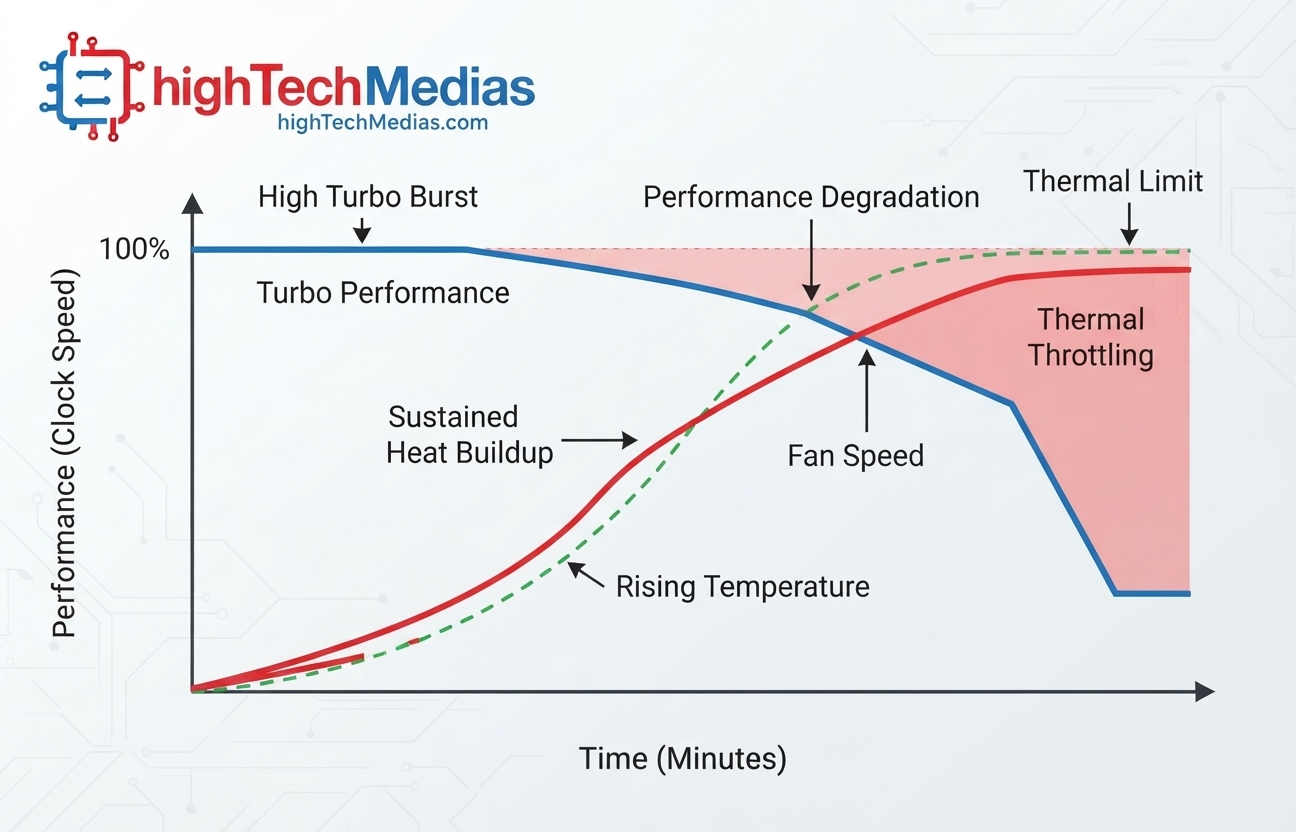
When temperatures approach a limit that the system considers unsafe or undesirable, the laptop may reduce power consumption or lower clock speeds.
This is called thermal throttling.
The purpose is protection.
The laptop is effectively saying:
“I cannot continue operating at this level without producing too much heat, so I need to reduce performance.”
As a result, you may experience:
- Lower CPU clock speeds
- Lower GPU clock speeds
- Reduced frame rates
- Longer rendering times
- Slower exports
- Reduced benchmark scores
- Performance drops during long workloads
Thermal throttling does not necessarily mean a laptop is defective. It can occur as part of normal thermal management.
However, frequent or severe throttling may indicate that the workload exceeds the cooling system’s ability to maintain maximum performance.
How to Recognize Thermal Throttling?
One of the clearest signs is a difference between short-term and long-term performance.
For example, a laptop might initially perform extremely well during the first few minutes of a benchmark.
But after 20 or 30 minutes, temperatures rise and the processor reduces its sustained clock speed.
The result may look like this:
Workload duration |
Performance behavior |
| First 1–5 minutes | Very high turbo performance |
| 5–15 minutes | Temperatures continue rising |
| 15–30 minutes | Fans increase speed |
| Long sustained workload | Performance may stabilize or throttle |
This is why short benchmark results do not tell the complete story.
For users who regularly perform demanding work, sustained performance is more important than a brief burst of speed.
CPU Temperature vs. GPU Temperature
The CPU and GPU may have different workloads and thermal behavior.
A laptop used primarily for office work may place most of its thermal load on the CPU.
A gaming laptop may place heavy loads on both components simultaneously.
This creates a difficult situation because the CPU and GPU may share parts of the same cooling assembly.
In some designs, heat from both components travels through shared heat pipes.
This can be efficient, but it also means that intense GPU activity can affect CPU temperatures and vice versa.
For professional workloads involving graphics, it is worth considering systems from Dell’s laptop lineup, HP’s laptop lineup, or other manufacturers based on the cooling design and workload requirements—not simply the processor specification.
Thermal Paste: The Small Material With a Big Job
The CPU and GPU do not usually make perfect direct contact with the heatsink.
Even surfaces that appear smooth contain microscopic imperfections.
Tiny gaps can trap air, and air is not an efficient conductor of heat.
Thermal paste fills many of these small gaps and improves heat transfer between the processor and the cooling assembly.
This material is often called:
- Thermal paste
- Thermal compound
- Thermal grease
- Thermal interface material
Over time, thermal material can degrade.
In an older laptop, dried or degraded thermal paste may contribute to higher temperatures.
Replacing thermal paste can sometimes improve cooling, but opening a laptop may affect the warranty or cause damage if performed incorrectly.
For most users, this is not the first step to take when temperatures rise.
Start with easier solutions:
- Check for blocked vents.
- Remove visible dust.
- Use the laptop on a hard surface.
- Check power and performance settings.
- Update relevant system software.
- Consider professional servicing if the problem persists.
For Windows-related troubleshooting and official guidance, you can consult Microsoft Support.
Why Thin Laptops Often Run Hotter?
Thin laptops look attractive.
They are easy to carry, take up less space, and are ideal for mobile professionals.
However, thin designs create engineering compromises.
A smaller chassis may mean:
- Less room for large fans
- Smaller heatsinks
- Shorter airflow paths
- Less internal air volume
- More closely packed components
This does not mean all thin laptops have poor cooling.
Premium engineering can produce excellent results. But a thicker laptop often has an advantage when sustained performance is the priority.
This is particularly important when comparing ultraportable laptops with traditional desktop alternatives.
Our Mini PCs vs. laptops comparison guide explains why a compact desktop may sometimes provide better long-term cooling and sustained performance.
Fanless Laptop Cooling vs. Active Cooling
Not every computer uses fans.
A fanless system relies primarily on passive cooling.
Heat moves away from the processor into a metal heatsink or chassis and eventually dissipates into the surrounding air.
Fanless cooling
Advantages:
- Completely silent
- No fan noise
- Fewer moving parts
- Potentially less dust accumulation
Disadvantages:
- Limited cooling capacity
- Lower sustained performance under heavy loads
- Less suitable for demanding gaming or rendering
Active cooling
Active cooling uses fans.
Advantages:
- Higher cooling capacity
- Better sustained performance
- More suitable for powerful processors
- Better for demanding workloads
Disadvantages:
- Fan noise
- More dust accumulation
- Moving parts can eventually wear out
The right choice depends on your workload.
For email, web browsing, documents, and light productivity, a low-power fanless design may be sufficient.
For video editing, gaming, or professional software, active cooling is usually necessary.
Why Two Laptops With the Same CPU Can Perform Differently?
This is one of the biggest mistakes buyers make.
Imagine two laptops with the same processor.
Laptop A is very thin and has a small cooling system.
Laptop B is thicker and has two large fans, multiple heat pipes, and a larger heatsink.
Although both laptops have the same CPU, their long-term performance can be different.
Laptop A may briefly reach very high turbo speeds.
Laptop B may not look dramatically faster during a short test.
But after 30 minutes of sustained work, Laptop B may maintain higher CPU clock speeds because it can dissipate more heat.
This is called sustained performance.
When buying a laptop for serious work, do not look only at:
- CPU model
- RAM capacity
- Storage capacity
Also investigate:
- Cooling design
- Number of fans
- Heat pipes
- Vapor chamber design
- Sustained performance reviews
- Fan noise
- Surface temperatures
- Power limits
If you are shopping on a limited budget, our best laptops under $1,000 in 2026 guide can help you compare options more carefully.
Gaming Laptop Cooling
Gaming laptops create one of the most demanding cooling challenges.
During gaming, the CPU may be processing game logic while the GPU is rendering complex graphics.
This can create significant simultaneous heat.
Manufacturers therefore use advanced systems such as:
- Dual fans
- Multiple heat pipes
- Vapor chambers
- Larger exhaust systems
- High-performance thermal materials
- Advanced fan curves
- Dedicated performance modes
However, higher cooling capacity does not necessarily mean silent operation.
A powerful gaming laptop may still become loud under maximum load because moving large amounts of air requires significant fan speed.
If you are choosing a system mainly for gaming, consider whether you need a laptop at all. For a fixed workspace, one of the systems in our best budget mini PCs buying guide may provide a different balance of size, cooling, and value.
Can a Laptop Cooling Pad Help?
A laptop cooling pad is an external accessory that typically contains one or more fans.
It can improve airflow around the bottom of the laptop.
However, the actual benefit depends on the laptop’s design.
A cooling pad may help more when:
- The laptop has bottom intake vents
- The bottom vents are partially restricted
- The laptop is used for sustained workloads
- The cooling pad improves the supply of fresh air
It may help less when:
- The laptop has minimal bottom ventilation
- The internal cooling system is already the main limitation
- Dust buildup is blocking internal airflow
- The thermal paste or heatsink installation is problematic
A cooling pad should generally be viewed as a supplement rather than a replacement for a properly designed internal cooling system.
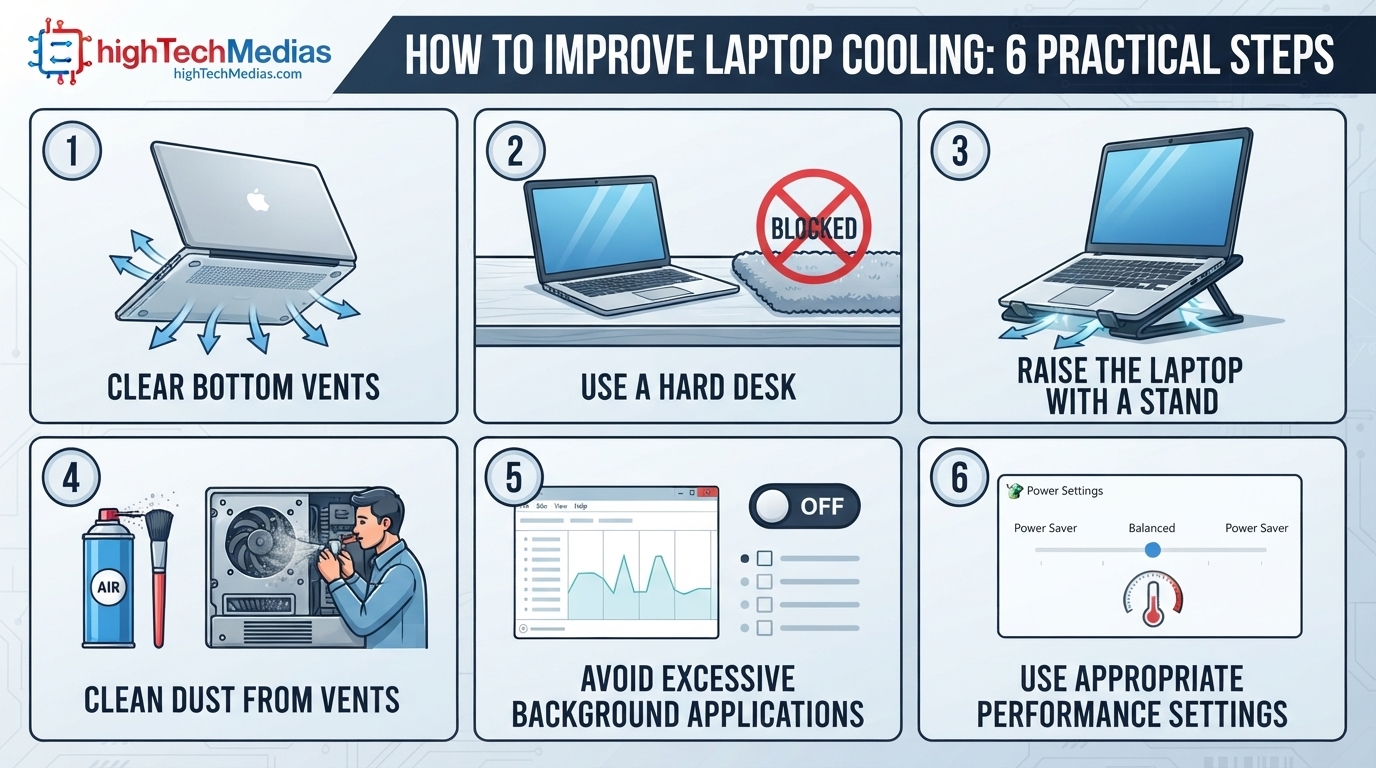
How to Improve Laptop Cooling Performance
There are several practical ways to improve cooling performance without opening your laptop.
1. Keep the air vents clear
Never place the laptop directly on thick bedding, pillows, or soft fabric.
Use a hard, flat surface whenever possible.
2. Raise the rear of the laptop slightly
A laptop stand can create additional space below the chassis.
This may improve access to the intake vents.
3. Clean dust from the cooling system
Dust buildup can reduce airflow through heatsink fins and cooling vents.
Older laptops are particularly likely to develop this problem.
4. Avoid unnecessary background workloads
If the CPU is constantly busy with unnecessary software, it will consume more power and generate more heat.
5. Choose an appropriate performance mode
Maximum-performance settings can increase power consumption and temperatures.
For ordinary work, a balanced mode may provide a better experience.
6. Keep the room reasonably cool
Ambient temperature matters.
A laptop operating in a hot room has less opportunity to transfer heat into the surrounding air.
7. Consider professional maintenance
If temperatures suddenly become much worse, internal dust buildup, aging thermal material, or a failing fan may be involved.
How to Choose a Laptop Based on Its Cooling System
When reading laptop specifications, cooling information is often less visible than the CPU or display.
You may need to read detailed reviews or manufacturer information.
Ask these questions:
Is the laptop designed for sustained performance?
A laptop for long rendering sessions needs more cooling capacity than a laptop primarily used for web browsing.
How many fans does it use?
More fans do not automatically mean better performance, but a dual-fan design can provide additional cooling capacity.
Does it use heat pipes or a vapor chamber?
This can provide clues about how heat is distributed.
How loud are the fans?
A powerful cooling system may maintain low temperatures but generate significant noise.
Does performance decline during long workloads?
Look for sustained benchmark testing rather than only short results.
Is the laptop intended for portability or maximum performance?
A thin laptop may be ideal for travel. A thicker system may be better for demanding professional workloads.
For example, buyers comparing different form factors should read our guide to the best mini PCs for a home office in 2026 before assuming that a laptop is always the best productivity choice.
You can also explore current models from Lenovo’s laptop collection, ASUS laptops, or the Apple Mac lineup while comparing cooling design with your actual workload.
Laptop Cooling for Different Types of Users
User |
Cooling priority |
Recommended approach |
| Student | Medium | Quiet and efficient cooling |
| Office worker | Low to medium | Focus on comfort and low fan noise |
| Remote worker | Medium | Quiet sustained productivity |
| Programmer | Medium to high | Depends on compilation workloads |
| Video editor | High | Strong sustained cooling |
| 3D designer | Very high | Powerful active cooling |
| Gamer | Very high | Dual-fan or advanced cooling |
| Frequent traveler | Medium | Balance portability and efficiency |
Someone buying a convertible system may have different priorities from someone buying a powerful workstation. For example, our review of the Ninkear S13 2-in-1 tablet laptop illustrates the type of portability-versus-performance compromise buyers should consider.
Common Laptop Cooling Myths
Myth 1: A hotter laptop is always defective
Not necessarily.
Some components are designed to operate at relatively high temperatures.
The important factors are the manufacturer’s limits, system stability, performance behavior, and whether temperatures cause excessive throttling.
Myth 2: More fans always mean better cooling
Not always.
Fan size, airflow, heatsink design, heat transfer, and chassis ventilation all matter.
Myth 3: A cooling pad can fix every overheating problem
No.
A cooling pad cannot solve every internal issue.
Myth 4: A powerful CPU always performs the same in every laptop
No.
The cooling system and power limits can dramatically affect sustained performance.
Myth 5: Thin laptops are automatically poorly cooled
No.
Thin laptops can use sophisticated engineering. However, physical size creates constraints that manufacturers must overcome.
Frequently Asked Questions About Laptop Cooling
How does laptop cooling work?
A typical system transfers heat from the CPU and GPU through thermal interface material into heat pipes or a vapor chamber. The heat then moves to a heatsink, where fans move air through the fins and push hot air outside the laptop.
What causes thermal throttling?
Thermal throttling happens when the system reaches a temperature or thermal limit where reducing power or clock speeds is necessary to control heat.
Are heat pipes important in laptops?
Yes. Heat pipes efficiently transport heat from the CPU and GPU toward the heatsink and cooling fans.
Why is my laptop fan so loud?
The fan may be spinning faster because the CPU or GPU is generating more heat. Heavy workloads, dust buildup, high ambient temperatures, or restricted airflow can contribute.
Does a laptop cooling pad work?
It can help in some situations, particularly when the laptop draws air through bottom intake vents. Results vary depending on the laptop’s design.
Is thermal throttling bad?
Some thermal throttling can be part of normal system protection. Severe or constant throttling may indicate that the cooling system cannot sustain the current workload efficiently.
Final Thoughts: Why Laptop Cooling Matters
A laptop’s processor and graphics specifications tell only part of the story.
The cooling system determines how effectively the computer can manage the heat produced during demanding work. Heat pipes transport energy away from critical components, heatsinks provide surface area for heat dissipation, fans create airflow, and thermal management systems protect the hardware when temperatures rise too high.
Good laptop cooling can mean better sustained performance, lower fan noise, more comfortable surface temperatures, and a longer-lasting user experience.
Before buying your next laptop, look beyond the CPU name. Consider the entire cooling design, especially if you regularly perform demanding tasks.
For a broader checklist covering processors, RAM, displays, battery life, storage, and other buying factors, continue with our complete laptop buying guide for 2026,and Compare Mini PCs vs. laptops









Comments (2)
[…] cooling affects sustained performance and temperatures, our guide to laptop cooling, heat pipes, fans, and thermal throttling explains what happens when a laptop cannot move heat away […]
[…] For more on thermal performance, read Laptop Cooling Explained: Heat Pipes, Fans, and Thermal Throttling. […]