
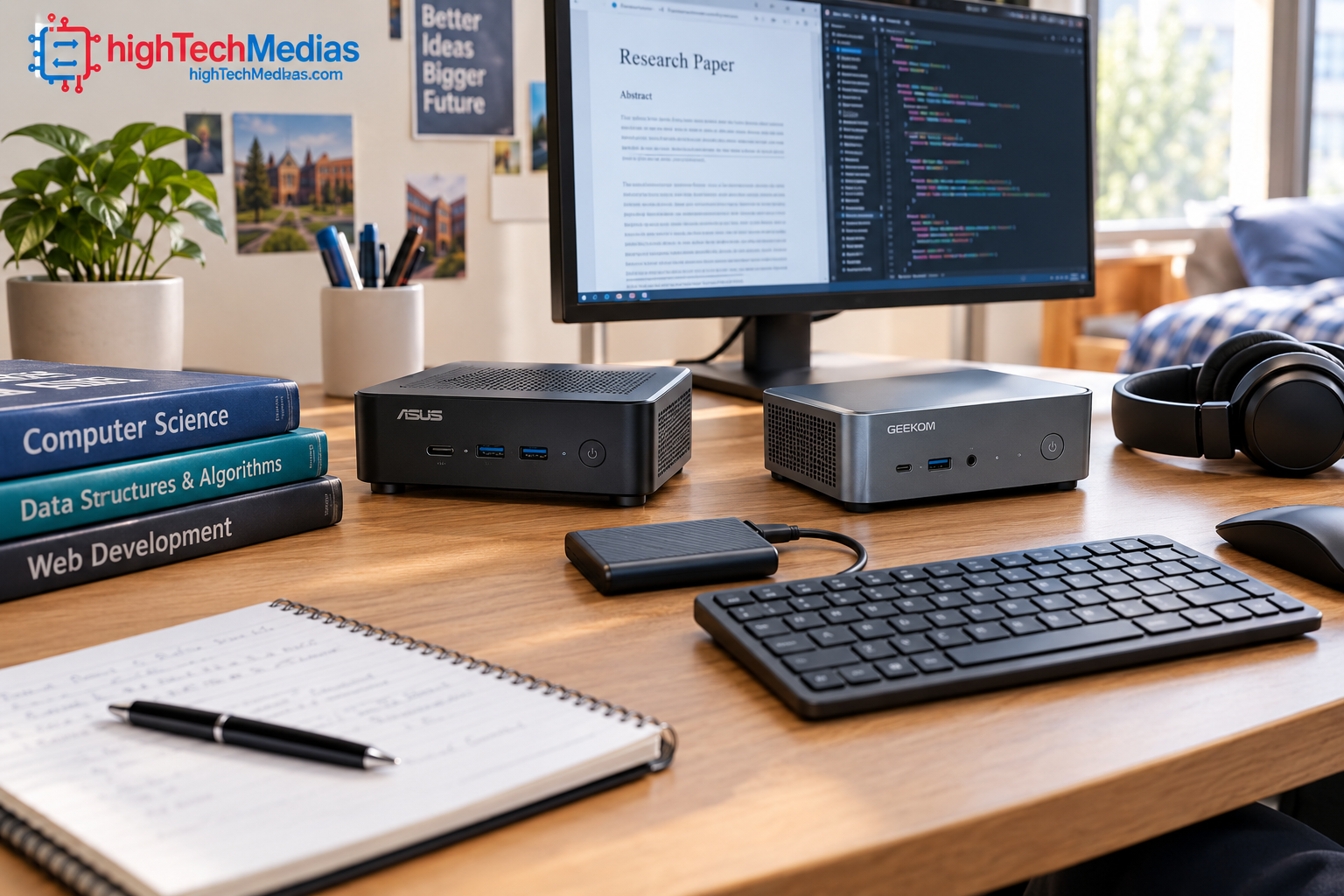
Best Mini PCs for Students in 2026: Real Compact PCs Worth Considering
Introduction
Finding the best mini PCs for students in 2026 is less about buying the smallest computer possible and more about finding the right balance between performance, price, connectivity, storage, upgradeability, and the way you actually study.
A good student computer needs to handle everyday tasks such as web research, Microsoft 365, Google Workspace, online classes, writing papers, presentations, video calls, streaming, and multitasking. Depending on the major, students may also need more demanding capabilities for programming, photo editing, engineering software, data analysis, or light creative work.
A mini PC can be an attractive alternative to a traditional desktop because it takes up very little desk space while still providing the connections needed for a full monitor, keyboard, mouse, Ethernet connection, external storage, and other accessories.
For this guide, we focus on two real models currently listed by their manufacturers: the ASUS NUC 15 Pro and GEEKOM A5. They represent two different approaches to student computing. ASUS offers a highly configurable compact Windows platform with extensive connectivity, while GEEKOM offers a more conventional ready-to-use mini-PC approach with AMD Ryzen processing and substantial expansion potential.
Prices and configurations can change, so readers should verify the current manufacturer listing before purchasing.
1. ASUS NUC 15 Pro — Best for Students Who Want Flexibility and Connectivity
The ASUS NUC 15 Pro is one of the more interesting options for students who want a compact Windows desktop that can grow with their needs.
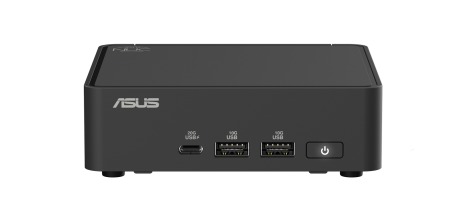
ASUS currently lists the NUC 15 Pro with a starting price of $429 on its U.S. site. Because the NUC 15 Pro family is offered in multiple configurations, the exact processor, operating system, memory and storage depend on the selected model.
That distinction is important for students. Unlike a single fixed configuration, the NUC 15 Pro family includes models ranging from Intel Core 3 and Core 5 processors to Core Ultra 5 and Core Ultra 7 options. Some versions are sold as complete mini PCs, while kit versions ship without memory and storage.
Who Should Buy the ASUS NUC 15 Pro?
The ASUS NUC 15 Pro is particularly suitable for:
- College students who already own a monitor and peripherals
- Students who need a compact Windows workstation
- Programming and computer science students
- Students who use several external devices
- Students who want multiple display connections
- Users who value Wi-Fi 7 and Thunderbolt 4 connectivity
- Students who may want to upgrade memory or storage later
It is less attractive if you simply want the cheapest possible ready-to-use computer and do not want to deal with configuration differences.
Main Key Specifications
| Feature | ASUS NUC 15 Pro |
| Form factor | Mini PC |
| Processor options | Intel Core 3/Core 5/Core 7 and Core Ultra 5/7 options |
| Graphics | Intel Graphics or Intel Arc graphics depending on CPU |
| Memory | Up to 48GB in listed configurations |
| Storage | M.2 NVMe storage support |
| Wireless | Wi-Fi 7 on listed configurations |
| Bluetooth | Bluetooth 5.4 |
| Display | Dual HDMI 2.1 plus Thunderbolt 4 |
| Networking | RJ-45 Ethernet |
| Dimensions | Approximately 117 × 112 × 36.8 mm or 117 × 112 × 54 mm depending on configuration |
| Weight | Approximately 0.51–0.58 kg depending on configuration |
ASUS lists support for up to 48GB DDR5 memory in the NUC 15 Pro configurations, along with M.2 NVMe storage options. The system also provides two HDMI 2.1 outputs and two Thunderbolt 4 ports with DisplayPort 2.1 and USB4 support.
Why Students Should Consider It
Connectivity is one of the biggest reasons to consider the NUC 15 Pro.
A student workstation can quickly accumulate peripherals: an external display, USB keyboard, mouse, external SSD, webcam, headphones, Ethernet cable and other accessories. The NUC 15 Pro provides a surprisingly extensive collection of ports for such a small computer.
ASUS lists two HDMI 2.1 ports capable of 4K at 60Hz, two Thunderbolt 4 ports, USB Type-A ports and RJ-45 Ethernet.
For students working with two displays, that connectivity can be especially useful. A programming student could keep a code editor on one screen and documentation or a browser on another. A business student could use one display for a spreadsheet and another for research. A student attending online classes could keep a video meeting visible while working on notes on a second screen.
The NUC 15 Pro also supports Wi-Fi 7 and Bluetooth 5.4 on the listed configurations, giving it modern wireless connectivity.
Pros
- Very compact physical footprint
- Wide selection of Intel processor configurations
- Thunderbolt 4 connectivity
- Two HDMI 2.1 outputs
- Wi-Fi 7 support on listed configurations
- Upgradeable memory and NVMe storage options
- VESA mounting support
- Good choice for multi-monitor student workstations
Cons
- The $429 starting price does not describe every configuration
- Buyers must pay attention to the exact CPU, RAM and storage configuration
- Some NUC kit versions do not include memory or storage
- A monitor, keyboard and mouse are additional purchases
- More configuration choices can make buying less straightforward for first-time mini-PC buyers
2. GEEKOM A5 — A Practical AMD Mini PC for Everyday Student Work
The GEEKOM A5 takes a different approach. Rather than emphasizing a broad family of configurations like the ASUS NUC 15 Pro, the A5 is positioned as a compact AMD-based computer designed for everyday productivity and multitasking.
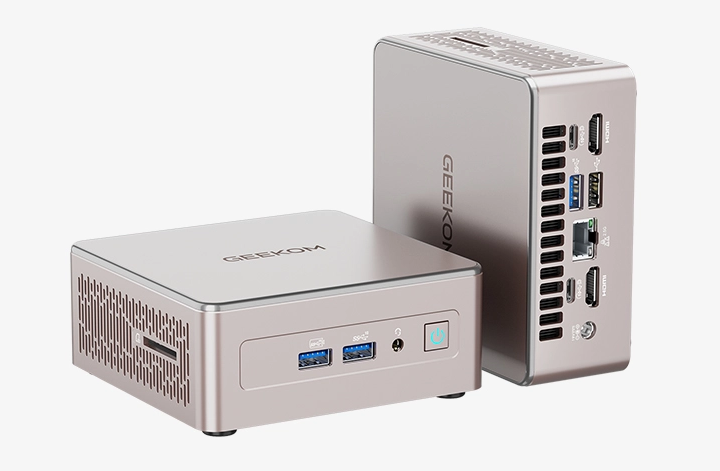
GEEKOM’s current product page lists the A5 with AMD Ryzen 7 7730U and Ryzen 5 7430U processor options. The manufacturer currently lists the product range at $499–$599, while a current promotional listing advertises the A5 from $399 with a code. Because promotional pricing can change, the regular listed range is the safer reference for long-term buying guidance.
Who Should Buy This?
The GEEKOM A5 makes sense for:
- College students looking for a compact everyday desktop
- Students doing research, writing and office work
- Students who need substantial storage expansion
- Students who work with several displays
- Students who want a Windows-oriented AMD mini PC
- Home-office and study-desk users
- Students who want a computer that can serve as both a school and general-purpose PC
It is particularly interesting for students who want more storage flexibility than many inexpensive small desktops provide.
Main Key Specifications
Feature |
GEEKOM A5 |
| Processor options | AMD Ryzen 7 7730U / Ryzen 5 7430U |
| Graphics | Integrated Radeon graphics |
| Memory | Up to 64GB DDR4 |
| Storage expansion | M.2 2280 NVMe, M.2 2242 SATA and 2.5-inch SATA |
| Maximum stated storage | Up to 7TB total |
| Displays | Up to four 4K displays |
| Network | 2.5GbE |
| Wireless | Wi-Fi 6 |
| Bluetooth | Bluetooth 5.4 |
| Card reader | SD card 4.0 |
| Operating system | Configuration dependent |
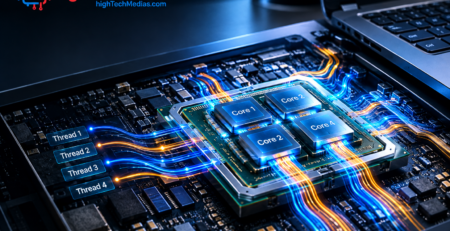
GEEKOM states that the A5’s Ryzen 7 7730U provides eight cores and 16 threads and that its dual memory slots support up to 64GB of DDR4 memory. The company also lists three storage locations: an M.2 2280 NVMe slot, an M.2 2242 SATA slot and a 2.5-inch SATA bay.
The manufacturer also lists support for up to four 4K displays, 2.5GbE networking, Wi-Fi 6, Bluetooth 5.4 and an SD card 4.0 reader.
Why Students Should Consider It
For students, storage can become a bigger issue than expected.
A four-year college computer may accumulate PDFs, lecture recordings, PowerPoint presentations, photographs, programming projects, datasets, design files and personal media. A mini PC with multiple storage options gives students more room to expand instead of immediately replacing the computer.
The A5’s storage design is therefore one of its strongest arguments.
Its display support is another advantage. A multi-monitor setup can make studying and research more comfortable, particularly when comparing documents, reading academic sources and writing at the same time.
For a computer science student, for example, one display could show an IDE while another shows documentation and a third handles testing or a browser.
The Ryzen 7 7730U option also gives the A5 a useful amount of CPU capability for everyday multitasking, productivity applications and many student workloads. It should not, however, be treated as a dedicated gaming or workstation-class GPU computer simply because it has eight CPU cores.
Pros
- Ryzen 7 7730U option with 8 cores and 16 threads
- Up to 64GB DDR4 memory support
- Multiple storage expansion options
- Up to four 4K displays according to GEEKOM
- 2.5GbE Ethernet
- Wi-Fi 6
- Compact desktop design
- Good fit for productivity and multitasking
Cons
- Integrated graphics are not a substitute for a dedicated gaming GPU
- Wi-Fi 6 rather than Wi-Fi 7
- Actual configuration depends on the version purchased
- Promotional pricing can change
- Students still need to budget for a display and peripherals
3. ASUS NUC 15 Pro vs. GEEKOM A5: Which Is Better for Students?
These two computers are not identical products, and that is precisely why they make a useful comparison.
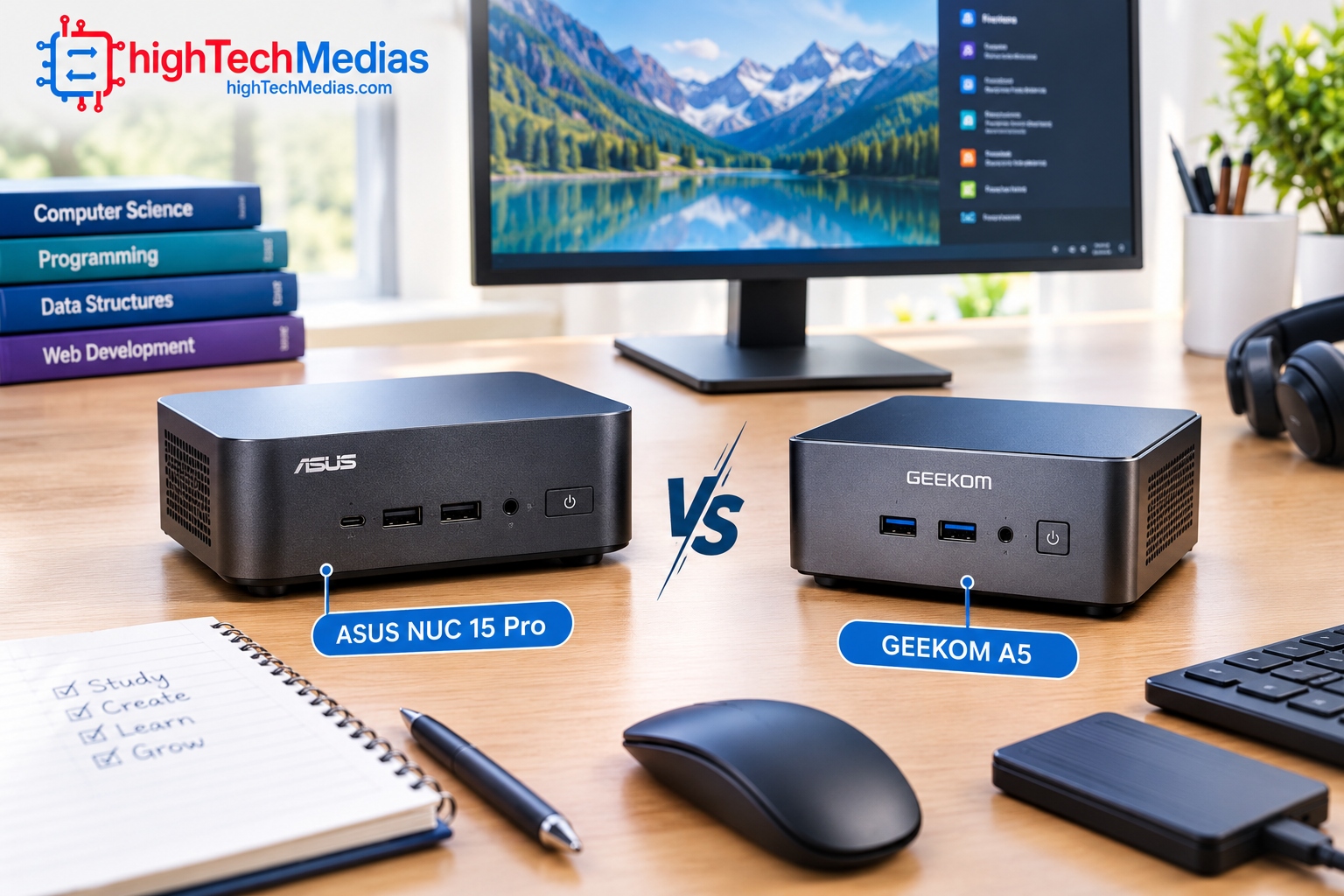
The ASUS NUC 15 Pro is attractive for buyers who value configuration flexibility, modern connectivity and a very small physical footprint. GEEKOM’s A5 is more straightforward for someone looking for an AMD-based productivity machine with extensive memory and storage expansion.
Category |
ASUS NUC 15 Pro |
GEEKOM A5 |
| Starting/listed price | From $429 | $499–$599 listed range |
| CPU family | Intel Core/Core Ultra | AMD Ryzen 5/7 |
| Memory | Up to 48GB listed | Up to 64GB |
| Storage | M.2 NVMe options | NVMe + SATA + 2.5-inch SATA |
| Maximum stated storage | Up to 8TB on supported NVMe slot | Up to 7TB total |
| Display connectivity | 2× HDMI 2.1 + 2× Thunderbolt 4 | Up to four 4K displays |
| Wireless | Wi-Fi 7 on listed configurations | Wi-Fi 6 |
| Ethernet | RJ-45 | 2.5GbE |
| VESA mounting | Yes | Available depending on package/model |
| Best suited to | Flexible Windows workstation | Everyday productivity and expansion |
ASUS confirms that NUC 15 Pro configurations can include Intel Core Ultra processors with Intel Arc graphics, while GEEKOM’s A5 uses AMD Ryzen processors with integrated Radeon graphics.
The biggest practical difference is therefore not simply Intel versus AMD. It is the overall platform.
The ASUS is especially appealing if connectivity and configuration flexibility are high priorities. The GEEKOM is compelling if memory and storage expansion are more important.
4. What Should Students Look for in a Mini PC?
Buying a mini PC for college requires looking beyond processor names.
The right mini PC for college students should provide enough performance for several years of schoolwork while leaving enough flexibility for changing requirements.
4.1 CPU Performance
The processor determines how quickly the computer handles many everyday workloads.
For basic student use, web browsing, word processing, presentations and video calls do not require an extremely powerful CPU. However, students studying computer science, engineering, data science or creative disciplines may benefit from a stronger processor.
Intel and AMD both offer a wide range of processors suitable for compact desktops.
A useful rule is to buy based on the applications you actually use rather than choosing a processor simply because its model number looks newer.
4.2 RAM
RAM affects how comfortably a computer handles multiple applications simultaneously.
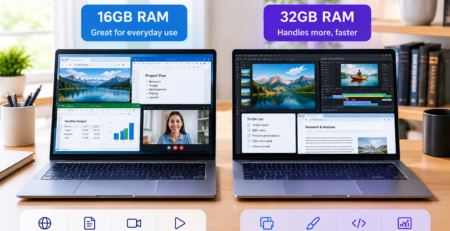
For a student computer, 16GB is a sensible target for many users, while students running development environments, virtual machines, large datasets or demanding creative applications may benefit from more.
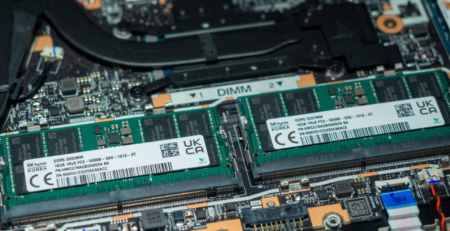
The ASUS NUC 15 Pro and GEEKOM A5 both provide meaningful memory expansion options, although their memory technologies differ. ASUS lists DDR5 options, while GEEKOM lists DDR4 memory support for the A5.
4.3 Storage
A student computer should have enough SSD storage for the operating system, applications and school files.
An NVMe SSD is particularly useful because it provides fast storage performance without requiring a large physical drive.
Students should also consider how much storage they will need several years from now. A 256GB drive can become restrictive when a student stores large media files, software projects and other coursework.
The GEEKOM A5 is especially interesting here because GEEKOM lists three storage locations and up to 7TB of total storage capacity.
4.4 Ports and Connectivity
A mini PC can become the center of a complete workstation.
Look for:
- USB-C
- USB-A
- HDMI
- DisplayPort or Thunderbolt
- Ethernet
- Wi-Fi
- Bluetooth
- Audio connectivity
- SD card support when relevant
For students using external monitors, storage drives and accessories, connectivity can be just as important as raw CPU performance.
4.5 Dual-Monitor Support
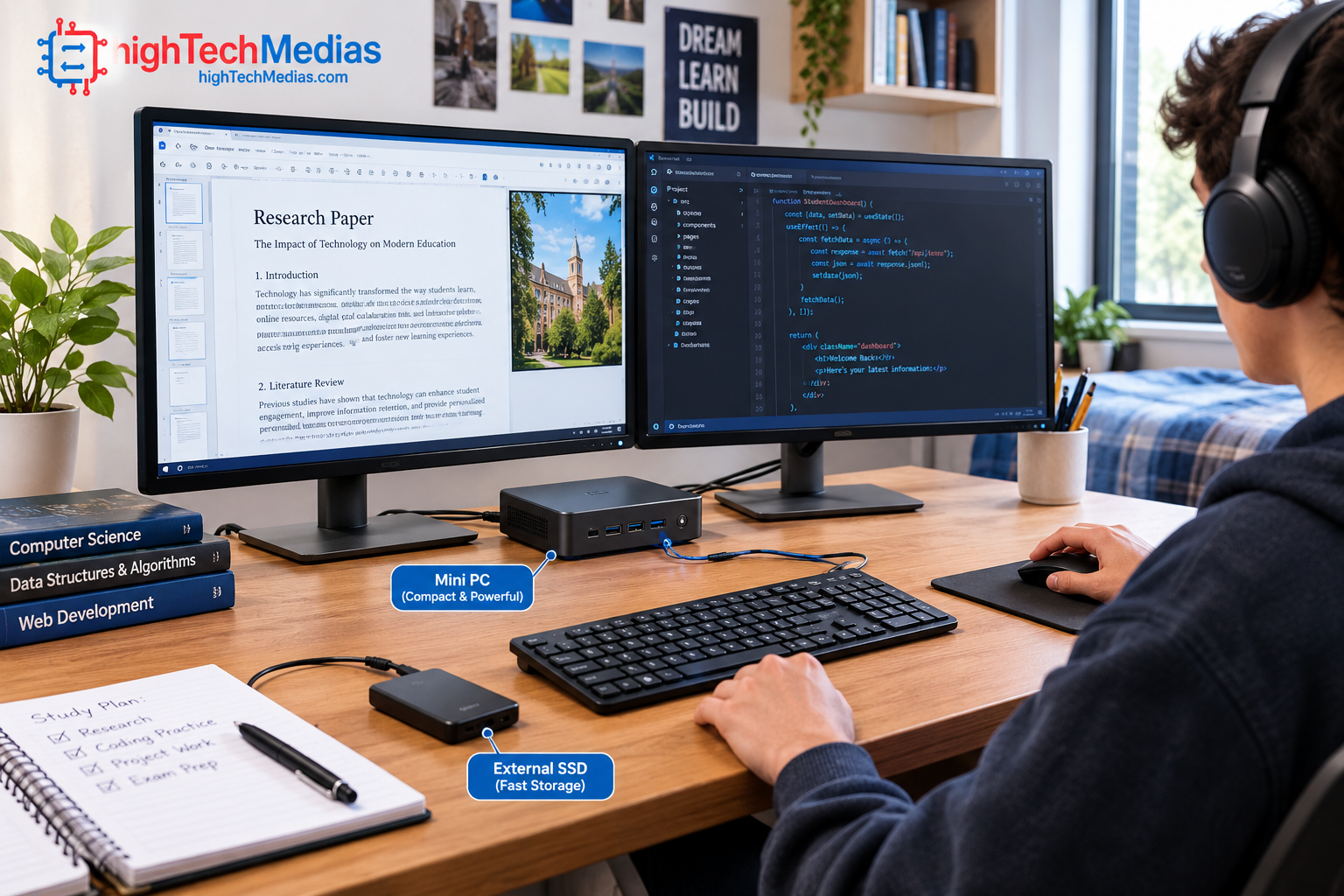
A second display can make a major difference for studying.
A student can put a textbook or research paper on one display while writing notes on another. Programming students can keep code visible on one screen and documentation on another.
5. Which Mini PC Is Best for Different Types of Students?
There is no single best mini PC for students because students have very different workloads.
Best for General College Work
For essays, browsing, Microsoft Office, online classes and presentations, either of the two models can be suitable depending on configuration.
The priority should be adequate RAM, SSD storage and reliable connectivity rather than maximum CPU performance.
Best for Programming Students
Programming students should prioritize CPU performance, RAM, storage and multiple displays.
A computer science student may have an IDE, browser, terminal, database tools, documentation and testing environments open simultaneously.
The ASUS NUC 15 Pro is attractive here because of its configurable Intel platform and extensive connectivity. The GEEKOM A5 is also compelling when additional memory and storage expansion are priorities.
Best for Research-Heavy Students
Students who spend hours comparing PDFs, websites, spreadsheets and documents can benefit enormously from a large external monitor or dual-monitor setup.
In this situation, display connectivity becomes more important than gaming performance.
Best for Creative Students
Students working with photography, video or graphic design should pay close attention to GPU capabilities.
Neither of these two mini PCs should automatically be treated as a replacement for a dedicated desktop workstation with a powerful discrete graphics card.
For serious 3D rendering, advanced video production or GPU-intensive applications, a larger desktop with dedicated graphics may be more appropriate.
Best for Students With Limited Desk Space
This is where mini PCs have an obvious advantage.
The ASUS NUC 15 Pro measures as little as approximately 117 × 112 × 36.8 mm in certain configurations, making it substantially smaller than a conventional desktop tower.
The computer can sit behind a monitor or on a small desk, depending on the setup and mounting hardware.
6. Best Mini PCs for Students in 2026: How Much Should You Spend?
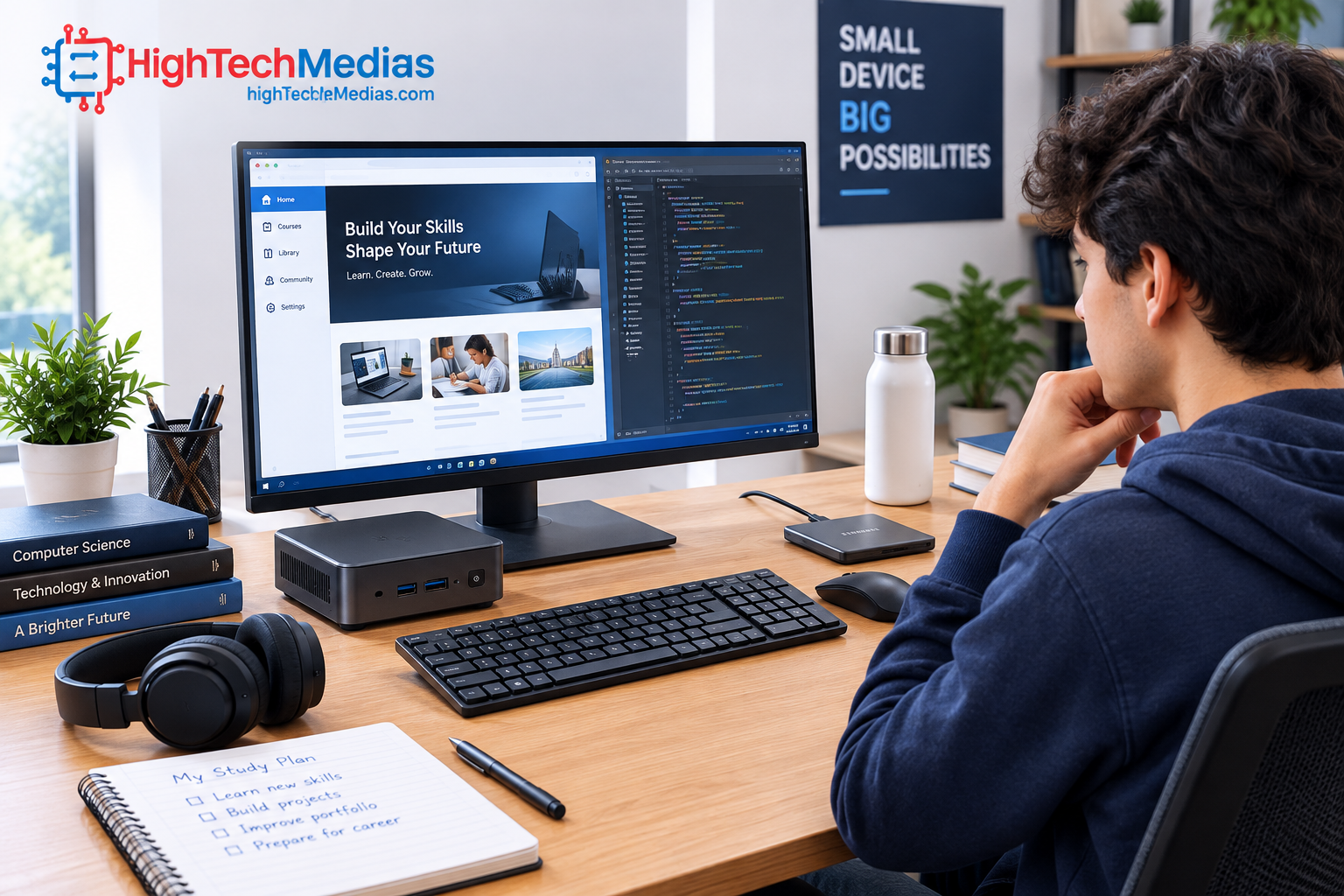
Price should be considered together with the cost of the complete workstation.
A mini PC is not necessarily a complete computer setup.
Students may still need:
- Monitor
- Keyboard
- Mouse
- Webcam
- Speakers or headphones
- External storage
- Operating-system license in certain configurations
This is particularly important with NUC-style computers because some versions are sold as kits without memory or storage.
The ASUS NUC 15 Pro currently starts at $429 according to ASUS, but students should verify the exact configuration before comparing that price with a ready-to-use mini PC.
GEEKOM currently lists the A5 at $499–$599, with a current promotional listing advertising a lower price with a code. Promotional prices should be treated separately from the regular listed price because they can expire.
For more budget-focused options, readers can also compare other compact systems in HighTechMedias.com’s existing mini-PC coverage:
If you’re looking for more affordable options, our guide to the best budget mini PCs in 2026 covers compact systems that deliver strong everyday performance without overspending.
For students working with a tighter budget, our guide to the best mini PCs under $500 in 2026 highlights practical choices at lower price points.
If you’re setting up a study space at home, you can also explore our guide to the best mini PCs for home office in 2026 for more productivity-focused options.
7. Mini PC vs. Laptop for Students
A mini PC is not automatically better than a laptop.
The choice depends heavily on how the student studies.
A laptop provides a screen, keyboard, battery and computer in one portable package. That makes it ideal for students who move between classrooms, libraries, dorms and home.
A mini PC is more appropriate for students who primarily work from one location and already have a monitor and peripherals.
Students who are unsure which form factor fits their lifestyle should compare the two before purchasing.
Mini PCs vs. Laptops: Which One Should You Choose?
A laptop may be the better choice when portability is essential. A mini PC can be the better choice when the student wants a permanent workstation with a larger display.
8. Windows, Software and Student Productivity
The operating system matters because college students frequently rely on specific software.
Windows remains important for students whose programs require Windows-only applications. Microsoft provides official technical documentation and learning resources through Microsoft Learn.
Microsoft also maintains its official support portal for Windows, Microsoft 365 and other products.
Students should check their university’s software requirements before buying a mini PC.
This is particularly important for engineering, architecture, scientific computing and specialized academic programs where the institution may require a specific Windows application.
A computer that is technically powerful enough may still be unsuitable if it cannot run the software required for a course.
9. What About Gaming?
Gaming is not the primary reason to buy a student mini PC, but many students naturally want one computer that can handle schoolwork and some gaming.
Integrated graphics can handle many lightweight or older games, but performance depends heavily on the processor, memory configuration, game and graphics settings.
Students interested in modern AAA games should not assume that any mini PC will provide desktop gaming-PC performance.
A system with a dedicated GPU is generally better suited to demanding games.
For most students, it makes more sense to prioritize CPU performance, RAM, SSD storage and connectivity before gaming performance unless gaming is a major part of the purchase decision.
10. Connectivity Matters More Than Mini-PC Size
A tiny computer is only useful if it works with the accessories students actually use.
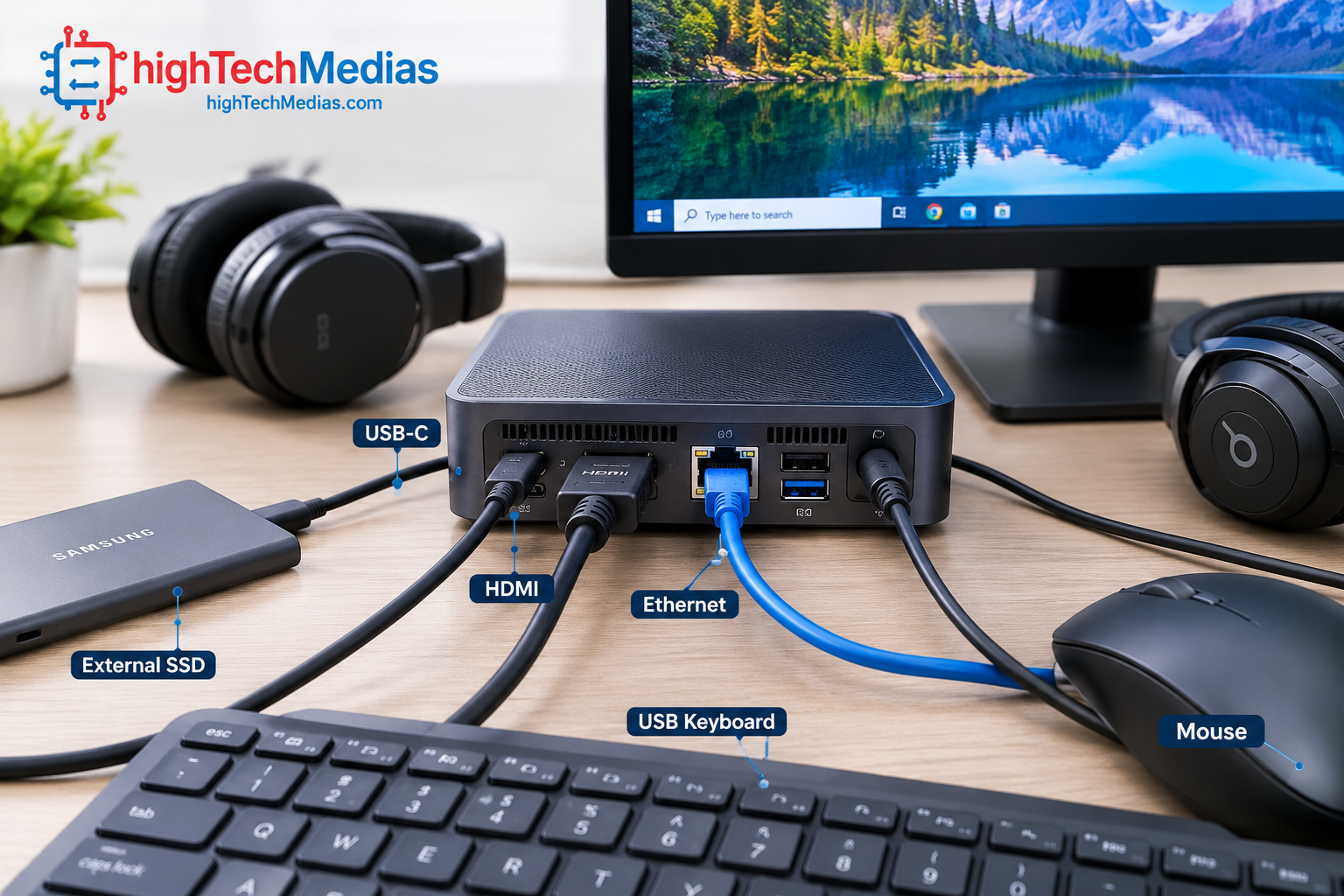
The ASUS NUC 15 Pro is particularly strong in this area. Depending on configuration, ASUS lists two HDMI 2.1 ports, two Thunderbolt 4 ports, USB Type-A connections and RJ-45 Ethernet.
The GEEKOM A5 also offers a broad collection of connectivity options, including 2.5GbE, USB ports, display outputs, Wi-Fi 6, Bluetooth 5.4 and an SD card reader.
This makes both systems suitable for building a more complete home-office or student workstation.
11. Upgradeability Can Extend a Student PC’s Useful Life
One of the strongest reasons to consider a mini PC is upgradeability.
A student may begin college needing only basic productivity performance. Two years later, that same student may need more storage for research projects, more RAM for development environments or additional external displays.
A mini PC that allows upgrades can potentially adapt better than a system with completely fixed hardware.
The ASUS NUC 15 Pro supports expandable memory and multiple M.2 storage options depending on configuration.
The GEEKOM A5 is also designed with expansion in mind, with two memory slots and multiple storage locations.
This does not mean every component is user-upgradeable. Students should always check the exact model before purchasing and confirm which components can actually be replaced.
For additional information about choosing a mini PC for more demanding technical workloads, see: Best Mini PCs for Programming and Development in 2026
12. Final Buying Checklist for Students
Before buying a student mini PC, check these points:
Performance
- Is the processor appropriate for your major?
- Will you run development, engineering or creative applications?
- Do you need more than integrated graphics?
Memory
- Does the computer include enough RAM?
- Can the RAM be upgraded later?
Storage
- Is the SSD large enough?
- Can you install another drive?
Display
- Does it support the number of monitors you need?
- Does it provide the correct ports?
Networking
- Do you need Ethernet?
- Is the wireless standard modern enough for your setup?
Operating System
- Does your school require Windows?
- Does your major require software that is platform-specific?
Total Cost
- Do you already own a monitor?
- Do you need a keyboard and mouse?
- Does the computer include RAM and storage?
- Are you looking at a complete PC or a barebones kit?
Warranty and Support
- Is the product sold with a warranty?
- Is the manufacturer easy to contact?
- Is the configuration officially supported in the United States?
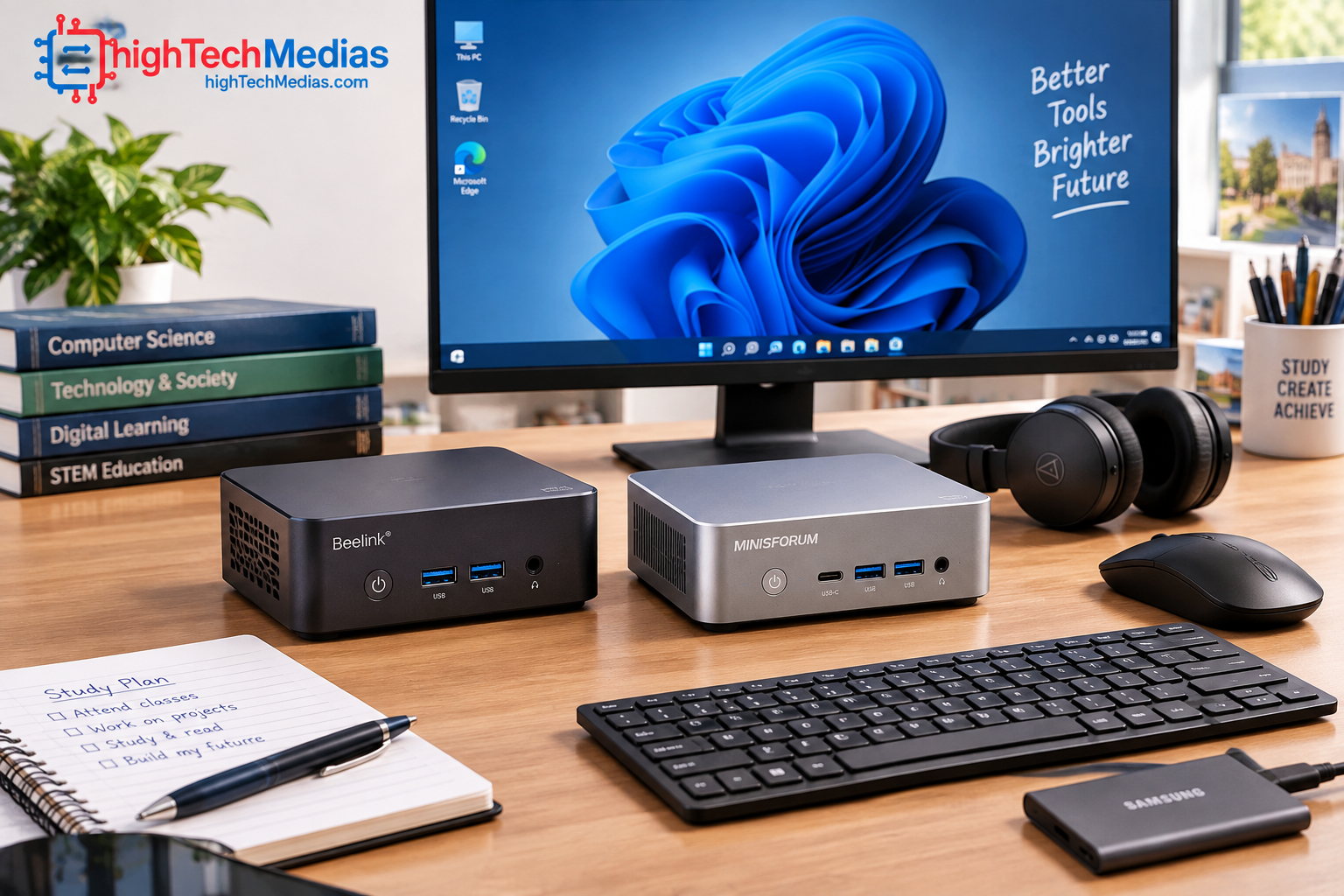
13. Final Verdict: Which Is One of the Best Mini PCs for Students in 2026?
The best mini PCs for students in 2026 should not be selected simply because they are small. Students need a system that matches their coursework, software, budget and future requirements.
The ASUS NUC 15 Pro is the stronger choice for students who prioritize configuration flexibility, modern connectivity, multiple displays and a compact Windows workstation. ASUS lists a starting price of $429, but buyers must pay close attention to the exact configuration because the NUC 15 Pro family includes several processor, memory, storage and operating-system combinations.
The GEEKOM A5 is the more straightforward choice for students who want an AMD-based productivity mini PC with strong memory and storage expansion potential. Its Ryzen 7 7730U option, support for up to 64GB of DDR4 memory and multiple storage locations make it particularly interesting for multitasking, programming and long-term desktop use.
Our recommendation: choose the ASUS NUC 15 Pro if connectivity, configuration flexibility and a compact Windows workstation are your top priorities. Choose the GEEKOM A5 if memory and storage expansion are more important and you prefer its AMD-based platform.
Most importantly, students should verify the exact configuration and current price before ordering. Mini-PC families can include substantially different hardware under the same product name, and promotional prices can change.






Comment (1)
[…] For more information about compact computing for students, see our guide to the best mini PCs for students in 2026. […]