
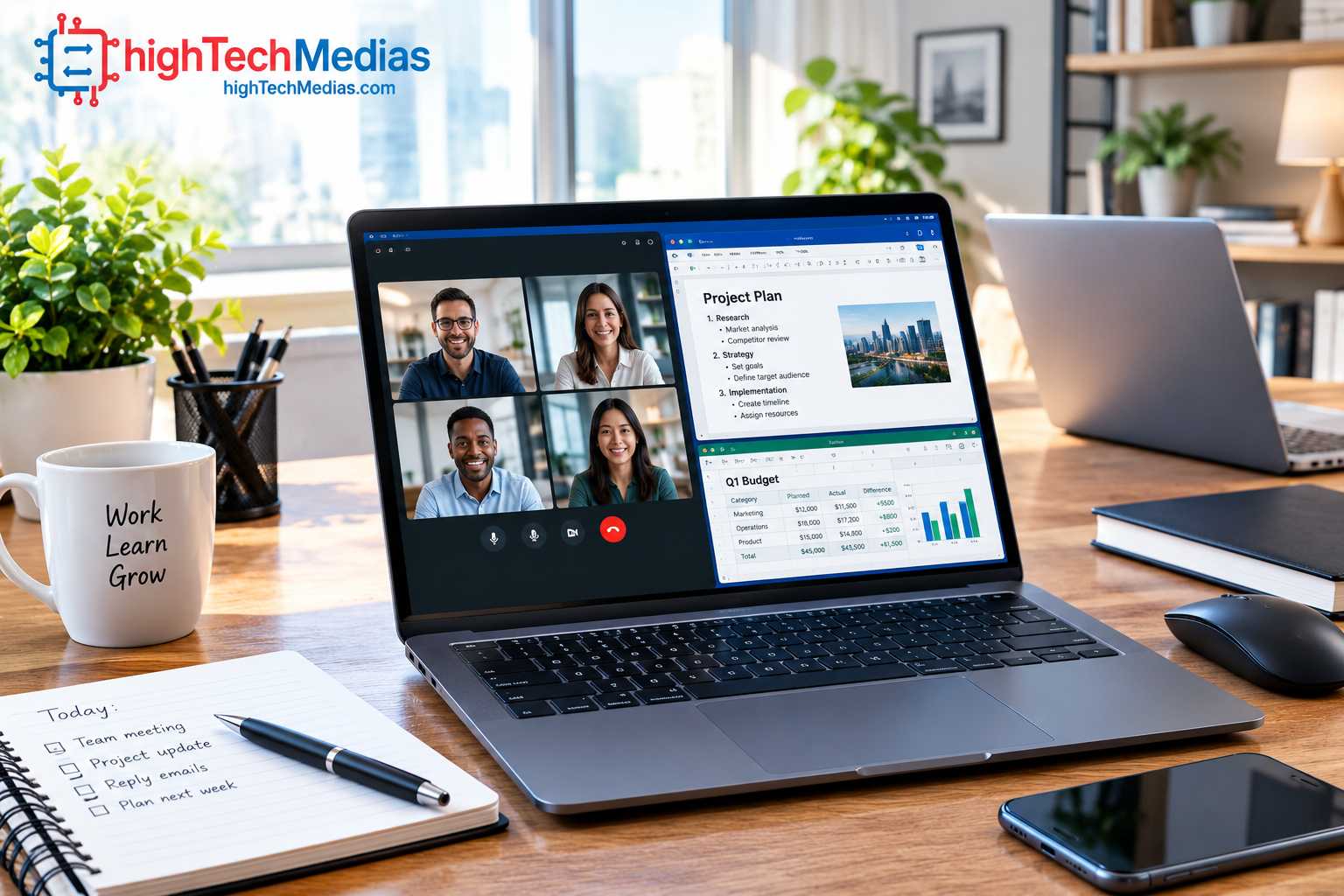
Best Laptops for Remote Work in 2026: Top Picks for Home Office
Remote work has changed what people should expect from a laptop. A good work-from-home computer is no longer judged only by processor speed. Battery life, webcam quality, microphone performance, display comfort, wireless connectivity, keyboard quality, portability, and the ability to connect to external monitors can have a much bigger impact on your working day.
The best laptops for remote work should also handle the software people actually use: Microsoft 365, Google Workspace, Zoom, Microsoft Teams, Slack, web applications, cloud storage, and dozens of browser tabs.
For this comparison, we focus on six real laptop families that offer different approaches to remote productivity: the Apple MacBook Air, Dell XPS 13, Microsoft Surface Laptop, HP OmniBook 7 Aero, Lenovo ThinkPad T14s Gen 6, and ASUS Zenbook 14 OLED.
The goal is not simply to identify the laptop with the fastest processor. Instead, we look at which models make the most sense for professionals, remote employees, freelancers, students, managers, and anyone building a reliable home-office setup.
If you are still deciding between different laptop categories, our Laptop Buying Guide 2026 is a useful next step before making a purchase.
1. Two Standout Laptops for Remote Work
Before looking at all six choices, two models deserve particular attention because they represent two very different approaches to remote productivity: Apple’s MacBook Air and Dell’s XPS 13.
1.1 Apple MacBook Air — Best Overall for Remote Work
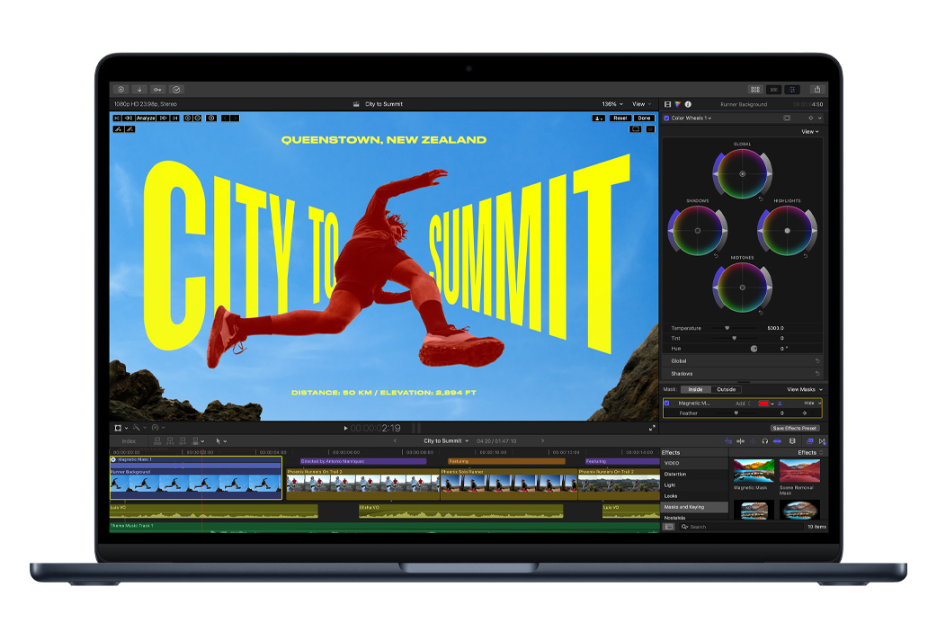
The MacBook Air remains one of the strongest choices for professionals who want a thin, quiet, portable laptop with excellent battery life.
Apple’s current MacBook Air starts at $999 (as of October 2026) in the United States for the 13-inch model with the M4 chip. Apple also offers a 15-inch version starting at $1,199.
The M4 MacBook Air starts with 16GB of unified memory and offers up to 18 hours of battery life according to Apple’s published specifications. It also includes a 12MP Center Stage camera, which is particularly useful for remote workers who spend much of their day in video meetings.
The current MacBook Air also supports Wi-Fi 7 and Bluetooth 6, giving it modern wireless connectivity. Its thin, fanless design makes it particularly appealing for people who work in quiet environments.
Key specifications
Feature |
MacBook Air |
| Starting U.S. price | $999 |
| Processor | Apple M4 |
| Starting memory | 16GB unified memory |
| Display sizes | 13-inch and 15-inch |
| Camera | 12MP Center Stage |
| Battery | Up to 18 hours |
| Wireless | Wi-Fi 7, Bluetooth 6 |
| Weight | 2.7 lb for 13-inch |
| Operating system | macOS |
| Design | Fanless |
Who should buy this?
The MacBook Air is particularly well suited to:
- Remote professionals
- Freelancers
- Writers
- Consultants
- Managers
- Students
- Digital marketers
- Business travelers
- People already using iPhone and other Apple devices
It is also a strong choice for people who regularly move between a home office, coworking space, client meetings, and travel.
Why consider it?
The combination of battery life, portability, camera quality, performance, and quiet operation makes the MacBook Air unusually well suited to remote work.
The 12MP Center Stage camera is especially relevant for video meetings because the camera can keep the user centered during supported calls.
The main limitation is macOS compatibility. Some corporate applications are designed specifically for Windows, and some specialized enterprise or engineering software may require Windows.
Pros
- Excellent battery life
- Lightweight design
- 12MP Center Stage camera
- Strong everyday performance
- Fanless operation
- Wi-Fi 7
- 16GB starting unified memory
- Excellent trackpad
- Strong Apple ecosystem integration
Cons
- Limited physical ports
- macOS is not ideal for every business application
- Memory is not user-upgradeable
- Higher configurations become expensive
- USB-C accessories may be necessary for some home-office setups
1.2 Dell XPS 13 — Best Compact Windows Laptop
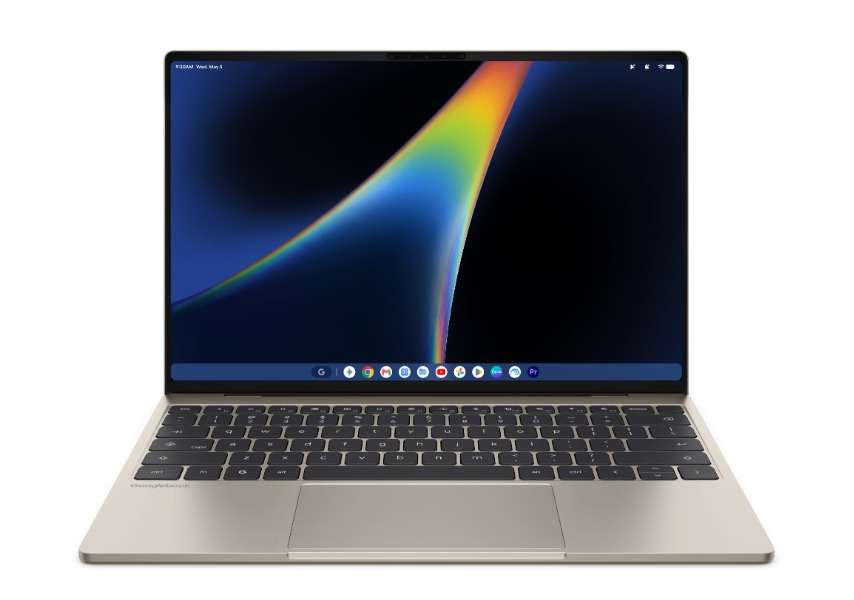
The Dell XPS 13 is one of the strongest choices for Windows users who want a highly portable laptop.
Dell currently lists a configuration with an Intel Core 5 320 processor, 16GB LPDDR5X memory, 512GB SSD and a 13.4-inch 2560 × 1600 touchscreen for $999.99(as of October 2026).
The system weighs about 2.2 pounds in the current configuration, making it particularly attractive for people who travel frequently between home, office, client locations and coworking spaces.
The XPS 13 also supports Wi-Fi 7 and uses USB-C connectivity.
Key specifications
Feature |
Dell XPS 13 |
| Current listed price | $999.99 |
| Processor | Intel Core 5 320 |
| CPU cores | 6 |
| Memory | 16GB LPDDR5X |
| Storage | 512GB SSD |
| Display | 13.4-inch 2560 × 1600 |
| Touchscreen | Yes |
| Wireless | Wi-Fi 7 |
| Operating system | Windows 11 Home |
| Weight | About 2.2 lb |
Who should buy this?
The XPS 13 is a strong choice for:
- Windows professionals
- Remote employees
- Consultants
- Business travelers
- Students
- Freelancers
- People who prioritize portability
Why consider it?
The biggest advantage is its combination of Windows compatibility and compact size.
For a remote worker who regularly carries a laptop between locations, reducing weight without giving up a high-resolution display can make a meaningful difference.
The current configuration also gives users 16GB of RAM and a 512GB SSD, which is a sensible starting point for office productivity.
Pros
- Very portable
- High-resolution 13.4-inch display
- 16GB memory
- 512GB SSD
- Wi-Fi 7
- Windows compatibility
- Premium compact design
Cons
- Limited physical ports
- Memory is not designed for user upgrades
- Smaller display than 14- or 15-inch work laptops
- Integrated graphics are not intended for serious gaming
2. Microsoft Surface Laptop — Best Windows Experience for Work Anywhere
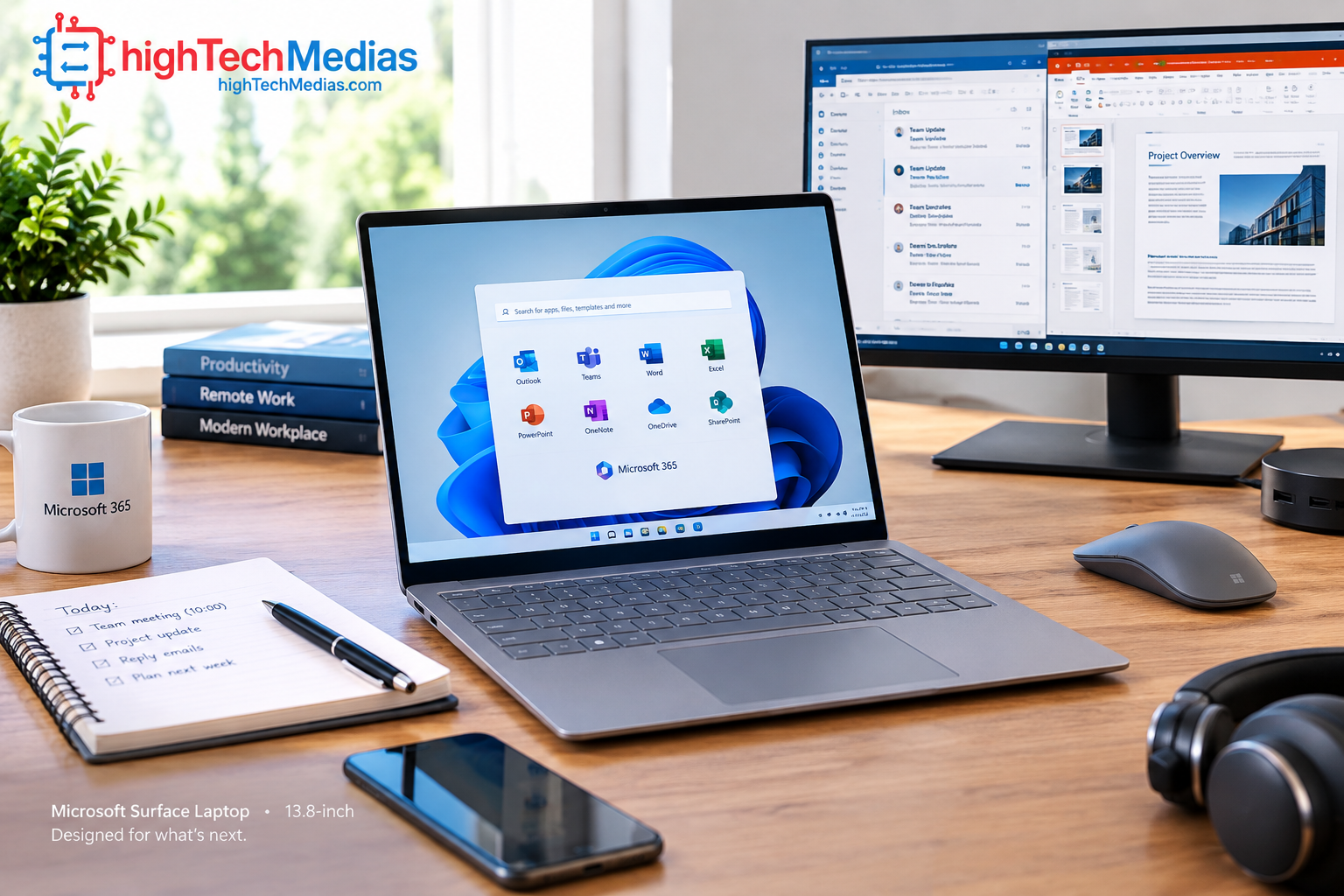
The Microsoft Surface Laptop is designed around portability, battery life and a polished Windows experience.
The current 13.8-inch Surface Laptop 8th Edition starts at $1,299.99 and uses Microsoft’s latest Snapdragon X2 processors. Microsoft lists a Snapdragon X2 Plus 10-core option and Snapdragon X2 Elite 12-core option.
Microsoft rates the 13.8-inch model for up to 20 hours of local video playback and up to 16 hours of active web use under its specified test conditions.
The laptop weighs about 3 pounds and includes two USB-C/USB4 ports, USB-A, a 3.5mm headphone jack and Surface Connect. It also supports Wi-Fi 7.
This makes it an interesting option for professionals who want a Windows laptop but also want the battery-life advantages of an Arm-based platform.
Key specifications
Feature |
Surface Laptop 13.8-inch |
| Starting price | $1,299.99 |
| Processor options | Snapdragon X2 Plus / X2 Elite |
| Display | 13.8-inch touchscreen |
| Resolution | 2304 × 1536 |
| Refresh rate | Up to 120Hz |
| Camera | 1080p |
| Wireless | Wi-Fi 7 |
| Battery | Up to 20 hours local video |
| Weight | About 3 lb |
| RAM | Up to 64GB |
| Storage | Up to 1TB |
Who should buy this?
It is particularly suited to:
- Microsoft 365 users
- Business professionals
- Remote employees
- Managers
- People who travel frequently
- Users who value battery life
- Professionals who want a premium Windows laptop
Why consider it?
The Surface Laptop has a strong argument for people who spend their day inside Microsoft’s ecosystem.
Windows, Microsoft 365, Teams and OneDrive integrate naturally into the experience, while the touchscreen and modern display make the system flexible for both desk and mobile use.
Its biggest consideration is application compatibility. Arm-based Windows has improved considerably, but professionals using specialized legacy software should confirm compatibility before buying.
Pros
- Excellent battery-life potential
- Wi-Fi 7
- High-resolution touchscreen
- Premium build
- Strong Windows integration
- Up to 64GB memory
- Up to 1TB storage
- Excellent portability
Cons
- Premium starting price
- Arm application compatibility should be checked
- Some configurations are expensive
- Limited physical ports compared with larger business laptops
3. HP OmniBook 7 Aero — Best Lightweight Windows Option
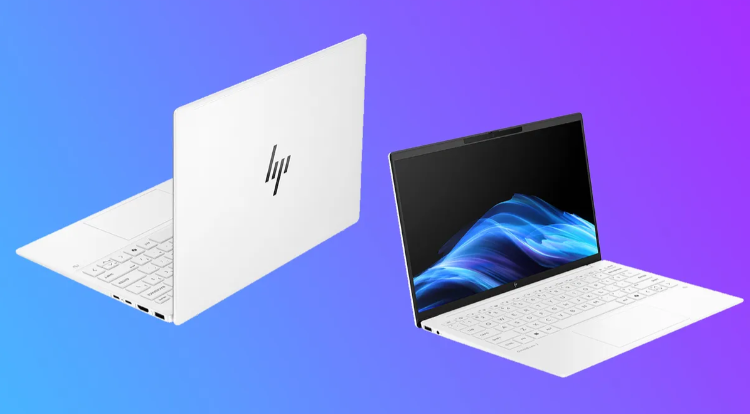
Remote workers who move frequently may value weight more than almost any other specification.
The HP OmniBook 7 Aero is designed around that idea.
HP lists the OmniBook 7 Aero with an AMD Ryzen AI processor, Radeon 860M integrated graphics, 32GB memory and a 1TB SSD in the configuration currently shown on its U.S. website.
HP also states that the laptop weighs under 1 kilogram, or approximately 2.2 pounds.
That is an important advantage for remote employees who work from different rooms, travel frequently, or carry their computer between home and office locations.
The laptop uses a 13.3-inch WQXGA display and is positioned as a Copilot+ PC.
Key specifications
Feature |
HP OmniBook 7 Aero |
| Display | 13.3-inch WQXGA |
| Processor | AMD Ryzen AI |
| Graphics | Radeon 860M |
| Memory | 32GB |
| Storage | 1TB SSD |
| AI | Up to 50 TOPS NPU |
| Weight | Under 1 kg |
| Operating system | Windows 11 Home |
| Category | Copilot+ PC |
Who should buy this?
The OmniBook 7 Aero is particularly attractive to:
- Frequent travelers
- Remote employees
- Digital nomads
- Consultants
- Students
- Professionals who value low weight
- Content professionals who want more memory and storage
Why consider it?
The combination of 32GB RAM, 1TB storage and very low weight makes this an interesting productivity machine.
For remote work, portability is not just about convenience. A laptop that is easy to carry is more likely to become the device you actually use everywhere.
The Ryzen AI platform also gives the machine dedicated AI-processing capability for supported workloads.
Pros
- Extremely light
- 32GB memory in the listed configuration
- 1TB SSD
- Radeon 860M graphics
- Ryzen AI platform
- Copilot+ PC
- WQXGA display
- Designed for mobile productivity
Cons
- Smaller 13.3-inch display
- Not designed as a workstation replacement
- Configuration and pricing can change
- Integrated graphics are not a substitute for a dedicated GPU
4. Lenovo ThinkPad T14s Gen 6 — Best for Business Professionals
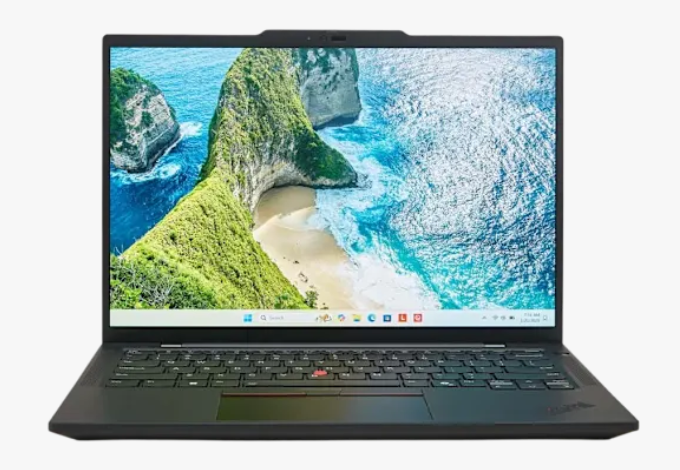
The ThinkPad T14s Gen 6 is designed for users who place business productivity, security, reliability and keyboard quality above flashy consumer features.
Lenovo’s current U.S. listing identifies the ThinkPad T14s Gen 6 with Intel Core Ultra processors, up to Windows 11 Pro and up to 32GB of LPDDR5X-8533 memory.
This makes it a natural choice for corporate employees, consultants and professionals who use their laptop as a primary work machine.
The ThinkPad line also has a long-standing reputation for business-oriented keyboards and enterprise features.
Key specifications
Feature |
ThinkPad T14s Gen 6 |
| Processor | Up to Intel Core Ultra 7 with vPro |
| Memory | Up to 32GB LPDDR5X |
| Operating system | Up to Windows 11 Pro |
| Display | 14-inch class |
| Category | Business laptop |
| Target user | Professional/business |
Who should buy this?
The T14s Gen 6 is best suited to:
- Corporate professionals
- IT professionals
- Consultants
- Managers
- Programmers
- Business travelers
- Employees whose company uses Windows Pro
- Users who value a traditional business keyboard
Why consider it?
A remote-work laptop does not need to look like a consumer ultrabook.
For professionals, features such as Windows Pro, enterprise management capabilities, security options, comfortable typing and business-oriented support can be more valuable than a premium OLED display.
The T14s is particularly compelling for someone who spends several hours every day writing documents, answering emails, working with spreadsheets and communicating with clients.
Pros
- Business-focused design
- Windows Pro availability
- Intel Core Ultra processors
- Up to 32GB LPDDR5X memory
- Strong keyboard reputation
- Suitable for enterprise environments
- Professional design
Cons
- Less visually distinctive than consumer ultraportables
- Memory is soldered
- Premium configurations can become expensive
- Display and configuration vary by SKU
5. ASUS Zenbook 14 OLED — Best Display for Remote Productivity
The ASUS Zenbook 14 OLED is a strong choice for remote workers who spend long hours reading documents, browsing the web, reviewing presentations or working with visual content.
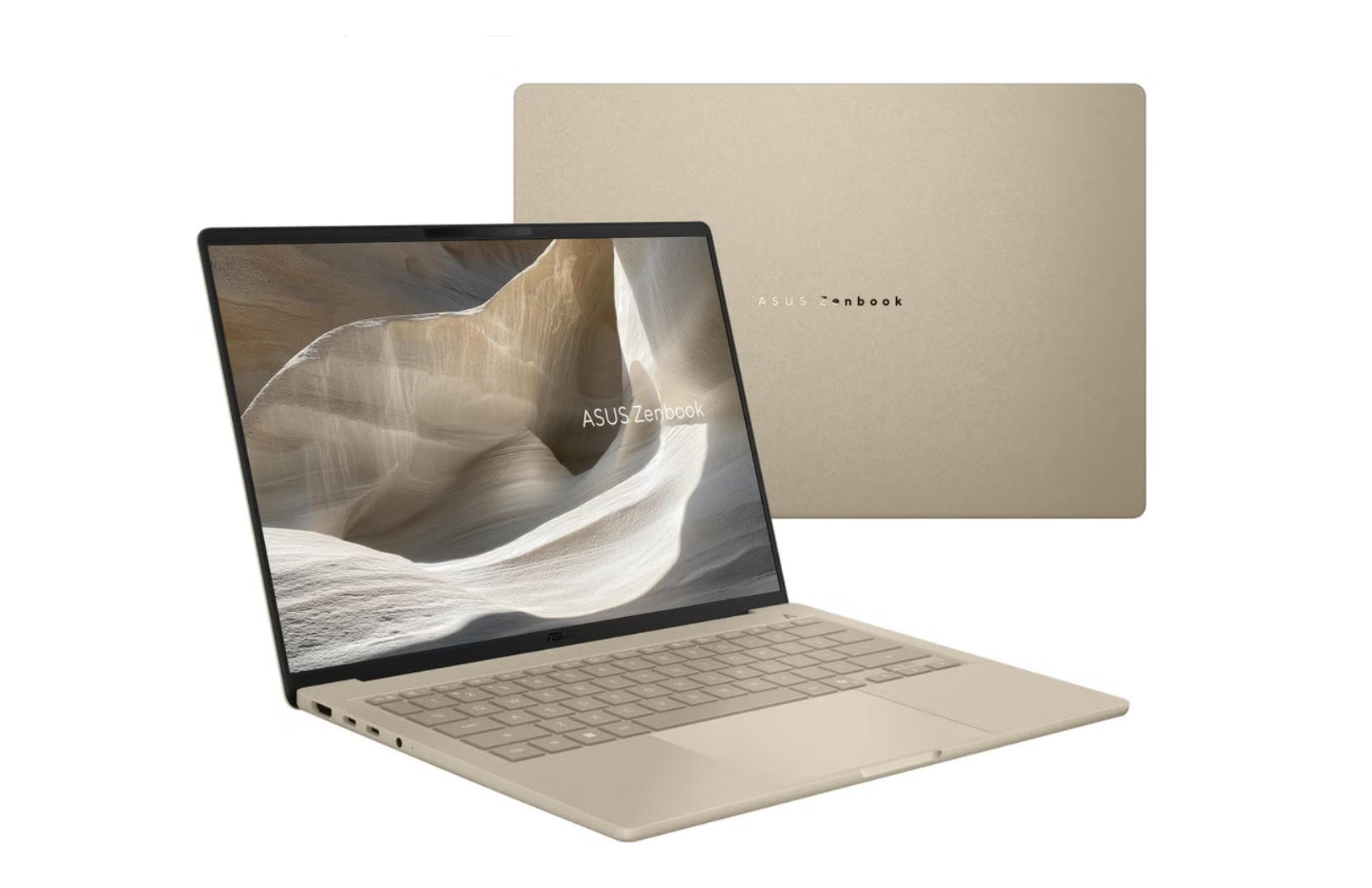
ASUS lists configurations using Intel Core Ultra processors, Intel Arc graphics on applicable models, up to 32GB LPDDR5X memory and PCIe 4.0 SSD storage.
The standout feature is the 14-inch OLED display. Available configurations include a 3K 2880 × 1800 panel with a 120Hz refresh rate, 100% DCI-P3 color coverage and HDR capabilities.
The laptop weighs around 2.82 pounds and is approximately 0.59 inches thick.
Key specifications
Feature |
ASUS Zenbook 14 OLED |
| Display | 14-inch OLED |
| Resolution | Up to 2880 × 1800 |
| Refresh rate | Up to 120Hz |
| Processor | Intel Core Ultra |
| Graphics | Intel Arc on applicable configurations |
| Memory | Up to 32GB LPDDR5X |
| Storage | Up to 1TB PCIe 4.0 SSD |
| Connectivity | Thunderbolt 4, USB-A, HDMI |
| Weight | About 2.82 lb |
| Operating system | Windows 11 |
Who should buy it?
The Zenbook 14 OLED is a strong fit for:
- Remote professionals
- Designers
- Marketing professionals
- Writers
- Content creators
- Consultants
- Frequent travelers
- Users who prioritize display quality
Why consider it?
The OLED display is the main reason to consider the Zenbook.
For people who spend much of the day reading, editing presentations, reviewing graphics or watching training material, display quality can directly influence comfort and productivity.
The combination of a 16:10 aspect ratio, 3K resolution and 120Hz refresh rate also provides a modern workspace for multitasking.
Pros
- Excellent OLED display
- Up to 3K resolution
- Up to 120Hz refresh rate
- 100% DCI-P3 coverage on listed OLED configurations
- Thunderbolt 4
- Compact design
- Up to 32GB memory
- Strong productivity performance
Cons
- OLED may not be necessary for basic office work
- Configuration varies
- Memory is onboard
- Premium configurations can be expensive
6. What Makes a Laptop Good for Remote Work?
The processor is important, but it should not be the first thing remote workers consider.
A laptop used eight hours a day for work has a different set of priorities from a gaming laptop.
Battery life
Battery life matters because remote work does not always happen next to an outlet.
A good remote-work laptop should provide enough endurance for meetings, browser sessions, documents and communication applications without constantly searching for a charger.
Manufacturers’ battery-life figures should always be treated as test results rather than guarantees. Your actual battery life depends on brightness, Wi-Fi, applications, video calls, processor workload and power settings.
Our [Laptop Battery Life Guide 2026] explains what actually affects laptop endurance.
Webcam
The webcam is now a work tool.
A 1080p or higher camera can be preferable to older 720p webcams, especially when you spend hours in Teams or Zoom.
Camera quality is also affected by image processing, lighting, microphone quality and software.
A good laptop camera cannot completely compensate for a dark room, so remote workers should still consider lighting.
Microphone and speakers
Audio quality is often overlooked.
A professional video call depends on both sides hearing each other clearly.
Look for laptops with multiple microphones, noise reduction and good speaker placement.
Display
A 13-inch laptop is highly portable, but a 14- or 15-inch screen can be more comfortable for spreadsheets and split-screen work.
A 16:10 display is particularly useful because it provides more vertical workspace than a traditional 16:9 panel.
OLED displays can provide excellent contrast and color, but an IPS panel may be perfectly adequate for conventional office work.
Our [OLED vs. IPS Laptop Displays Guide] explains the differences in more detail.
Keyboard and trackpad
Remote workers often type thousands of words every week.
A comfortable keyboard is therefore not a luxury.
Business-oriented laptops such as ThinkPads are particularly strong in this area, while MacBooks and premium Windows ultraportables also offer excellent trackpads.
7. Ports and Connectivity Matter More Than You Think
Remote workers often connect more devices than they realize.
A typical home-office setup can include:
- External monitor
- Webcam
- Keyboard
- Mouse
- Headset
- External SSD
- Ethernet adapter
- Smartphone
- Docking station
This is where USB-C, USB4 and Thunderbolt 4 become important.
A laptop with only two USB-C ports may work perfectly well, but a docking station can quickly become necessary.
Wi-Fi 7 is also becoming more common in premium laptops. However, having Wi-Fi 7 hardware does not automatically make an internet connection faster. The router, broadband connection and network environment also matter.
For a permanent desk setup, a docking station can transform a thin laptop into the center of a full workstation.
Our [Laptop Ports Explained] guide provides a deeper look at USB-C, Thunderbolt, HDMI and other connections.
8. Windows vs macOS for Remote Work
Operating-system choice is one of the biggest differences between the laptops in this comparison.
macOS
The MacBook Air is an excellent choice for users who already work with Apple devices.
The combination of macOS, iPhone integration, iCloud, AirDrop and other Apple services can make daily workflows extremely convenient.
However, businesses should confirm that all required applications work properly on macOS.
Windows
Windows remains the safer choice for many corporate environments because of its broad software compatibility.
Microsoft 365, Teams, enterprise security tools, VPN software and specialized business applications are deeply integrated into Windows-based workplaces.
The Dell XPS 13, Surface Laptop, ThinkPad T14s, HP OmniBook and ASUS Zenbook therefore offer greater familiarity for many corporate users.
Windows on Arm
The newer Surface Laptop uses Snapdragon processors.
Windows on Arm has improved considerably, but professionals should still check compatibility with specialized applications, drivers and peripherals before purchasing.
9. How Much RAM and Storage Do Remote Workers Need?
For basic remote work, 16GB of RAM is a sensible starting point.
It is enough for typical combinations of:
- Web browsers
- Microsoft Word
- Excel
- Teams
- Zoom
- Slack
- Cloud storage
Professionals with heavier multitasking should consider 32GB.
This is especially relevant for developers, analysts, content creators and users who regularly work with virtual machines or large datasets.
Storage is different.
A 512GB SSD is a practical starting point for many professionals. A 1TB SSD becomes more attractive if you keep large files locally.
Cloud storage reduces the need for huge internal drives, but it does not eliminate it completely.
10. Which Laptop Is Best for Different Remote Workers?
Best for executives and managers
MacBook Air
It combines portability, battery life, camera quality and premium design.
Best for Windows professionals
Dell XPS 13
Its compact design and Windows compatibility make it a strong choice for mobile professionals.
Best for Microsoft 365 users
Surface Laptop
The Surface experience is particularly attractive for users heavily invested in Microsoft services.
Best for frequent travelers
HP OmniBook 7 Aero
Its extremely low weight is its biggest advantage.
Best for corporate users
Lenovo ThinkPad T14s Gen 6
The business-oriented design and Windows Pro options make it a natural enterprise choice.
Best for display quality
ASUS Zenbook 14 OLED
The OLED display is especially attractive for professionals who spend long hours reading and viewing visual content.
11. Remote Work Laptop Buying Checklist
Before purchasing a laptop for remote work, check these specifications:
Performance
Look for a modern processor capable of handling your workload without becoming the bottleneck.
Memory
Choose at least 16GB for normal professional work and consider 32GB for demanding multitasking.
Storage
512GB is a practical starting point. Choose 1TB if you keep large files locally.
Webcam
Prefer a modern high-resolution camera with good image processing.
Microphones
Multiple microphones and noise reduction are valuable for video meetings.
Display
A 14-inch 16:10 display is an excellent compromise between portability and workspace.
Battery
Consider manufacturer estimates as guidance rather than guaranteed real-world results.
Ports
Check whether you can connect your monitor, headset, external storage and other accessories without carrying unnecessary adapters.
Wireless
Wi-Fi 6E or Wi-Fi 7 can be useful for modern home networks, but the router must also support the relevant standard.
Weight
If you travel frequently, aim for approximately 3 pounds or less when practical.
Operating system
Choose macOS or Windows based on the applications you actually need.
12. Frequently Asked Questions
1. What is the best laptop for remote work in 2026?
The best choice depends on your priorities. The MacBook Air is an excellent overall option, while the Dell XPS 13 is a strong compact Windows alternative. The Surface Laptop is attractive for Microsoft-focused users, the HP OmniBook 7 Aero emphasizes low weight, the ThinkPad T14s targets business professionals, and the ASUS Zenbook 14 OLED emphasizes display quality.
2. What is the best laptop for working from home?
For a typical home office, look for a laptop with 16GB RAM, a 512GB SSD, a good webcam, strong Wi-Fi, comfortable keyboard, long battery life and enough ports for your monitor and accessories.
3. Is 16GB RAM enough for remote work?
Yes, 16GB is enough for most office and remote-work workloads. Users who regularly multitask heavily should consider 32GB.
4. Is a MacBook Air good for remote work?
Yes. The MacBook Air combines strong performance, long battery life, low weight, a high-quality camera and a quiet fanless design.
5. What is the best laptop for Zoom meetings?
A laptop with a good webcam, multiple microphones, reliable Wi-Fi and good speakers is ideal. Camera hardware and image processing can be more important than raw processor performance.
6. Is a 14-inch laptop good for working from home?
Yes. A 14-inch laptop is one of the best compromises between portability and screen workspace, particularly with a 16:10 display.
7. Do remote workers need a business laptop?
Not necessarily. A premium consumer laptop can be excellent for remote work. Business laptops become more attractive when enterprise security, Windows Pro, management features and long-term business support are priorities.
8. Is OLED better for remote work?
OLED can provide excellent contrast, color and image quality, but it is not essential for office productivity. A good IPS display can be perfectly suitable for long work sessions.
9. Should I buy a laptop with Wi-Fi 7?
Wi-Fi 7 can be useful if your home network also supports Wi-Fi 7. Otherwise, the benefit may be limited.
10. Is 512GB enough for remote work?
For most professionals, yes. Users working with large video files, photographs, datasets or other large local files may prefer 1TB or more.
13. Final Verdict — The Best Laptops for Remote Work in 2026
The best laptops for remote work are not necessarily the machines with the fastest processors.
Remote workers need a balanced system that can handle video calls, productivity applications, web browsing, communication tools, cloud services and multitasking while remaining comfortable to carry and use throughout the day.
The MacBook Air is the strongest overall choice for people who want excellent battery life, portability, camera quality and a quiet design.
The Dell XPS 13 is a strong alternative for Windows users who prioritize compact size and portability.
The Microsoft Surface Laptop is particularly appealing to Microsoft-focused professionals who want a premium Windows experience and strong battery life.
The HP OmniBook 7 Aero stands out for people who travel frequently and want an extremely lightweight Windows laptop.
The Lenovo ThinkPad T14s Gen 6 is the more business-focused choice for corporate professionals and users who prioritize productivity, security and a traditional business design.
The ASUS Zenbook 14 OLED is the standout option for users who place display quality high on their priority list.
There is no single laptop that is perfect for every remote worker.
For most professionals, however, the decision can be simplified:
Choose MacBook Air for
overall mobility and battery life.
Choose Dell XPS 13 for
compact Windows productivity.
Choose Surface Laptop for
Microsoft’s ecosystem.
Choose HP OmniBook 7 Aero for
extreme portability.
Choose ThinkPad T14s Gen 6 for
business-focused work.
Choose ASUS Zenbook 14 OLED for
display quality.
Before buying, compare the exact configuration, price and availability because laptop specifications and promotions can change.
For readers who want to continue comparing options, our Best Laptops Under $1,000 in 2026 guide is the logical next step, while our Laptop Size and Weight Guide can help determine which screen size and weight make the most sense for your working style.
Verified manufacturer/product references
The MacBook Air specifications above are based on Apple’s current technical specifications and product announcement. Apple lists the M4 MacBook Air starting at $999, 16GB starting unified memory, up to 18 hours of battery life and a 12MP Center Stage camera.
Dell currently lists the XPS 13 at $999.99 for the configuration with Intel Core 5 320, 16GB LPDDR5X, 512GB SSD and a 13.4-inch 2560×1600 touchscreen.
Microsoft currently lists the Surface Laptop 13.8-inch 8th Edition from $1,299.99, with Snapdragon X2 Plus/X2 Elite options, Wi-Fi 7, a 1080p camera, up to 64GB RAM and up to 1TB removable Gen 4 SSD.
HP’s current U.S. listing identifies the OmniBook 7 Aero configuration with AMD Ryzen AI, Radeon 860M, 32GB memory, 1TB SSD and a 13.3-inch WQXGA display, with weight under 1kg.
Lenovo currently lists the ThinkPad T14s Gen 6 with up to Intel Core Ultra 7 with vPro, Windows 11 Pro and up to 32GB LPDDR5X-8533 memory.
ASUS lists the Zenbook 14 OLED with Core Ultra processor options, up to 32GB LPDDR5X, PCIe 4.0 SSD storage and 3K 120Hz OLED configurations.





Comments (3)
[…] a more conventional productivity setup, our best laptops for remote work guide covers devices designed for sustained work […]
[…] a wider look at home-office technology, read our guides to the best laptops for remote work and the best laptops for […]
[…] users who work away from the office, our best laptops for remote work in 2026 guide covers other practical […]